
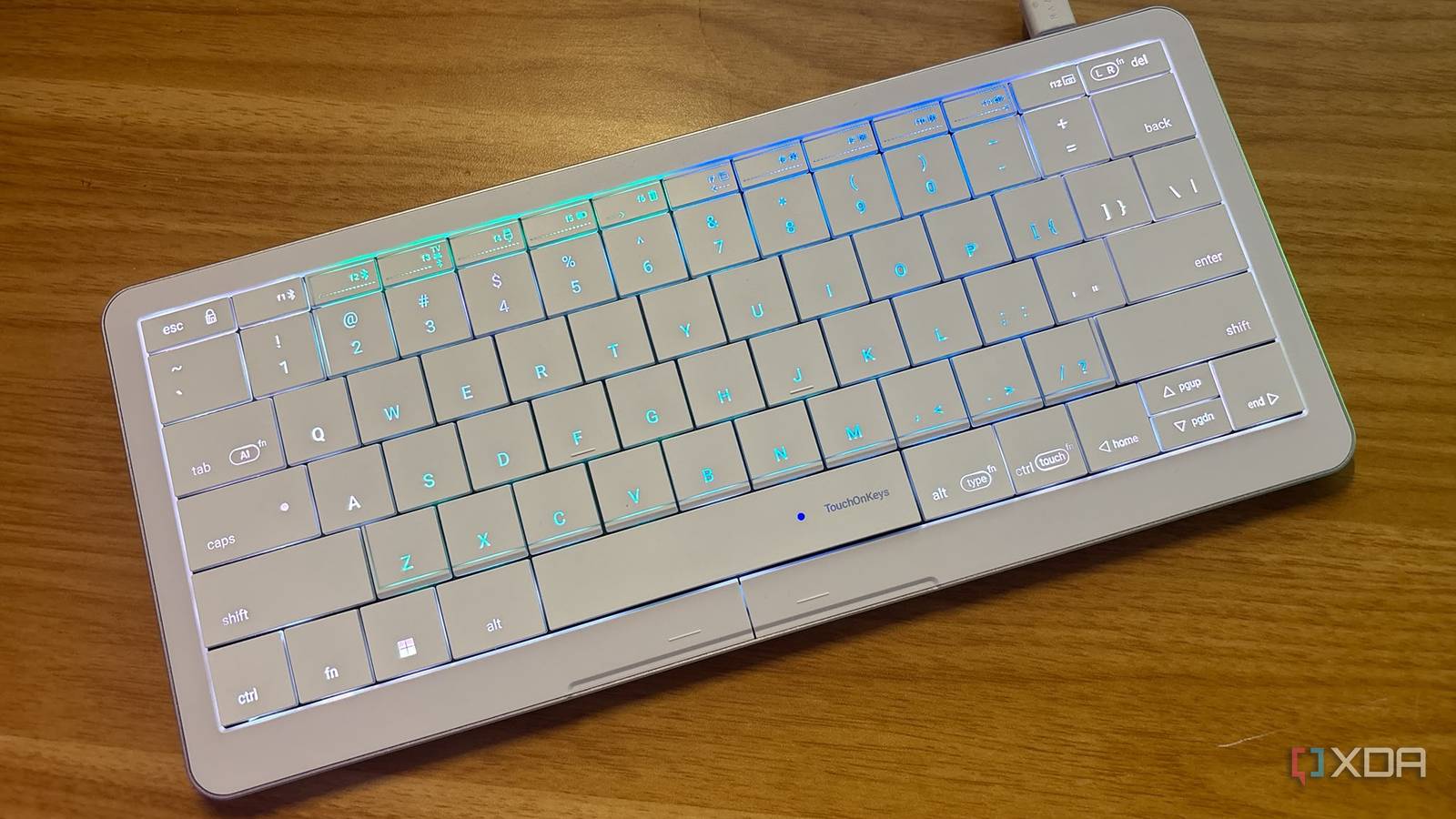
Published Nov 20, 2026, 9:00 AM EST Jasmine is Software and PC Hardware Author at XDA with years of tech reporting experience ranging from AI chatbots right down to gaming hardware, she's covered just about everything. Whether it's breaking news about the latest AMD NPUs or creating video tutorials on social media platforms, Jasmine has contributed to the world of AI and tech in a variety of ways including interviewing the CEO of Razer, AMD's Director of Product Marketing and the VP of Lenovo. Passionate about gaming and PC technology, she has built countless computers, keyboards and other peripherals - knowing them inside and out. If you've got a multi-system desk, then managing this setup can create substantial peripheral clutter and workflow friction. If you've got a primary Windows desktop, a Mac workstation, a laptop, and then a headless or rack-mounted home lab server, you might start to feel overwhelmed with all of the devices you need to control each of them. Standard hardware KVM switches or software-based network KVMs solve the keyboard-sharing issue, but they still require a separate pointing device or rely on active network connections that can fail during BIOS configuration or OS recovery. By consolidating both typing and cursor input into a single compact chassis in the form of the Clevetura S, this addresses both physical desk footprint and cross-platform connection limits through three Bluetooth 5.1 channels and one wired USB-C interface. The Clevetura felt like an ideal piece of kit Being able to eliminate input device friction for my multi-machine workstation is a dream come true The Clevetura S is built on a roughly 75% compact form factor, making it perfect for those who need extra space on their desk and don't want their keyboard to take up a massive footprint. What really sets the keyboard apart is TouchOnKeys technology, where each key features captive touch sensors embedded beneath the alphanumeric key grid. Essentially, you can use the surface of your keyboard keys as a trackpad as well as a keyboard. Unlike some trackpads that rely solely on tap-to-click, the Clevetura S also includes two dedicated physical left- and right-click buttons positioned directly beneath the spacebar. On top of that, the top function row also incorporates captive touch sliders for volume, media scrubbing, or brightness adjustment, which you can program in the TouchOnKeys app. Firmware dynamically distinguishes between vertical keystrokes and horizontal finger glides to prevent accidental cursor drift while you're typing. The board also uses low-profile scissor switches and flat ABS keys. Their closely spaced key profile is a functional necessity, allowing your fingers to track continuously across the touch matrix. Clevetura provides the TouchOnKeys configuration utility across Windows, macOS, and Linux. This lets you enable firmware updates, adjust the Touchzone boundaries, and change sensitivity calibrations across all your operating systems. Setting up the device with four different computers was seamless And I could switch between them all with a single button press So now that I had my input device, which gave me the capability to use a keyboard and a mouse all wrapped up into one, it was time to manage four distinct hosts at once: my PC, my Mac, my laptop, and my home lab. The keyboard supports simultaneous pairing with up to four hosts via three wireless channels over Bluetooth 5.1 and then one direct wired connection via USB-C. There are dedicated shortcut keys on the keyboard itself to allow immediate toggling between the four endpoints seamlessly. To begin with, I set up the physical USB-C tether to a home lab server. As this bypasses wireless stack dependencies entirely (because the keyboard operates as a standard interface device over USB), it provides immediate keyboard and pointer control in any BIOS/UEFI menus, Proxmox consoles, and headless sessions (before any network or Bluetooth drivers even have to initialize). On a Mac workstation, the touch surface supports native multi-touch gestures, including two-finger scrolling, pinch-to-zoom, three-finger Mission Control, and four-finger desktop space switching, without requiring any external Apple Magic Trackpad. It has full gesture functionality over Bluetooth on macOS, but it requires an initial wired USB-C handshake with the TouchOnKeys companion app. Do this first before setting up the Bluetooth connection. Windows natively recognizes standard-precision touchpad gestures out of the box without any mandatory background drivers, downloading the TouchOnKeys software unlocked per-application profiles. I assigned the two remaining Bluetooth slots to a Windows desktop and then an Apple laptop, which eliminated the need to carry a separate travel mouse when I undock my laptop and take it on the go. There are some hardware limitations But the payoff is worth it for those with multi-machine setups It does take some adaptation, as transitioning from a dedicated mouse to an on-key touch surface requires breaking the habit of actually reaching laterally for your mouse. While inline cursor positioning and document scrolling quickly reduce hand travel during text editing and terminal work, high-precision tasks such as video editing or gaming still definitely benefit from having a dedicated mouse. I kept a mouse at my desk for my primary PC, where I typically completed tasks that required that extra level of precision. But the benefit of having the Clevetura S is that I don't have to constantly switch over to input devices to be able to control different elements and devices at my desk. I could simply switch between them with the dedicated keys on the keyboard itself. While I didn't have to worry about battery since the USB-C cable was connected to an always-on home lab node, the firmware includes a battery health mode that caps charging at 80% to reduce degradation during permanent wired use. The device itself is rated for roughly 40 hours of continuous use without RGB backlighting enabled. When I did take the device on the go with me, I found the battery life felt shorter than I expected, especially with the lighting enabled, getting just a couple of days of usage from it. I was skeptical about the keyboard at first But overall, I was impressed Initially, when reading about the Clevetura S, the touch-sensitive keycap did read like a gimmick, but the combination of four-host hardware switching and integrated multi-touch navigation solved a specific spatial and operational problem for my multi-machine desk. The Clevetura S functions best as a central command deck for users who routinely jump between macOS, Windows, and Linux systems, particularly when one of those machines requires a reliable wired fallback for local console or BIOS administration. In turn, you are accepting a modest battery life and lower pointing precision than a dedicated ergonomic mouse in exchange for eliminating that separate pointing hardware across four active computers. Clevetura S Wireless Bluetooth - 3 Channels Backlight RGB LEDs This keyboard has a built-in trackpad thanks to TouchOnKeys technology. Battery 1900 mAh Li-ion Polymer Battery Num Pad No Wired operation USB-C Dimensions 12.4 mm x 292 mm x 130 mm Charging USB-C Color Black / White Features TouchOnKeys Brand Clevetura
One device now controls my PC, home lab, Mac, and laptop at once
Full Article
Original Source
Read the full article at Xda-developers →KhanList aggregates and links to publicly available news content. We do not host full articles from third-party sources. Always verify important information with original sources.