
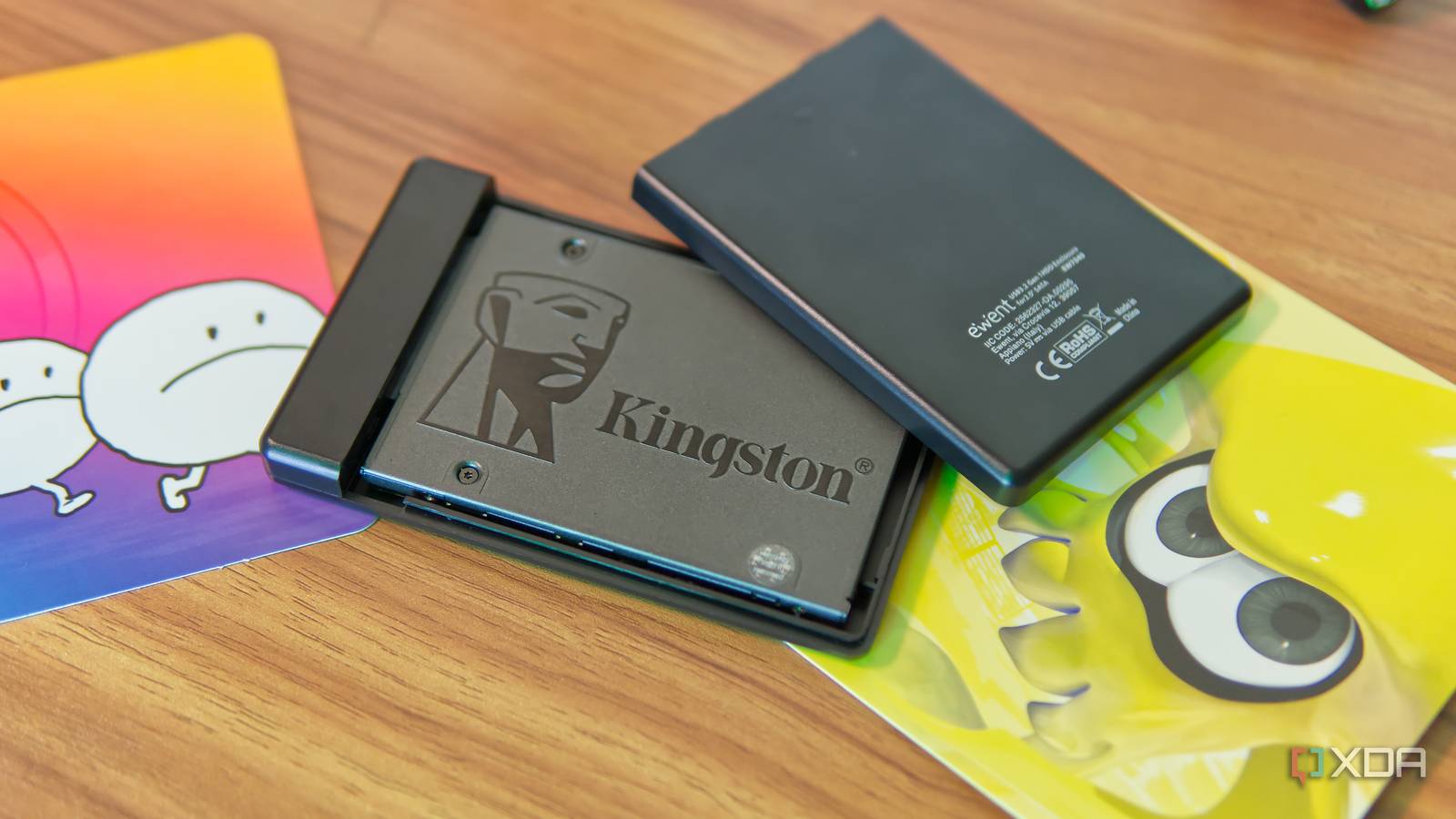
Published Oct 31, 2026, 7:00 AM EDT João has been covering the tech world for over 7 years, with a heavy focus on laptops and the Windows ecosystem. I also love all things tech and videogames, especially Nintendo, which he's always happy to talk about. Prior to joining XDA in 2021, he worked at Neowin: https://www.neowin.net/news/poster/jo%C3%A3o-carrasqueira/ With NVMe SSDs becoming the obvious choice when building or buying a new PC, and HDDs being the cheaper choice for mass storage, it's easy for SATA SSDs to fall between the cracks. You might think of them as the worst of both worlds, but they're far from worthless. Recently, I threw out a 10-year-old laptop that had nothing left to give, but I did have a SATA SSD inside it that didn't get much use before I replaced the laptop, so I found a new purpose for that SSD. With a cheap enclosure, it became a perfect backup drive when I care about speed more than massive amounts of space. This old SSD still has a lot of life in it They last a long time I'm not saying I would necessarily advise you to buy a new SATA SSD today, but there's a good chance that, like me, you have an old laptop lying around that could provide a nice backup drive if needed. It may sound like a bad idea to use a 10-year-old laptop's drive, but the drive itself is actually a good bit newer. This laptop had originally shipped with an HDD, and it was only a couple of years later that I replaced that HDD with an SSD (that HDD also became a backup drive at the time), and then that laptop was superseded by another model not too long after, so it stopped being my most active device. All things considered, this SSD hasn't had a lot of writes on it, so it can still last me a good few years. I even decided to check with CrystalDiskInfo, and it reported the SSD health is at 94%, which is still pretty good. And while SATA SSDs are nowhere near the speed of a modern NVMe SSD, they're still a good bit faster than an HDD, so moving data to and from them is going to take less time out of your day. It's not ideal if I want to back up large drives, but it's perfect for my needs because there's usually only a few gigabytes of data I need to back up at any given time, and this is just faster. SATA enclosures are much cheaper I could get one for under $20 In addition to the drives themselves, the ability to use them externally is also much cheaper compared to an NVMe drive. SATA SSDs typically come in a 2.5-inch form factor, and buying an enclosure for that size is dirt cheap. Mine cost me just under $20 and it offers USB 3.2 Gen 1 speeds, meaning I get 5Gbps of bandwidth. And you can find them even cheaper on websites like Amazon. NVMe SSDs are certainly faster, but making use of that speed means you also need a faster USB protocol and more expensive hardware in the enclosure itself to handle the PCIe NVMe communication. You can find some cheaper options that use the same USB protocol, though they usually start at a little over $20, and even then, you'll be limiting yourself to USB 3.2 speeds, which are solid, but fall very short of what an NVMe drive can do. If you want that NVMe drive to be worth its price, you need something like USB4 or Thunderbolt 4, and you won't find those enclosures for less than $60. That cost adds up, especially if we're comparing it to just reusing a drive you already have. How does it compare to an HDD? It's much faster... sometimes Seeing as I have both an external HDD and an SSD at home, it's worth seeing how they compare in terms of speed. I should note that the HDD here is a fully enclosed and integrated solution, so I don't know the exact specs of the hard drive itself, but it does use USB 3.0, so the bus speed is the same. I tried transferring the same set of files, totaling around 7GB, from my PC to the external drives, and then back to the PC using TeraCopy. Using the 1TB HDD, transferring the files from the PC took 1 minute and 16 seconds for an average speed of 94MB/s, while copying them back to the PC took 2 minutes and 3 seconds, averaging 58MB/s. With the SSD, however, things are a little more complicated. This is a relatively low-end SSD and while it's much faster initially, speeds fall off a cliff after a couple of gigabytes have been written. With a 7GB transfer, copying files to the SSD actually ended up being a bit slower, at 1 minute and 46 seconds, averaging 64MB/s. Transferring the files back to the PC, however, took just 49 seconds, averaging 144MB/s. It's worth looking at the speed graph above because, with the SSD, you can see write speeds start off much faster, nearing 400MB/s for the first 2GB transferred. If I'm backing up smaller files than 2GB, the SSD is nearly four times faster than the HDD, but it slows down the longer it goes on. As for read speeds, the SSD seems to spike up to nearly 400MB/s frequently during the transfer process, and in the end, the transfer was over twice as fast on average. If I'm backing up things like photos, documents, or music on a regular basis, that 2GB limit is more than enough to make the SSD the fastest option by far. In some cases, though, the HDD will still win. It's a great deal for the price Considering I only had to spend under $20 to turns this SSD into a backup drive, I'd say those results are very positive. If I need mass storage, I might still back up files to my HDD, but if I need a quick backup, the SSD is easily the faster option, and it's faster to restore that data after I reset or format my PC, too. I'm glad I was careful to take out the SATA SSD before trashing my old laptop, because it can still come in handy often. Sabrent 2.5-inch SATA Enclosure Storage Capacity None included Compatible Devices 2.5-inch SATA drives Portable Yes This Sabrent SATA enclosure offers USB 3.0 speeds with a full-size USB Type-A port, and it's suitable for both HDDs and SSDs in a 2.5-inch form factor.
My old SATA SSD isn't e-waste, and a $20 enclosure turned it into the fastest backup drive I own
Full Article
Original Source
Read the full article at Xda-developers →KhanList aggregates and links to publicly available news content. We do not host full articles from third-party sources. Always verify important information with original sources.