
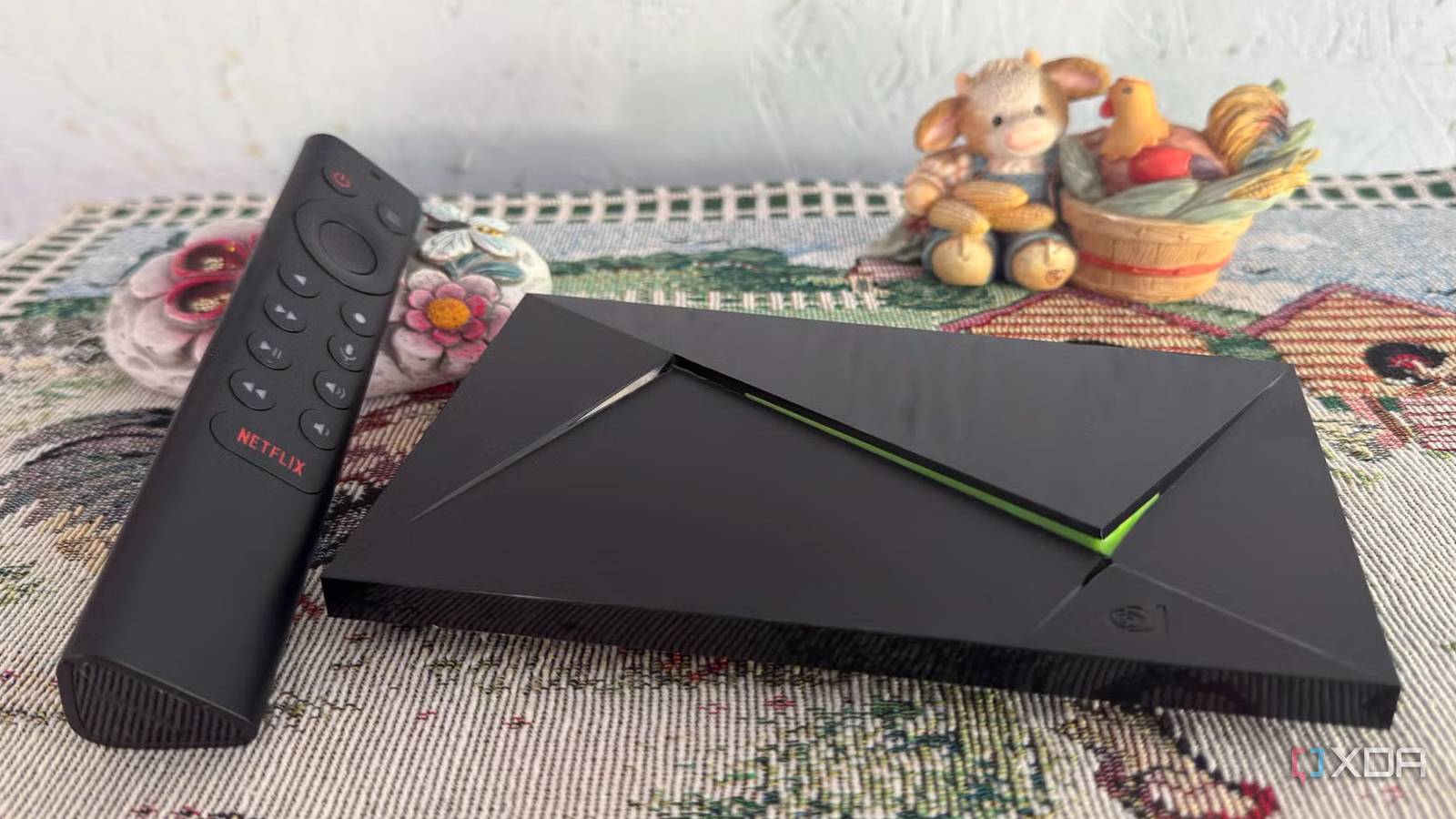
Published Aug 27, 2026, 6:00 PM EDT Based in rural Minnesota, Brian Burgess worked in IT for 10 years before finding his passion for writing about consumer technology. Brian earned his degree in computer and network technology in 2000. He held various IT positions, including help desk support, router installations for IBM, database administration, and other associate network administration roles. He's been a personal technology journalist for 18 years and has written thousands of articles about Microsoft products and services, Android, iOS, streaming, and more. He has written for notable tech sites including XDA, InformationWeek, How-To Geek, Byte, groovyPost, and others. When he is away from the keyboard, you will hear him playing guitar, working outdoors, and watching Star Trek. Released in 2019, the Nvidia Shield TV Pro remains a top-tier Android TV box for streaming, Plex server use, and AI-enhanced upscaling). However, the seven-year-old box is getting a bit old, and sometimes it slows down, or things don't work as they should. With this in mind, I made a few setting adjustments so my Shield TV Pro runs more smoothly and faster. From ensuring the entire system runs faster to tweaking individual settings for specific results, these are useful whether you're new to the Nvidia Shield TV Pro or a longtime user. Keep things cool Adjust the fan Like computers and other electronics, when they get too hot, they slow down and things stop working. Keep the high-tech inside your Shield TV or Shield TV Pro cool, so the experience runs more smoothly. My Shield TV Pro can start running hot under heavy load when I run Plex or view Jellyfin content at high resolutions. The result is that videos buffer and apps load slowly. So, while I wait for a new Nvidia Shield TV Pro to be released, I do what I can to keep this going. I can improve the device's cooling by adjusting the fan mode. To adjust the system's fan cooling, go to Settings > Device Preferences > System > Fan Mode, and select Cool. I hear the fan running more loudly, but it's not as bad as a PC, NAS, or Server under heavy load with a cooling fan blaring. Configure aggressive AI Upscaling gets overzealous Sure, AI is everywhere, and you'd expect to see it in a high-tech streaming media box. Nvidia was an early AI adopter, and the AI Upscaling feature was one of the device's early selling points. However, pixelation or buffering can occur with AI upscaling because it gets too aggressive. Also, some content simply doesn't look right — mainly 4K content. When that happens, I adjust the feature to a reasonable level or disable it entirely. In fact, if something doesn't look or act right, it's one of the places I start by troubleshooting my picture. Go to Settings > Device Preferences > System > Customize Quick Settings >toggle on AI upscaling. Press and hold the Select button on the remote to choose an AI option on the fly. AI-Enhanced with medium detail enhancement should be fine for 720p/1080p content, and Basic should be fine for grainy DVD rips below 720p. However, results will vary based on the file, codec, network connectivity, etc. Also, if you're watching properly formatted 4K content, turn it off since it doesn't need upscaling, and that's when the AI feature can get in the way of perfectly crisp content. The AI Upscaling feature doesn't magically turn a native 4K disc remux or 4K HDR file into an explosive picture experience. It's best for lower-resolution files with artifact-prone scenes. Max the processing power Turn it up to 11 Media quality has improved a lot over the years, with 4K and UHD video and high-bitrate audio. Self-hosted media from services like Plex and Jellyfin, plus heavy multitasking, push the Shield TV Pro's advanced hardware to its limits. If the processor isn't ready to handle the burden, the viewing quality suffers. So maxing out the processor to handle heavy loads improves performance. If your Shield TV Pro supports it, go to Settings > Device Preferences > System > Processor Mode and change it from Optimized to Max performance. Maxing out the processor is another good reason to ensure the fan runs at full speed to keep the components cool. I usually turn it back to Optimized if I am watching streaming content from providers like Netflix or YouTube. That will help with hardware longevity. Make the user interface lighter A more responsive experience A more responsive interface always improves the experience of a tech device. For instance, the UI on a Windows PC has unnecessary animation bloat, which taxes the GPU and other system resources. So, instead of a pretty UI, I open sysdm.cpl and set visual effects to Best Performance. You can do something similar on the Shield TV Pro to remove unnecessary UI animations. The Nvidia Shield TV Pro's Tegra X1 performance can also be used better elsewhere. To adjust the settings, enable Developer options and go to Settings > Developer Options, scroll to the Drawing section, then set the Windows Animation Scale, Transition Animation Scale, and Animator Duration Scale to 0.5x to reduce extra animation effects. This doesn't actually make the processor faster, but it sure does make an aging device feel new again by making the UI feel more lightweight and responsive. Adjusting it below 0.5x is too jarring when switching between menus. The 0.5x setting is a perfect middle ground and makes navigation feel snappier. Helping the Nvidia Shield TV Pro's performance Of all the Android TV-powered boxes I've used, the Nvidia Shield TV Pro is the fastest and best-performing. Google's own Google TV Streamer is buggy, and the UI lags compared to some budget boxes. But both are far slower in comparison. Still, I adjust these settings to eke out even more performance from my Nvidia Shield TV Pro. Optimizing an already powerful SoC and sensibly managing upscaling provide a better experience, whether your Shield TV Pro is brand-new or has been in operation for several years.
My Nvidia Shield TV Pro worked much better after I changed these key settings
Full Article
Original Source
Read the full article at Xda-developers →KhanList aggregates and links to publicly available news content. We do not host full articles from third-party sources. Always verify important information with original sources.