
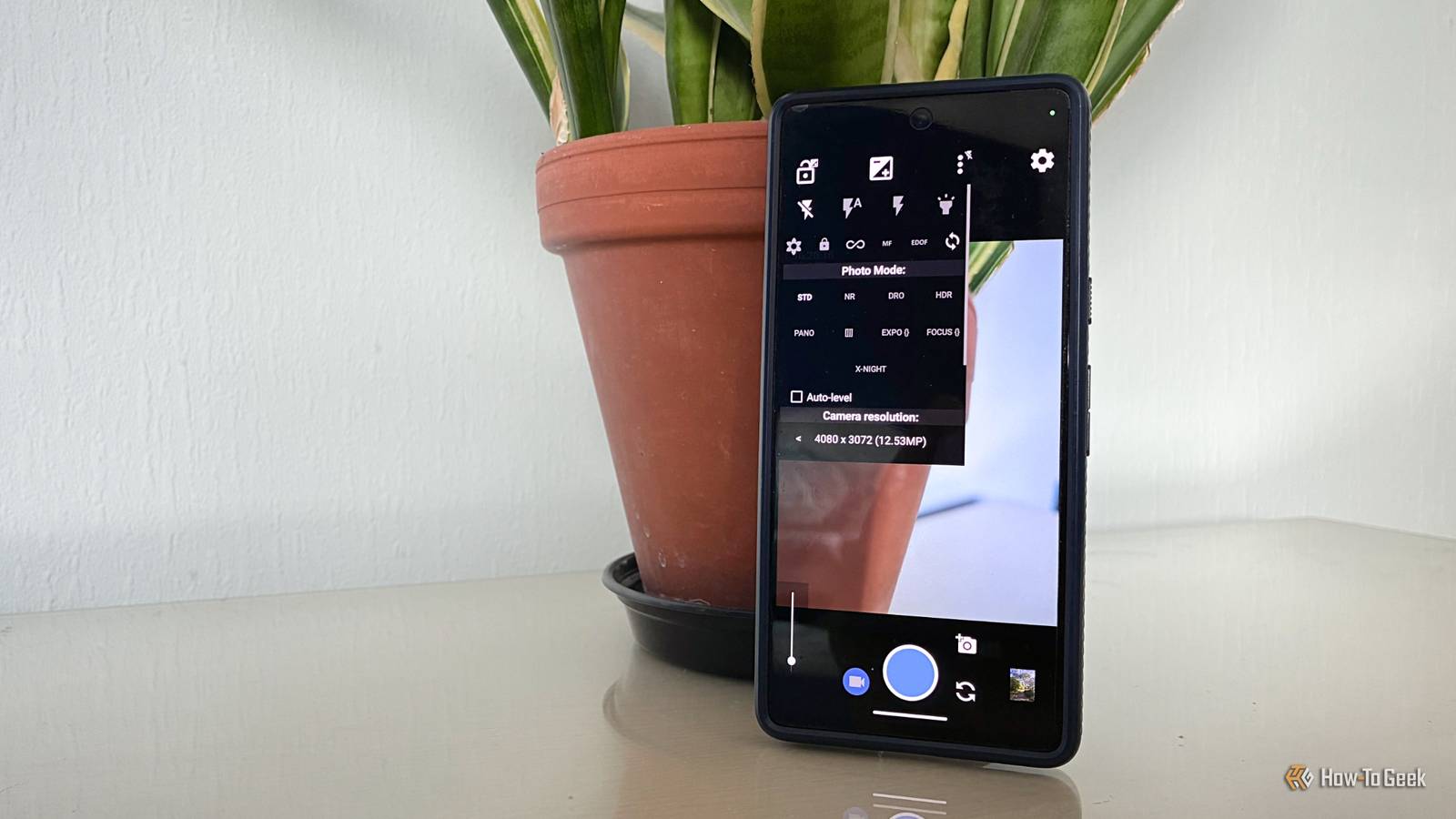
Published Oct 13, 2026, 3:00 PM EDT Andy is a senior writer and former Mac editor at HTG. He has over 20 years experience as a consumer tech journalist, and has covered everything from the old Palm Pilots to the original iPhone and Android devices, to the latest gadgets. He has written and edited for UK-based print publications like PDA Essentials and Android Magazine, and online at sites including MUO, Android Tips and Hacks, broadband.co.uk, and Envato. He has a passion for all things mobile and has been a keen Mac enthusiast since 2005. Google's Pixel phones have always been renowned for their excellent cameras. But what frustrates me is that what you see in the viewfinder doesn't always match what you get after you press the shutter button. Although the Pixel devices have excellent hardware, Google's computational photography and, increasingly, AI are at the heart of the images they produce. Photos are heavily processed after capture, adjusting exposure, contrast, sharpness, and color to create something often very different from what you thought you were shooting. I want more control over how my photos look, so I switched to Open Camera, which takes a more old-fashioned approach to photography. Google Pixel photos change after I take them Google's processing does too much Computational photography is the reason why smartphone cameras have gotten so good. It combines multiple exposures and applies extensive processing to produce the final image. The viewfinder offers a preview, but the finished photo can look noticeably different once processing is complete. On a Pixel, this is especially clear. You compose your shot in the viewfinder and get something that looks naturalistic. But when you open it, the processing snaps into place. Images look brighter, and the colors become more vivid. The shadows are lifted to reveal detail that you didn't necessarily know was there. A lot of these changes are positive. And for quick snapshots and anyone who doesn't know much about taking photos, they produce some genuinely great results. It's actually quite hard to take a terrible photo with a Pixel camera, regardless of the light or the circumstances. But when you want more control, the Pixel oversteps. It brightens images and seems to ramp up pretty much every setting to create a vivid, overly sharp photo that might be the complete opposite of what you want. I've tried reducing the brightness in the Pixel app to compensate for the processing that will follow. And there's always the option to shoot in RAW+JPEG mode, which gives a flatter, more naturalistic image as a RAW file. But RAW files need processing and lack the convenience of a JPEG. The solution, in the end, is to use a different camera app. Open Camera gives me more control over my photos My pics look the way I intended Open Camera is a free open-source camera app for Android phones. It delivers a more old-fashioned approach to using a smartphone camera. It saves JPEG images and tweaks them slightly, but doesn't apply Google's distinctive processing, giving me a different starting point for my photos. Open Camera is designed for photography and for photographers. It's packed with features and settings that let you be creative while still keeping control. You've got controls for exposure, manual focus, white balance, ISO, and more. If you want to adjust an image's brightness, you don't have to let Google's algorithms make the choices for you. A quick tweak of the settings will do it with more control. You can shoot shadows and contrasty scenes with Open Camera, confident that processing you don't control won't flatten the resulting image. You can experiment with exposure bracketing and view an on-screen histogram to precisely judge the levels in your shot. Using Open Camera can take a bit more work. In simple point-and-shoot situations, I will often return to the Pixel camera. But when I've got a bit of time and want to control what I'm doing, Open Camera is like a breath of fresh air. It isn't just down to the lack of processing either. The app has got so many other features. I used the shutter speed controls recently to capture a partial solar eclipse in a way that wouldn't have been possible with the native Pixel app, and I love the fast burst mode for capturing lightning during storms. And when I do want to edit the images, the less processed look makes them perfect to move into Snapseed to play around with. There are trade-offs to using a less processed camera app Whisper it, but the quality varies If you judge a photo's image quality primarily by detail, then I should acknowledge that Open Camera trails behind the Pixel app. Because Google's computational photography stacks multiple frames together, it's able to extract so much more detail from a scene. There's also a big difference when shooting in challenging lighting conditions, especially at night. Open Camera has a night mode that is okay, but not great. The Pixel's night mode produces striking output, although in some ways it actually highlights my complaint. It sometimes makes nighttime scenes look more like daytime. I can't deny that it's also not as nice to use. The Pixel app might be overly simple in some ways, but that simplicity makes shooting quite enjoyable. Open Camera just doesn't look as nice, especially when you start delving into the settings and controls. I prefer having control over how my photos look But when it comes down to it, I prefer having control over how my photos look. Google's camera app is still the best bet for quick, reliable shots that need little or no editing. I haven't ditched it completely, and still find uses for it at times. But Open Camera suits my preference for natural-looking images and the option to edit them in the way I want. Many Pixel photographers have long been wishing for Google's app to be updated with the option to disable or at least dial down some of the heavy-handed processing. Until that time comes — and it probably won't — I'll continue using Open Camera.
My Google Pixel's photos look different after I take them, so I switched to a camera app that doesn't edit my photos
Full Article
Original Source
Read the full article at Howtogeek →KhanList aggregates and links to publicly available news content. We do not host full articles from third-party sources. Always verify important information with original sources.