
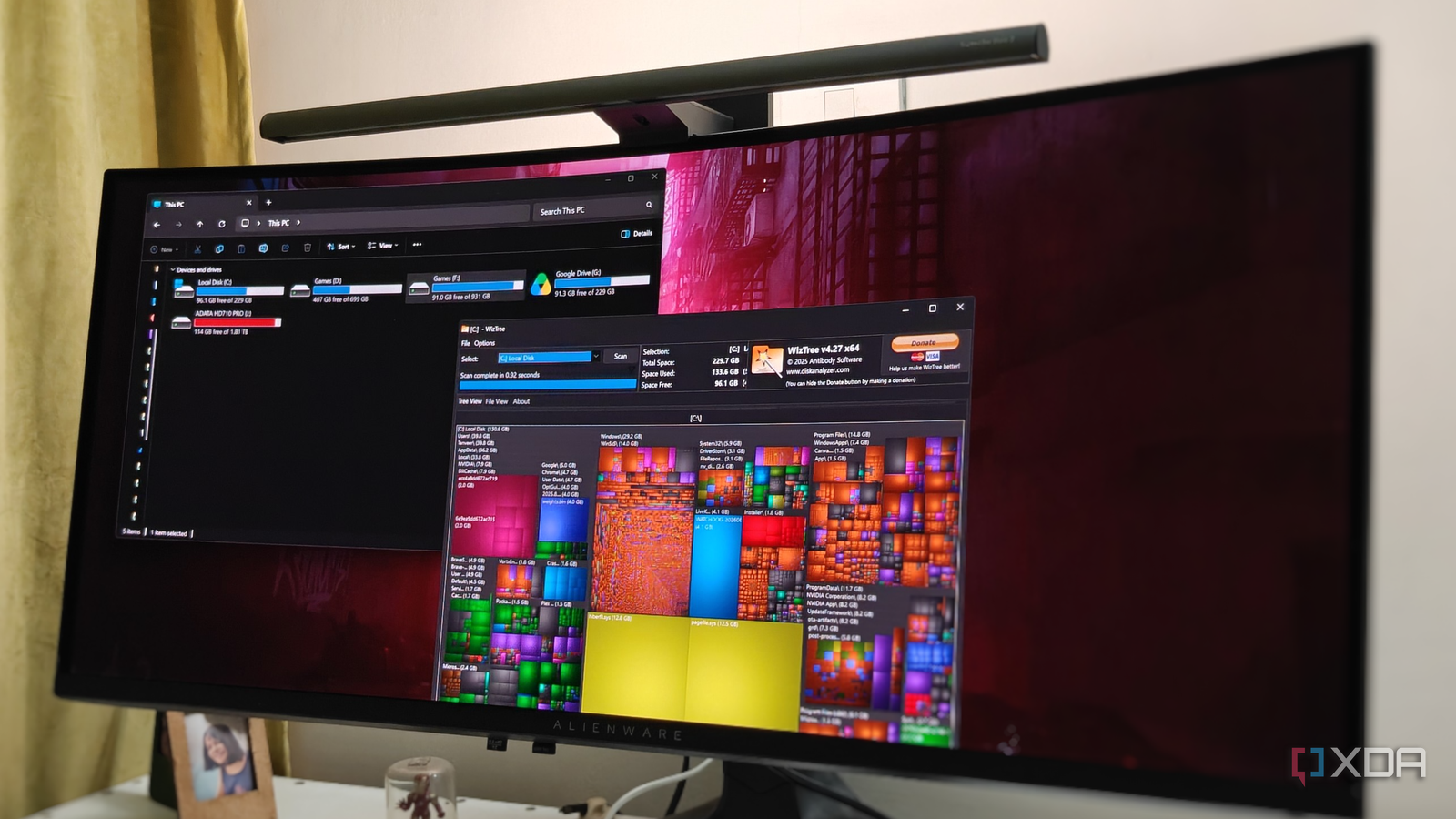
Published Nov 1, 2026, 9:00 AM EST After a 7-year corporate stint, Tanveer found his love for writing and tech too much to resist. An MBA in Marketing and the owner of a PC building business, he writes on PC hardware, technology, and Windows. When not scouring the web for ideas, he can be found building PCs, watching anime, or playing Smash Karts on his RTX 3080 (sigh). I have 2TB of combined SSD storage on my PC, and although it's never felt lacking, my C: drive is frequently running out of free space. I like to reserve most of my storage for my games, so my system partition is just over 200GB. Every few months, I see it in the red, wondering how on earth I managed to do it again. I finally took the time to answer that question, and it turns out that Windows and I share the blame for this one. My default storage settings were destined to fill up my C: drive sooner rather than later. Plus, Windows loves to reserve space for files and folders that can be safely deleted without hurting the system in any way. Tackling both of these issues gave me tons of storage back on the C: drive, also ensuring that it wouldn't fill up again anytime soon. I stopped installing every new program on the C: drive Manually changing the install location is outdated This is one setting I didn't know about before researching this article. While I always manually select the install location for any new application, I had previously spent years installing at the default location. And that turns out to be the C: drive. I never knew that this default path could be changed in the storage settings. So, I had unknowingly accumulated several programs on the C: drive that could just as easily have been installed somewhere else. So, the first thing I did was navigate to Settings > Storage > Advanced storage settings > Where new content is saved, and changed C: to F: under New apps will save to. This meant that every new application would be installed by default on the F: drive instead of filling up the C: drive. However, this didn't undo the damage done by years of muscle memory, so I also had to move the programs I had already installed. The simplest method was to uninstall and reinstall them on the new partition, since most of them were not Microsoft Store apps. Doing this alone freed dozens of GBs on the C: drive, and the relocation was quick as well. You can also change the default Downloads folder, so that large downloads don't hog space on your system drive. Clearing large unused files on the C: drive was the next step There may be a lot of wasted space hiding from you As I said, I had already recovered several dozen GBs, but I ran a WizTree scan just to see if unnecessary files were wasting space on the C: drive. The scan finished in seconds and showed me several areas of concern. Firstly, the hiberfil.sys file was occupying nearly 13GB of space alone. I never used hibernation, and I remembered disabling hibernation a while back, but it turns out the change didn't stick. So, I disabled it again and recovered the precious space. Another large folder that stuck out in the tree view was NVIDIA > DXCache in the AppData folder. It turns out that every old Nvidia driver leaves behind shader files that are no longer useful to the new version. In my case, the folder had grown to 8GB and could be safely deleted, since my games would rebuild the shader cache they actually needed. Lastly, the LiveKernelReports folder had a file named WATCHDOG-20260612-1431.dm, which obviously meant nothing to me. So, I checked what it was and found that it was a dump file created by Windows to log a kernel error, driver error, GPU issue, or BSOD. These files are simply historical logs and can be safely deleted. It gave me 4GB of storage back, but it could be larger in your case. Regular disk cleanup usually doesn't catch unless you click Clean up system files. I left the 12.5GB pagefile untouched, since it was integral to the smooth performance of the system, and also because I had already recovered a healthy amount of space on the C: drive. Turn Storage Sense on if you haven't already It's turned off by default So, you've erased unnecessary files on your drive and changed the default installation location for future apps. Still, it's best to reassess whether you're using all the built-in storage features of Windows or not. Storage Sense is one such feature, automatically cleaning up your drives based on rules you define. While it runs by default when your drive is low on space, you can change it to run every day, week, or month. Storage Sense removes your temporary files, such as Windows Update cached files, thumbnails, and DirectX shader cache (separate from the Nvidia DXCache I mentioned). You can also allow Storage Sense to delete the files in the Downloads folder if they've not been opened for a set number of days (up to 60). By default, Storage Sense deletes the files in the Recycle Bin if they've been there for 30 days. By periodically cleaning up forgotten and junk files on your system, Storage Sense keeps things snappy. This also avoids extra manual upkeep from the user's end, since Windows is maintaining the storage automatically in the background. Reclaiming my C: drive storage should be easier I managed to free up a significant amount of space on my C: drive, but this should not have been this complicated. Storage Sense, Disk Cleanup, and default installation locations are simple enough, but how is one supposed to spot large files serving no purpose anymore? WizTree helped me on the way, but Windows should do more to regularly inform users about particularly large files wasting storage on their drives.
My C: drive kept running out of space, and I finally found how to stop it for good
Full Article
Original Source
Read the full article at Xda-developers →KhanList aggregates and links to publicly available news content. We do not host full articles from third-party sources. Always verify important information with original sources.