
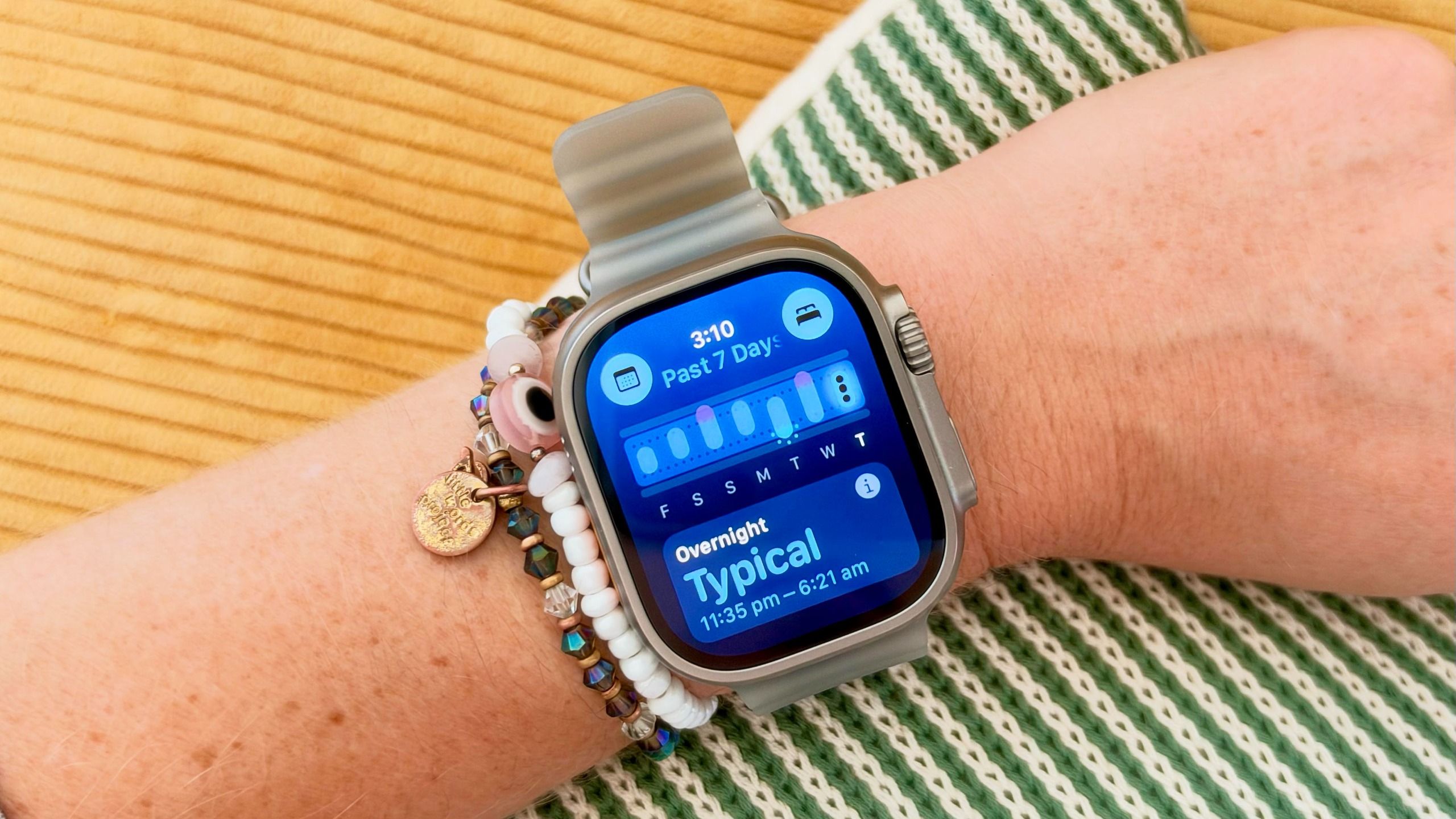
(Image credit: Future) Despite writing about fitness tech for a living, I’m always surprised when devices strapped to my pulse points spot things before I do. A few years ago, I wrote how my Oura Ring spotted I was pregnant weeks before I did a test; this week, the Apple Watch Vitals app knew my toddler had passed on his germs before I felt the rumblings of a cold.Impressive, I know, but if you’re new to Apple Watch, you might not know a few tweaks can help you get the most out of the Vitals app. This applies to all Apple Watches, not just the Apple Watch Series 12 and Apple Watch Ultra 4, which have the new Readiness and Daytime Vitals functionalities. How to make your Vitals app more accurate Let’s start by taking a look at what you’ll see when you open the Vitals app. When you open the Vitals app on your Apple Watch, you’ll be able to use your digital crown to scroll through the metrics: heart rate, respiratory rate, wrist temperature, and blood oxygen. If you’re wearing an Apple Watch 12 or Apple Watch Ultra 4, you can also see recovery HRV. You can tap into each metric to learn more, but if there are any outliers, they’ll immediately be in purple, and your watch will give you a breakdown of what might be causing the change. This week, my overnight vitals told me my resting heart rate and respiratory rate were slightly off — signs that my body was under increased strain. A few days later, I developed a head cold.Knowing you’re getting sick before you actually get any symptoms not only allows you to prevent spreading germs, but also to get ahead of your recovery, allowing your immune system to fight the virus before it takes hold.I’m a few weeks out from my seventh marathon, so I've spent this week dialing my mileage back and focusing on rest and hydration to give my body the best chance to shake the illness before race day.But how can you be sure your watch is tracking your health correctly? Here are some little tweaks to improve the accuracy of the Vitals app on your watch.1. Ensure your watch fits correctly This is probably more of an issue if you have wrists as scrawny as mine and you’re wearing an Apple Watch Ultra, but to track correctly, the watch needs to be sitting close to your skin.Get instant access to breaking news, the hottest reviews, great deals and helpful tips.Make sure your watch is tight enough to ensure it’s not moving around your wrist when you sleep, but not so tight that it’s cutting off circulation. It should also be sitting above your wrist bone, toward your elbow, not on your wrist bone or leaning toward your hand.2. Wear your watch continuously overnight The best way for the Vitals app to spot an outlier is to have enough data to establish your baseline. Make sure you wear your Apple Watch to bed every night so it can collect this data.If you have a new Apple Watch, the Vitals app will need seven nights of data to establish typical ranges for things like respiratory rate and heart rate. (Image credit: Future)3. Make sure you turn sleep tracking on You’ll probably already be doing this if you want a sleep score when you wake up, but to see your overnight vitals, make sure your watch is in Sleep Focus. If, like me, you forget to do this, you can set up an automatic Sleep Focus window.4. Make sure the required settings are enabled If you’re not seeing anything in your Vitals app, chances are you need to check that you’ve enabled everything correctly. To do this, head to the Watch app on your iPhone, click on Passcode, and make sure you’ve turned Wrist Detection on. Go to your iPhone and Watch privacy settings and make sure that Heart Rate and fitness tracking are enabled. It’s also worth keeping your iPhone and Apple Watch updated with the latest software to ensure you’re getting the most accurate health algorithm. Follow Tom's Guide on Google News and add us as a preferred source to get our up-to-date news, analysis, and reviews in your feeds. More from Tom's GuideCan the $99 Fitbit Air beat the $799 Apple Watch Ultra 3 at fitness tracking? I manually counted 4,500 steps to find outI walked 4,000 steps with the Apple Watch Ultra 3 vs Samsung Galaxy Watch Ultra 2 — and the winning margin was razor-thinOura vs Whoop vs Fitbit Air — 5 questions to ask yourself before buying a screen-free fitness tracker Jane McGuire is Tom's Guide's Fitness Managing Editor, which means she looks after everything fitness-related - from running gear to yoga mats. An avid runner, Jane has tested and reviewed fitness products for the past ten years, so knows what to look for when finding a good running watch or a pair of shorts with pockets big enough for your smartphone.
My Apple Watch spotted I was getting sick before I did this week — here's how to make the Vitals app more accurate
Full Article
Original Source
Read the full article at Tomsguide →KhanList aggregates and links to publicly available news content. We do not host full articles from third-party sources. Always verify important information with original sources.