
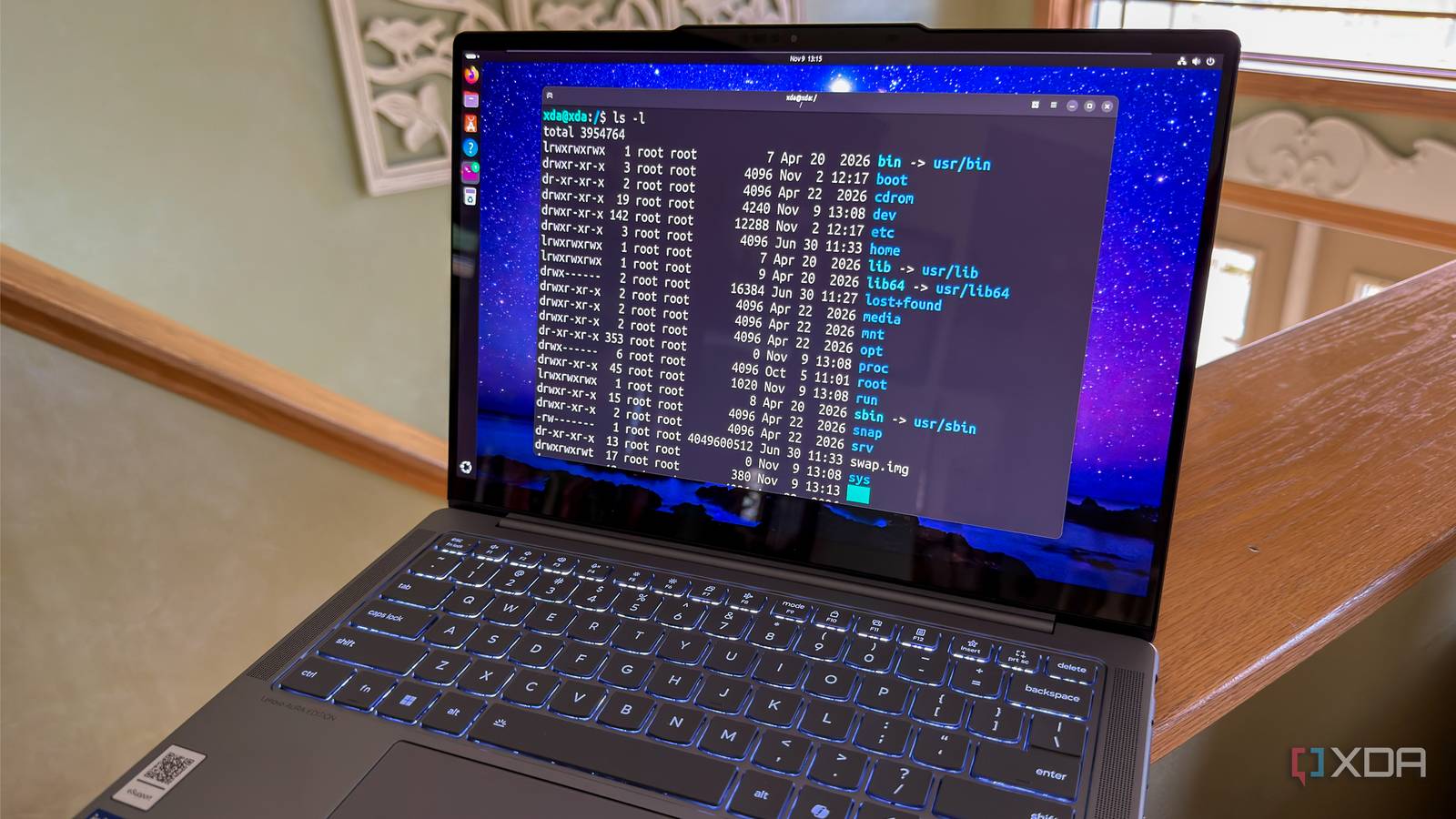
Published Nov 14, 2026, 12:30 PM EST Korbin is a Linux system administrator who spends most of his time in a terminal figuring out how things actually work. Over the last decade he's written hundreds of articles about Linux configuration, troubleshooting weird problems, and using open-source tools in the real world. He also works a lot with Windows systems and networking, especially in mixed environments where things don't always behave the way the documentation says they should. Writing things down is how he makes sense of it all and hopefully saves someone else a few hours. My first experience with file permissions in Linux was when I encountered an error and learned that running chmod 777 script.sh somehow made that error go away. Sound familiar? At first glance, numeric and symbolic permissions like 764 and rwxrw-r-- are enigmatic and confusing, so I spent the first couple of years on Linux basically ignoring them. Eventually, when I started hosting services and building a home lab, it was time to take file permissions (and security in general) more seriously. It can feel overwhelming if you don't approach it the right way, so I made my own mental model about how permissions work. All file permissions essentially answer three questions: who is asking, what do they want to do, and what are they trying to do it to? Thinking about it this way is what demystified the concept for me once and for all. Running ls on a file answers two questions Who's asking, and what do they want to do? There are several ways to view file permissions, but the most common way to check them is with a simple ls -l: -rwxrw-r-- 1 alice media 4096 Nov 9 notes.txt The first character is the type of entry (either a dash for a regular file, or a d for a directory). After that, nine characters represent the permissions for the file. Those are split into three blocks of three characters. To know what the first two blocks answer, you need to look at the owner and the group associated with the file, which are alice and media, respectively. The third block is always for "other" (any user who is neither alice nor part of the media group). That answers the first question: who's asking? So, the first rwx means that alice gets read, write, and execute privileges, the second rw- means that media gets read and write privileges, and the last r-- means the other users only get read permissions. This gives us the answer to the second question: what do they want to do? The answer is either read, write, or execute, and the output from ls tells us exactly what they're permitted to do. It starts making more sense once you think of each block as answering a yes or no question, instead of just being nine random characters. That's how I got fast at scanning file permissions with a glance. One detail that tripped me up at first is that the most specific permissions are what apply. So if an owner only has read permissions on a file, but the group they're in has write permissions, that user will still be denied when trying to write changes, since the more specific permission (owner) doesn't allow it. The next question is the trickier one What are they trying to do it to? Question number three is a little more confusing to answer. On a file, r lets you read the contents, w lets you make changes to them, and x lets you run the file. Directories have the same permission system, where r lets you read the names of the files in the directory, w lets you rename files, create new ones, and delete them, and x lets you execute the files (if they have execute file permissions themselves). That last caveat is the confusing part. Even if a file has execute permissions, the directory in which it resides also needs execute permissions if you want to run the file. Likewise, a directory with read and execute permissions but no write permissions would let you see and execute files while preventing you from moving, renaming, or deleting them. The takeaway is that permissions have to work all the way down the path. Once you understand that a directory's permissions play an equal role to the permissions of the files it contains, you can accurately answer question three: what are they trying to do it to? I recently found myself answering this question with my media folder, when a container was unable to traverse it, despite having the proper permissions on the files. It happened because of permissions being set to 700 (or rwx------) on the directory, and the container wasn't the owner. The numbers are just addition chmod 755 is equally easy to read I can remember being slightly annoyed when I took the time to learn about rwx notation, only to find out that permissions are also represented by numbers. Truth is, though, it's very easy, and it boils down to trivial arithmetic. Octal permissions still answer the same questions, only in a compressed form. Each number represents one block, just like rwx does. Read permissions are worth 4, write is worth 2, and execute is worth 1. Add them together, and you get 7. Armed with that information, you can look at a file with rwxr-x--- permissions and know almost instantly that it translates to 750. I still use symbolic notation more than numbers, just because it feels more intuitive and only changes what I specify. So, running chmod g+w on a file will add write permissions for the group, while leaving the other blocks (owner and other) alone. I find that easier than using numbers, but either approach is valid. Admittedly, there's still more to Linux permissions than what's been covered here. There's setuid, the sticky bit, ACLs, umask, and SELinux, all of which have their own share of confusing concepts. That said, they all build on the same questions as the three we've learned how to answer. Setgid on a directory allows us to set the group for new files, ACLs apply question one to numerous groups, and umask sets default access permissions for newly created files — answering the same questions as before, only at a different stage. Asking questions beats memorization Next time you hit a "permission denied" error, don't immediately reach for the chmod 777 fix. Check the output of ls -l and answer: who am I to this file, what am I trying to do, and is it a file or directory? Answering those questions tells you exactly what permissions you need on the file.
Linux file permissions confused me for years until I realized they're just answering three questions
Full Article
Original Source
Read the full article at Xda-developers →KhanList aggregates and links to publicly available news content. We do not host full articles from third-party sources. Always verify important information with original sources.