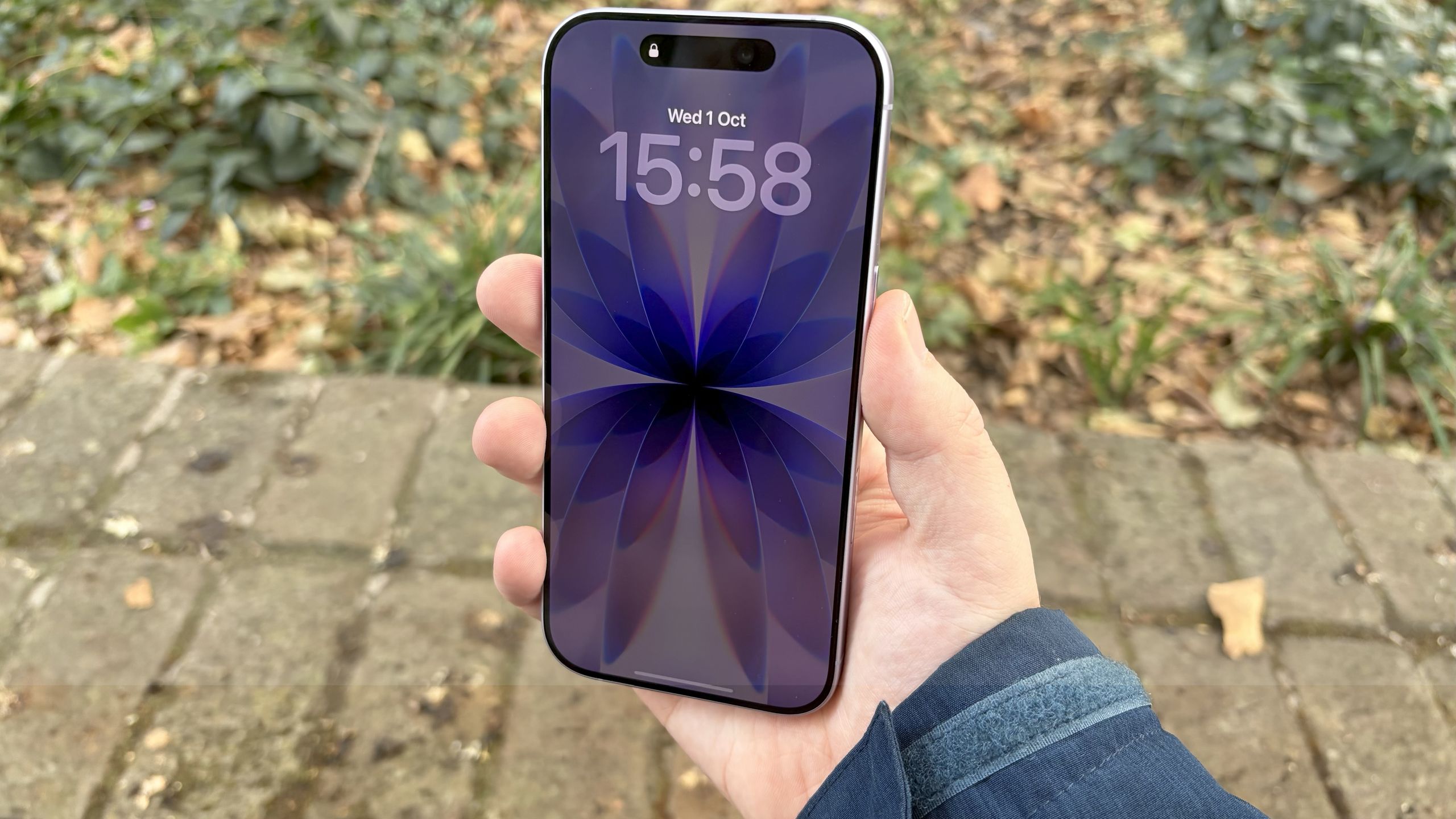
Your lock screen has always been Apple's canvas, not yours. iOS 27 changes that. Four new customization options hand control back to you, letting you expand photos to fit perfectly, generate custom wallpapers from scratch, reposition your clock, and banish distracting widgets.For the first time, your Lock Screen can actually look like you designed it instead of like you accepted Apple's defaults. Here's what's new and how to use it. Create wallpapers without leaving Settings Image Playground, Apple's AI image generation tool, now works directly from your Lock Screen settings. Go to Settings, Wallpaper, Add New Wallpaper and tap Image Playground. You can describe exactly what you want and let Image Playground create it. You can also transform photos you already have, and you get full control over the aesthetic. When creating or editing an image, tap the arrows next to Any Style to choose from distinct looks like Animation, Illustration, Sketch, or ChatGPT. Expand photos that don't quite fit Photos rarely match your Lock Screen's aspect ratio perfectly. Either they're too wide, too tall, or cropped wrong. iOS 27 fixes this with Extend, an AI feature that intelligently expands your image by generating content around the edges. If a photo has a horizon line that's slightly tilted, Extend straightens it while adding matching sky or landscape. If a portrait photo is too tight on the subject, Extend adds more space around them while keeping everything looking natural.The best part is that iOS 27 detects mismatched photos automatically. When you try to set a wallpaper that doesn't fit, the system suggests using Extend to fix it. To use it, simply go to Settings, Wallpaper, Add New Wallpaper, and choose your photo. From here, tap the three dots, Extend Wallpaper and confirm by choosing Extend. Dismiss the Now Playing widget when you want The Now Playing widget appears automatically whenever you're listening to music, podcasts, or audiobooks. iOS 27 lets you remove it. When the widget appears on your Lock Screen, swipe left on the playback controls and swipe left. This instantly removes the widget from your Lock Screen and clears its indicator from the Dynamic Island. Your audio keeps playing in the background, dismissing the widget doesn't stop playback. It just clears the clutter from your lock screen. Move your clock to reclaim space Apple's clock dominates the lock screen by default, sitting front and center. iOS 27 lets you relocate it to the top row of widgets or shrink it significantly. Go to Settings, Wallpaper, Customize, and here you'll be able to switch up your clock. You can move it up to the widget row or reduce its size to free up space for your wallpaper.This reclaims real estate for your wallpaper, which is especially useful if you're showcasing a photo you love. Your wallpaper becomes the focus instead of competing with time and date information. Follow Tom's Guide on Google News and add us as a preferred source to get our up-to-date news, analysis, and reviews in your feeds. Make sure to click the Follow button!More from Tom's GuideiOS 27 finally fixes the most annoying iPhone workaround we all useHow to disable iOS 27’s auto-subtitles for goodI've been testing Siri AI in iOS 27 for 3 weeks: 7 things to try first (and the feature that won me over)Get instant access to breaking news, the hottest reviews, great deals and helpful tips.
iOS 27 finally gives you total control over your iPhone lock screen — here's what to change first
Full Article
Original Source
Read the full article at Tomsguide →KhanList aggregates and links to publicly available news content. We do not host full articles from third-party sources. Always verify important information with original sources.