
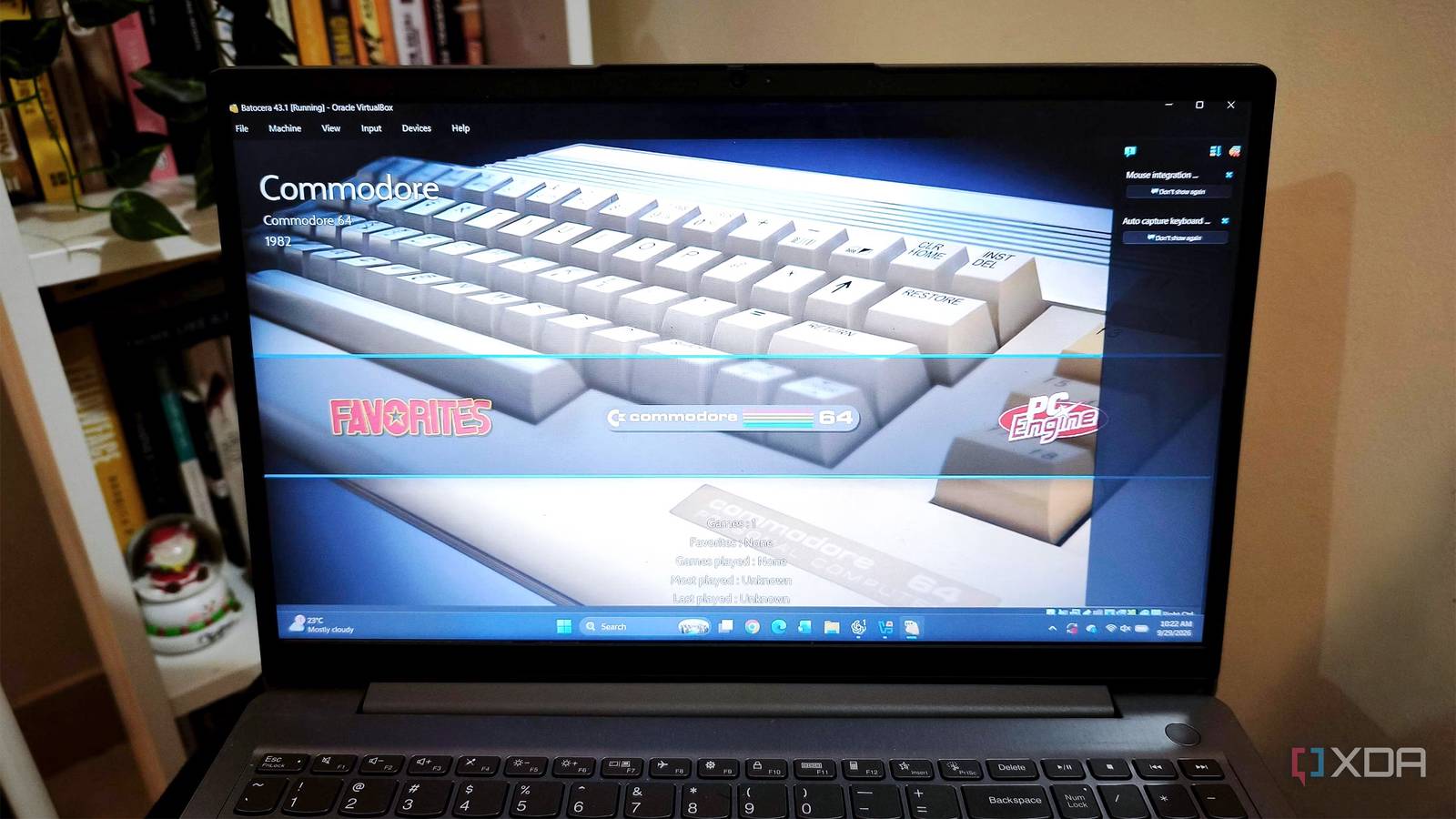
Published Sep 30, 2026, 3:00 PM EDT Anurag is an experienced journalist and author who’s been covering tech for the past 5 years, with a focus on Windows, Android, and Apple. He’s written for sites like Android Police, Neowin, Dexerto, and MakeTechEasier. Anurag’s always pumped about tech and loves getting his hands on the latest gadgets. When he's not procrastinating, you’ll probably find him catching the newest movies in theaters or scrolling through Twitter from his bed. I have an old Windows laptop that I wanted to put to use again. It has an AMD Ryzen 5 processor and 8GB of RAM, which is still plenty for many retro games. It won't replace a modern gaming PC, but I don't need another machine for demanding AAA titles. A console for playing older games whenever I have some time to kill sounded like a good use for hardware I already own. I wanted the console experience to extend beyond playing games, though. If I still had to reach for the keyboard to launch something or switch games, I'd have more work to do. I wanted to handle all of that with a controller, including shutting the laptop down when I was done. So I replaced Windows with Batocera, a Linux distro built for retro gaming that boots straight into a controller-friendly interface. Batocera saves me from putting everything together myself It has everything you need out of the box Batocera comes with the emulators and frontend needed to get a retro gaming setup running. The interface you see is a customized version of EmulationStation, which organizes games by system and launches the appropriate emulator when you select one. You can have games from several consoles in the same library without opening a different application for each. There's still some configuration involved, especially for individual games, but most of the software is already there. You also get some control over how that library looks. Batocera supports themes, and its scraper can pull in cover art, descriptions, and video previews. I like having that option because the interface is a big part of this project. Getting Batocera onto a PC follows a familiar process if you've installed another operating system before. Download the appropriate image, write it to a drive, and boot from it. My AMD laptop uses the standard x86_64 version. You can run Batocera from a USB drive or external SSD, so replacing Windows isn't a requirement. I went ahead with the replacement because I wanted to dedicate this laptop to gaming. Your game collection needs some attention after installation. Games go into folders for their respective systems, and some emulators also need BIOS files. Batocera includes a checker that identifies missing BIOS files and their expected locations. Once the files are in place, refreshing the game list brings them into the interface. You don't need to populate every supported system, either. Batocera hides systems without games so that you can start with a small collection. I can leave the keyboard alone once I start playing I don't need the keyboard for almost anything In Batocera, pressing Hotkey + Start closes the emulator and takes you back to the game library. From there, I can choose something else with the controller and keep playing. I don't have to reach for Escape, close an emulator window, or find the launcher again. The hotkey is a button you assign during controller configuration, usually Select or a dedicated Home button. Holding it with another button lets you access functions like opening the emulator menu or saving and loading a state. It's worth checking the shortcuts for the consoles you actually use, particularly the command for returning to the library. I mapped the buttons to match the layout I was used to from my Xbox days. Batocera recognizes many controllers automatically, and there's a configuration screen for those that need it. Bluetooth pairing is also available through the settings. Once that's sorted, the controller handles the menus and games, and I can shut the laptop down through Batocera when I'm finished. There are plenty of games worth keeping this laptop for More if you have powerful hardware Super Mario World, Sonic the Hedgehog 2, and Tetris are good examples of what I want from this setup. You can play a few levels or chase a high score when you have some time to kill, without needing particularly powerful hardware. The original PlayStation adds games like Tekken 3 and Crash Bandicoot, and the Game Boy Advance has Mario Kart: Super Circuit. There's plenty to choose from before moving on to more demanding consoles. My laptop's Ryzen 5 processor is enough for many older games. As you move toward systems like the PS2 and GameCube, the processor and graphics hardware matter more, and performance varies between games. For example, a console appearing in Batocera's supported list doesn't mean every laptop can emulate it well. I'd start with the games I want to play and adjust their settings before adding more systems. Batocera also has a handy feature that lets you save game states. Being able to resume where you left off adds to the console-like experience. Where the emulator supports save states, you can save your progress at a specific moment instead of waiting to reach an in-game save point. Batocera can also display saved states in its frontend, so you can choose where to resume before launching a supported game. You can also experiment with graphics settings. Some emulators let you increase the internal rendering resolution, which can make older 3D games look sharper. That uses more processing power so that I wouldn't raise it at the expense of consistent performance. Native resolution is a reasonable starting point for checking how a game runs. This old laptop finally has a reason to stay around I could have left this laptop running Windows and installed a few emulators, but Batocera makes it much easier to use as a dedicated gaming machine. It boots directly into my library, works almost entirely with a controller, and lets me jump between games without treating the laptop like a regular PC.
I wanted my emulation PC to feel like a console, so I removed every reason to touch a keyboard
Full Article
Original Source
Read the full article at Xda-developers →KhanList aggregates and links to publicly available news content. We do not host full articles from third-party sources. Always verify important information with original sources.