
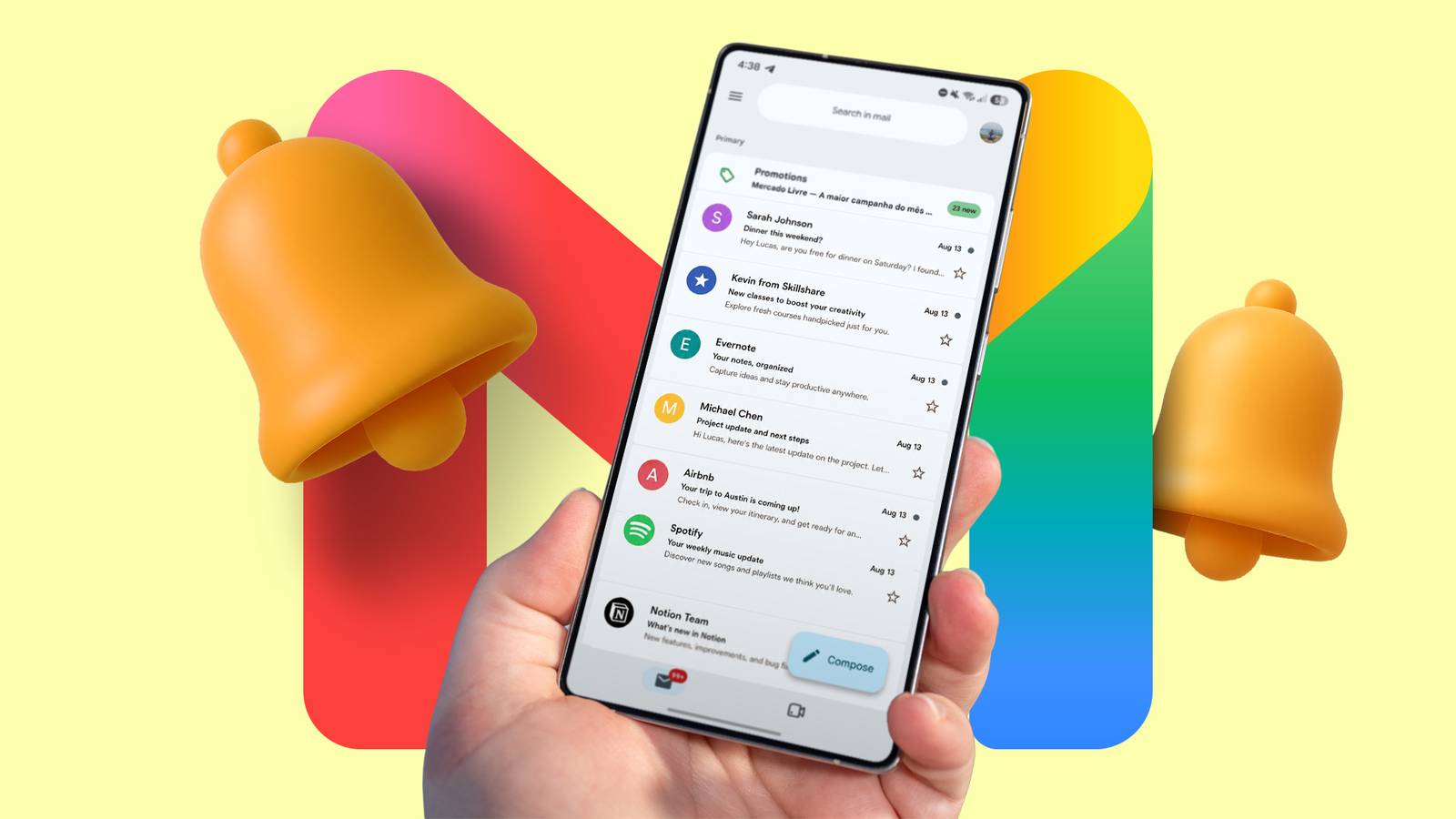
Published Nov 4, 2026, 1:00 PM EST Parth is a technology analyst and writer specializing in the comprehensive review and feature exploration of the Android ecosystem. His work focus on productivity apps and flagship devices, particularly Google Pixel and Samsung mobile hardware and software. He provides expert guidance on productivity software, system optimization, and the advanced functionalities that allow users to maximize their device's potential. His analyses are crucial resources for readers seeking to master complex operating system features and streamline their digital workflows. When he is not busy with technical analysis and software evaluation, Parth dedicates his time to watching K-dramas, studying mobile technology trends and the role of artificial intelligence. Gmail has been my go-to email service for years, but looking back, I realize I was barely scratching the surface of what it could do. My routine was basic. I would open my inbox, scroll through dozens of emails, delete promotional messages, star important conversations, and leave everything else sitting there until I needed it again. Recently, I decided to rethink my entire Gmail workflow and the result is a much cleaner, more manageable inbox that takes care of itself. I stopped using Gmail's default inbox I created a proper labeling system I stuck with Gmail's default inbox layout without giving it much thought. While it did a decent job of separating promotional emails and social notifications, I still had to manually scan my inbox to find important conversations. That wasn't ideal, especially when I was juggling multiple work projects and personal emails. I finally switched to Priority Inbox, and it made an immediate difference. Gmail now separates my important and unread messages, starred conversations, and everything else into dedicated sections. I can glance at the conversations that deserve my attention instead of scrolling through a long list of emails. To make the switch, I headed to Gmail's Settings, opened the Inbox type menu, and selected Priority Inbox. I used to rely heavily on Gmail's search function to find important emails. While Google's search capabilities are excellent, I wanted a more structured way to organize my conversations. That's where I decided to take labels seriously. I created dedicated labels for Work, Personal, Finance, Receipts, and Newsletters. Under Work, I added nested labels for different publications and projects, making it much easier to track editorial conversations. I also assigned different colors to frequently used labels so I could identify them at a glance. After that, I set up rules to automate my entire inbox, and that brings me to the next section. Filters became my biggest productivity upgrade My inbox now organizes itself automatically If one Gmail feature changed how I manage my inbox, it has to be filters. I used to spend a ridiculous amount of time manually sorting emails, moving conversations into different categories, and deleting unnecessary notifications. After I discovered how powerful Gmail’s filters could be, I decided to automate as much of this process as possible. For example, when I receive an email from Asana or Figma, Gmail automatically applies my Work label. Similarly, I configured separate filters for newsletters, shopping receipts, and subscription notifications. Some messages are automatically archived, while important work conversations are starred and kept in my inbox. I no longer have to sort everything manually. Another useful automation involves my finances. When I receive bank statements or credit card bills from specific senders, Gmail automatically forwards them to my accountant. This eliminates the need to remember to share those documents every month. I made sure the filters only match relevant financial emails. Setting up these rules is straightforward. I open Gmail's advanced search options, define the conditions, click Create filters, and select the appropriate actions. The possibilities are endless here. After you start combining multiple conditions and actions, Gmail becomes a capable automation tool that handles repetitive tasks in the background. I connected Gmail to Gemini My emails are just one prompt away This is where my Gmail setup gets even more interesting. Instead of opening Gmail every time I need to find something, I connected my account to Gemini. Now, I can ask Google's AI assistant to pull relevant information from my inbox without searching through hundreds of messages. For example, I can ask Gemini to summarize my latest email conversation with Carly, and it quickly gives me the important details. Similarly, when I need to check the payment due date for my HDFC credit card, I ask Gemini to find it from the relevant email. I don't need to dig through bank notifications or open PDF statements. But the real magic happens when I combine multiple actions. I can ask Gemini to find my credit card payment due date and create a reminder in Google Tasks. I can even ask it to extract important information from an email and save it as a note in Google Keep. I still open Gmail when I need to reply to important conversations or manage my inbox. However, for everyday information retrieval and quick productivity tasks, Gemini has reduced how often I need to visit Gmail. It's easily one of my favorite parts of this entire setup. A smarter way to handle email I used to think that keeping my Gmail inbox organized required constant attention, but my new setup has proved otherwise. After I started taking full advantage of Priority Inbox, custom labels, and automated filters, everything began falling into place. Connecting Gmail to Gemini added another layer of convenience, especially when I need to find information or catch up on lengthy conversations. Before you jump ship to Outlook, Spark, Thunderbird, or another email client, give Gmail's built-in features a proper chance.
I used Gmail wrong for years, here's the setup that actually works
Full Article
Original Source
Read the full article at Androidpolice →KhanList aggregates and links to publicly available news content. We do not host full articles from third-party sources. Always verify important information with original sources.