
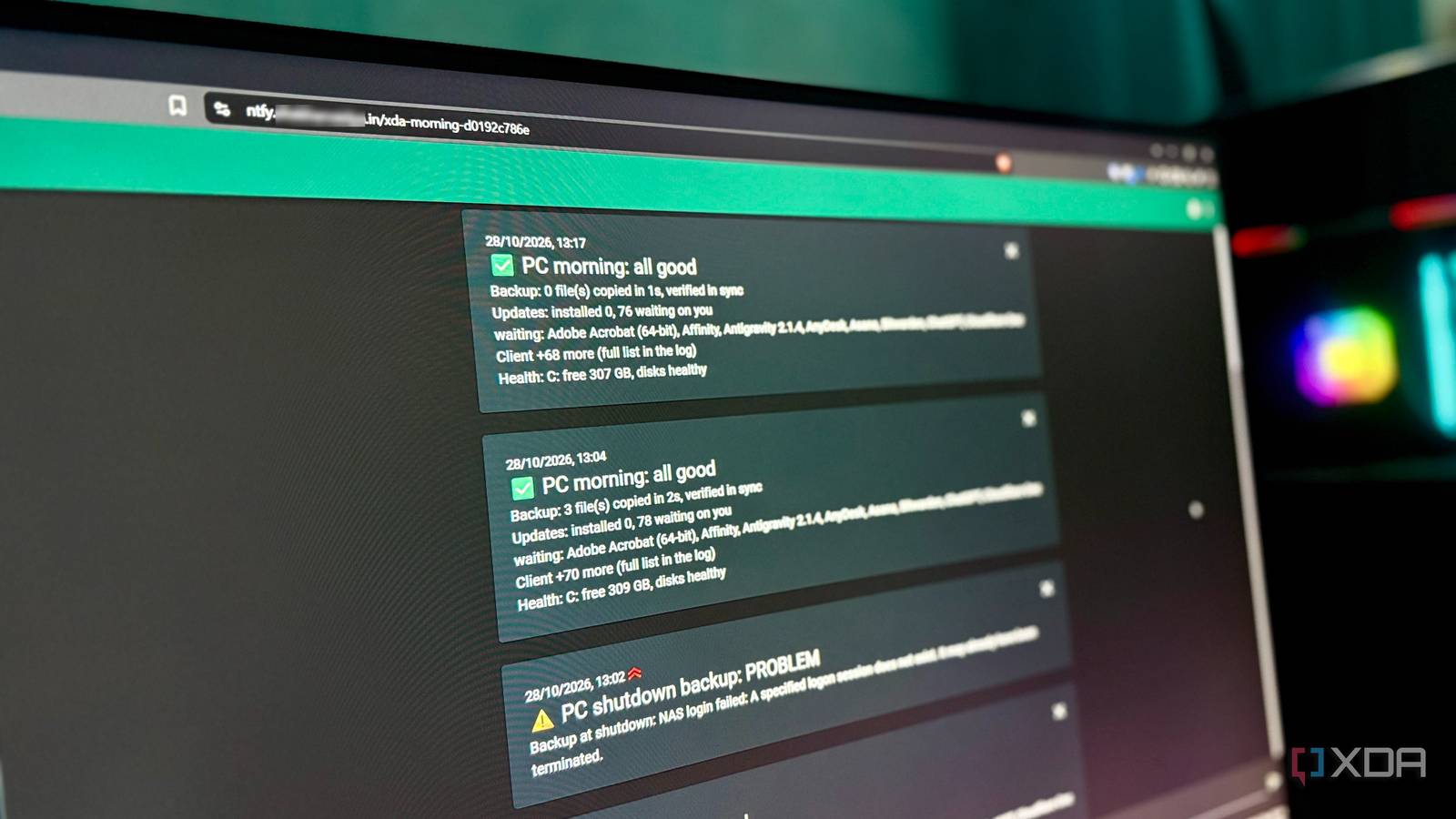
Published Oct 30, 2026, 7:30 AM EDT Shekhar Vaidya is a veteran technology journalist and computer science engineer. He is the founder of TechLatest, where he has spent years providing technical analysis on hardware and Windows ecosystems. Now a Computing Writer at XDA, Shekhar leverages his deep background in NAS, storage solutions, and PC internals to help readers master their tech. You know what you do differently when you own a personal computer and a home server? You give importance to certain things on the server and let them slide as an unnecessary chore on the PC. Backups and updates are among those things. I am very cautious about both on my server. I follow the 3-2-1 rule for the backups, and I manually update services every weekend, but when it comes to my Windows PC, I have been telling myself, “I’ll do it later," for years. Small scripts have been my thing; I used to write one for every little job. After AI, I started handing those jobs over to it, so this chore was next. Deciding what to back up I picked three chores, and my Documents folder killed the first plan Since I was outsourcing the tedious part to an AI, I decided to add as many chores as I could think of. After brainstorming for hours, I shortlisted three of them. A morning backup that checks itself, a morning PC health check, and a scheduled update with a log. I considered one more, a start-my-day script, but by the end, I decided not to include it, as I don’t start every day with the same apps. Now came the tougher part: deciding how those three jobs would run. I started with the most important one, the backup. I initially scoped it to the Documents folder, but when I checked what was inside the folder and its size, I dropped the idea. The folder had 739,214 files and was around 70GB in size. For the v1, I wasn’t planning a backup of this size. That was when I remembered: a few days ago I sorted my Downloads folder using an AI agent. And one of the sorted folders had most of my important files, so I chose that one folder with 2,418 files (1.81GB), excluding project bloat, and moved on. Choosing the scope was the first step of a ladder. The next step was where I would back up those files. I had two options: either my NAS or cloud storage. Since the NAS and the PC always stayed at home, and the NAS was already always on, it felt like the best option. Letting Windows do the remembering Group Policy was harder to set up, and easier to live with After those were done, the next was the how part. How would it work? Task Scheduler was the first thing that came to my mind. But there was one issue with the Task Scheduler: it can be triggered at a specific time or when logged in. It was helpful for the other two jobs but not in the case of backup because it gets killed within seconds of shutdown. For a backup, the best time would be just before I shut down the PC. To resolve the dilemma, I had two solutions. The first one was easy to set up, but tedious to run, and the second was a little more complex to set up, but extremely easy to run. Either I could write another script that would first trigger the backup and then shut down the PC, or I could make a few changes using the Group Policy editor to add a shutdown script so it would automatically trigger the backup whenever I tried to shut down the PC. With the first solution, I would have to reprogram my muscle memory to run the script to shut down the PC, so I ditched that plan and went with the Group Policy. Since this was a system change, I had to handle a few things, like the time cap, failover, etc. Once those were handled, it was the perfect solution. Once the backup job was sorted, the other two jobs, health check and scheduled update, were easy. I just had to ask the AI agent to do these for me. For a health check, it made a Get-Health function that fetches the status report using Get-PSDrive and Get-PhysicalDisk. For scheduled updates, it offered two options: one that reported only what was outdated, and one that updated the allowlisted apps and listed other apps that needed an update. The second option felt better, so I went with it. Then the agent took another few moments to write the script. Running the script for the first time was something else. The test I couldn’t fake The boot run passed, and the shutdown run failed the first real one The first dry run failed, saying, “The network name cannot be found.” This happened because of the wrong share name on the NAS. I ran net view and got all the shares, seven in total, and instead of creating a new one, I picked one from the existing ones. While editing the share name, I had another idea. Why run the backup only before shutdown? I could run the backup on logon as well, alongside the other two jobs; it would help me in case shutdown fails. So, I asked the agent to include it at logon too and an ntfy notification to inform me. Once that was done, the logon task ran the full set through Task Scheduler — backup, health, updates, and an ntfy notification. After that, I tested the boot run manually. It passed with flying colors. It copied 2,379 files in 33 s, verified the copy too, updated 7-Zip and VLC, and the digest arrived on my ntfy. Boot mode was easy to simulate without rebooting, but it wasn’t possible with shutdown mode. So, I shut down the PC and checked the logs after logging back in. The backup failed with the “A specified logon session does not exist” error. While fixing that, I faced multiple “Access denied” error 67s. I tried a few different approaches to resolve it. I don’t remember all the reasons, but one was an encoding mistake in the Windows API call. Once that was fixed, I rebooted the PC a few times, and it worked perfectly every time. ntfy was one of the best decisions, since I didn't have to open the logs each time. Next stop: the Documents folder Before starting this experiment, I thought it would take a few minutes with AI. I thought I could mention what I wanted in one prompt and have it write the script and be done. But getting to that prompt stage and then testing and running the script reliably took much longer than I expected. In the end, I can say AI helped me automate something I’d postponed for years. For now, the script is not fully finished, but it is a good starting point, and I plan to improve it over the next few days after watching closely how it is running. Eventually, the Documents folder will be in the backup, but I will have to filter it properly.
I used AI to write a Windows script I'd put off for years, and it runs every morning now
Full Article
Original Source
Read the full article at Xda-developers →KhanList aggregates and links to publicly available news content. We do not host full articles from third-party sources. Always verify important information with original sources.