
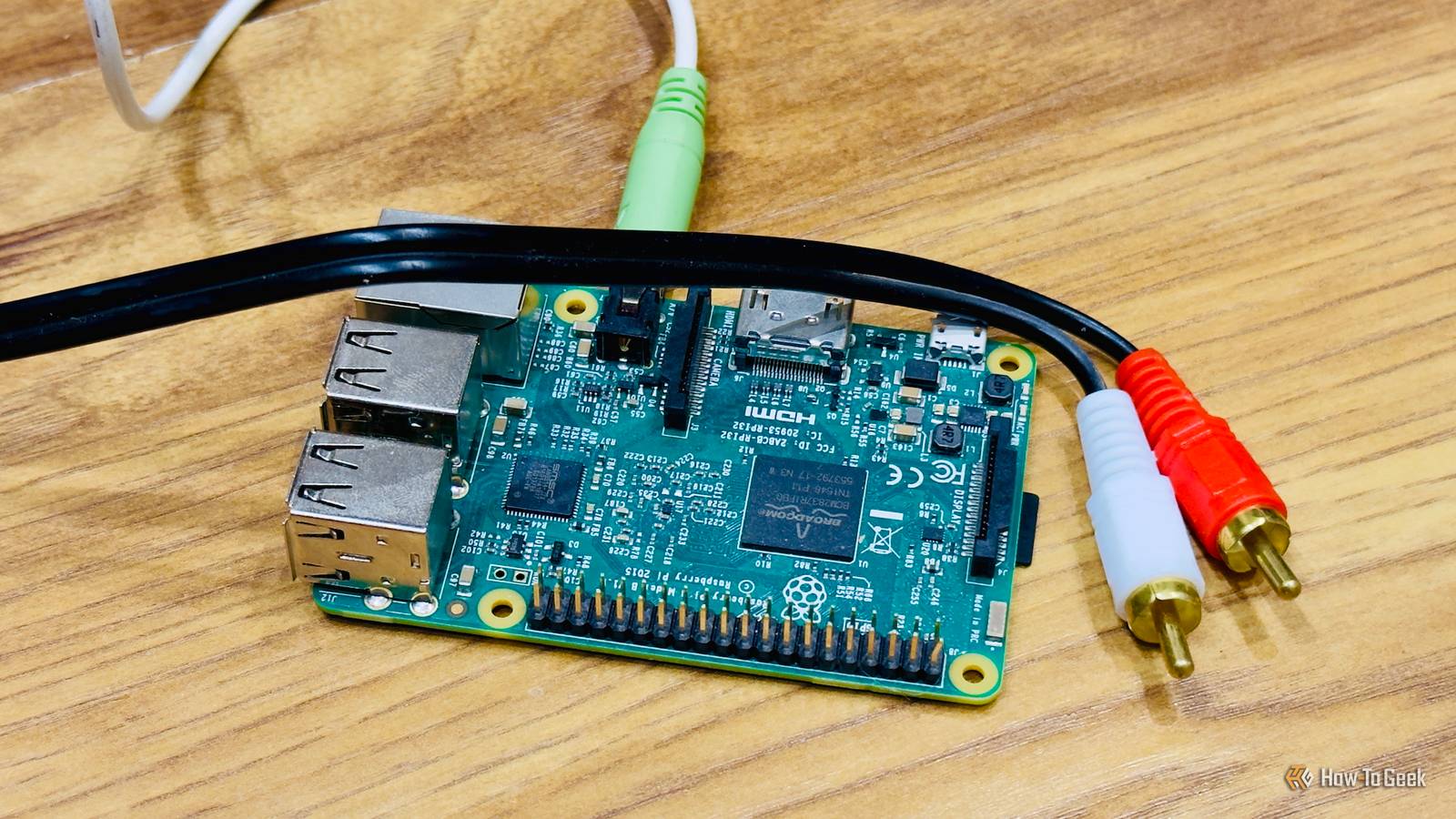
Published Nov 26, 2026, 8:00 PM EST Adam has a degree in Engineering and has a life-long interest in technology. He has been writing for over a decade for various print and online publications, with a focus on consumer tech. He joined How-To Geek in 2024 while working at Pocket-lint. As well as being a long-term fan of Apple products, he also has a strong interest in smart home tech, running a Home Assistant server at home to automate all his smart home devices. He believes that the ideal smart home should work with minimal interaction from the user, with automations running as if by magic rather than requiring you to push buttons on a control panel. You can find more of his work on Muck Rack. I've had my surround sound system for more than 15 years and it's lasted through three different TVs. It's certainly not audiophile equipment, but it offers far better sound than the smart speakers in my living room. I wanted to find a way to easily stream music through the speakers without having to play audio through my TV. Using a Raspberry Pi, I was able to add AirPlay to the speakers in less than 20 minutes. I can already play music through my surround sound system via the TV Music Assistant sees the TV as just another music player For a long time, we listened to music in the living room through smart speakers. The sound quality was never that great, but it took far too long to realize that I had much better speakers already in the room. My old LG HT805PH 5.1 surround sound system is hooked up to my TV via optical audio. I got it way back in 2010, and it's served me well ever since. The DVD player in the receiver died years ago, but since I never watch DVDs anymore, this hasn't been an issue. Using Music Assistant, I'm now able to stream music through the TV, with the audio playing through the surround sound speakers. The sound quality is so much better, but I wanted to try to find a way to play music without needing to have my TV powered on the whole time. I wanted to add AirPlay to the mix without needing the TV I tested out playing audio through a Raspberry Pi Credit: Adam Davidson/How-To Geek I have an Apple Music subscription and use AirPlay to play music through various speakers in my home. I wondered if it would be possible to add AirPlay to my surround sound system, despite the fact that it has no support for the streaming protocol. I had an old Raspberry Pi 3B+ lying around, and some old 3.5mm to RCA leads that I could use to connect the Pi to the surround sound system, so my first experiment was to see if I could get audio from the Pi to play through the speakers. I flashed Raspberry Pi OS Lite onto a microSD card and set it up with SSH enabled. I then connected the cable from the Pi's headphone port to the AUX ports of the surround sound system. I SSH'd into the Pi and entered the following commands: aplay -l alsamixer -c Headphones speaker-test -D plughw:Headphones -c2 -t wav The first checks that the headphone output is listed. The second opens a mixer so I could increase the volume coming from the Raspberry Pi. The final command plays test audio through the right and left speakers alternately. To my delight, with the surround sound system set to AUX, I could hear the sounds coming through the speakers. Even with the Pi's volume cranked right up, the sound was quite quiet, so I had to turn up the surround system until it was at a decent level. I turned the Pi into an AirPlay speaker Shairport Sync does the hard part Now that I knew that the Pi could play audio through the speakers, the next step was to make the Raspberry Pi into an AirPlay receiver. There are two tools necessary to make this happen. Shairport Sync receives the incoming audio, and nqptp handles the AirPlay 2 timing. I installed everything I needed to build both tools using the following commands: sudo apt update sudo apt upgrade sudo apt install --no-install-recommends build-essential git autoconf automake libtool \ libpopt-dev libconfig-dev libasound2-dev avahi-daemon libavahi-client-dev libssl-dev libsoxr-dev \ libplist-dev libsodium-dev uuid-dev libgcrypt-dev xxd libplist-utils \ libavutil-dev libavcodec-dev libavformat-dev On Debian 13 (Trixie) or higher, you also need to install systemd-dev so that both Shairport Sync and nqptp can start at boot. I used the following command: sudo apt install --no-install-recommends systemd-dev Once everything was installed, I built nqptp using the following commands: cd ~ git clone https://github.com/mikebrady/nqptp.git cd nqptp autoreconf -fi ./configure --with-systemd-startup make sudo make install sudo systemctl enable --now nqptp I then built Shairport Sync using the following commands: cd ~ git clone https://github.com/mikebrady/shairport-sync.git cd shairport-sync autoreconf -fi ./configure --sysconfdir=/etc --with-alsa \ --with-soxr --with-avahi --with-ssl=openssl --with-systemd-startup --with-airplay-2 make sudo make install I then needed to make two changes to the Shairport Sync config file by opening it with: sudo nano /etc/shairport-sync.conf I then uncommented the following settings by removing the // at the start of their lines, and making these changes: general = { name = "LG Surround"; }; alsa = { output_device = "plughw:Headphones"; }; I then saved the changes and exited with Ctrl+O, Enter, Ctrl+X. The final steps were to start the service and turn off Wi-Fi power-saving to keep the Wi-Fi alive: sudo systemctl enable shairport-sync sudo systemctl restart shairport-sync nmcli connection show sudo nmcli connection modify "YOUR_WIFI_CONNECTION_NAME_FOUND_FROM_THE_STEP_ABOVE" 802-11-wireless.powersave 2 sudo reboot I can now select my surround sound system like any other AirPlay device The sound is better than I expected but it could be better Once everything was set up, I was ready to give it a try. I opened Apple Music on my iPhone, started playing some music, and tapped the AirPlay icon. In the list of available devices was a brand-new entry: LG Surround. I selected LG Surround, and the music started to play through the speakers (in stereo rather than true surround sound, since it's playing music via a stereo connection). The sound quality was better than I was expecting, considering that this is all running through the headphone jack. It should be possible to get even better sound through the Pi by using a USB DAC to pass the audio to the receiver. Now I can listen to music through the best speakers in my living room even when the TV is off, and the whole process took about 20 minutes to set up. My next plan is to build in an automation that will automatically power up the surround sound system and select the AUX input whenever I start streaming audio to the Pi. You can do a lot with the gear you already own The best part of adding AirPlay to my ancient surround sound system is that it didn't cost me anything at all. The whole setup was done using gear I already had lying around. Now I just wish I'd done it sooner.
I used a Raspberry Pi to bring AirPlay to a 15-year-old surround sound system
Full Article
Original Source
Read the full article at Howtogeek →KhanList aggregates and links to publicly available news content. We do not host full articles from third-party sources. Always verify important information with original sources.