
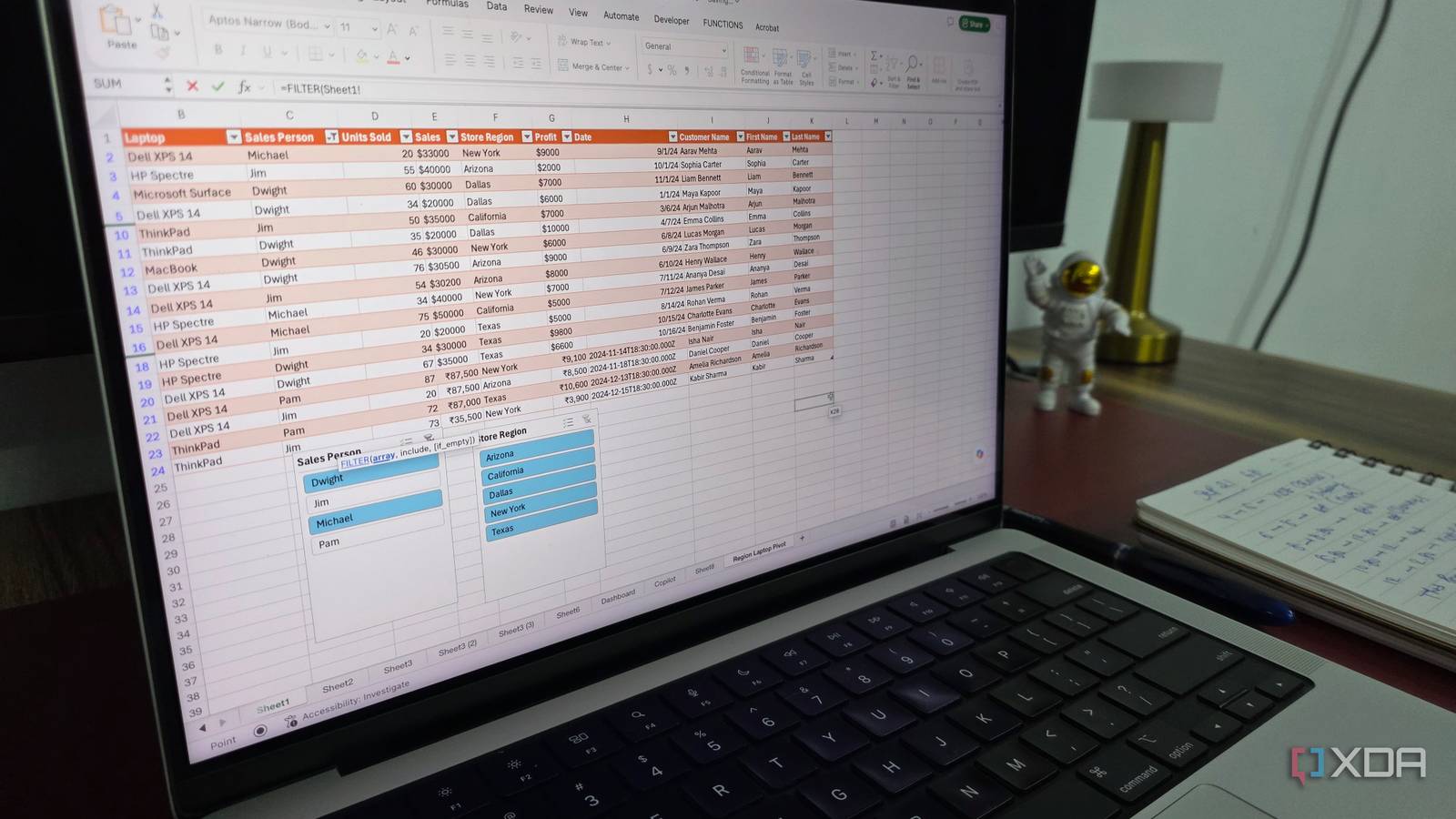
Published Sep 22, 2026, 7:00 PM EDT Parth, a seasoned tech writer, wields the keyboard (or pen) with finesse to unravel the intricacies of both Windows and Mac operating systems. He has covered evergreen content on mobile devices and computers for multiple publications over the last six years. You can find his work on AndroidPolice, GuidingTech and TechWiser. Whether it’s demystifying system updates, deciphering error codes, or exploring hidden features, Parth’s prose guides readers through the binary maze. When not immersed in tech jargon, you’ll find him sipping chai, pondering the next software review, and occasionally indulging in a friendly debate about mechanical keyboards. I used to think I was pretty efficient in Excel until I started noticing how much time I wasted on repetitive work. I cleaned up columns, pulled values from different tables, fixed formatting, checked for duplicates, and ran the same little routines over and over again. Once I started using the right functions and building a few simple macros, that busywork almost disappeared. These are the functions and macros that made the biggest difference to my daily workflow. XLOOKUP Saves me from manual searching XLOOKUP is one of those Excel functions I wish I had started using much earlier. I used to rely on VLOOKUP for most of my lookup tasks, but it comes with unnecessary limitations. The lookup column needs to sit in a specific position; I have to think about column numbers, and inserting a new column can sometimes break the formula. XLOOKUP feels far more flexible. I simply tell Excel what value I am looking for, where to find it, and which corresponding value I want returned. It can look left or right, uses exact matches by default, and lets me define what should appear when Excel can’t find a match. That becomes a serious time-saver when I am dealing with large spreadsheets. For example, suppose I have a master sheet with hundreds of products, including product IDs, prices, suppliers, and stock levels. On another sheet, I might only have a list of product IDs for an upcoming order. Instead of jumping between sheets and manually searching for every product, I can use XLOOKUP to automatically pull the latest price and supplier details into my order sheet. If I add 50 more products, I don’t need to repeat the process manually. I just extend the formula, and Excel does the searching for me. If the product ID I want to look up is in cell A2, I can pull its price from the master sheet with the formula below. =XLOOKUP(A2, Master!A:A,Master!B:B, “Not found”) UNIQUE Cleans up the list instantly UNIQUE is another Excel function that saves me from doing repetitive cleanup every time I work with a large list. It does exactly what its name suggests. It scans a range, returns only distinct values, and creates a clean list automatically. More importantly, the result is dynamic. If I add new entries to the original data, Excel can update the UNIQUE output without me running Remove Duplicates again. Suppose I have a sales sheet where Column B contains customer names. Because the same customers may have placed multiple orders, their names can appear dozens of times. If I want a clean customer list for another report, I can simply use =UNIQUE(B2:B1000) and Excel immediately gives me one instance of every customer in that range. I can make it even more useful by combining it with SORT. =SORT(UNIQUE(B2:B1000)) and now Excel arranges them alphabetically without touching the original data. FILTER Builds reports without manual sorting FILTER is one of my favorite Excel functions when I need to pull a specific set of records from a much larger table. I used to rely heavily on Excel’s regular filter controls. This function removes most of the manual work because I can create a separate, dynamic view of the exact records I need. For instance, suppose I have a sales sheet where column A contains order IDs, column B has customer names, column C contains order values, and column D shows the payment status. If I want to create a separate list containing only unpaid orders, I can use: =FILTER(A2:D1000,D2:D1000= "Unpaid", "No unpaid orders") Excel quickly pulls every row where the status is marked as Unpaid. I can also make the formula more specific. I can even add a condition and make it display unpaid orders worth more than $1000. Data-cleanup macro Fix messy spreadsheets automatically A data-cleanup macro is probably one of the biggest time-savers in my Excel workflow because messy spreadsheets are almost unavoidable. I regularly end up with files that have extra spaces, duplicate rows, inconsistent formatting, blank records, text stored as numbers, or columns that are too narrow to read properly. This is where I use a simple cleanup macro. I can record one that removes blank rows, trims unnecessary spaces, deletes duplicates, converts values into the correct format, applies consistent number formatting, and auto-fits the columns in one go. Instead of working through the spreadsheet manually, I run the macro once and let Excel handle the housekeeping for me. Report-preparation macro Automate an entire workflow A report-preparation macro is where Excel automation starts to feel powerful for me. Instead of using a macro for one small action, I can bundle an entire reporting routine into a single command. For example, I might have a monthly sales report that pulls refreshed data, sorts transactions by date, highlights high-value orders, adjusts column widths, updates the report date, refreshes PivotTables, and finally exports the finished sheet as a PDF. Without automation, that workflow can involve dozens of clicks and plenty of room for mistakes. Excel now handles the boring stuff Excel becomes far more useful once I stop treating every task as something I need to do manually. Functions like XLOOKUP, UNIQUE, and FILTER already remove a lot of repetitive work, while macros take it further by automating entire cleanup and reporting routines.
I use these Excel functions and macros to save hours every day
Full Article
Original Source
Read the full article at Xda-developers →KhanList aggregates and links to publicly available news content. We do not host full articles from third-party sources. Always verify important information with original sources.