
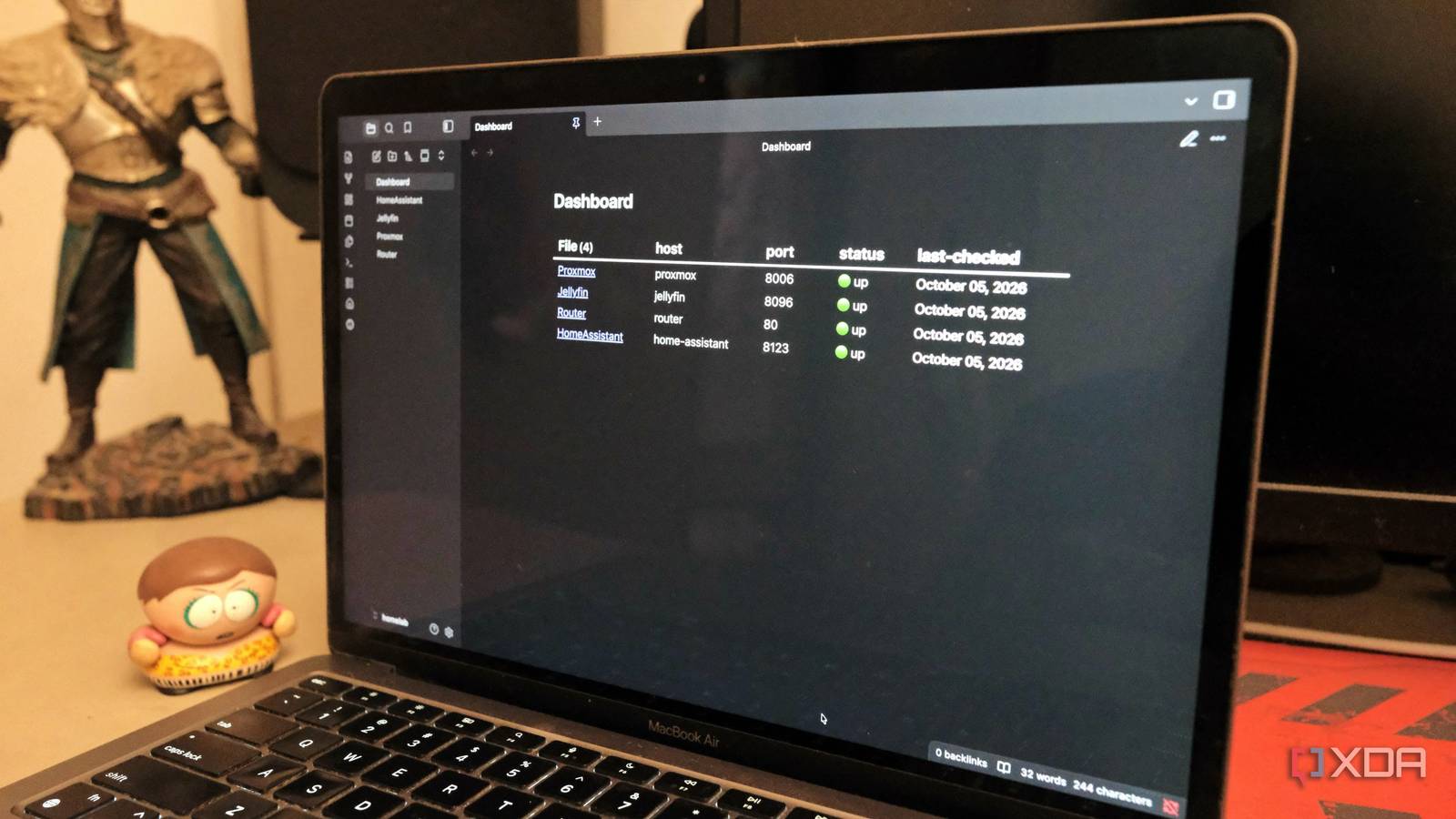
Published Oct 5, 2026, 5:30 PM EDT Samir Makwana is a technology journalist and editor from India since past 18 years and his work appears on MakeUseOf, HowToGeek, GSMArena, BGR, GuidingTech, The Inquisitr, TechInAsia, TechWiser, and others. He has written news, features, and gadget reviews for national technology media publications. His passion is to help people with their technology problems and gadget purchases. For that, he has worked for some of the biggest international technology publications, covering news, explainers, how-to guides, listicles, and product-buying guides. He has worked as an editor and managed teams since 2015. His expertise broadly covers computers, smartphones, game consoles, headphones, smart home products, browsers, and apps. While I continue building and managing my home lab, I keep a handful of browser tabs open. One shows the Proxmox dashboard for my HP ProDesk 600 G6, with the different VMs and LXCs on the mini PC. A second tab is the router's admin page, a third is Home Assistant, and a fourth is Jellyfin. Switching between these tabs is faster with keyboard shortcuts, but it can get tiring. I wanted an interface that showed me my whole lab, the same way a dashboard app for self-hosted services would. I found the solution in the most unexpected app: Obsidian. Instead of adding yet another dashboard app, I used Obsidian with its plugin ecosystem to build my home lab’s front end. Two plugins I’d installed early on only got me halfway there. The third plugin brought everything together so I could use Obsidian as my home lab’s front end. I started by turning each server into a plain note Settled on the frontmatter structure before installing anything. The Obsidian app from the Mac App Store works well on my Mac. I can install plugins just fine, and even connect a local LLM instance. But when I tried a plugin that required Obsidian’s CLI registration, I found out the Mac App Store build doesn’t support it, so I grabbed a build directly from Obsidian’s website. After that, I turned on Community Plugins and used Browse to install the Dataview and Homepage plugins. Next, I created one note for every service using the same frontmatter shape: host, IP, port, status, last-checked. I sorted it all into three folders: servers, network, and smart-home. That’s how my Proxmox host, RT-AX88U router, Kindle project, and Raspberry Pi each got a note with consistent fields. That turned my vault into a filing cabinet where every note was accurate. However, finding anything meant remembering which note had it, and cross-referencing meant opening two side by side. That wasn’t convenient for the handful of services I ran. Dataview turned the nodes into a live status table Turning every note into a server with a single query Installing the Dataview plugin was the natural next step after laying out the fields in the frontmatter. A single query pulls every note tagged with #service into a table built from the fields I’d standardized. dataview:TABLE host, port, status, last-checkedFROM #serviceSORT status ASC Every new service note I add, with the right frontmatter, shows up in the table automatically, without copying any data over. Whenever the status flips down, it bumps the note to the top instead of burying it between Jellyfin and Tailscale. The vault had turned into a dashboard. Putting up the front door with the Homepage plugin Choosing to load things automatically instead of what I checked Dataview solved what I could see in the vault. Homepage solved where I landed when I opened it. Whenever I open Obsidian, it opens whatever note I’d last viewed, rarely the home lab dashboard. The Homepage lets you pin one note to load every time, so I pointed it at the one with the Dataview table and the quick links to router, Jellyfin, and Home Assistant. The build I’d set out to make was basically done with all that in place. Three plugins in, Obsidian opened to a live status table and quick links every time. It’s the front end I wanted when I closed those browser tabs for good. A Python script handled all that by checking health status and pinging the mentioned services over TCP from my Mac. MegaMem made the vault answer back Changing from a dashboard into an MCP endpoint I installed MegaMem mostly out of curiosity, since the vault already looked finished. Unlike the other two, it’s not available directly through the community plugins. I used the BRAT plugin (Beta Reviewer’s Auto-update Tool), pointed it at C-Bjorn/megamem-mcp, and pulled MegaMem in. There’s also a manual alternative: download the release zip and extract it into Obsidian’s plugin directory by hand. To make this plugin work, I needed to register Obsidian’s CLI under Settings -> General -> Advanced -> Command line interface. Unfortunately, the Mac App Store build of the Obsidian app lacks this option. The last piece was the graph database. I went with Neo4j Desktop. You can use FalkorDB through Docker. Once the database is running, syncing is easy. The MegaMem plugin turns my notes into a smart, time-aware memory bank instead of a pile of separate files, connecting them like a web of memories rather than a stack of individual links. That makes it easy for an AI assistant like Claude to read, search, and update my notes directly. Now the AI finds the right information, so I don’t have to remember where I stored it. That’s the difference between a dashboard and a front end. A dashboard shows what I already know to look for; this answers a question I don’t have a note title for. When I asked about the iGPU passthrough setup on my ProDesk, it pulled an answer straight out of the graph. And I didn’t even have to open the note. Similarly, when I asked about my RT-AX88U crash, it pulled that answer from the graph too. MegaMem scans and standardizes the frontmatter, infers entity types on its own, and requires no schema to build by hand. All it needs is to connect to an MCP client to begin working with the notes I already have. Change what I can ask my vault instead of searching Looking back, the first three plugins built the front end I set out to make: organized, live, and a single click away whenever I open Obsidian. MegaMem turned it into something I can talk to and not just read. Dataview still builds the table, Homepage still decides what loads first, and MegaMem sits on top of both while answering instead of merely showing. Obsidian OS Windows, macOS, Linux, iOS, iPadOS, Android Individual pricing Free normally; $4/month for Obsidian Sync Obsidian is a feature-rich note-taking app that's available on different platforms and offers a neat and clean interface. It's also free-to-use for individuals.
I use Obsidian as the front end for my home lab, and it took one plugin
Full Article
Original Source
Read the full article at Xda-developers →KhanList aggregates and links to publicly available news content. We do not host full articles from third-party sources. Always verify important information with original sources.