
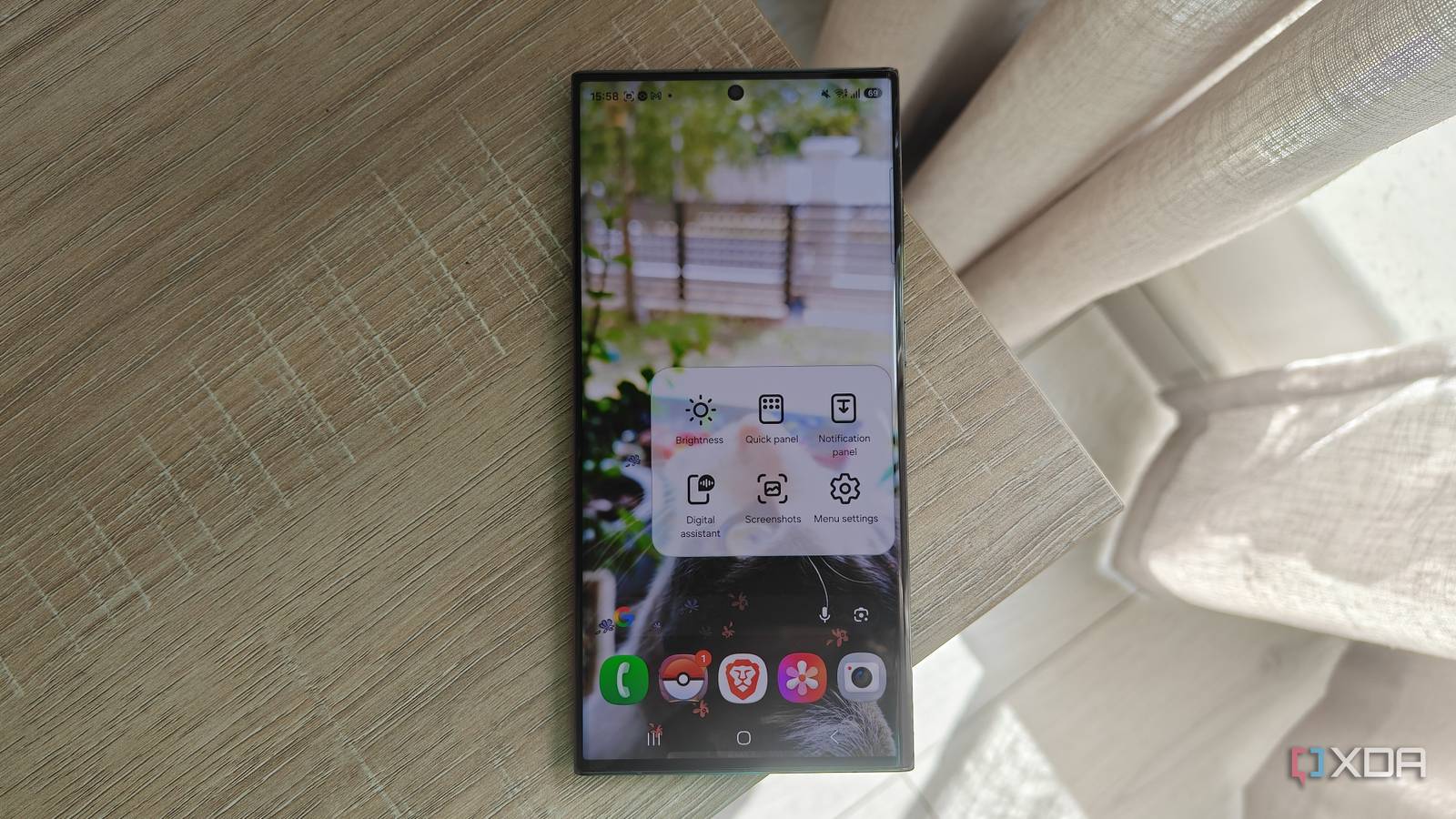
Published Nov 13, 2026, 3:30 PM EST Megan is a Software Writer at XDA Developers who has been writing about consumer technology since 2016. With a postgraduate degree in New Media journalism, she has always been passionate about diving deep into topics and writing about them in a way that makes them easier to understand for everyday consumers. She runs her own blog called Tech Valkyrie and has contributed to Tom's Guide and Android Authority. She also worked at MakeUseOf as a Lead Editor. In her spare time she plays video games and geeks out about the latest tech. I've been tweaking my devices a lot more lately, from using Good Lock to customize my Samsung Galaxy smartphone to changing settings on my Pixel to see how they affect performance. But something I'm particularly fond of is changing button behavior on my smartphone. Samsung Galaxy devices offer a variety of ways to unlock new buttons on your smartphone, from reprogramming your existing physical buttons to adding new ones with hidden features and widgets. The first step in changing button behavior You may not have realized this, but Samsung's settings allow you to change what your power button does. However, these settings are relatively buried. If you resent Gemini being tied to your power button, you'll be glad to know you can restore its original function. And you can even change what happens when you press it twice. To access these settings, you can go to Settings -> Advanced features -> Side button. There you'll see the options for Double press and Long press. The long press options are limited to a digital assistant and your power-off menu. But you get more customization options for the double-press options. In the double-press menu, you can switch from the default (which opens the Camera app) to specific utilities, Samsung apps, or a third-party app of your choice. You'll see all the actions available for an app when you select the cog icon next to its name. For example, with Samsung Notes, you can open the app, paint with a brush, record a voice note, type a note, or write with a pen. You can use this for easier shortcuts The Assistant menu is an accessibility feature that adds a floating, movable button to your screen. This button persists as you switch between apps and menus, though you can also choose to display it as an edge icon. Rather than giving you shortcuts to any app you choose, the Assistant menu gives you access to specific system features and settings. You can also choose which items you want to show up in the menu. Since I have an S23 Ultra, I chose features that I struggle to reach when I'm using the device with only one hand. This includes the brightness slider, Quick Settings panel, and notification panel. However, there are plenty of options to choose from. You can even get the Assistant menu to replace the function of pressing the physical side button. Other options include screen rotation, launching Bixby, turning your screen off, or launching the power off menu, among others. My chronic pain means that sometimes when I use my device with one hand, trying to perform certain gestures can cause discomfort. So the Assistant menu gives me another way to access these features without causing pain. But I think that anyone who has trouble using a large device with one hand could benefit from this floating button. Routines+ adds even more button features It's why it's one of my favorite Good Lock plugins If you want to access more button actions than what Samsung's Advanced features menu offers, the good news is that you can do this with the Good Lock plugin Routines+. The tool unlocks button actions that adjust physical button behavior and can even be programmed based on your location. You can also add touch macros, which run a series of touch actions within an app once you press a start button or widget. This works great when you want a shortcut that's not available in your default widgets, or if you don't like the look of an existing widget. Just to test out the macros, I created one for Notesnook. The macro opens the app and then creates a new note for me. To easily access the shortcut, I added a Modes and Routines widget to my home screen, which automatically assigned the touch macro to the button slot. These Modes and Routines widgets also allow you to create groups of shortcuts you can use, essentially becoming a custom button dashboard. In terms of side-button behavior, I was able to flesh out functions beyond those available in Samsung's default customization settings. For example, now I can double-press my Volume Down button to open up my weather app. The plugin also lets me customize the behavior of the Home, Recents, Side, and Volume Up buttons. This makes it an extremely versatile plugin, unlocking physical and digital button functions for your device. You can even use the Advanced settings menu to select Modes and Routines for your side key double-press action, then assign a touch macro. Your Samsung Galaxy device has more buttons than you think Once you know where to look, you'll realize that your Galaxy phone has more buttons and button actions than you think. The customization options in Advanced settings, along with Routines+, can help you reclaim your physical buttons and use them the way that suits you best. Meanwhile, the Assistant menu and touch macros unlock shortcuts that you can easily access with a simple tap. Once you experiment with these tools, you can realize their full potential.
I unlocked hidden buttons on my Samsung Galaxy phone, and they're more useful than I expected
Full Article
Original Source
Read the full article at Xda-developers →KhanList aggregates and links to publicly available news content. We do not host full articles from third-party sources. Always verify important information with original sources.