
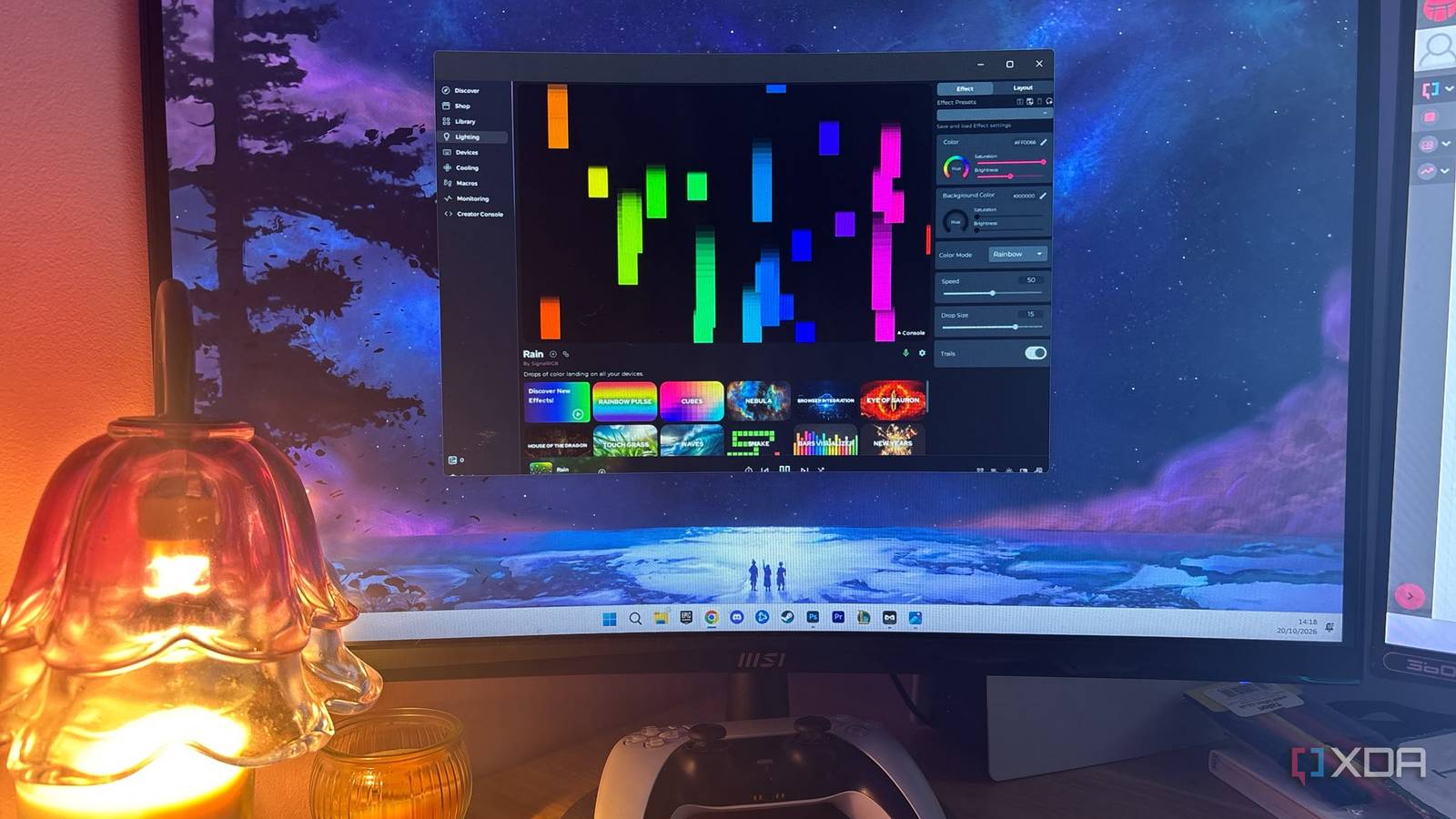
Published Oct 20, 2026, 11:00 AM EDT Jasmine is Software and PC Hardware Author at XDA with years of tech reporting experience ranging from AI chatbots right down to gaming hardware, she's covered just about everything. Whether it's breaking news about the latest AMD NPUs or creating video tutorials on social media platforms, Jasmine has contributed to the world of AI and tech in a variety of ways including interviewing the CEO of Razer, AMD's Director of Product Marketing and the VP of Lenovo. Passionate about gaming and PC technology, she has built countless computers, keyboards and other peripherals - knowing them inside and out. Sometimes, with PC gaming, your high-end rig can pull solid frame rates, yet every few seconds the screen can hitch or stutter during fast motion, ruining your gameplay. When this happens to me, my first thought is blaming drivers, a faulty Windows update, or bad shader compilation, which leads to hours of Display Driver Uninstaller wipes, clean reinstalls, and BIOS tweaks. For me, the actual source of the frame drops wasn't my graphics card or the drivers. It was, in fact, the bloated, poorly optimized vendor utility suite running invisible polling threads in the background. PC optimization isn't just about tweaking core clocks; it's about eliminating software bloat. By purging invasive GPU and motherboard RGB utilities, you can wipe out mysterious background stutters and restore true frame time consistency. There's a lot of overhead Your game is stuttering for a reason Consumer hardware lighting and monitoring suites have a lot of hidden overhead. This means that RGB software can destroy frame times. This is down to the constant WMI and SM bus polling. To synchronize colors across fans, coolers, and GPUs, software suites constantly poll hardware registers via Windows Management Instrumentation (WMI) and the system management bus (SM bus). Every few milliseconds, these background threads interrupt the CPU and saturate system buses. You also get DPC latency spikes. Poorly written vendor services cause deferred procedural latency spikes. This means when a background lighting daemon locks up system resources to update an LED color, it can delay high-priority hardware interrupts, causing micro-stuttering and audio crackling during games. This is what I noticed most, even though my frames looked consistent when I checked averages. I could feel constant micro-stuttering, especially when there was a lot of movement on screen. How to get SignalRGB set up This open-source software is lighter If you're running a poorly optimized render utility suite like Armory Crate, RGB Fusion, or Dragon Center, luckily there is a clean, lightweight open-source control alternative. By swapping out these proprietary bloats for lean open alternatives, you can restore your performance. Fan favorites and my personal go-to are OpenRGB and Signal RGB. By switching to a unified open-source ecosystem that communicates cleanly with hardware without running heavy, resource-hogging background telemetry and web frameworks, you keep full control without sacrificing performance. The great thing about these suites is that they also come with set-and-forget hardware profiles. You can leverage onboard memory on modern GPUs and peripherals to save hardware loading profiles directly to the device, letting you completely disable the background software runner when you don't need it. In order to strip out your software bloat, the first thing you need to do is actually identify the culprit. You can do this by checking Task Manager for resource-hungry background services tied to your GPU manufacturer or motherboard brand, like lighting services, ASUS Control Center, or RGB engines. Once you've found it it's time to save the profiles and uninstall. Set a static color profile via your onboard hardware if that's supported. Then completely uninstall the vendor utility suite using a robust uninstaller so that you can wipe residual registry entries. You can relocate fan control and critical fan curves into your motherboard BIOS or use lightweight tools like Fan Control and then use an open-source utility like OpenRGB if you still want basic lighting control without the baggage. If you don't, you can leave the static color profile you set before uninstalling so you don't need any of the fuss whatsoever. Lastly, you can benchmark and verify. Fire up your favorite demanding title and notice how the mysterious micro-stutters have vanished. You might not have all the features you want But the performance you get is worth it It's worth noting that you lose some hardware control features by removing your GPU and motherboard utility programs; despite being invasive, they provide a level of control you might not get from open source and BIOS settings. For example, uninstalling a massive utility suite often means losing custom fan curves or a hardware monitoring dashboard, forcing you to move fan control into the BIOS, which might not save your presets and might not offer as much control as the accompanying software. You might also lose complex cloud sync and rainbow wave effects, since Signal RGB and OpenRGB don't offer as many lighting customization options. For me, realistically, it felt like my gaming performance and system responsiveness took major priority over a glowing desk, but this might not be the case for everyone. Reclaim your performance This fix is simple We spend countless hours chasing ghost problems in GPU driver settings when the real enemy is sitting right in our Windows startup tray. Stripping out unnecessary background load is one of the easiest ways to reclaim your frame rates. Ditch the heavy RGB software suites, clean up your background processes, and get back to enjoying stutter-free gaming.
I uninstalled my GPU's RGB software, and the stutter I'd blamed on drivers went with it
Full Article
Original Source
Read the full article at Xda-developers →KhanList aggregates and links to publicly available news content. We do not host full articles from third-party sources. Always verify important information with original sources.