
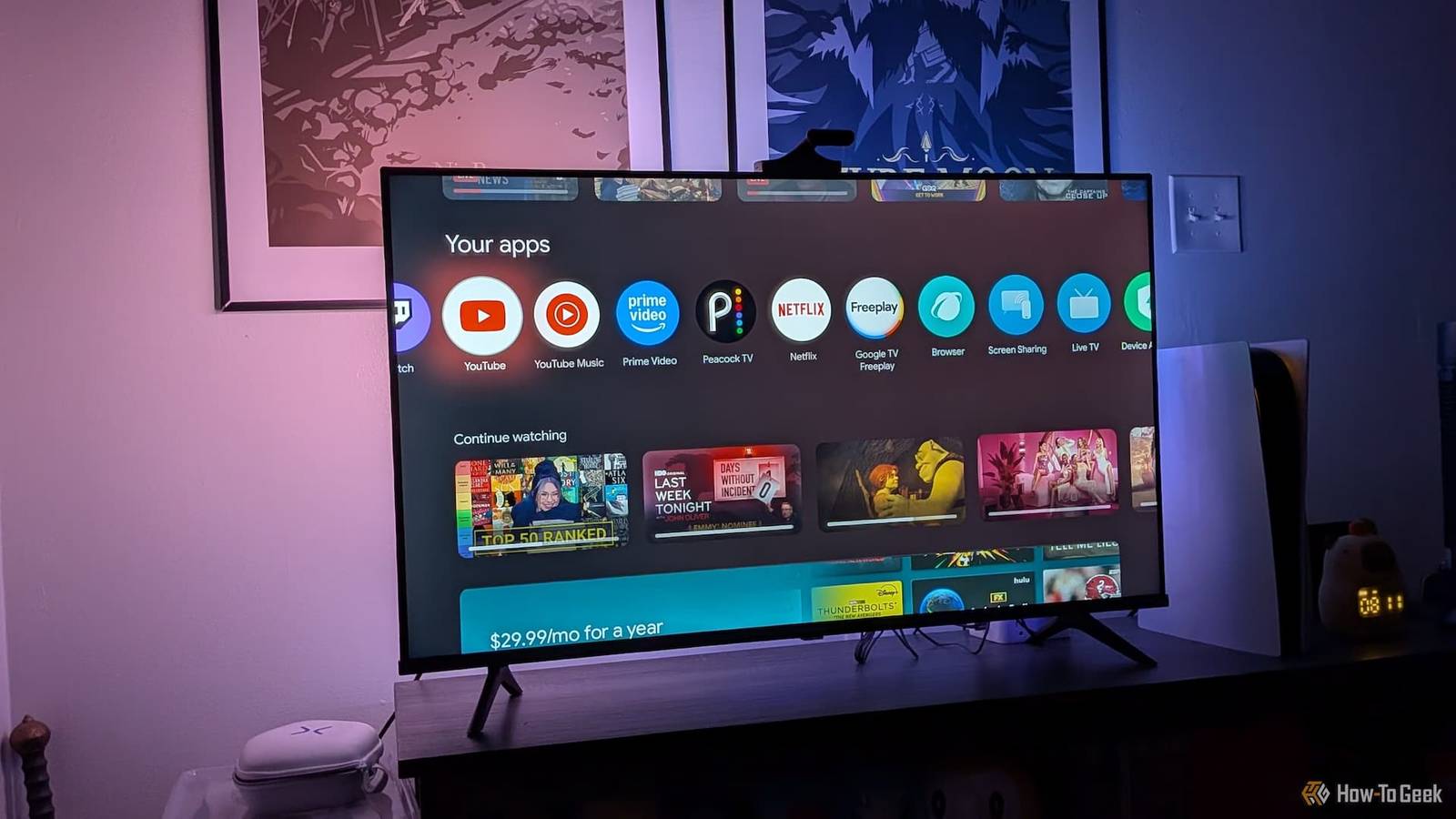
Credit: Kris Henges / How-To Geek Published Aug 30, 2026, 12:00 PM EDT Vishwamoorthy's interest in tech started early, as a school student, watching Pixel 2 XL camera review videos and being awestruck by what a phone camera with excellent software could do. That curiosity stuck with him: since 2022, he's published over 1,500 articles covering smartphones, Android, and consumer tech news at FoneArena, one of India's leading tech publications. Lately, he's obsessed with how AI is reshaping the business world, the deals, the products, the quiet feature rollouts nobody notices until they're everywhere. Reading and writing about tech is what keeps him going; doomscrolling is what keeps him honest. Most smart TVs you buy nowadays ship with Google TV software, which is basically a forked version of Android TV OS. Google TV promises to bring a content-first layout, powered by AI. The term "content-first" comes with a caveat. As soon as you switch on your TV, you’re presented with a big promotional banner, which is basically a show or movie in your region pushed to you. Following this banner are your apps and an endless list of recommendations from Google TV to watch, which can be overwhelming most of the time. So, I have consolidated four Google TV default settings you can tweak on your TV to make your experience more seamless and cleaner. Plus, I have a bonus suggestion at the end to get more control over your TV home screen. Switching to the “Apps-only Mode” Google TV's content-first layout may not be for everyone, especially when most of us have the app-first habit of directly entering the app to watch something or get things done. If you're one of them, Google has a specific option called Apps-only Mode under settings. This eliminates the content recommendations you see on your home screen and instantly gives you a clean and tidy look. To enable this mode, get into settings—you can do this on your remote or by clicking your profile picture in the top right corner of your home screen—head to Accounts & Sign In, select your profile, and scroll down a little to find the Apps-only Mode and toggle it on. That’s it. Strangely, Google completely disables app installations, Search, and Google Assistant while Apps-only mode is active. If you need to install new apps or manage the existing ones, you must temporarily toggle off this mode under the Accounts & Sign In settings. Disabling autoplay previews Lets you save some bandwidth and enables smoother navigation By default, Google TV autoplays preview trailers whenever you pause for content on the home screen. This can be annoying at times and be a recipe for sudden jump scares when your TV volume is high. It also takes up your internet bandwidth and slows the navigation process a little. Simply disabling this setting would make your experience simpler. To do so, go to Settings, head on to Accounts & Sign In, select your profile, and scroll down to the option that says Autoplay previews and click the toggle to turn it off. Disabling unwanted streaming services Get recommendations from services you've already subscribed to If you're someone who has gotten used to Google TV's existing content-first layout, I have a few tweaks for you as well. Disabling streaming services from which you don't need recommendations is the first tweak. Google TV offers a dedicated option under the Accounts & Sign In settings called Your Services. This basically lets the recommendation engine know which services you're interested in or subscribed to. This really helps in cleaning up your home screen. It'll be frustrating to see YouTube video recommendations taking up a full row when you are simply looking for movies to watch. Usually, I disable YouTube and other streaming services that I don't use or pay for. Do note that the service management settings are applied only to the particular Google Account profile. If you have multiple profiles on your TV, you might need to repeat the process again for each profile. Adding content preferences Personalize your Google TV's default recommendations Another way to personalize your Google TV recommendation engine and reduce the bloat of unwanted stuff is by curating your own content preferences. To do so, go to Settings, head on to Accounts & Sign In, select your profile, and scroll down to the option that says Content Preferences. Here Google will recommend a series of movies and show titles for which you need to give thumbs up or down depending on your personal choice. I tried this, and I can feel the difference right away. I am a big fan of feel-good movies, and my home screen recommends much more of that genre whenever I am casually browsing through the UI. Even after adjusting your personal preferences and managed services options, you'll still be offered a big promotional banner at the top of your home screen with a random movie/show promoted in your region. Bonus: Install Projectivy Launcher for ultimate control It gives you a lot more freedom than Google TV Even though you're changing these Google TV defaults to eliminate clutter, the company still finds a way in terms of banners to push you stuff you don't want on your TV home screen. Somehow, Google makes sure you don't use the apps-only mode by adding friction when it comes to installing apps. The same goes for content preferences and service tweaks. The solution? It's highly recommended you think beyond Google TV. You can leverage the freedom of having an Android TV and simply install the most popular TV launcher out there—Projectivy Launcher. It gives you more freedom in terms of UI customization of your home screen and lets you bring recommendations even from third-party streaming services like SmartTube, Stremio, and more. Each section on the launcher's home screen is called a category, and you have total freedom in hiding/unhiding existing categories. It will take a little more time than setting up a Google TV home screen, but it's totally worth it. Here, unlike Google TV's own recommendation engine, the launcher pulls them directly from your streaming service—they may be from Prime Video or from a third-party app like Stremio, as long as the developer of the service has enabled it. Apart from these, you have various options to play around with, from tweaking full UI appearances to the built-in app installer (from a custom URL or downloader code) and more. Core features are free to use, with some advanced features (like custom wallpapers and deeper icon customization) requiring a one-time premium purchase (around $7 to $8.16). A home screen built for your viewing habits These Google TV default tweaks make your streaming experience less influencing and more personal. Trying the suggested Projectivy launcher can liberate your experience even further.
I turned off these 4 Google TV defaults and got a much cleaner home screen
Full Article
Original Source
Read the full article at Howtogeek →KhanList aggregates and links to publicly available news content. We do not host full articles from third-party sources. Always verify important information with original sources.