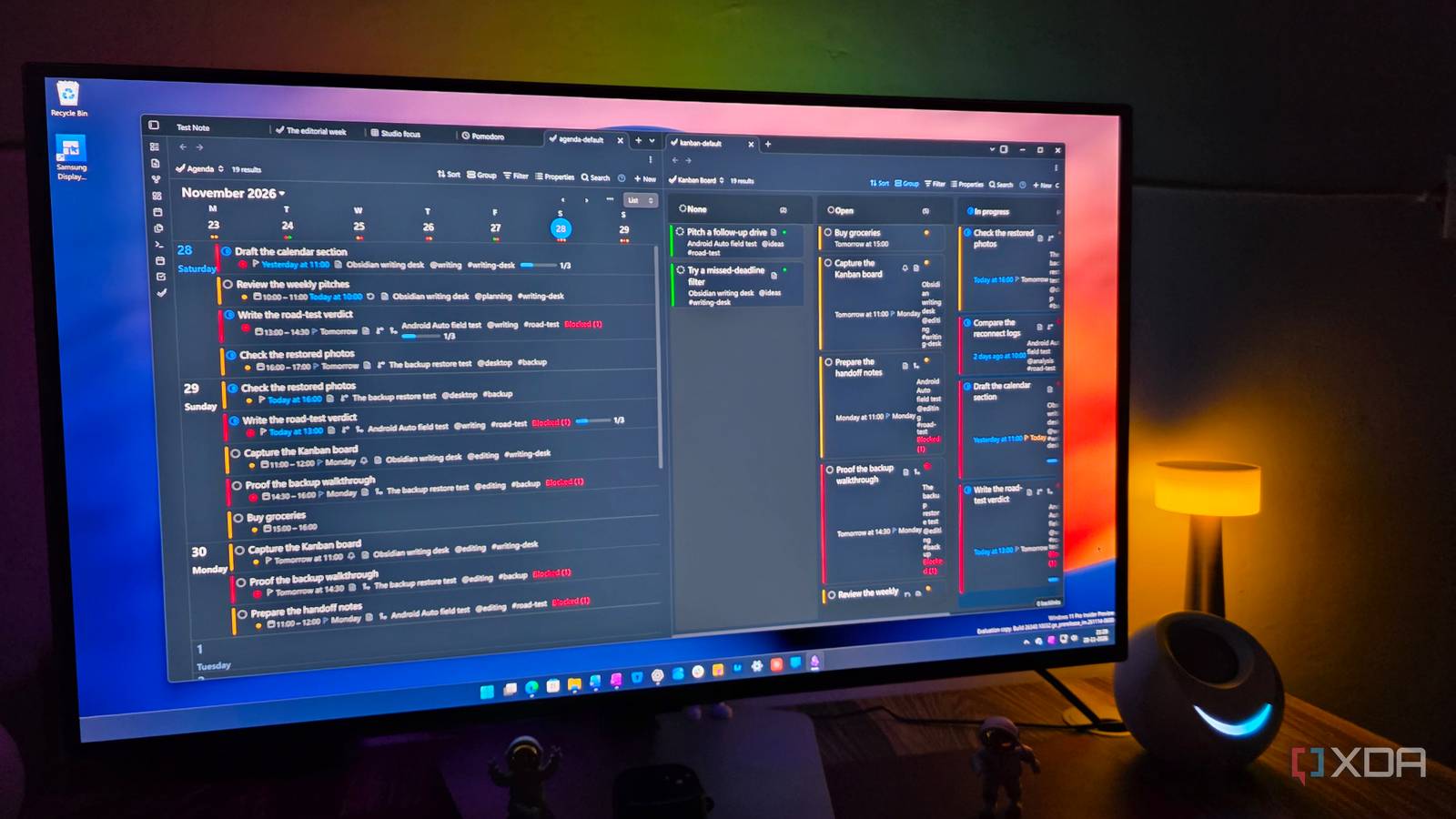
Published Nov 29, 2026, 2:30 PM EST Parth, a seasoned tech writer, wields the keyboard (or pen) with finesse to unravel the intricacies of both Windows and Mac operating systems. He has covered evergreen content on mobile devices and computers for multiple publications over the last six years. You can find his work on AndroidPolice, GuidingTech and TechWiser. Whether it’s demystifying system updates, deciphering error codes, or exploring hidden features, Parth’s prose guides readers through the binary maze. When not immersed in tech jargon, you’ll find him sipping chai, pondering the next software review, and occasionally indulging in a friendly debate about mechanical keyboards. Obsidian has always been my go-to app for managing notes, organizing ideas, and building a personal knowledge base. However, I still had to rely on separate productivity apps to manage my daily tasks, track deadlines, and plan projects. Constantly switching between these tools felt unnecessary, especially when Obsidian already housed most of my work-related information. That changed when I discovered TaskNotes, a free community plugin that goes well beyond basic task management. What is TaskNotes, anyway? And how to install it Task Notes is a free, open-source Obsidian plugin that takes a different approach to task management. Instead of treating tasks as simple checkboxes within notes, it stores them as individual Markdown files with properties such as priorities, statuses, due dates, and project associations. It also bundles several productivity essentials, including calendar views, time tracking, recurring tasks, and a Pomodoro timer. Getting started with TaskNotes is straightforward. I headed to Obsidian Settings, opened the Community plugins menu, searched for TaskNotes, installed it, and enabled it. Since TaskNotes relies on Obsidian Bases for its various views, make sure to enable it from the Core plugins menu. Once everything is in place, I can use the TaskNotes icon in the sidebar or the command palette to create tasks and access my productivity dashboard. Every task becomes a note Multiple views keep everything organized TaskNotes creates a dedicated Markdown file for every task. I can assign a priority, set start and due dates, add tags, define recurring schedules, and associate a task with a specific project. Since it’s essentially an Obsidian note, I can also add detailed descriptions, embed attachments, and link relevant research without any restrictions. For instance, when I create a task for an upcoming article, I can include my editor’s instructions, link relevant research notes, and jot down potential talking points within the same file. I am not restricted to a conventional task list. I can switch to a Kanban board to visualize my editorial pipeline, use the calendar view to keep track of deadlines, or open the agenda view to plan my upcoming days. I can also filter, sort, and group tasks based on their properties. For example, I can create a dedicated view that only displays high-priority assignments due this week. I like how TaskNotes supports natural language where I can just type ‘Meet doctor next Friday at 6 pm,’ and it creates the task with relevant details. The entire experience feels closer to a dedicated productivity app like Todoist or TickTick than a traditional Obsidian plugin. My calendar finally feels complete My time-tracking app becomes redundant One of my favorite additions is its calendar view, which gives me a complete overview of my upcoming responsibilities. I can switch between daily, weekly, and monthly layouts, drag and drop tasks to reschedule them, and allocate dedicated time blocks for individual assignments. TaskNotes also supports external calendar integration, so I can view my appointments and scheduled tasks alongside each other. For instance, instead of simply creating a list of articles I need to finish on Monday, I can allocate specific time slots for research, writing, and editing. It helps me plan my workload more realistically rather than creating an ambitious to-do list that I struggle to complete. The built-in time tracker is another highlight. Whenever I start working on an assignment, I can start a timer directly from the task and record how much time I spend on it. I no longer need to switch to a dedicated time-tracking app like Toggl to monitor my working hours. TaskNotes even packs a dedicated Pomodoro timer with customizable focus sessions and breaks. I can also review my session history and productivity statistics to understand my working habits better. Everything comes together in my vault A practical example from my workflow To put TaskNotes through its paces, I created a dedicated Editorial Studio within my Obsidian vault. I populated it with 18 tasks across three projects, complete with deadlines, priorities, time estimates, and recurring schedules. I also created a dedicated storyboard with a Kanban layout to visualize my editorial pipeline, a Story backlog to manage upcoming assignments, and an agenda view to keep track of my daily responsibilities. The biggest advantage here is that my entire productivity system sits alongside my research notes, article outlines, and ideas. I don’t have to duplicate information across multiple apps or constantly switch between browser tabs. TaskNotes brings the convenience of Todoist, Trello, and Toggl into the same Obsidian vault. One plugin, endless productivity possibilities The biggest advantage of TaskNotes isn’t that it packs a number of productivity features into Obsidian. It’s how naturally those features fit into my existing workflow. My tasks are no longer disconnected from my notes, project resources, and ideas. I can plan my day, track deadlines, monitor progress, and start focus sessions without ever leaving my vault. If you already use Obsidian and rely on multiple apps to organize your workday, I highly recommend trying TaskNotes.
I turned Obsidian into a complete productivity app with one free plugin and there is no going back
Full Article
Original Source
Read the full article at Xda-developers →KhanList aggregates and links to publicly available news content. We do not host full articles from third-party sources. Always verify important information with original sources.