
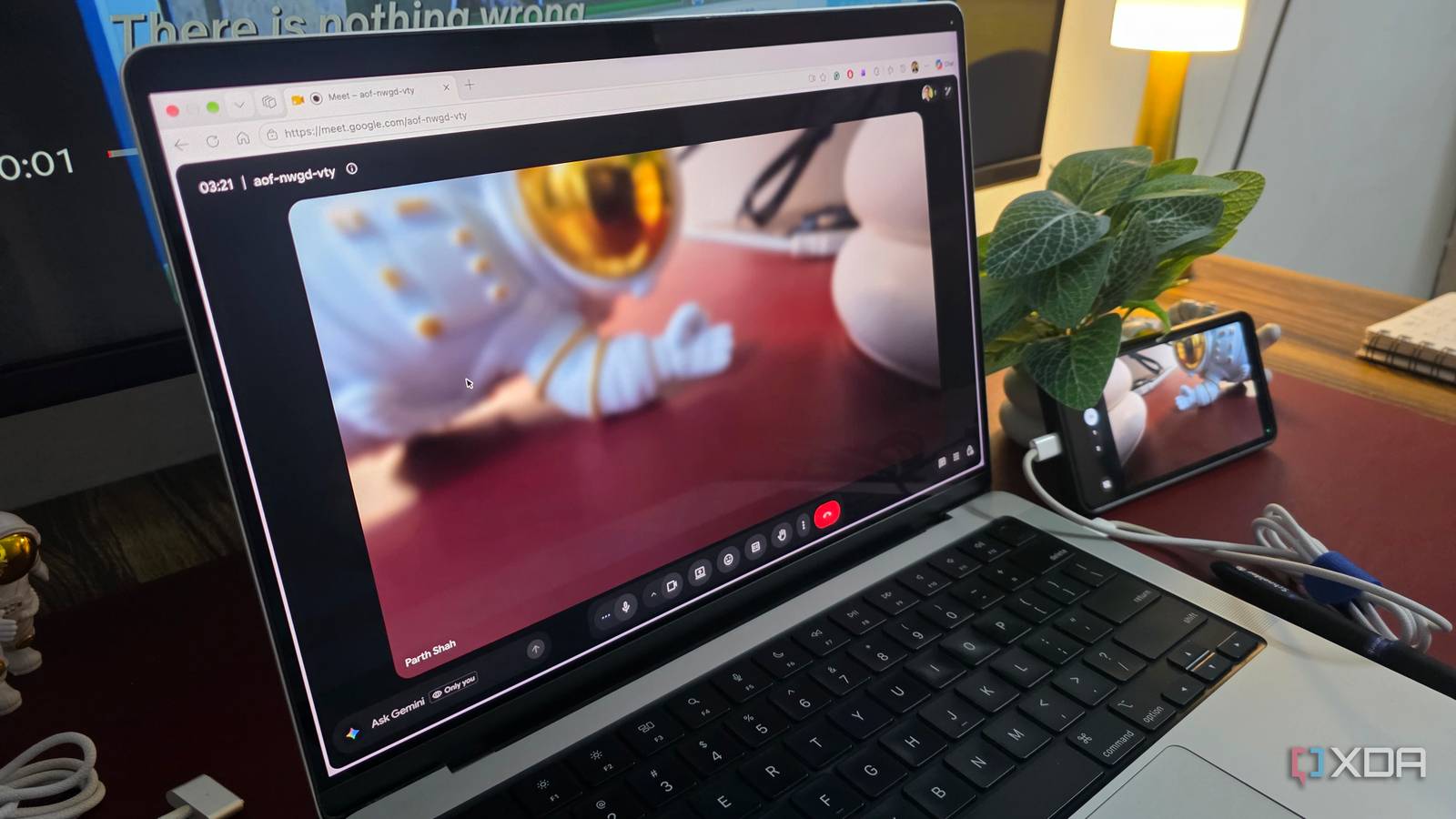
Published Oct 14, 2026, 6:00 PM EDT Parth, a seasoned tech writer, wields the keyboard (or pen) with finesse to unravel the intricacies of both Windows and Mac operating systems. He has covered evergreen content on mobile devices and computers for multiple publications over the last six years. You can find his work on AndroidPolice, GuidingTech and TechWiser. Whether it’s demystifying system updates, deciphering error codes, or exploring hidden features, Parth’s prose guides readers through the binary maze. When not immersed in tech jargon, you’ll find him sipping chai, pondering the next software review, and occasionally indulging in a friendly debate about mechanical keyboards. My Pixel 8 has sat unused since I switched to my Galaxy S25 Ultra, and I was looking for a practical way to get it working again. At the same time, I wasn’t particularly impressed with my laptop's built-in webcam. I considered buying a dedicated webcam, but then I found a handy Android feature on my Pixel that does the same job without third-party apps, complicated workarounds, or extra accessories. A useful feature hiding in plain sight Ever since I switched to my Samsung Galaxy S25 Ultra, I haven't used my Pixel 8 much. I occasionally pick it up to test new Android features, but otherwise, it spends most of its time sitting in a drawer. As it turns out, Google introduced native USB webcam functionality that allows compatible Pixel phones to double as webcams for computers. The feature has been around for a while, but I completely overlooked it. I was also surprised by the straightforward implementation. Unlike third-party solutions such as DroidCam, Google’s built-in option doesn’t require installing companion software on my Windows PC or Mac. It uses the standard USB Video Class protocol, so my computer can recognize the Pixel as a webcam. Since my Pixel 8 still has an excellent camera system, leaving it unused while relying on an ordinary laptop webcam suddenly felt like a missed opportunity. Setting everything up was quite easy Just a USB cable and a few taps As mentioned, Google made the process easy, and I had my old Pixel working as a webcam within minutes. I started by connecting my Pixel 8 to my Windows desktop using a USB-C cable. Make sure the cable supports data transfer, since a charging-only cable won’t work. Once connected, I unlocked my Pixel 8 and pulled down the notification shade. I tapped the Charging this device via USB notification to open Preferences. Under Use USB for, I selected Webcam. I tapped the new Webcam notification to open the camera preview and adjust the framing. Finally, I opened Google Meet on my desktop and selected Android Webcam as my camera source. That was pretty much it. My Pixel was ready for video calls without needing any additional software on either device. I could even switch between the front and rear cameras and adjust the zoom directly from my phone. I didn’t have to deal with wireless pairing, IP addresses, or complicated companion apps. The entire experience felt like plugging in a regular USB webcam, except I was using a smartphone I already owned. The rear camera makes the difference Google included handy controls While my laptop’s webcam gets the job done, the Pixel has a much more capable 50MP main camera with a larger sensor and better optics. I started with the front-facing camera, which worked fine for regular video calls. However, switching to the rear camera made the setup much more interesting. I could use the Pixel’s superior camera hardware to get a cleaner, more detailed video feed, especially when the lighting wasn’t ideal. Of course, this doesn’t mean I get the same image quality as shooting a regular 4K video on my Pixel. The webcam feed has its own limitations, but it’s still a practical upgrade over relying on an ordinary laptop webcam. Once I enable Webcam mode, I can tap the Webcam notification on my Pixel to launch a live preview. From there, I can switch between the front and rear cameras, use the preset zoom controls, or pinch the screen to fine-tune the framing. There is also an HQ toggle to improve video feed quality. Another thoughtful touch is that I don’t need to keep my Pixel’s screen turned on throughout a meeting. Once I adjust the framing, I can lock the phone, and the webcam keeps working in the background. The Pixel also charges through the connected USB cable, so I don’t have to worry about draining its battery during longer calls. It works beyond my Windows desktop One phone, multiple computers, zero hassle Another thing I appreciate about Google’s implementation is that it isn’t restricted to one specific platform. I frequently switch between my Windows desktop and MacBook Pro, so having a webcam that works across both platforms is a major advantage. I can simply connect my Pixel, enable webcam mode, and select it as the camera source in supported apps like Google Meet, Microsoft Teams, and Zoom. In comparison, Apple’s Continuity Camera is excellent, but it requires an iPhone and a compatible Apple device. The webcam upgrade I never expected I wasn’t expecting my old Pixel 8 to become a permanent part of my desk setup, but this little experiment convinced me otherwise. The camera hardware is still capable, the setup is straightforward, and the results are good enough for my everyday video calls and meetings. Sure, there are some limitations, but they are minor compared to the convenience. If you have a compatible Pixel collecting dust (or use one as a daily driver), try this feature before spending money on a new webcam.
I turned my old Pixel into a USB webcam without installing a single app
Full Article
Original Source
Read the full article at Xda-developers →KhanList aggregates and links to publicly available news content. We do not host full articles from third-party sources. Always verify important information with original sources.