
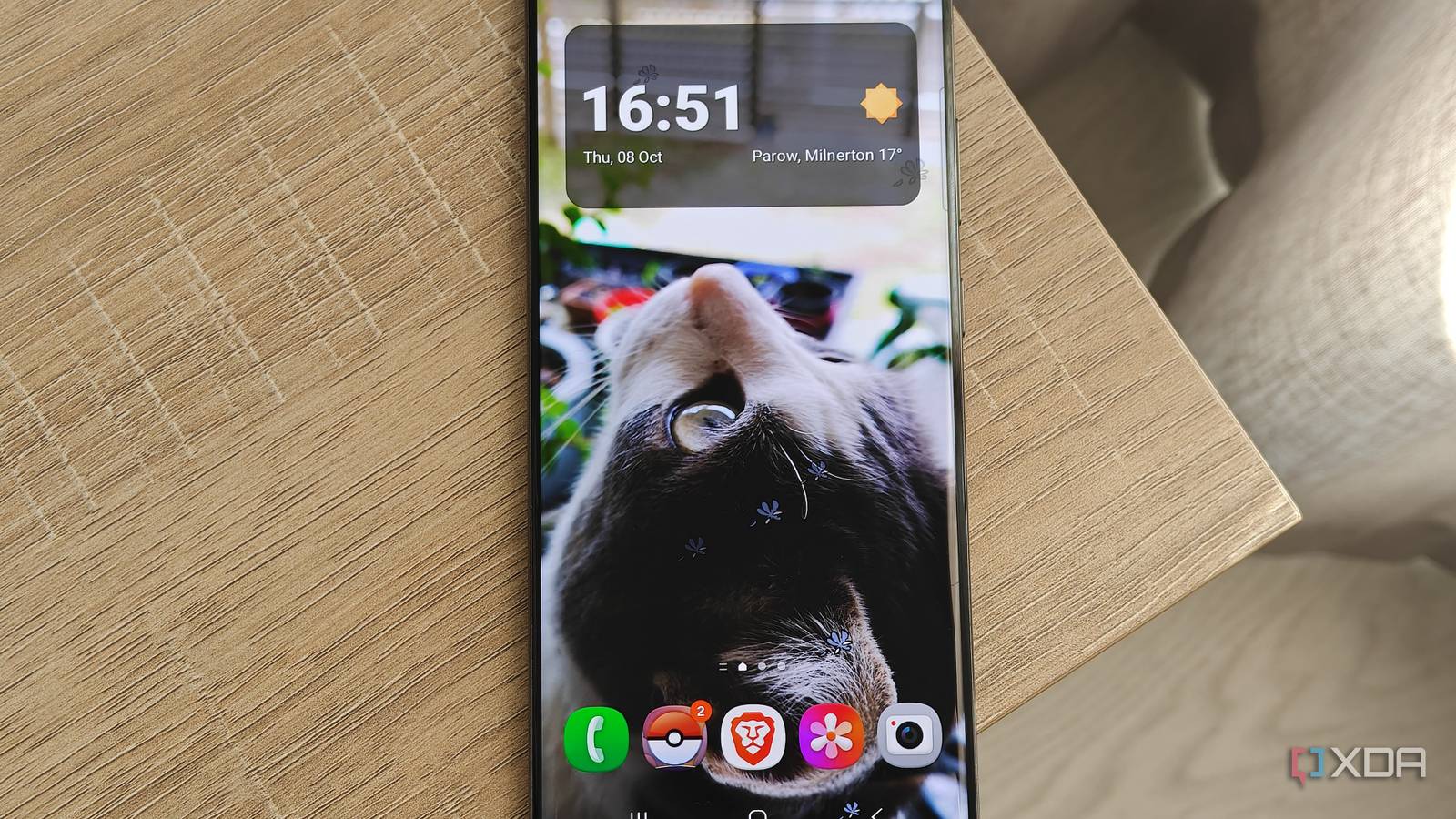
Published Oct 10, 2026, 4:00 PM EDT Megan is a Software Writer at XDA Developers who has been writing about consumer technology since 2016. With a postgraduate degree in New Media journalism, she has always been passionate about diving deep into topics and writing about them in a way that makes them easier to understand for everyday consumers. She runs her own blog called Tech Valkyrie and has contributed to Tom's Guide and Android Authority. She also worked at MakeUseOf as a Lead Editor. In her spare time she plays video games and geeks out about the latest tech. I've wasted far too much time using my devices with factory defaults and minimal customization on my home and lock screens. A while back, I decided it was time to give my Samsung Galaxy smartphone a makeover, as I was tired of staring at the same generic background and haphazard app shortcuts. I finally breathed new life into my device by making it my own. These tricks helped me bring my personality to my smartphone screen. Choosing images that mean something to me Bring your interests to your home screen Calling default smartphone wallpapers impersonal is an understatement. They tend to be abstract shapes or color gradients — or worse, your network provider's logo. I used to browse the Galaxy Themes storefront to find better options, but most of the time they left me feeling uninspired. Eventually, I found something that worked: choosing photos that mean something to me. Most of the time, this means cute images of my cats. But for others, it may mean their favorite fictional character or a sports team. If you choose something personal, your home screen is more likely to spark some joy when you open it. I even try to compose my screen differently to align with the image I'm using. So far, it's one of the best changes I've made. Creating a custom lock screen with built-in options You can do more than you think The customization available for your Galaxy device's lock screen goes beyond just selecting a background. You can adjust your clock style, its position, the font and color, and add widgets. You can even switch out the available shortcuts. I chose a vertical digital clock that shows the date and a small weather icon. I further tweaked the style by choosing a color gradient and font that complemented my background colors. When I can't find a font I like, I browse the Galaxy Store for additional options. At first, I didn't think changing my lock screen would make much of a difference, but I tried it anyway. In the end, it was one of the most impactful changes I made to my device's look. Using Wonderland to create a moving wallpaper Wonderland is a Good Lock plugin that lets you create moving wallpapers. You can choose from a variety of presets, or create your own from scratch. I decided to create my own with my cat Loxi as the star. I always joke that he's my little woodland sprite, so I added moving flowers to the wallpaper. Wonderland lets you add multiple layers to your wallpaper, starting with the central image. You can then add animated particles, edit their behavior, and change their colors if you want. The plugin also lets you preview your edits so you can see them before saving to your home or lock screen. The motion applies not only to the animated icons you can add to your wallpaper, but also to the gyroscopic movement you can add to your background image. For added effect, I enabled this movement for my wallpaper too. So when I tilt my device, the image moves too. Samsung's options weren't my taste I'm picky about my home-screen clock widget. I usually like a blend of time, date, and weather, but I also want it to blend somewhat into my smartphone's overall layout. Unfortunately for me, none of Samsung's Clock or Weather widgets suit this preference — with the colorful options sticking out too much, and the more balanced options lack all the information I want. So I decided to go with a widget from a third-party app instead. In this case, I chose Breezy Weather because I like the service's detailed information and the ability to switch between forecast providers. Luckily for me, it also provides a customizable widget that displays the time, date, and weather. I can also tweak the widget's size, font, and background. This lets me set the widget as the centerpiece of my home screen without taking too much attention away from the work I put into the wallpaper. Creating a more lively AOD with Wonderland I added a bit more fun to locking and unlocking my phone Beyond moving wallpapers, Wonderland lets you create transition effects between your lock screen and Always-On Display (AOD). I hadn't been using the AOD feature until I realized how much fun I could have with transition effects. Inspired by a template I saw in the app, I used it to create my own version of a cat peeking out of my AOD. In this case, I used photos of my cat Black Velvet instead. Now, when I turn off my phone screen and it transitions from my lock screen to my AOD, my AOD shows a small circle where she peeks out. I chose the perfect image to showcase her nose and suspicious eyes and enhance the effect. However, you can experiment with other templates that aren't only targeted at cat ladies and make them your own. It does affect battery life a bit, but I've been having fun ever since I enabled the new screen. Make your Samsung Galaxy device your own Customization used to feel like a chore, but lately Samsung's features and Good Lock plugins have made it much more enjoyable. And since I've started customizing my phone more, I find I look forward to checking my device. If your Galaxy smartphone lacks personality, you can add some with these tricks. There are even more Good Lock modules to explore, and you may even be able to rope Galaxy AI into the task of creating custom images.
I turned my Galaxy home screen into something I actually enjoy looking at with these 5 tricks
Full Article
Original Source
Read the full article at Xda-developers →KhanList aggregates and links to publicly available news content. We do not host full articles from third-party sources. Always verify important information with original sources.