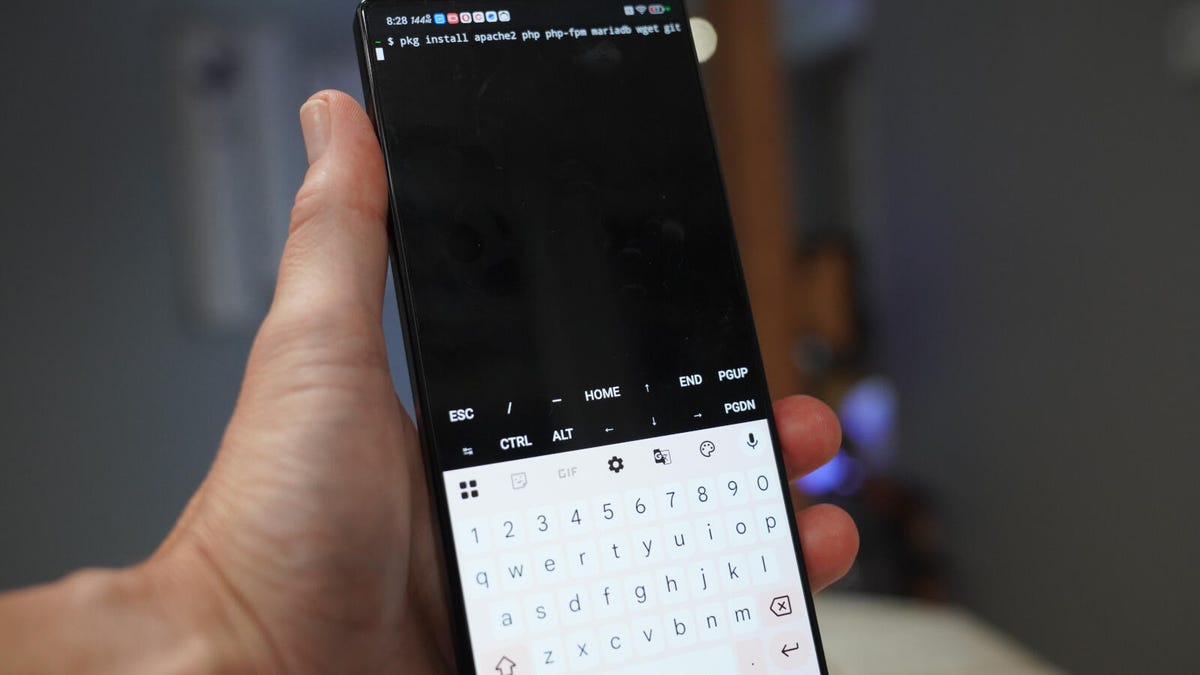
Jack Wallen/ZDNETFollow ZDNET: Add us as a preferred source on Google.ZDNET's key takeawaysTermux makes it easy to get a Linux terminal emulator on Android.With Termux, you can turn your phone into a server.Termux is free to install from F-Droid.I often adapt old phones and tablets for uses other than their intended purpose. Usually, it's just for fun; sometimes there's a method to my madness. Over the weekend, I decided to try turning a phone that had been resting silently in a drawer into a server…specifically, a Linux server.That's right. I wanted to see what I could do with Apache and a few other bits and pieces. In the end, I wound up with a fun little website as a test, and now I'm going to show you how I did it.Also: I found a free Android app that makes deleting photos as easy as swiping leftIt starts with Termux.What is Termux?Termux is a free, open-source Linux terminal emulator that lets you run a Linux environment on Android. It's not exactly a 1:1, perfectly binary-compatible match (there are some permissions issues and a few other quirks that prevent it from behaving exactly like a true Linux distribution), but it's close enough.You can install Termux from the Google Play Store, but don't. The version available on the Play Store is out of date. Instead, you need to install F-Droid (download the APK from the F-Droid site and then sideload it), and then install Termux from within that app.Also: How I converted my Android phone into the perfect bedside clock - and why it makes senseOnce it's installed, you'll find yourself at a Linux terminal, where you can begin setting up your server.Installing the necessary packagesWhat you install will depend on what you want to serve up. Let me walk you through the process of getting an Apache server up and running along with a basic PHP-based website. Installing apps on Termux is actually quite easy. Screenshot by Jack Wallen/ZDNET The first thing you need to do is update the software within the emulator. To do that, issue the command: Show more pkg update Instead of typing everything from your phone, you can install SSH and then remote into it from a desktop (so you can type on a regular keyboard). To do that, issue the command: Show more pkg install openssh To find the IP address of your Termux environment, issue the command: Show more ifconfig Next, you need to find your username with the command whoami. You can then set a password (that you'll use for SSH) with the command: Show more passwd Start the SSH server with the command: Show more sshd Open a terminal window on a Linux or MacOS machine (or a Windows machine with SSH installed) and connect with the command: Show more ssh USER@IP:8022Where USER is your username, and IP is the Termux IP address. Install the necessary components for the LAMP server (as well as git and wget) with the command: Show more pkg install apache2 php php-fpm mariadb git wget You can now start the Apache server with the command: Show more apachectl start Open a web browser on your network and point it to http://IP:8080 (where IP is the IP address of your Termux environment). You should see "It works!" printed on the page. Show more Create a siteAt this point, you can either start building a website from scratch or download a sample site, such as one of the ones I found from this collection of PHP sample sites. If you're going the PHP route, you'll need to start the PHP server with the command:php-fpmAlso: My favorite SSH clients for Android - and why you need themYou can download one of the sample sites into the Apache document root and test it out. To do that, change into the Apache document root with the command:cd /$PREFIX/share/apache2/default-site/htdocsYou can use git to clone one of the sample sites with:git clone https://github.com/amoldalwai/E-learning-Website.gitIf you're demoing the E-Learning site, rename it with the command:mv E-learning-Website learningPoint your web browser to http://IP:8080/learning/home.php (again, where IP is the IP address of your Termux server), and the site will appear.Also: How to run Android apps on Linux How cool is this? An E-Learning site served up by an Android phone. Screenshot by Jack Wallen/ZDNETYou now have a working website running on a spare Android phone. Get creative with it: There are all kinds of experiments you can do, such as installing a Nextcloud server, a database development server, a CMS, or even (if you want to get really complicated) a home automation server.Featured
I turned an old Android phone into a server for my LAN - here's how and why
Full Article
Original Source
Read the full article at Zdnet →KhanList aggregates and links to publicly available news content. We do not host full articles from third-party sources. Always verify important information with original sources.