
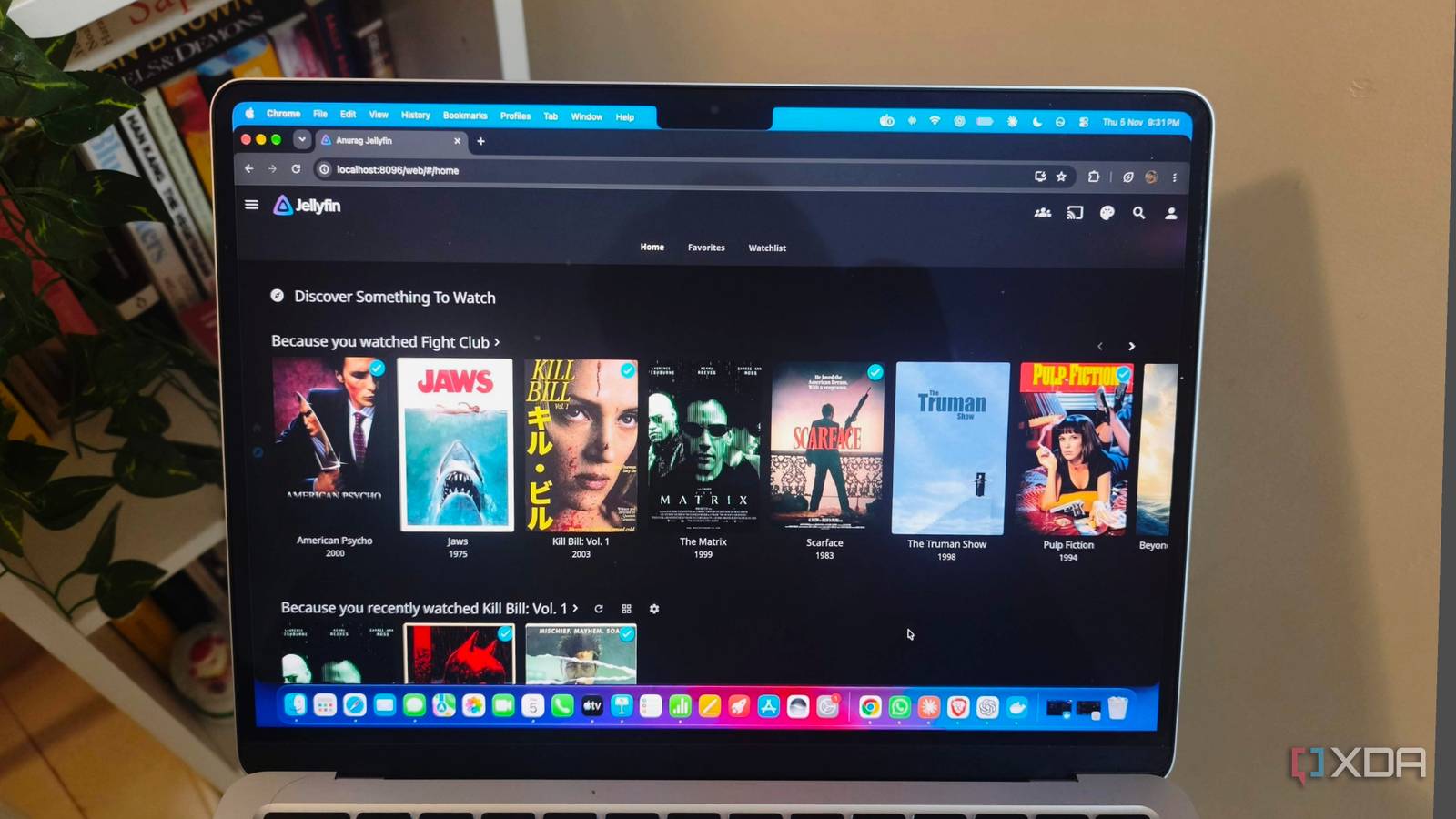
Published Nov 7, 2026, 3:00 PM EST Anurag is an experienced journalist and author who’s been covering tech for the past 5 years, with a focus on Windows, Android, and Apple. He’s written for sites like Android Police, Neowin, Dexerto, and MakeTechEasier. Anurag’s always pumped about tech and loves getting his hands on the latest gadgets. When he's not procrastinating, you’ll probably find him catching the newest movies in theaters or scrolling through Twitter from his bed. The way a streaming service presents its catalog plays a big part in what you end up watching. You get rows built around genres, recommendations, and things you’ve saved for later, giving you somewhere to start without searching for a specific title. I want that same experience when browsing my own media collection in Jellyfin. Jellyfin already provides posters, backdrops, and metadata, and I use KefinTweaks to bring everything together in a way that feels more like streaming services. It’s a community-developed plugin that brings customizable home-screen sections, skins, a watchlist, and several useful browsing improvements to Jellyfin’s web interface. You can build a home screen around the movies and shows you own, with the appearance and discovery features that make opening a streaming service more interesting than scrolling through an alphabetical list. KefinTweaks fills some obvious feature gaps Watchlists and viewing tools worth adding Jellyfin already tracks what you’ve watched and where you stopped, so KefinTweaks has plenty of existing functionality to build on. Its developer, ranaldsgift, uses that foundation to address community feature requests, including several that make choosing and managing what to watch easier. You can enable individual enhancements through its configuration interface without committing to every change it offers. The watchlist is one of the most useful additions. You can save movies, entire shows, seasons, or individual episodes and return to them through a dedicated page. It also supports automatically removing items after you watch them. That gives you a place to add a movie you spot when you’re halfway through something else, without mixing everything into your favorites. For shows you’ve already started, the Series Progress page brings your viewing activity together with filtering, sorting, and controls for marking items as watched. Movie History also provides a similar overview for films. You also get viewing statistics covering movies, shows, and episodes. KefinTweaks also lets you remove abandoned titles from Continue Watching, search for subtitles from the player, and browse library pages with infinite scrolling instead of pagination. Enhanced search lets you narrow results by content type. Beyond those functional additions, the skin manager and expanded home-screen controls let you change how the library appears and which sections greet you when you open it. Getting everything installed through Jellyfin’s dashboard KefinTweaks runs through Jellyfin’s web interface, so the client you use is important. You’ll see its changes in a browser and compatible apps that use Jellyfin Web. Native clients with their own interfaces, including Jellyfin for Android TV, don’t inherit the redesign. The installation starts with JavaScript Injector, which loads the scripts that make KefinTweaks work. In Jellyfin’s dashboard, open Plugins, find the repository settings, and add n00bcodr’s repository. JavaScript Injector will then appear in the catalog for installation. I’d also recommend adding File Transformation to avoid file permission issues. You can install that through IAmParadox27’s repository, then restart Jellyfin after installing the plugins. Once Jellyfin is running again, open JavaScript Injector’s settings and click Add Script. You can name the entry KefinTweaks and paste the following loader into its JavaScript code field: const script = document.createElement("script"); script.src = "https://cdn.jsdelivr.net/gh/ranaldsgift/KefinTweaks@latest/kefinTweaks-plugin.js"; script.async = true; document.head.appendChild(script); Enable the script, save your changes, and refresh the browser. A KefinTweaks card should now appear on the Plugins page. Open it, choose the release you want, and click Install. KefinTweaks then loads its components and creates the scripts it needs for configuration. Its configuration screen is accessible from the dashboard or the navigation menu’s KefinTweaks section. You can manage feature toggles, home-screen sections, and available skins there. If saved changes aren’t appearing, a hard refresh bypasses the browser cache and reloads the interface. Building a home screen worth browsing Custom rows make browsing more interesting Once KefinTweaks is running, you can decide what deserves space on the home screen and how you want to present it. For a streaming-style layout, I’d keep Continue Watching and the watchlist near the top, followed by sections that offer something to browse. KefinTweaks supports new-release rows, genres, studios, and custom sections. New releases are particularly useful here because they use release dates, so they serve a different purpose from a row showing whatever you recently added to the server. You can also give collections and playlists their own space on the home screen. You can add discovery sections to add more variety to that arrangement. They can draw on watched titles, favorites, and watchlisted items, along with genres and people represented in your library. You get suggestions from the collection you already own, including titles that otherwise sit several pages deep. The section wizard provides templates to get started, and the advanced editor supports more specific queries and sorting rules when you want to narrow things down. The artwork controls give those rows their character. You can choose different image types, switch between rows and grids, and adjust borders and text placement. I use these differences to give a few sections prominence and keep the rest straightforward.
I tried KefinTweaks on Jellyfin, and my media library now looks like a streaming service
Full Article
Original Source
Read the full article at Xda-developers →KhanList aggregates and links to publicly available news content. We do not host full articles from third-party sources. Always verify important information with original sources.