
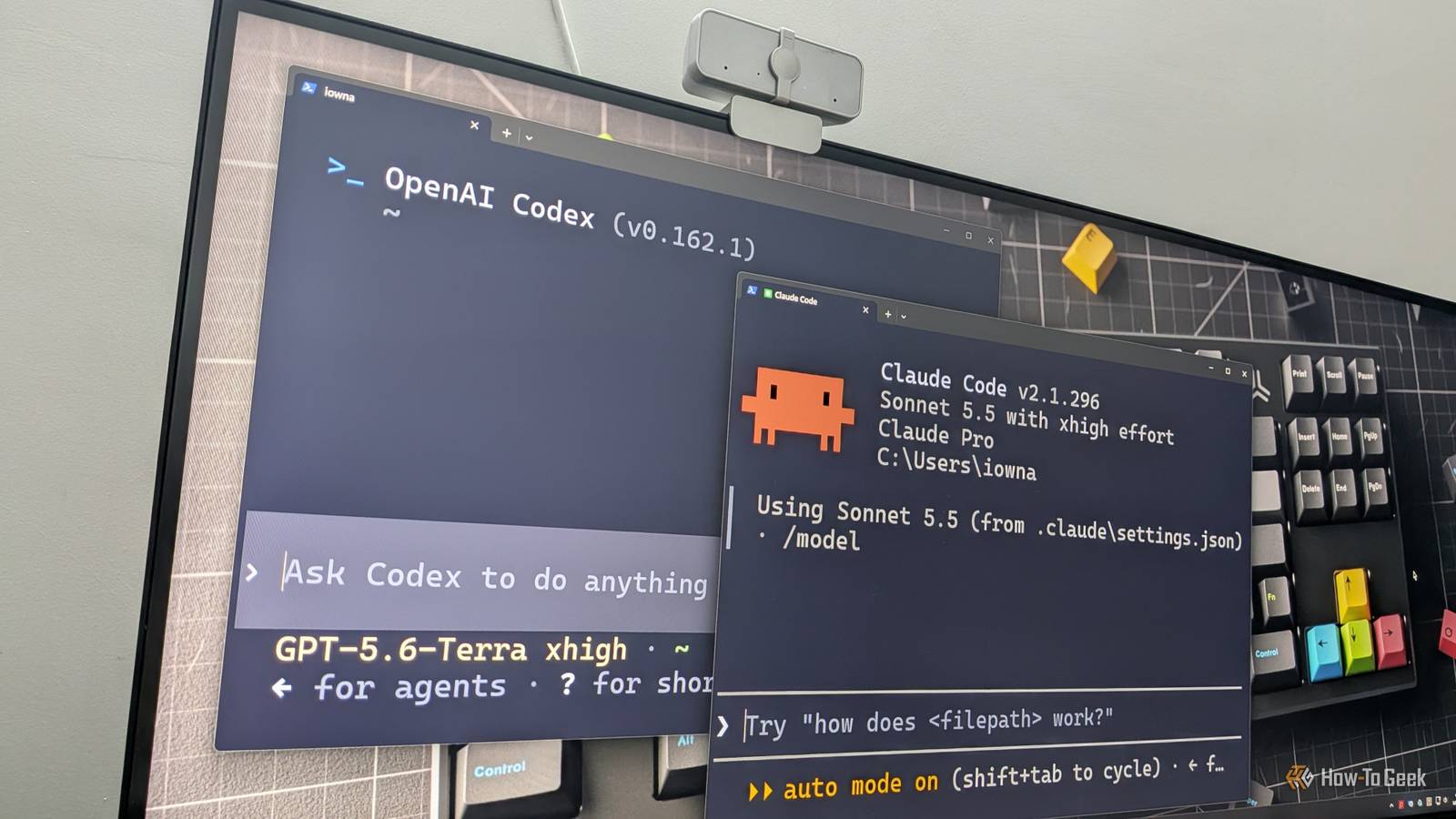
Published Oct 12, 2026, 10:30 AM EDT Dibakar Ghosh is a tech journalist at How-To Geek with over a decade of experience using and writing about open-source software, Linux, Android, AI, and personal productivity. He writes about software, operating systems, and tools that help people get more from the technology they already use. Sign in to your How-To Geek account Are you finally getting around to building your personal portfolio website? Wondering which AI coding tool you should trust with the job? I was in the same boat a few days ago, so I tested Claude Code and Codex CLI to see which one did a better job. As it turns out, neither was perfect, but one built a noticeably better portfolio landing page than the other. I wanted to vibe code the perfect portfolio landing page Same goal, same brief, two very different AI tools Everyone around me keeps talking about the importance of having a portfolio landing page. Apparently, it's supposed to boost your online presence and make you more visible to recruiters. The idea is that instead of you searching for jobs and sending your resume to HR departments, you can have a website showcasing your work, so prospective employers can find you instead. Now, while that does sound nice, the problem is that I'm neither a graphic designer nor a web developer — I'm a writer. Sure, I may have opinions about what my website should look like and how it should function, but I can't design or code it myself. Thankfully, we live in the age of AI, and when you have an idea but lack the skills to bring it to life, you can turn to an affordable AI tool to vibe code it for you. So, I asked both Claude Code and ChatGPT Codex to build me a personal portfolio landing page using my resume as a reference. I gave both tools the same prompt, instructing them to first gather information about me to build a clearer picture of who I am, ask three to five clarifying questions, make the design and technical decisions best suited to my profile, and then build the best website they could. I’ve included the full prompt I used at the end of the article. Here’s how Claude Code performed It got a lot right, but not everything With Claude Code, I selected Sonnet 5.5 at xHigh effort and entered the prompt. It confirmed that it understood the task and asked if I had anything else to add. I gave it my resume and permission to search online. It then came back with a few multiple-choice questions, presented in an interactive command-line interface which was pretty cool. After I answered its questions, it conducted its online research, pulled everything together, and started building. The whole process took about 30 minutes and used around 245K tokens — way more than what I was expecting. Claude went with an editorial-style design featuring an ink-navy background, marigold accents, and my name front and center. You could tell it was my website at a glance. Design-wise, it felt modern, minimal, and professional. It also included light and dark themes that visitors could switch between, which was a nice accessibility touch. Overall, I really liked the design. My main complaint was the copy. It wasn't bad, but it wasn't great either. Much of it felt generic. I also recall telling Claude to include some personal details, so my portfolio wouldn't be all work and no fun. Specifically, I asked it to talk about my homelabbing hobby. I expected it to highlight some of my homelab projects, but the section focused mostly on my homelab specs. I felt that was redundant and largely irrelevant to potential employers and clients. Here’s how ChatGPT Codex performed Good where Claude was bad — bad where Claude was good As with Claude, I gave Codex the same prompt, my resume, and permission to search the web for more information about me. I used GPT-5.6 Terra at xHigh effort. Codex conducted more thorough research than Claude, referencing a much wider range of sources to learn as much about me as possible. It also asked more targeted and relevant questions, which I really liked. Also, despite all that research, the entire process took around 90K tokens, nearly a third of what Claude used. Codex was also faster, taking just over 20 minutes to complete the process and deliver my finished portfolio landing page. Surprisingly, Codex made design choices similar to Claude's, with comparable colors, typography, and light and dark themes. The main difference was the layout, which I found more conservative. It felt like a generic corporate website and lacked the visual punch I think a personal portfolio needs to stand out. That said, the copy was significantly better and had a lot more personality. And the winner is … The tool that best complements your weak points Claude delivered a better design but weaker copy, whereas Codex gave me a generic design with better copy. Technically, neither tool got everything right on the first try, and both required follow-up prompts. But for me, Claude is the winner, and the reason is simple — I'm a writer, and editing copy is much more straightforward than iterating on a design. You can think of a website as having three main components: the copy, the visual design, and the code that brings it all together. I'm a professional writer, so I don't need AI to write for me. In fact, even the copy I'm calling good in Codex's case is something I'd replace anyway, because I want my writing to shine through and represent myself on my portfolio website. What I do need help with is design and code. And telling an LLM, whether it's Claude or ChatGPT, why a design or piece of code is bad and how it needs to improve can be difficult if you don't already know the terminology or can't clearly articulate what you want. Since Claude gave me the better design, it wins in my book. That said, I can absolutely see how Codex might be the better pick for someone with a different skill set. If you're a designer or developer who's comfortable with visuals and code but struggles with writing, Codex could be the better choice. You could refine the design yourself and let Codex handle the copy you find more challenging. Skill.md files, MCPs, and targeted prompting can close this apparent gap The differences I noticed mostly come down to how each model is trained and what it does by default. That said, you can often change that default behavior using SKILL.md files, MCP servers, and well-targeted prompts that tell the model how to approach a specific task or workflow. However, these options are most useful to people who already have some knowledge of design and development. What I wanted to show here is what happens when you know nothing about either and go in blind — and how Claude and Codex fall back on their default behaviors to get the job done. And now, as promised, here's the prompt I used: # Build My Personal Landing Page You are going to build a personal landing page for me: a place where anyone who visits can learn who I am, what I do, and how to reach me. You will act as researcher, interviewer, designer, and front-end developer. Follow the steps below **in order**, and stop where told to stop. ## Ground rules (apply throughout) - **Use only what I give you in this session plus what you find while researching.** Ignore any memory, past conversations, project instruction files, or assumptions about me. - **Never invent anything.** No made-up facts, numbers, dates, clients, awards, testimonials, or quotes. If something is unknown, leave it out or ask. - **Make confirming easy for me.** When you need me to check or choose something, do NOT make me write long replies. - If you have a tool for asking multiple-choice or selectable questions, use it. - Otherwise, show a **numbered list** so I can reply in a few words, e.g. "all good", "3 is wrong, it's 2019", "drop 5 and 8". - **Protect my privacy.** No home address, phone number, family details, or personal email on the page unless I explicitly give them for that purpose. - **Be honest about access.** If a link can't be opened (login walls, bot blocking, errors), tell me which one and ask me to paste its relevant content or skip it. Never guess what a page says. --- ## Step 1: Ask about personal information Your very first message should briefly explain what you're about to do, then ask whether I want to share personal information with you. Give examples of what I can share: - Resume or CV: a file path, a file placed in the current folder, or pasted text - Links: author/bio pages, portfolio, LinkedIn, GitHub, social profiles, personal blog - Anything else I want included or excluded Make it clear that sharing is optional. If I don't share anything, you'll research me from public sources using just my name (and handle, if I give one). **Stop and wait for my reply.** ## Step 2: Confirm what you received After I share, list back what you received in one compact summary (e.g., "Resume: found at ./resume.pdf. Links: LinkedIn, GitHub, author page."). If a file path doesn't exist or a file can't be read, say so now. Then ask: - **Continue**, or - **Add more** Repeat until I say continue. ## Step 3: Gather information The path depends on what I gave you. **Path A: I shared personal information.** - Read my resume and fetch every link I gave you. Extract everything useful. - **Do not search the web beyond what I provided.** **Path B: I shared nothing (or only my name/handle).** - Research me on the web: author and byline pages, LinkedIn, GitHub, socials, interviews, talks, publications. - **Identity check:** many people share names. Only use a source if it's clearly me (matching handle, photo, employer, location, timeline, or links between my profiles). Set aside anything uncertain to confirm with me. - Cross-check facts across sources. Note where sources disagree. Save your findings to `research-notes.md` in the working folder, with the source for each fact, so nothing gets lost across steps. ## Step 4: Confirmation screen Present everything you've gathered in a clean, scannable format, grouped by category (roles and timeline, notable work, skills and topics, interests, links, and so on). Number every item. - Mark items you're **unsure about** (Path B: possible name collisions or conflicting sources) so they stand out. - Let me confirm, correct, or remove items with minimal effort (see ground rules). **Stop and wait.** Apply my corrections and update `research-notes.md`. If anything was corrected, show only the changed items for a final OK. ## Step 5: Short interview Ask **3–5 questions** that fill the gaps that matter most for building a great page. Use your own judgment: don't ask anything you already know. Good areas to probe, if still unknown: - The main goal of the page (get hired, attract clients, showcase work, personal brand) - Who will visit it - How I'd describe myself in one line - Something personal or fun I'm happy to share - What I'm most proud of Offer quick-pick options where possible, with room for a free answer. You may ask all questions at once or in two short rounds. **Stop and wait for my answers.** Add them to `research-notes.md`. ## Step 6: Think deeply about the design (do not ask me) Before writing any code, pause and reason carefully about who I am and what page would truly fit me. Decide all of this yourself. Do **not** ask me about design, because I may not know or care. Consider: - **Personality and vibe:** what my work, writing, and answers say about me, and how the page should *feel*. - **Colour:** a palette chosen with colour theory that matches that personality, with sufficient contrast in light and dark modes. - **Typography:** font pairing that fits the personality (max 2 families). - **Density:** minimal or expressive/extravagant, based on the person. - **Structure:** single page or multi-page, based on how much real content exists. Also decide on navigation and menus, and the order of sections. - **Layout and motion:** grid, spacing, imagery treatment, and any animation (purposeful, never gimmicky). - **Copy voice:** first person, matching how I actually write and talk. Then write a short **design brief** (5–10 lines) summarising your decisions and why. Show it to me and save it as `design-brief.md`, then **continue straight to building**. Do not wait for approval. ## Step 7: Build the website Build the full site in one go, inside a new folder named `site/` in the current working directory. **Content** - Include everything relevant and confirmed. Typical sections: hero (name, one-line positioning, call to action), about, what I do, selected work (with real links), experience/timeline, beyond work, contact. Rename, add, merge, or drop sections to fit the person. - First-person copy that sounds like me, specific rather than generic. Avoid filler words like "passionate," "innovative," "results-driven." - Only include facts confirmed in Step 4 or given in Step 5. **Must be functional** - Every button, link, and menu item works. No dead links or `#` placeholders. - Navigation works on desktop and mobile (including the mobile menu). - There's no backend, so a contact form or button must use `mailto:` (or link to a contact method I approved). Never fake a form submission. - A light/dark mode toggle that respects the system setting by default. **Technical requirements** - **It must open by double-clicking `site/index.html` in a browser, with no install, build step, or local server.** Choose the tech accordingly: plain HTML/CSS/JS, multiple linked HTML files, or a framework loaded from a CDN only if it still meets this rule. Use relative paths only; no ES module imports of local files or `fetch()` calls to local files, since those break when opened as `file://`. - Responsive from 360px phones to large desktops, with no horizontal scrolling. - Accessible: semantic HTML, logical headings, alt text, keyboard navigation, visible focus states, good contrast, respects reduced-motion settings. - SEO and sharing: page title, meta description, Open Graph tags, and `Person` structured data (JSON-LD) using confirmed facts only. - Fast and lightweight. No tracking or analytics. - Where I need to add my own assets (profile photo, social preview image), use clearly marked placeholders (e.g., ``) and a placeholder image or styled box that still looks intentional. Never use stock photos of random people. - Clean, well-commented code, so a non-developer can edit text later. ## Step 8: Verify before handing off Check your own work using whatever tools you have: - Every internal link and anchor points to something that exists; every referenced file exists in `site/`. - External links are the real URLs from `research-notes.md`. - HTML is valid, with no console errors in the JavaScript. - If you can open the page in a headless browser or take screenshots, check it at mobile and desktop widths in both light and dark mode, and fix anything broken. - Every fact on the page appears in `research-notes.md`. Fix any problems you find before moving on. ## Step 9: Hand-off Give me a short note covering: - The full path to open the site - Which placeholders I need to replace, and where - How to edit the text later - Anything you left out and why
I tested Claude Code and ChatGPT Codex to build my website, but only one got the design right
Full Article
Original Source
Read the full article at Howtogeek →KhanList aggregates and links to publicly available news content. We do not host full articles from third-party sources. Always verify important information with original sources.