
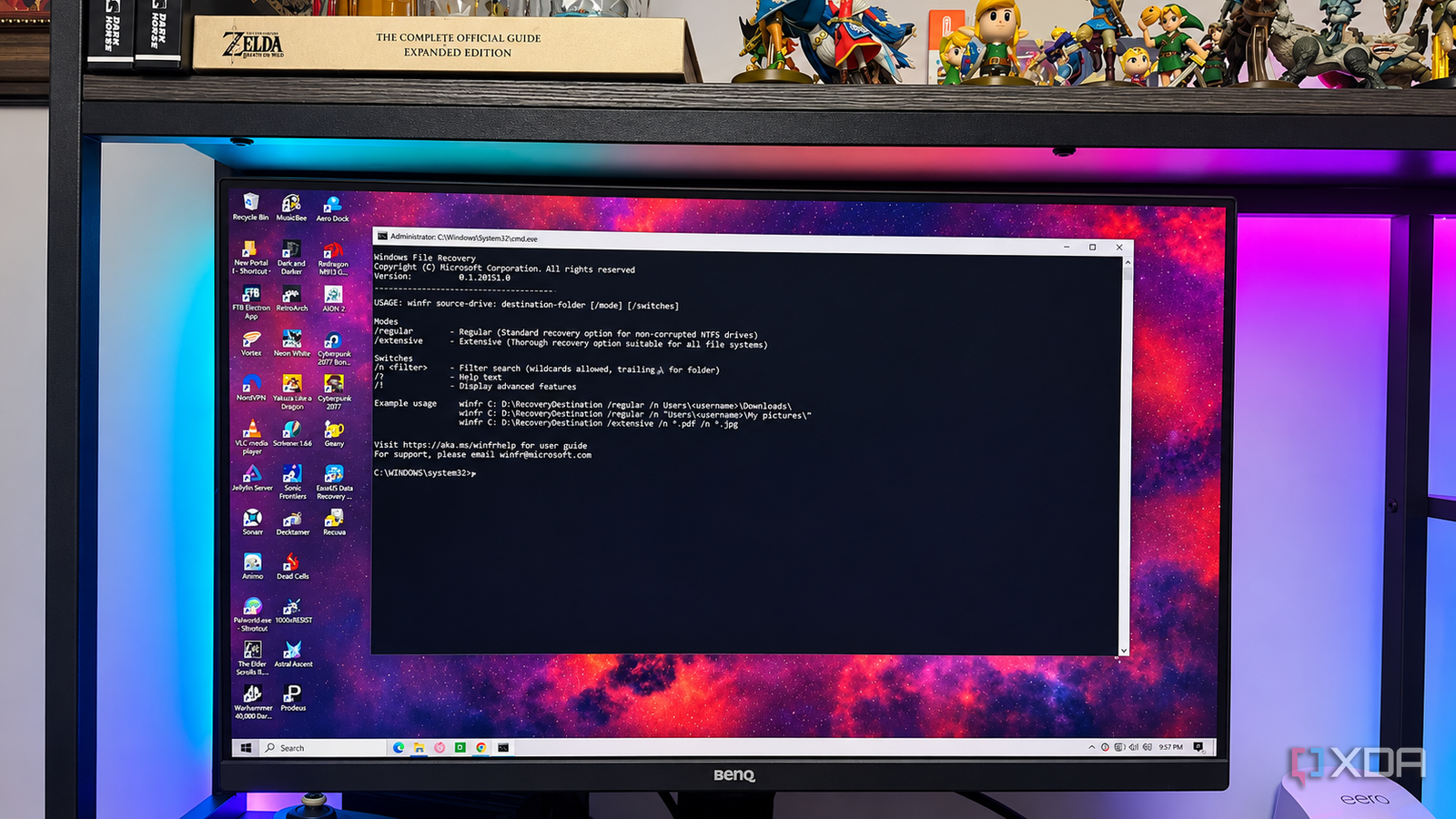
Published Nov 12, 2026, 4:00 PM EST Patrick is a seasoned writer with more than a decade of experience, specializing in any and all things tech. His work has been featured on platforms like CNET, Yahoo, Xfinity, and many other outlets. When not typing away, he can be found with his nose in a book. If you've ever gotten too zealous in clearing space on your drive, you've probably deleted data you didn't mean to. Depending on how long ago you deleted it, the data might still be in the Recycle Bin — or it might just be lost to the ether. The good news is that multiple data recovery options exist, and I took it upon myself to test three different options to find out just how well they work. I know, I know; the words "data recovery" seem intimidating, especially if you don't consider yourself tech-savvy, but these applications are easier to use than you might think. EaseUS Data Recovery Wizard The most user-friendly GUI of the bunch EaseUS is one of those companies that seems to be everywhere, with utilities for most any application. Data recovery is no different, and the tool is easy to use. You don't need to navigate the Terminal or be exact in your syntax, largely because everything can be accessed through the interface. When you open EaseUS, all you need to do is select the drive you want to scan. You can scan the entire computer for lost files, but that will take a substantial length of time; if you know the folder the files were deleted from, it's better to scan that individually. I aimed it at my screenshots folder to see whether it could find seven files I'd previously deleted. It took its time, scanning not only that specific folder but the underlying sectors to look for fragmented data. Not only did it find the files, but it maintained their file name and structure instead of returning the data with generic names. The search took around 25 minutes in total, and it scanned more than a terabyte of data. Given that was a single subfolder, I can only imagine how long it might take to look through the entire drive. EaseUS also offers other features, like Disk Health checks and File Repair tools. All in all, I found it to be an easy option for beginners to get back data. Recuva A simple interface, but with disappointing results My next test was with Recuva, a free option from CCleaner. I started out skeptical of this tool; not only was the website to download it something of a disaster, but the initial setup process felt like working with a tool designed for Windows 98. It had only the most basic UI, and seemed designed to drive me back toward CCleaner or related tools more than a true utility. When I first performed the search, it scanned the folder in less than thirty seconds and found exactly zero deleted files. I repeated the search using Recuva's "Deep Scan" feature in the hope it would yield better results, but even after an 11-minute scan, it returned zero results. I tried scanning the entire drive, and it reported finding more than 111,000 deleted files, but couldn't give me specifics on what, exactly, those files were. In the end, I gave up on this one. It wasn't a smooth experience, and the lack of results is disheartening compared to how well EaseUS performed. Windows File Recovery Straight from the Microsoft Store, but with harsher restrictions My last test was with Windows File Recovery, the "official" tool for data recovery. You can download it from the Microsoft Store, but in testing, I learned something you should be aware of before trying: Windows File Recovery requires the recovered files to be saved to an external drive. It can't save the files to the same drive it originally searched. For most of us, that's going to be the C: drive. Windows File Recovery worked quite well — in theory. Its scan was fast, but it didn't find the screenshots I was searching for. It found other files, although not every part of the file was restored. A few of the files it recovered are incomplete, with artifacts and missing segments. Windows File Recovery also requires some tricky syntax to properly pull of the search; if you're already intimidated by using the terminal, this won't help. That's the key, though. Windows File Recovery is intended for more advanced uses, such as reclaiming data from a USB drive. It assumes the user is comfortable with the syntax and knows how to work within the terminal. EaseUS wins in terms of convenience, but recovery isn't guaranteed EaseUS surprised me with how well it worked, while Recuva was a disappointment in its complete failure to turn up any usable results, even after multiple tests. WIndows File Recovery proved useful, although its command-line interface makes it less approachable for the more inexperienced user. The thing to keep in mind is that none of these tools guarantee success; sometimes, when a file is deleted, it's gone forever. But bearing that in mind, it's worth attempting to recover a file before giving up. EaseUS Data Recovery Wizard
I tested 3 free file recovery tools on the same deleted files, and only one got everything back
Full Article
Original Source
Read the full article at Xda-developers →KhanList aggregates and links to publicly available news content. We do not host full articles from third-party sources. Always verify important information with original sources.