
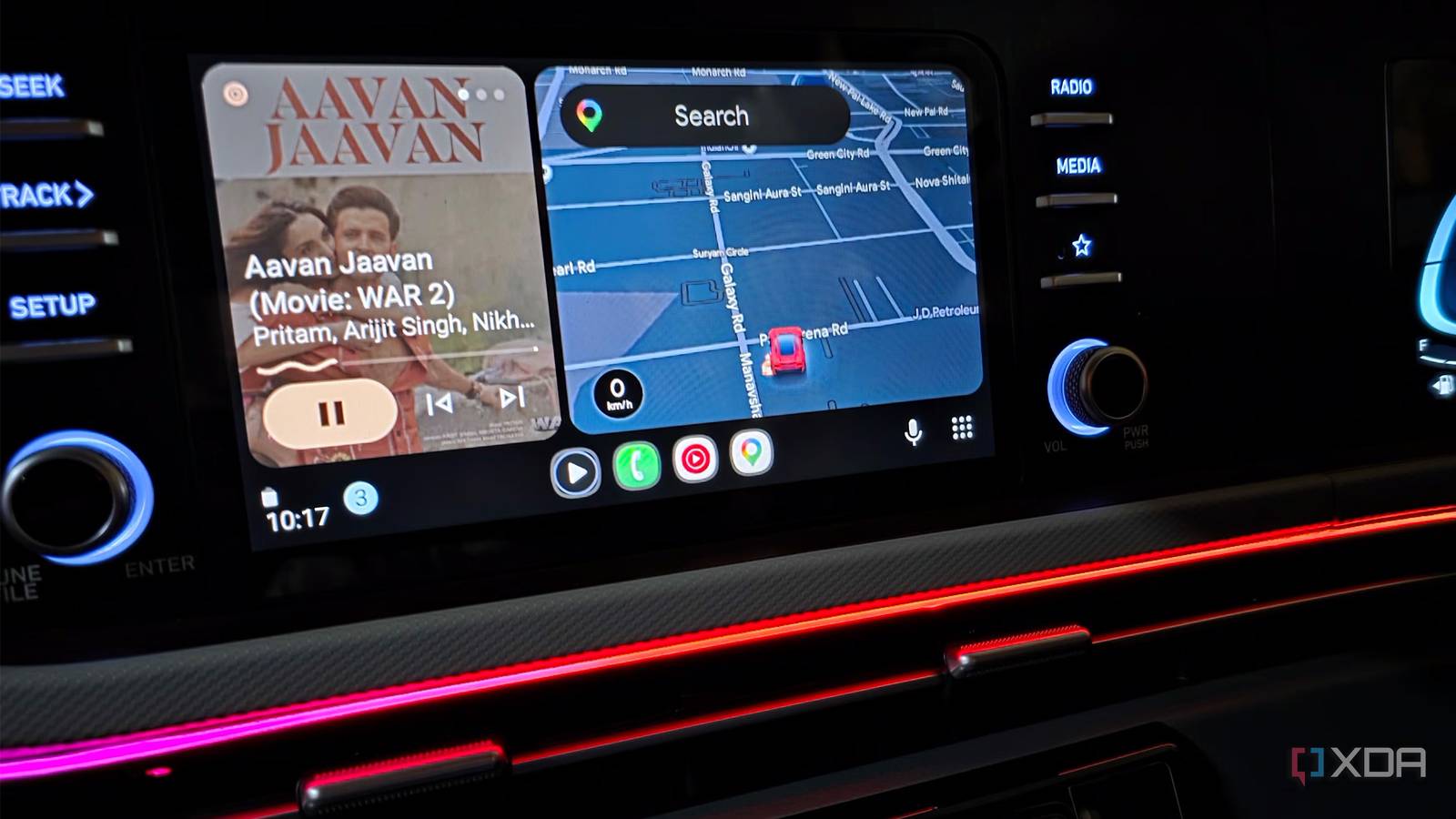
Published Oct 9, 2026, 3:00 PM EDT Parth, a seasoned tech writer, wields the keyboard (or pen) with finesse to unravel the intricacies of both Windows and Mac operating systems. He has covered evergreen content on mobile devices and computers for multiple publications over the last six years. You can find his work on AndroidPolice, GuidingTech and TechWiser. Whether it’s demystifying system updates, deciphering error codes, or exploring hidden features, Parth’s prose guides readers through the binary maze. When not immersed in tech jargon, you’ll find him sipping chai, pondering the next software review, and occasionally indulging in a friendly debate about mechanical keyboards. I use Android Auto almost every time I get behind the wheel, so even small annoyances start to stand out over time. What bothered me most wasn't navigation or music, but how much unnecessary stuff kept appearing on the screen and demanding attention. I eventually started switching off the features I could live without, mostly to see whether I would miss them. I didn't. Android Auto now feels cleaner, calmer, and much easier to glance at while driving. I cleaned up the Android Auto launcher My launcher was way too crowded My Android Auto launcher had slowly turned into a dumping ground. By default, it shows all the compatible apps in the dashboard. That meant I had several messaging apps, multiple music streaming services like Spotify and Amazon Music, and even local players like Musicolet and Poweramp that I had installed mainly for testing. On top of that, Android Auto showed apps like Google News, Adobe Acrobat, and several others I had no reason to use while driving. I finally went into the Android Auto Settings on my Galaxy S25 Ultra, selected Customize launcher, and removed everything I didn't regularly use behind the wheel. Now, my launcher is limited to a much smaller set of essentials, such as Messages, Google Maps, YouTube Music, Gemini Actions, and a few other shortcuts I actually need. It sounds like a minor cleanup, but it makes a major difference. I no longer have to scroll through rows of irrelevant icons to find what I want, and there is far less temptation to poke around the screen while driving. Everything important is right where I expect it. I stripped the taskbar back The taskbar is another area where Android Auto has started to feel busier than I wanted. I had shortcuts and widgets sitting there that looked useful on paper, but I rarely touched them during an actual drive. They took up space and added more information to an interface that should be as simple as possible. So I trimmed the taskbar down and kept only the apps I use. I don't need every media shortcut, suggested action, or extra widget visible all the time. I mainly rely on the default Android Auto home, where I can access Maps, Music, and other details with a single tap. I headed into Android Auto's Settings and disabled Taskbar Widgets from the Display menu. There is less visual noise around the navigation screen, fewer things looking to get my attention, and Android Auto now feels much more purpose-built for driving. I disabled message chimes I silenced the constant message pings Message chimes were one of those small Android Auto features that became annoying over time. Every incoming message interrupted the cabin with a sound, even when I had no intention of checking or replying. On a busy day, those alerts could pile up quickly and turn an otherwise calm drive into a constant stream of interruptions. I eventually disabled message chimes altogether. I still get notifications on the Android Auto screen, so I am not completely cut off, but there is no sound demanding my attention every few minutes. If something is important, I can deal with it using Gemini (more on that in a minute) or wait until I stop the car. It is another tiny change, but it has made my drives noticeably quieter. I still stay reachable when needed, without every group chat or casual message coming in my way. To turn the feature off, go to Settings > Connected Devices > Connection Preferences > Android Auto > Messaging > turn off Show Message Chime. I rely more on Gemini voice controls now Voice controls replaced most screen taps Once I stripped away most distractions, I started touching the Android Auto screen a lot less. Instead, I rely heavily on Gemini. A press of the voice button on my steering wheel is usually all it takes to get something done without taking my eyes off the road. I can start a call, send my ETA to someone through Messages or WhatsApp, ask for directions, play a specific song on YouTube Music (even with a vague description), or find a nearby fuel station. But I also use it for things that go beyond the usual driving commands. I can ask Gemini to pull up information from my meeting notes, create a new task or reminder, add something to a list, and handle other small things that would normally require reaching for my phone. That has become my preferred way to use Android Auto. I keep the interface simple and let my voice handle most of the work. I removed everything I didn't need Android Auto is at its best when it stays out of the way. I don't need every compatible app, widget, or shortcut competing for space on the dashboard. I still have everything I actually need, including navigation, music, calls, messages, and Gemini, but there is far less visual and audible clutter around them. For me, the simpler setup is better.
I stripped the distractions out of Android Auto, and I like it so much more now
Full Article
Original Source
Read the full article at Xda-developers →KhanList aggregates and links to publicly available news content. We do not host full articles from third-party sources. Always verify important information with original sources.