
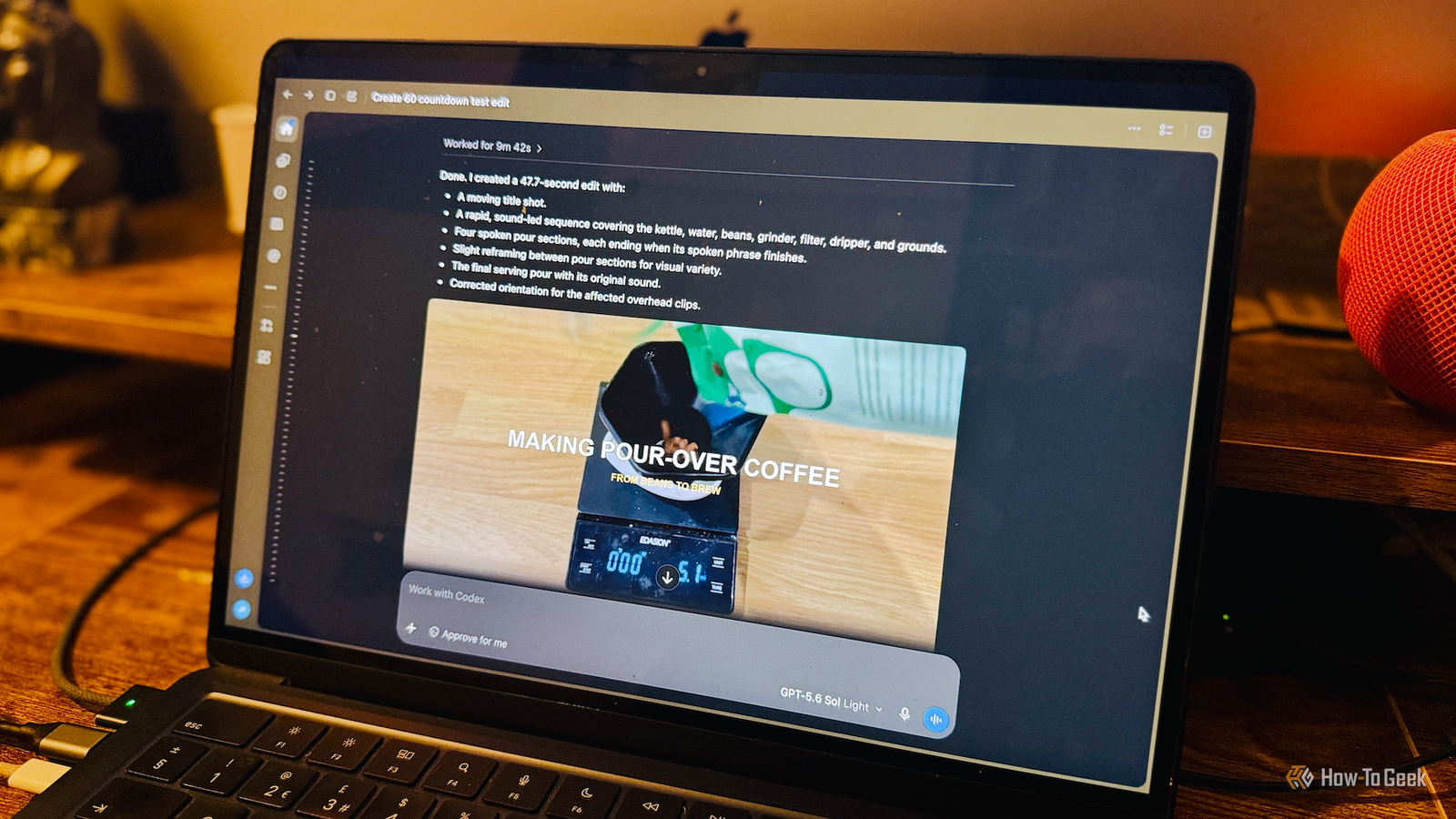
Published Oct 19, 2026, 7:00 AM EDT Adam has a degree in Engineering and has a life-long interest in technology. He has been writing for over a decade for various print and online publications, with a focus on consumer tech. He joined How-To Geek in 2024 while working at Pocket-lint. As well as being a long-term fan of Apple products, he also has a strong interest in smart home tech, running a Home Assistant server at home to automate all his smart home devices. He believes that the ideal smart home should work with minimal interaction from the user, with automations running as if by magic rather than requiring you to push buttons on a control panel. You can find more of his work on Muck Rack. I've used Adobe applications for many years, since the good old days when you didn't have to pay every month to keep using your software. Premiere Pro has always been my go-to video editing tool, but it's expensive and often overkill for many video editing projects. On a whim, I decided to see what Codex could do using a few free and open-source tools, and the results were impressive enough that I said goodbye to Premiere Pro. Selecting clips and assembling an edit Codex can handle the basics with natural language prompting One of the most fundamental jobs Premiere Pro can do is import your video footage and allow you to select the clips you want to use and add them to your timeline. You can trim clips, arrange them in the order you want, and export the resulting timeline as a single video file. You need to do most of this manually; Premiere Pro has some automation features, but you can't just describe your intended edit and have it assemble the finished video for you. That's exactly what Codex can do. You can point Codex to a folder containing your video clips and then give it a natural language prompt explaining what you want to do. For example, you could ask it to arrange the clips in order based on their filenames, choose the best of any repeated takes, and assemble them into a single video. Codex can then analyze the clips and use the free and open-source FFmpeg software to fulfill all of these instructions for you, without you having to lift a finger. It will translate your prompt into instructions to pass to FFmpeg, and make the edits as requested. Fixing sound and video Codex can make many of the same edits as Premiere Pro It's not just the basics that Codex can handle. Codex can also do jobs that you'd normally do manually through the audio or effects controls panels in Premiere Pro. For example, you can ask Codex to rotate incorrectly oriented videos, crop clips to a different aspect ratio, trim dead time from the start and end of clips, normalize the audio levels across different clips, perform fades and transitions, change the speed, display multiple clips in the same frame, and make color adjustments. For the first rough edit Codex made for me, I asked it to trim the clips to remove any unnecessary frames at the start and end of the videos, and to trim any clip containing speech once the speaker had finished talking. The first time I tried it, I was genuinely blown away. The output wasn't perfect, but it was easily as good as a first cut I would have done manually in Premiere Pro. It had taken my instructions literally, so any clips containing speech cut off almost as soon as the speech ended, which felt a little abrupt. I asked Codex to leave a little more room to breathe after any dialogue in the clips, and it re-edited the clips to do exactly that. Within two prompts, I had an edited video that was exactly how I'd envisaged it, without having to do any manual editing myself. Titles, graphics, and automatic subtitles Codex can add content to your video My next experiment was to see if Codex could handle titles and graphics, too. Codex made use of Pillow, a free, open-source Python library for creating and editing images. By using both FFmpeg and Pillow, I was able to get Codex to add title cards and text overlays to my video just by telling it what I wanted. I then wanted to see if Codex could generate and add subtitles. Using Whisper, an open-source automatic speech recognition (ASR) tool, Codex transcribed the speech from my video and then added subtitles that lined up with the appropriate speech. Going beyond the command-line edit Free tools could offer even more options All of the edits I made used a handful of free tools that can be controlled from the command line. For example, I asked Codex to create a 3D text title that remained fixed in place as the camera moved, as if the title was a real part of the scene. Codex used Blender to create the 3D text and OpenCV to track its position. It took a couple of prompts to get the result that I wanted, but I ended up with something not dissimilar to what you can do using Premiere Pro and After Effects. Not every tool can be controlled from the command line. However, there are other free, open-source apps that Codex may be able to control through scripts or by interacting with the graphical interface. I haven't tried them out yet, but I'm pretty sure that tools such as Kdenlive, Shotcut, and Audacity could offer even more editing features, although GUI automation is more challenging than an FFmpeg script. You don't always need a vibe-coded software clone Codex can't do everything that Premiere Pro can do, but I was genuinely impressed by how much I was able to achieve just by telling Codex what I wanted. This isn't product-specific; you should be able to achieve similar results with Claude Code or other AI tools. While some people are using AI to create vibe-coded copies of apps such as Premiere Pro, it turns out that you might not even need the apps at all.
I stopped using Premiere Pro to edit videos—Codex can do it for me using free open-source tools
Full Article
Original Source
Read the full article at Howtogeek →KhanList aggregates and links to publicly available news content. We do not host full articles from third-party sources. Always verify important information with original sources.