
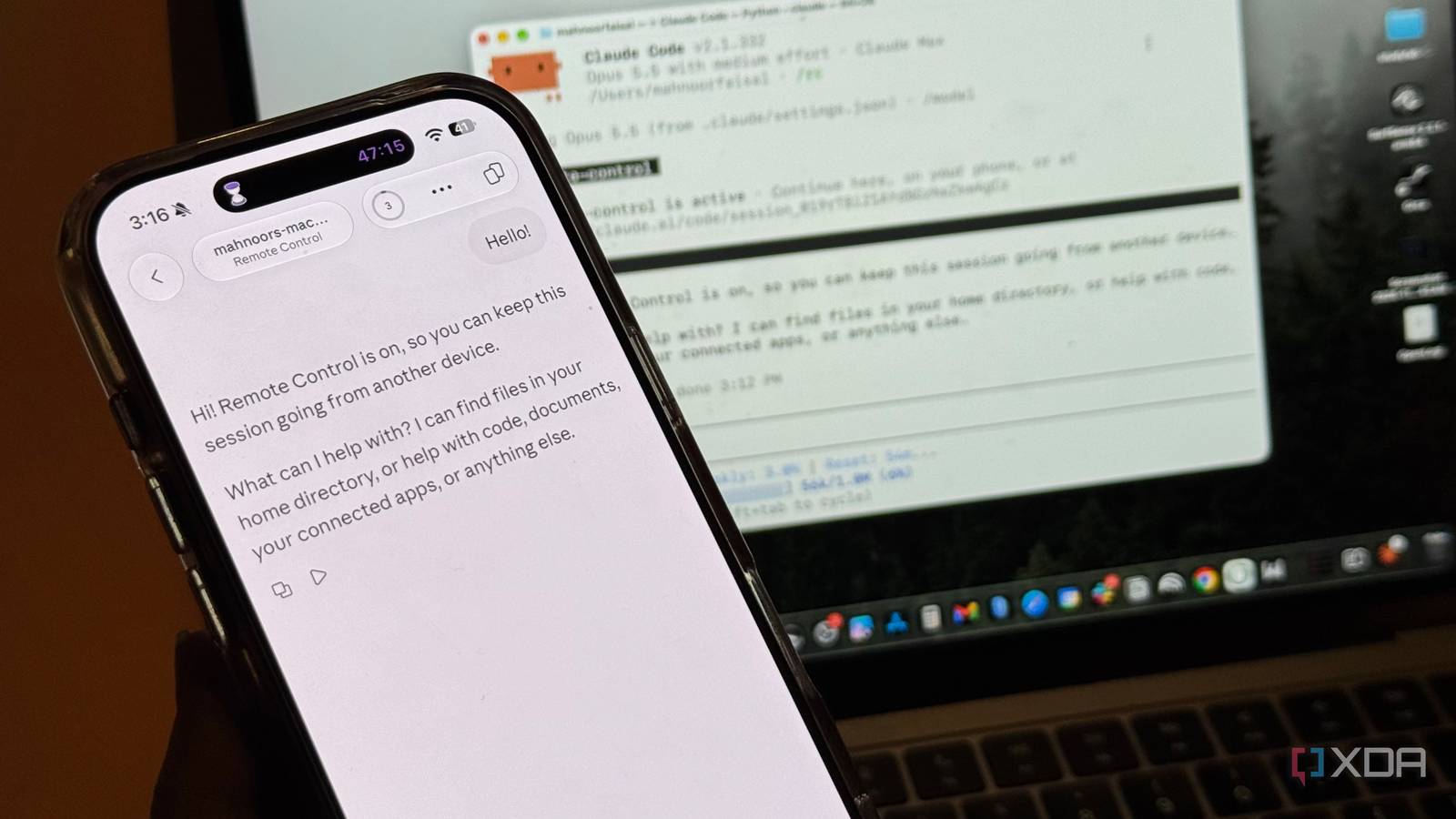
Published Nov 29, 2026, 10:30 AM EST Mahnoor Faisal is a tech journalist covering AI and productivity tools with bylines at XDA, SlashGear, MakeUseOf, Laptop Mag, and Android Police. She's been writing professionally since she was sixteen, and has since penned hundreds of articles. This includes in-depth coverage of AI tools like NotebookLM to breaking news across the AI space. Her passion for technology started when she received her first iPod Touch (4th generation) on her 8th birthday, and she's been deep in the tech world ever since. Currently pursuing a degree in computer science, Mahnoor brings both a journalist's eye and a technical foundation to her coverage of how AI is reshaping the way we work and learn. Something I've noticed with pretty much any kind of software is that you eventually reach a point where you get a little too comfortable using it the way you've always used it. Despite experimenting with new features every now and then, you tend to settle into a workflow that works well enough for you and rarely feel the need to question it. This extends to AI tools, and it's exactly what happened to me with Claude Code. Despite keeping up with practically every major feature Anthropic rolls out, closely following how Boris Cherny and the team behind Claude Code actually use it, and regularly experimenting with ways to improve my own workflow, there was one aspect of it I'd rarely thought to change: the device I use Claude Code on. I'd gotten so accustomed to using Claude Code within the terminal on my MacBook that I'd subconsciously associated using it with sitting down at my laptop. Turns out, the very Claude Code sessions I ordinarily spend hours sitting in front of my laptop interacting with are ones I can just as easily control from my phone. Not every Claude Code session warrants sitting down at my laptop All that sitting for thirty seconds of typing When I actually think about how I spend my time during a typical Claude Code session, very little of what I'm doing warrants sitting in front of my laptop. The bulk of my time is spent giving Claude instructions, answering any clarifying questions it has, approving permission requests, and reviewing what it's done before deciding what I want it to do next. Of course, there are definitely instances where I need to be sat at my laptop. If I'm using Claude Code to make a portfolio website, I like having a live preview open alongside my terminal so I can see how the changes Claude makes translate visually. Similarly, if I'm working on a complex coding project, I like being able to go through the code Claude generates myself. However, I'd say that's the exception rather than the norm. Given that Claude can easily spend upwards of twenty minutes working on a single task, I often find myself tied to my laptop for the sake of an interaction that takes me all of thirty seconds. Even when Claude does need my input, more often than not, it's something I could just as easily provide from my phone. So, it didn't make much sense for me to continue tying myself to my laptop for the entirety of a Claude Code session. A single command lets me take my Claude Code sessions with me Taking my terminal for a walk Given that Anthropic already has a web-based version of Claude Code that's also accessible through the Claude mobile app, you might be wondering why I didn't just switch to using that. It would technically let me use Claude Code on both my MacBook and my iPhone and seamlessly switch between the two. However, as much as I've come to love Claude Code on the web, there's a fundamental difference between a cloud session and a local Claude Code session. The former runs within a virtual machine hosted on Anthropic's infrastructure and, consequently, doesn't have direct access to my MacBook's local filesystem, the MCP servers I've configured locally, or the numerous tools and custom skills I've spent months incorporating into my workflow. This is where Claude Code's Remote Control feature comes in. It lets me turn my phone into another interface for the Claude Code session that's already running on my MacBook. All I need to do is enter the /remote-control (or /rc for short) command within an existing Claude Code session. The command works regardless of whether I'm using Claude Code through the terminal, the VS Code extension, or the Claude desktop app. Once I've enabled Remote Control, I can open the Claude app on my phone, switch to the Code tab, and find the very session I was just interacting with on my MacBook. Alternatively, Claude Code generates a URL that I can open in a browser on another device, and if I'm using the CLI, there's also a QR code I can scan. The conversation stays synchronized across both devices, meaning I can send Claude a prompt from my MacBook, respond to a clarifying question from my iPhone, and then pick up right where I left off on my MacBook. I'm not sacrificing any of my local setup by switching to my phone My entire setup fits in my pocket (sort of) What surprised me most about using Remote Control was how little of a difference there was between interacting with Claude Code from my iPhone and doing so from the terminal on my MacBook. For instance, I can type @ while composing a prompt on my iPhone, and Claude Code will autocomplete file paths from the project that's stored locally on my MacBook, just as it would within the terminal. This works the other way around, too. If I have an image or a file on my iPhone that I want Claude Code to work with, I can attach it to my prompt directly from the Claude app. Rather than having to AirDrop the file to my MacBook first, Claude Code can download the attached file to my MacBook and work with it there. This is super handy when I come across something on my phone that I want to use as a reference for a project I'm working on. I can also switch between Claude's models, adjust the effort level, run a bunch of the same slash commands I'd ordinarily use within the terminal, and even view Git diffs directly from my iPhone. If Claude has spun up multiple subagents to work on a particularly complex task, I can monitor their individual progress and stop them remotely, too. Given that all the actual execution still takes place on my MacBook, I can continue taking advantage of the numerous custom skills, MCP servers, and CLI tools I've spent months incorporating into my workflow. I don't need to configure any of those things separately on my iPhone, nor do I need to fundamentally change the way I prompt Claude Code just because I'm interacting with it from a different device. Remote Control does come with a few caveats My MacBook can't clock out just yet As much as I've come to love Claude Code's Remote Control feature, there are a few caveats worth keeping in mind. Since all the actual execution still takes place on my MacBook, I need to make sure it stays awake and connected to the internet. I also can't close the terminal window within which Claude Code is running, as doing so would terminate the local session. Thankfully, if my MacBook does go to sleep or temporarily loses its internet connection, Claude Code can generally reestablish the connection once it's back online without me having to manually enable Remote Control again. Another thing worth noting is that interacting with Claude Code from my iPhone doesn't do anything to reduce the amount of resources Claude Code consumes on my MacBook. If I've given Claude a particularly resource-intensive task, my MacBook still has to do all the heavy lifting, regardless of which device I initiated the task from. There are also a handful of slash commands, like /resume and /plugin, that I can only run from the local CLI. That said, given that the vast majority of my interactions with Claude Code involve sending prompts and reviewing its responses, I've found these limitations relatively easy to live with.
I stopped sitting at my laptop to use Claude Code, and started controlling it from my phone
Full Article
Original Source
Read the full article at Xda-developers →KhanList aggregates and links to publicly available news content. We do not host full articles from third-party sources. Always verify important information with original sources.