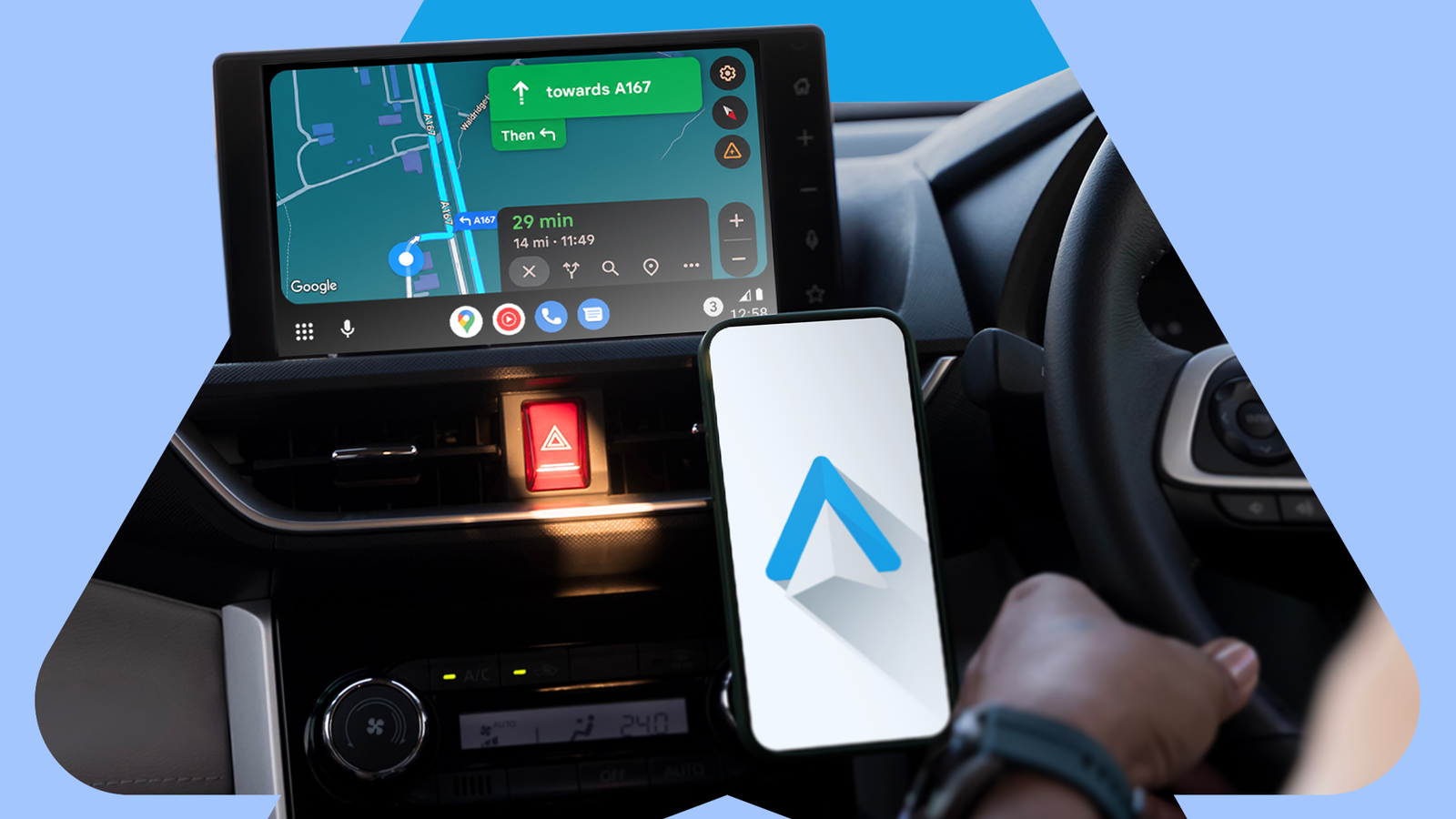
Published Aug 13, 2026, 11:15 AM EDT I cover Android with a focus on productivity, automation, and Google’s ecosystem, including Gemini and everyday apps. With a background in engineering and software development, I tend to go beyond surface-level tips and focus on how features fit into real workflows. Before joining AP, I wrote for tech publications such as Gizbot in 2023 and iJunkie (formerly known as iPhoneHacks) from 2021 to 2022. I used to reach for my phone far too often while driving. Whether I wanted to change the music, check a notification, or pull up directions, it was tempting to grab my phone or reach for the dashboard instead of waiting until I stopped. Then I changed a few Android Auto settings, and the difference was surprisingly noticeable. By making Android Auto handle more of the things I normally reached for my phone to do, I could keep my attention on the road without feeling like I was constantly missing something. These are the settings I changed and why they made driving with Android Auto feel less distracting. I put my most-used apps where I could find them I made my favorite apps easier to find I didn't realize how much time I wasted looking for apps in Android Auto until I changed the order of the launcher. The default layout didn't reflect how I use Android Auto. You can customize the launcher by hiding apps you don't use and changing the order of the ones you do. I moved Google Maps and Spotify near the top, along with a few shortcuts I use regularly. That meant I wasn't scrolling through a list of apps every time I wanted to change what I was listening to or open something else. To customize it, open Settings on your Android phone and search for Android Auto. Open the Android Auto settings, tap Customize launcher, and you'll see the apps available on your car's screen. You can hide apps you don't need and drag the ones you use most to change their order. The new order takes effect after you exit and restart Android Auto. I also added a couple of shortcuts for things I use regularly. That gave me fewer reasons to dig through the launcher. I kept my controls on the taskbar My media controls now stay within reach I also changed one small setting that made switching between apps much less annoying. I turned on Taskbar widgets under Android Auto's settings. With this enabled, Android Auto can keep my media controls and navigation directions visible even when I'm using another app full-screen. That means I can have Google Maps open and still see controls for whatever I'm listening to, rather than switching away from Maps to pause a song or skip a track. If I'm using a media app, Android Auto can similarly keep my navigation information within reach. To turn it on, open Android Auto settings on your phone and toggle on Taskbar widgets. For me, this was another small change that removed an unnecessary reason to touch my phone. I don't need to switch apps to perform a quick action, and I don't need to pick up my phone because the control I want is already on the Android Auto taskbar. I stopped letting notifications distract me I made incoming messages less intrusive Notifications were another reason I found myself reaching for my phone while driving. Even if I had no intention of replying, seeing a message pop up or hearing that familiar notification chime would make me want to check it. Instead of turning message notifications off completely, I made them less distracting. In Android Auto's settings, I left Show message notifications enabled so I could still know when an important message came in. But I turned off Show group conversations and Show first line of messages. I don't need a preview of every message appearing on my car's screen, especially when I'm supposed to be concentrating on the road. I also turned off Play message chime. That one made a surprisingly big difference. Without the constant sound announcing every incoming message, I stopped feeling like I had to immediately find out what had arrived. I made Gemini do more of the work I let my voice handle more tasks Gemini in Android Auto can handle many of the things I'd normally use my phone for. I can say "Hey Google" or tap the microphone and ask it to make a call, send a message, find a destination, or change the music. For example, if I'm driving and want to call someone, I can say, "Hey Google, call Mom." If I want to change what I'm listening to, I can ask Gemini to play a particular song, artist, playlist, or podcast. And if I need directions somewhere, I can ask it to navigate there. To connect apps, you must open the Gemini app on your phone and navigate to Settings > Personal Intelligence > Connected Apps. Select which apps and services Gemini can access. Gemini can also create and find notes in Google Keep, manage events in Google Calendar, and send WhatsApp messages or make WhatsApp calls. That opens up useful hands-free commands while I'm driving. I can say something like, "Add milk to my shopping list in Keep," ask Gemini to add an appointment to my calendar, or tell it to send a message to someone. A few settings changed my entire driving routine I stopped reaching for my phone while driving because I made a few Android Auto tweaks. I put my most-used apps where I could find them, kept useful controls on the taskbar, toned down distracting notifications, and started relying more on Gemini and my steering-wheel controls. Now, when I get into the car, my phone mostly stays out of reach.
I stopped reaching for my phone after fixing these Android Auto settings
Full Article
Original Source
Read the full article at Androidpolice →KhanList aggregates and links to publicly available news content. We do not host full articles from third-party sources. Always verify important information with original sources.