
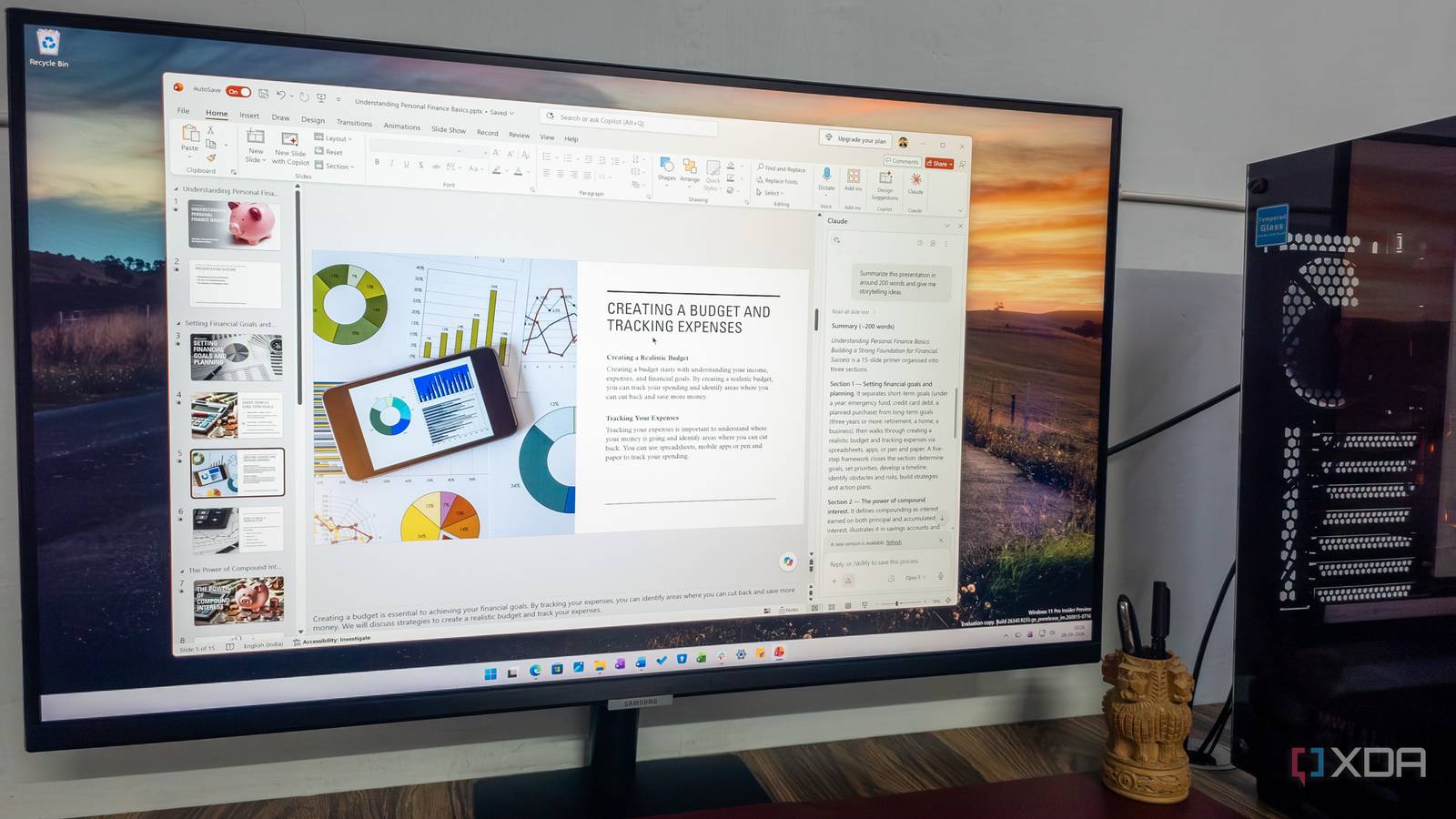
Published Sep 9, 2026, 7:30 AM EDT Parth, a seasoned tech writer, wields the keyboard (or pen) with finesse to unravel the intricacies of both Windows and Mac operating systems. He has covered evergreen content on mobile devices and computers for multiple publications over the last six years. You can find his work on AndroidPolice, GuidingTech and TechWiser. Whether it’s demystifying system updates, deciphering error codes, or exploring hidden features, Parth’s prose guides readers through the binary maze. When not immersed in tech jargon, you’ll find him sipping chai, pondering the next software review, and occasionally indulging in a friendly debate about mechanical keyboards. Building a decent presentation usually means spending far too much time fixing layouts, rewriting slide copy, looking for the right structure, and making sure the whole deck looks consistent. That changed once I started using Claude alongside PowerPoint. Microsoft’s presentation tool still isn’t my favorite app, but with Claude in the workflow, it finally feels a lot less like busywork. Installing Claude on PowerPoint Takes less than two minutes Getting Claude inside PowerPoint takes only a couple of minutes. I can open Home -> Add-ins, search for Claude for Microsoft 365, install it, and sign in with my Claude account. Anthropic also offers the add-in through Microsoft AppSource, and once activated, Claude appears directly inside PowerPoint rather than forcing me to keep a browser tab open beside my presentation. On my Windows PC, I can bring up Claude with Ctrl + Alt + C, type what I want, and continue working on the same presentation. I don’t need to upload the deck to Claude, explain what slide I am talking about, copy its answer, return to PowerPoint, and paste everything back manually. Creating an entire presentation with a prompt Just give a long prompt and watch the magic This is where Claude really sold me on PowerPoint integration. I gave it one detailed prompt for a 10-slide deck on ‘How AI Is Changing the Way We Work in 2026,’ complete with the visual style, color palette, slide structure, charts, diagrams, timelines, and even the tone I wanted. A few minutes later, I had a polished presentation that already looked far closer to a keynote deck than a rough AI-generated draft. The layouts were varied, the hierarchy was clear, and Claude did a good job of turning my idea into visual slides instead of simply dumping paragraphs. It even handled elements like comparison cards, workflow diagrams, timelines, and charts without me having to build each one manually. A few slides felt basic, so I asked Claude to add more images and design elements. It quickly updated four slides with more images and design elements. I still wouldn’t present the deck exactly as-is. I like to add my own touch with animations, transitions, image choices, and a few visual tweaks. But that is the point: Claude gets me roughly 80% of the way there in minutes. Instead of starting with a blank slide, I start with a solid, editable deck and spend my time polishing rather than building. Fixing existing slides using Claude I use it to tackle awkward slides Another part I have started relying on is how easy it is to fix existing slides with simple prompts. I don’t always need Claude to build an entire presentation from scratch. Sometimes the deck is already there, but one or two slides just don’t work. Maybe a slide feels too text-heavy, the layout looks awkward, or the overall visual just feels flat. In those situations, I can simply fire up Claude and tell it to improve the slide in normal language, and it understands exactly what I mean. I can even mention the slide number directly and ask it to redesign it, add images, tighten the copy, change the layout, or make it feel more visual. That saves me from rebuilding the whole deck just to fix a few weak spots. It feels much more practical because most of the time, that’s how presentation work actually happens. I am usually not starting from zero. I refine, adjust, and polish what’s already there, and Claude fits into that workflow. I had a presentation on financial planning, but four slides felt too bland compared to others. I gave Claude the task, and it improved the aesthetics in no time. Summarizing a long deck is useful It is excellent for presentation storytelling, too One of the features I didn’t expect to use so often is summarization. Long presentations can be painful to go through, especially when someone sends me a 30- or 40-slide deck packed with charts, updates, and text. Instead of manually scanning every slide first, I can ask Claude to summarize the entire presentation, pull out the main takeaways, highlight important numbers, or list the decisions and action items that matter. I can also ask more specific questions. It gives me a useful overview before I dive deeper, which makes large decks much easier to handle. A deck can have beautiful slides and still feel disjointed if the story doesn’t flow properly. I can ask Claude to review the presentation and tell me whether the order makes sense, whether I am repeating the same point, or whether an important argument appears too late. I can even ask it to suggest a stronger opening, move certain slides around, tighten the middle section, and make the ending more memorable. From rough ideas to polished slides Claude hasn’t replaced all the PowerPoint work for me. I still want control over the final animations, visual polish, and those small details that make a presentation more engaging. What Claude has replaced is a huge amount of tedious work that happens before that stage. It can build most of a deck from a single prompt, fix weak slides, improve layouts, summarize long presentations, and even help me tighten the overall story. That is enough to make PowerPoint feel faster and less frustrating. Aside from Claude, you can also use Copilot to create slides in PowerPoint. Claude is an AI assistant and LLM developed by Anthropic.
I started using Claude with Microsoft PowerPoint and it’s been a game-changer
Full Article
Original Source
Read the full article at Xda-developers →KhanList aggregates and links to publicly available news content. We do not host full articles from third-party sources. Always verify important information with original sources.