
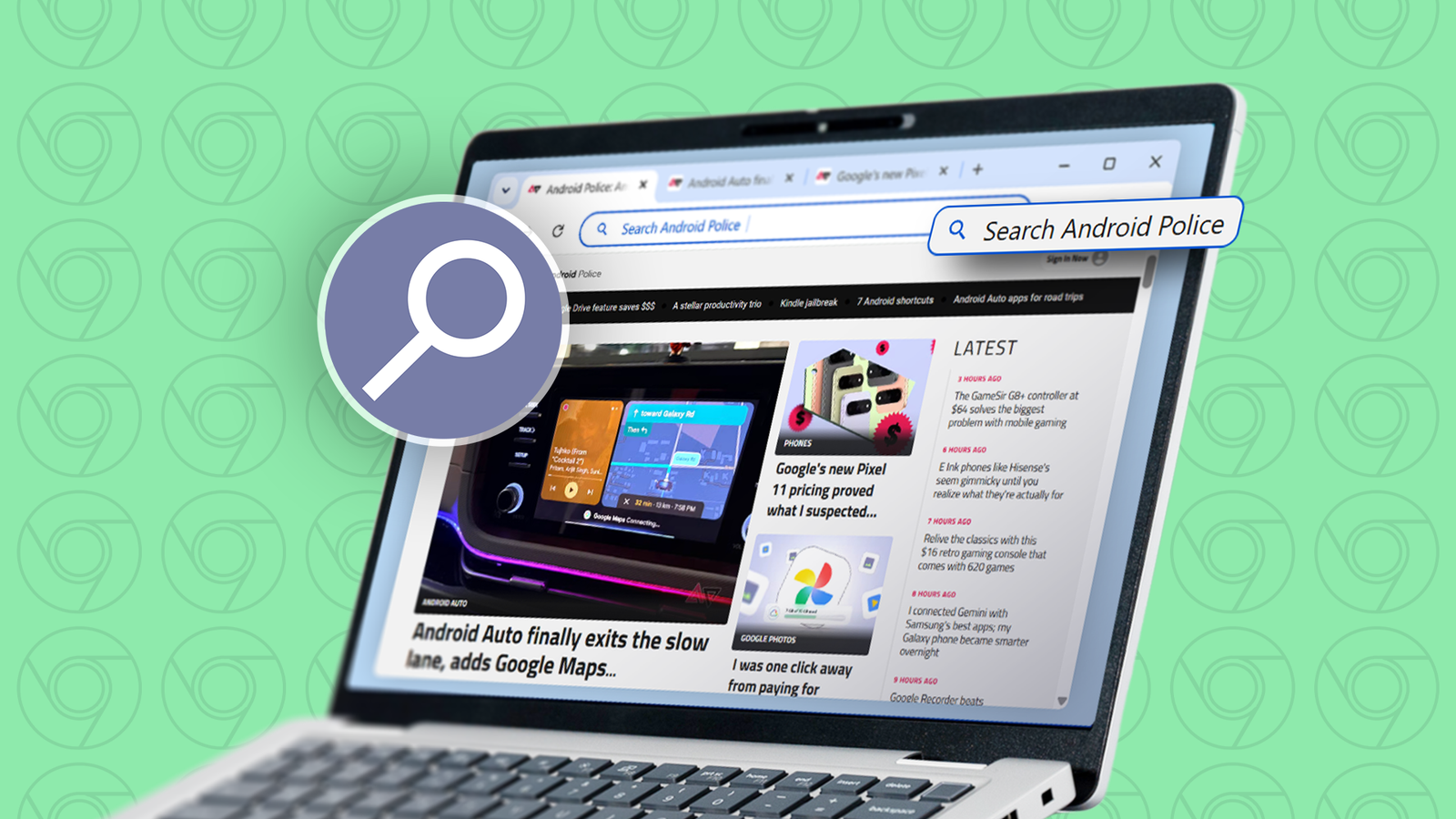
Published Oct 3, 2026, 8:00 AM EDT I've been using Google Chrome as my default web browser on desktops and mobile devices since I started using the internet. That was more than 15 years ago, and I have no regrets about sticking with it this long. This is not to say that I haven't found a better browser than Chrome. I came close to replacing Chrome with Brave across all my devices at one point. Chrome's seamless integration with the broader Google ecosystem is why I couldn't. That was a few years ago, and a lot has changed. While I'd still say Chrome being part of Google's ecosystem is one of its biggest strengths, I have one more reason to stay loyal. While I regret it took me this long, I'm glad I finally found something like this in Chrome. I spent more than 15 years on Chrome before finding a search method that actually saves time. Searching the web the traditional way is painful Most Chrome users I know don't even consider it a problem I never tried anything fancy to search the web, no matter the browser I used. I typed keywords in the URL box and pressed Enter to get the results. I'm no longer as dependent on the URL box as I used to be because of the advent of Gen AI tools. But that's only true for Google search results. For searching through websites I visit daily, I depend on Chrome's URL bar. Google doesn't talk about it much, but Chrome's URL bar is a powerful tool. After you learn to use it properly, you can save time when browsing the web. I speak so highly of it because, ever since I started using it, I have never needed to open my favorite websites to access content at those addresses. The URL bar can take you directly to the content instead of digging deep into websites, which can take a lot of time and be frustrating. Worse, in many instances, my efforts were in vain because the websites' search button couldn't produce the results I wanted. A well-equipped Chrome URL bar fixes these problems. How I supercharged the URL bar to improve web browsing on Chrome Site searches have never been the same since I supercharged Chrome's URL bar using its Site search feature. The Site search feature supports built-in special shortcuts, which allow you to quickly access Tabs, Bookmarks, History, Gemini, and AI mode. For example, you can type "@bookmarks" in the URL bar and then press the Tab key on your keyboard to search within the Bookmarks page. You can use the same trick to find an entry on the History page in Chrome. This is all nice, but the real strength of Site search is that it lets you search within specific sites using shortcuts. If I want to watch Test cricket videos on YouTube, I don't need to open the YouTube website and click its search bar. Instead, I type "Test cricket videos" in Chrome's URL bar and press Enter, and the browser opens the YouTube search results page with videos related to Test cricket. This is not limited to YouTube. You can do the same on any website with search functionality. For example, you can create one for Android Police. Regardless of the website, you need the URL the site generates when you do a quick search within a website. For Android Police, if you use the search bar and type "Pixel" in it, the URL it'll generate will be "https://www.androidpolice.com/search/?q=Pixel." Now, go to Site search in Chrome's settings, click the Add button, type "Android Police" in the Name field and "AP" in the Shortcut field. Next, in the URL field, copy and paste the address it generated and replace "Pixel" with "%s." So, instead of copying and pasting "https://www.androidpolice.com/search/?q=Pixel," enter "https://www.androidpolice.com/search/?q=%s." Go to Chrome's URL, type "AP," press the Tab key, type keywords, and see the magic. No distraction, no nothing—only results that match the topic you entered. But what happens when you can't locate the search feature, or it's broken, on a website? In that case, you can use the URL bar to view the website's Google-indexed pages. For example, "https://www.google.com/search?q=site%3Aandroidpolice.com+%s" shows all Google-indexed pages from Androidpolice.com that match the keywords you entered. Replace "Androidpolice.com" with another address to search for keywords on that site directly from Google. There has never been a better way of browsing the web than this. I no longer search the web the old way I won't pretend that this is easy to set up on Chrome. It takes time, and things can go wrong. But it's worth it, especially if you research onlineevery day, like me. The downside of this is that you need to set this up for every website you want to access quickly. I've set five such custom site searches in Chrome, and that does the job for me. I'll never go back to searching the web the old way as long as the Site search feature exists in Chrome.
I spent 15 years in Chrome before finding a search method that actually saves time
Full Article
Original Source
Read the full article at Androidpolice →KhanList aggregates and links to publicly available news content. We do not host full articles from third-party sources. Always verify important information with original sources.