
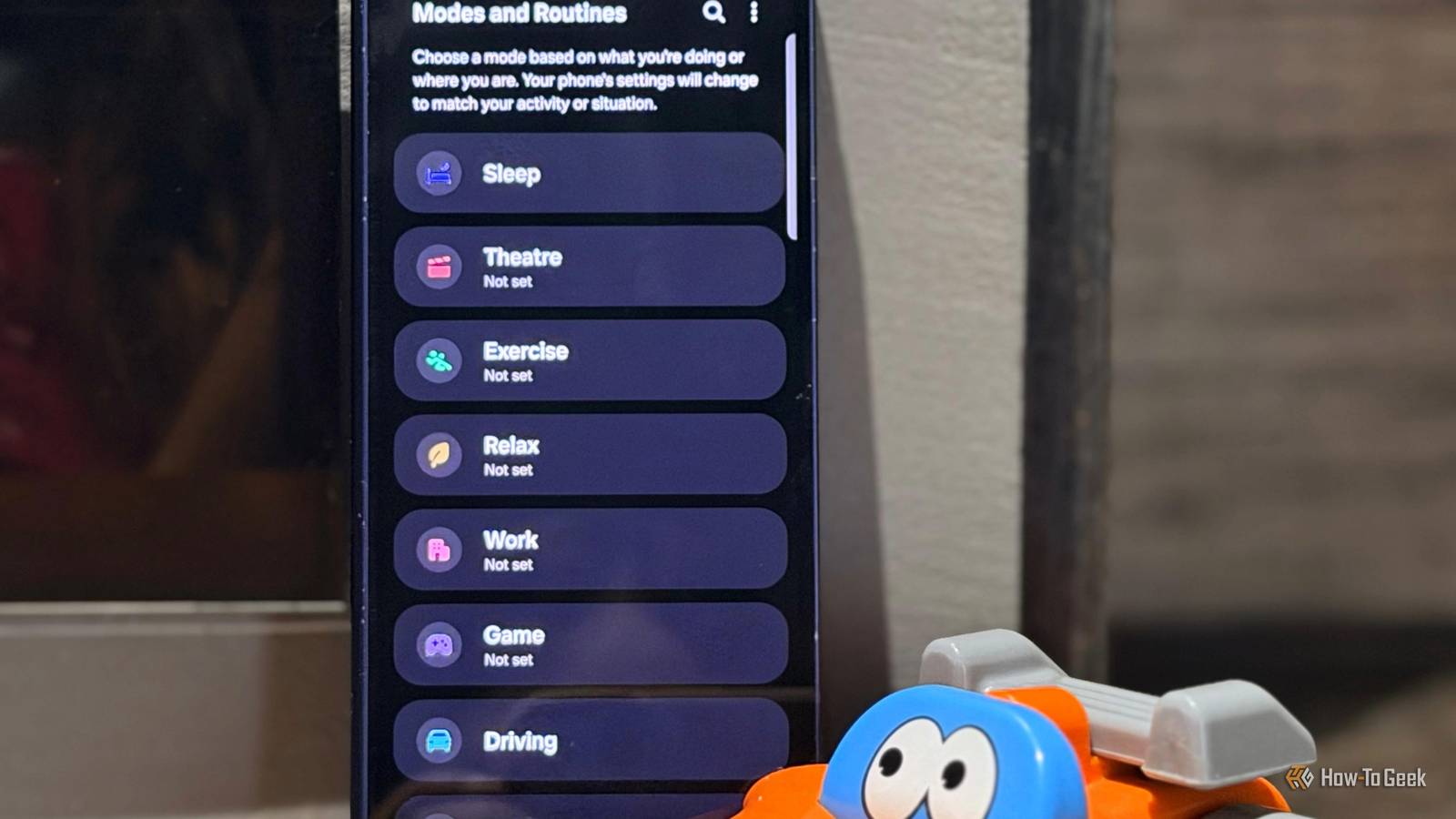
Published Oct 30, 2026, 1:00 PM EDT A Computer Engineer turned tech-savvy. Sanya is part of the How to Geek team, and she covers Android, Samsung, Google, apps, and everyday technology, combining hands-on experience with thorough research. She helps readers understand technology without getting lost in technical jargon. I used to change my phone settings manually every time I got in the car. I’d adjust the volume, switch modes, and fiddle with settings before hitting the road. I’ve used Samsung Modes and Routines to automate things like my sleep schedule and my gym sessions, so I figured it was time to do the same for driving. Between school runs, grocery trips, and appointments, I’m constantly getting in and out of my car. So I set up these two Modes and two Routines to make my daily drives easier. I made Driving Mode more useful I can check my schedule on the go My mornings are usually chaotic, and I often forget to check my appointments or my daughter’s class schedule. So, I decided to add Google Calendar to Samsung’s Driving Mode. To set it up, I went to Settings -> Modes and Routines -> Modes -> Driving -> Other actions -> Add actions -> Open an app or do an app action -> Google Calendar. Now, Google Calendar opens on my phone when the Mode activates. I can check my schedule before I start driving or after I park. It’s easy to get sidetracked when I’m parked. I might start replying to a WhatsApp message I got on the way or watch another episode of Netflix. Having my calendar ready gives me a quick reminder of what I need to do next. Calendar won’t read my schedule aloud or start navigating to my next appointment. For that, I can ask Gemini questions like, “What’s on my calendar today?” when the necessary integration is enabled. This little mode is useful because it helps me keep my day organized without adding another step to my already busy mornings. I made night driving less annoying By making the best night driving routine Night drives can be tiring, especially when my phone screen feels too bright, and I still have to fiddle with settings before heading home. So I customized my Driving Mode for my usual night-driving setup. I turned on Power saving, enabled the Eye comfort shield, switched to Dark Mode, and set my media volume to a comfortable level. To set it up, I went to Settings -> Modes and Routines -> Modes -> Driving -> Other actions -> Add actions -> and added these settings individually. Once Driving Mode kicks in, I don’t have to mess with these settings myself. Eye comfort shield gives my screen a warmer tint, and Dark Mode makes the interface easier on my eyes at night. I also turn on Power Saving to stretch my battery a little longer. And since I don’t need loud music on a night drive, I keep the media volume lower, so navigation prompts don’t get drowned out. With these settings ready before I hit the road, I can focus more on driving and less on my phone. I put my notifications on hold My phone knows when I’m behind the wheel I get WhatsApp messages, shopping alerts, and random app notifications throughout the day. When I’m driving, I don’t want every ping tempting me to glance at my phone, especially when I’m trying to follow a new route. So, I created a routine that turns on Do not disturb whenever Android Auto connects. To set it up, I go to Settings -> Modes and Routines -> Routines -> + -> If -> Android Auto -> Then -> Notifications -> Do not disturb -> On. I also checked the notification options available in my settings, including Show custom notifications and Read notifications aloud. These options let me customize how notifications behave while Do not disturb is active. I can decide whether certain notifications should still appear and whether my phone should read them aloud. That way, I can reduce unnecessary interruptions without missing every important update. I clean up my phone connections after driving My phone disconnects when the drive ends I always use wireless Android Auto because it’s convenient, but it relies on Wi-Fi and Bluetooth to connect to my car. Once I finish driving, I don’t need those connections for the car. I set up a Routine that turns off Wi-Fi and Bluetooth when my drive ends. I selected Driving ended under If condition, followed by Wi-Fi off and Bluetooth off under Then. When my drive ends, my phone can switch off these connections automatically instead of leaving them on because I forgot to turn them off. It’s a small bit of housekeeping that saves me from manually changing settings after every trip. You can also create a separate Routine to turn on Wi-Fi and Bluetooth when your drive starts, so your phone is ready to connect to wireless Android Auto. I stopped wasting time on little settings Samsung Modes and Routines can do much more than you think. You can create countless combinations to take small tasks off your plate, whether you’re driving, working, or winding down for the night. Why waste time digging through settings and making the same changes every day when your phone can handle them for you? Put your smartphone to work and let it take care of the little things.
I set up 4 Samsung Modes and Routines, and driving got a lot easier
Full Article
Original Source
Read the full article at Howtogeek →KhanList aggregates and links to publicly available news content. We do not host full articles from third-party sources. Always verify important information with original sources.