
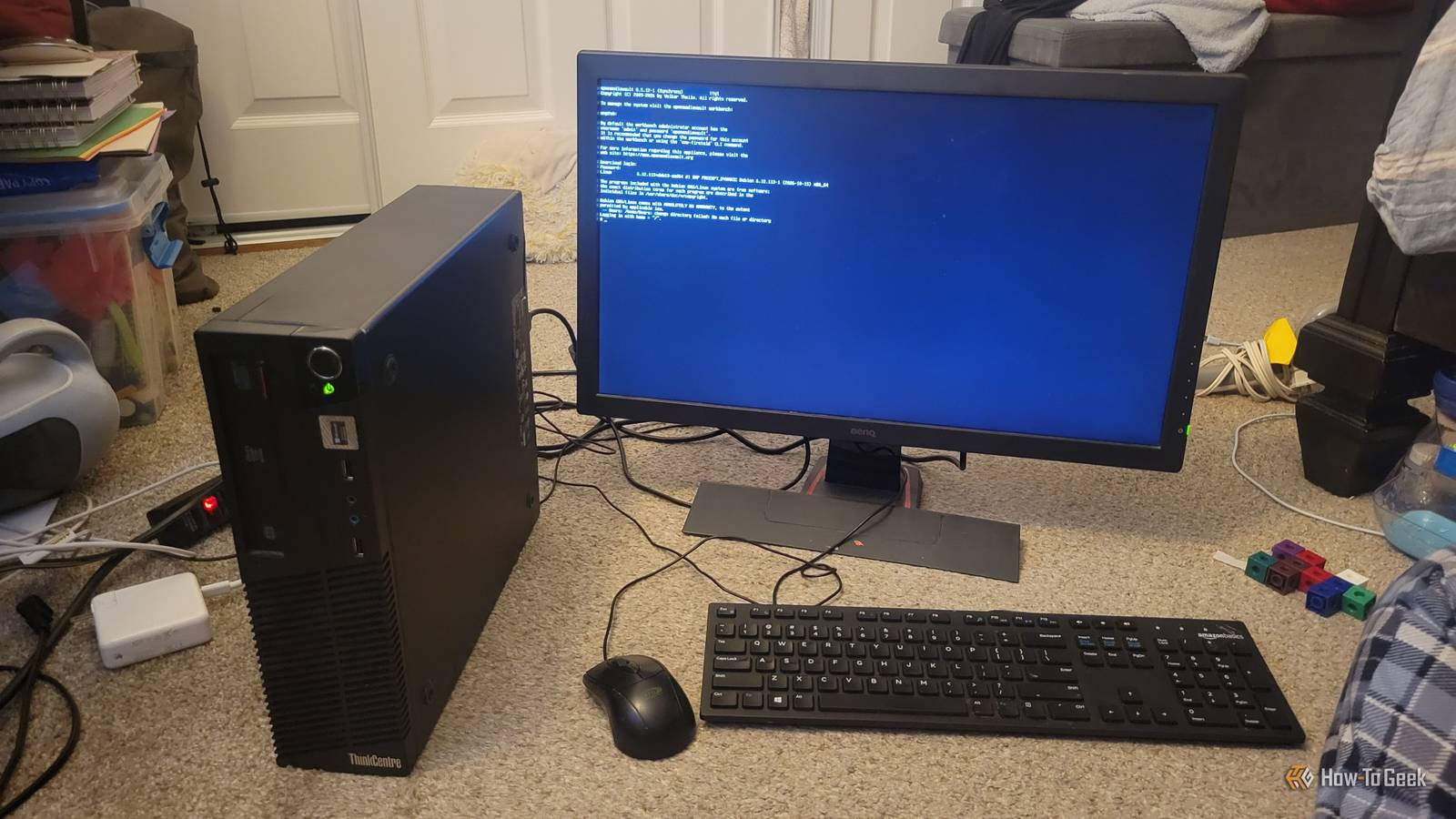
Published Nov 4, 2026, 4:01 PM EST Aggy is a veteran writer and editor in the technology and gaming space. Having served as a Managing Editor for high-traffic digital publications, alongside being an editor and consultant for over a dozen sites. Aggy's published work spans a wide and respected array of tech and gaming outlets, including WePC, Screen Rant, How-To Geek, Android Police, PC Invasion, and Try Hard Guides. Beyond editorial work, Aggy's direct experience in the tech sphere extends to app development. Aggy has published two games under Tales and is always eager to learn and do more. He also likes working on computers and researching in his spare time. He knows about Windows, Linux, Audio, Video, and much more. Every few months, a storage warning lands in my inbox. I've noticed that they all sound the same and ask me to pay a little more to make the storage problem go away. The number is never big, but I still hate paying it. That price is what got me staring at the dusty computer in my closet, wondering if it could do the job instead. Cloud storage costs more than it used to An old PC can handle this job Over the past ten years, cloud storage has gone from a free perk to a monthly bill. Back when Google Drive first showed up, you got 5 GB at no cost, but that's going up and down. Microsoft pulled the same move with OneDrive, folding storage into Microsoft 365 subscriptions. Those monthly charges look tiny, but they add up fast, especially if you have a lot of data. The free tiers have gotten worse over time. Microsoft dropped OneDrive's free space from 15 GB to 5 GB and axed the camera backup bonus. Google still gives you 15 GB free, but that pool gets split across Gmail, Photos, and Drive all at once. You're also counting on a company not to scan your files, lock your account, or change the rules on you. That's why plenty of people are hosting their own storage again. An old desktop PC works great for this. A machine from roughly 2014 to 2016, something with an Intel Core i5 Haswell or Skylake chip, 4 cores running between 3.2 and 3.6 GHz, and 8 to 16 GB of RAM, can run Linux-based storage software, database indexing, and several services at once without straining. A standard mid-tower also has room for 2 to 4 internal hard drives and enough SATA ports to hook them all up at full speed, which beats USB enclosures. Configured right in the BIOS, these machines idle at around 18 to 38 watts, low enough to leave running all day and night. You can set up the server in an afternoon OpenMediaVault does most of the work for you First, you need to put an operating system built for storage servers on the PC. OpenMediaVault is a solid pick for older PCs. It's built on Debian Linux, it installs onto a dedicated boot drive, and you manage your hard drives, user accounts, and network shares from a web browser. You won't need to touch the command line for most of it. It's the one I used, and it made things super easy. All I did was download OpenMediaVault and use Rufus to put it on a flash drive. Then I plugged the flash drive into the server and booted from it. It didn't boot automatically for me, and likely won't for you. You'll need to tap the boot menu key during startup (F12, F11, or Esc, depending on the motherboard) and pick the USB drive. The installer is pretty straightforward. It walks you through picking a language, setting a hostname, and creating a root password. Just make sure you pick your dedicated boot drive (an SSD or even a small USB/SATA drive works fine), not one of the hard drives you plan to use for storage. Once it finishes, remove the flash drive and reboot. I signed in to make sure it worked, then opened it from my PC. From any other computer on your network, type the IP address your server's screen shows into a web browser. You'll get the OpenMediaVault login page. The default login is username admin and password openmediavault, so change that password right away under the user settings. I added a few of my spare flash drives to it so that I could have more storage, but I'd recommend one big flash drive to hold everything. Running your own storage costs very little Your drives can still fail on you The hardware cost is basically zero, since you're reusing an old PC and the drives already in it. The only thing you need to buy is a flash drive to install the operating system, which runs about $10. If you want a little extra protection, a basic UPS to ride out power outages is around $100, though some are cheaper. It's optional, and I don't use one. Running costs come down to electricity. A PC idling at 35 watts uses roughly 307 kWh per year. At the average US rate of $0.16 per kWh, that's about $49 a year. In places with higher electricity rates, that annual running cost will be higher. I also turn mine off when I don't need it, so it saves money that way too. It doesn't damage my server to turn it off as long as I'm not doing it out of nowhere. Setup can take several hours, but mine took only two, and that was with me messing up in the middle of it and breaking my Ethernet cable. Just remember that hard drives fail, and older drives are more likely to. If you don't have parity or a second copy and a drive dies, the data is gone. So make sure to always keep some kind of backup handy. It's cheaper than storage fees You'd be responsible for the updates, the power bill, and the day a drive quits without warning. A paid service handles all of that for you, and for some people, it's worth paying for. If you've got an old PC collecting dust and a free afternoon, though, the cost to try is about ten dollars and a couple of hours. That's a cheap way to find out if hosting your own files is for you. For me, it cost nothing and saved me whole subscriptions.
I saved $100 a year by turning my old PC into cloud storage
Full Article
Original Source
Read the full article at Howtogeek →KhanList aggregates and links to publicly available news content. We do not host full articles from third-party sources. Always verify important information with original sources.