
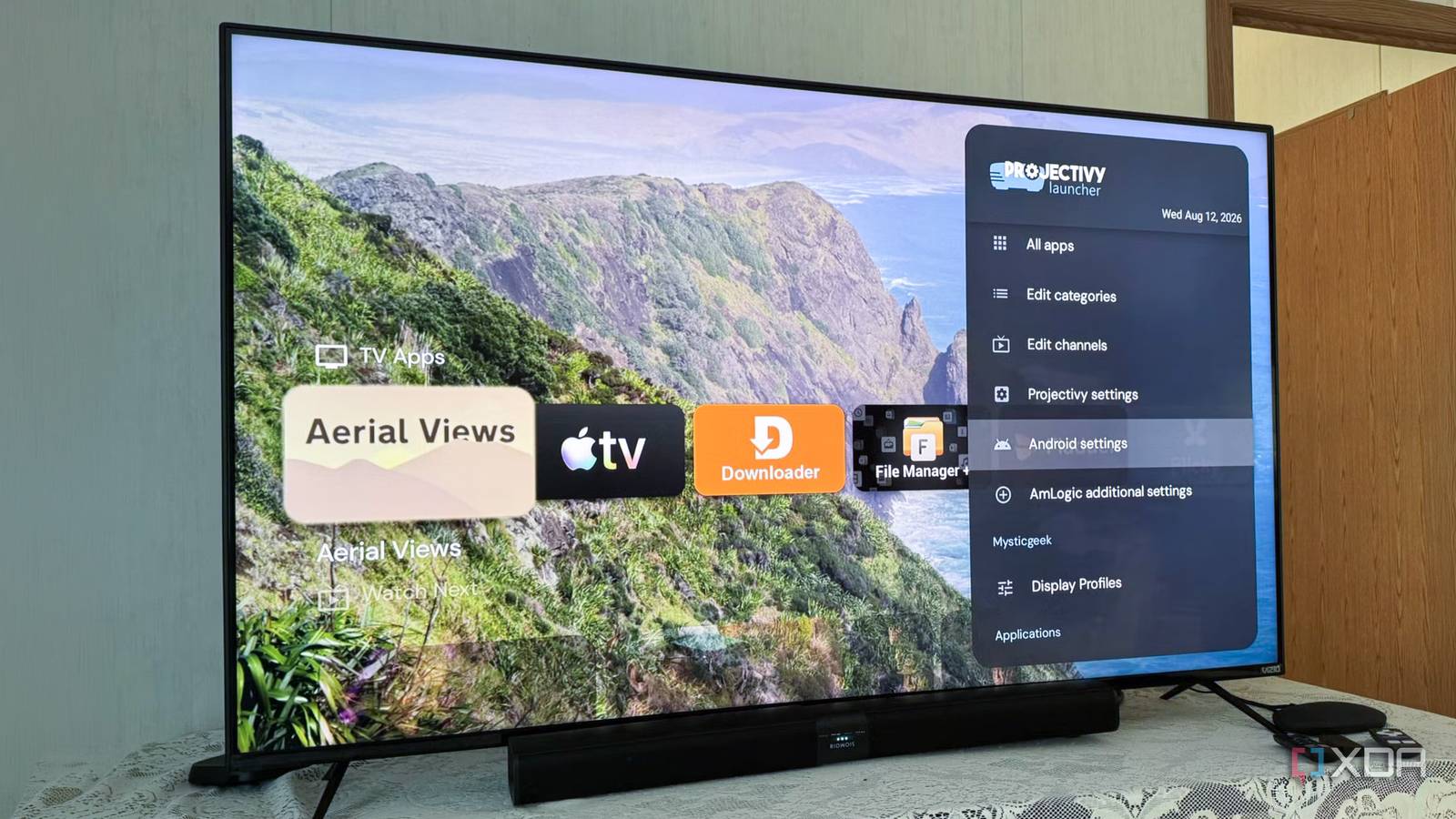
Published Aug 24, 2026, 3:00 PM EDT Based in rural Minnesota, Brian Burgess worked in IT for 10 years before finding his passion for writing about consumer technology. Brian earned his degree in computer and network technology in 2000. He held various IT positions, including help desk support, router installations for IBM, database administration, and other associate network administration roles. He's been a personal technology journalist for 18 years and has written thousands of articles about Microsoft products and services, Android, iOS, streaming, and more. He has written for notable tech sites including XDA, InformationWeek, How-To Geek, Byte, groovyPost, and others. When he is away from the keyboard, you will hear him playing guitar, working outdoors, and watching Star Trek. I've owned many Fire TV Sticks over the years. They were a viable option until Amazon released the new Fire TV Stick with Vega OS. The locked-down, Linux-powered OS doesn't support sideloading Android apps, so I decided to graduate to a real Android device. After a week with a true Android box, I realized that the Android-powered Fire OS falls short in comparison. There are more apps available without sideloading; I can sideload any APK with ease, and I can connect Ethernet and a USB drive — something impossible with a stick. A world of Android TV ease More available apps and features The apps I used on the Fire TV are readily available to download from the Play Store. There's also a host of other apps that I discovered for Android TV that aren't available from the Amazon App Store. To get some of the apps I actually wanted on Fire TV, I had to sideload them. However, I don't need to worry about that on my Android TV box. Also, there's a slew of other Android apps I can sideload to use on my TV. As long as I find the right Android APK, they're likely to work on the box. This opens a world of apps that weren't available on Fire TV. It has also made me rethink how I install apps. If something works on my Pixel, I want to see how it works on the Android TV box — including productivity apps, even if I have to connect a wireless keyboard and mouse to use them. Of course, not all phone apps will work correctly on the Android TV box. In addition to not registering the D-pad on the remote correctly, the screen orientation can be rotated to an inverted or 90-degree angle. Still, it makes me rethink how I use apps. I have started searching for non-working phone apps that will work on the TV via GitHub or seeking out similar apps. While Google began restricting sideloading of non-developer-verified apps in 2026, more opportunities still exist on Android TV. Sideloading worries on Fire TV Sticks Apps just work on real Android boxes While Fire OS is Android-based, it's possible to sideload Android APKs; they don't always work. I have had more success sideloading phone apps on the Android TV box than getting Google TV apps to work on Fire TV. I can also get apps through alternative repositories like F-Droid, such as the Flicky app, which provides a TV experience. For instance, I would always install an alternative home screen launcher like Projectivy to get rid of the messy home screen on Fire TV. That was great on sticks with Fire OS; however, Amazon started selling new sticks with its proprietary, Linux-based, locked-down Vega OS. One would think it would open the Linux universe to install Linux apps, but sideloading is not possible at all. Also, on Fire TV Sticks, I had to struggle to find the right APK, sideload it with Downloader, and hope that it worked. However, many times an Android TV app wouldn't work or work correctly on the stick. Poor stick storage and performance Android TV is more responsive The Fire TV Stick constantly runs out of storage space, most likely because I sideload so many alternative Android apps. If I only used what it came with, it wouldn't be an issue. However, I constantly find myself having to uninstall other apps on the stick to free up storage space for new ones. When the stick (2GB RAM and 8GB storage) starts to fill up, the streaming experience noticeably slows down. The Android TV box (3GB RAM and 32GB storage) was amazingly responsive out of the box and remains so after a week. I can load it up with apps and rarely have to think about storage compared to the stick. An Android TV Box is a screenless TV More hardware ports available A Fire TV Stick includes a power port, and that's all. An Android TV box provides the benefit of having more available ports, as a TV does. My Android TV Pro includes an Ethernet port for reliable connectivity, which is especially helpful for self-hosted media server configurations with Jellyfin, Plex, Kodi, or Emby — the forgotten media server. The stick has only Wi-Fi to rely on, which can be shoddy depending on location. My box also has a USB port so I can connect an external drive, creating a local media player I can use to read files with an app like File Manager+ or play unconventional media file types with VLC. I especially find it useful for viewing a large collection of photos on the big screen. If you take it a step further, the Nvidia Shield is the go-to self-hosting device. My Fire TV Stick is now part of a desk drawer collection It actually only took me a couple of days with my new Android TV box to decide to retire my Fire TV Stick, but I figured a week would give it the benefit of the doubt. Still, now a week later, the Fire TV Stick(s) I used to use are sitting in my desk drawer and will likely collect dust unless I gift them to someone else. The box I got was a budget model that sits between a Google TV streamer and a Fire TV Stick. Between improved app availability and connectivity options, I will choose an Android TV box. Especially since the new Fire TV Sticks run the lackluster, disappointing Vega OS.
I retired my Fire TV Stick after a week with a real Android TV box, and the difference is hard to ignore
Full Article
Original Source
Read the full article at Xda-developers →KhanList aggregates and links to publicly available news content. We do not host full articles from third-party sources. Always verify important information with original sources.