
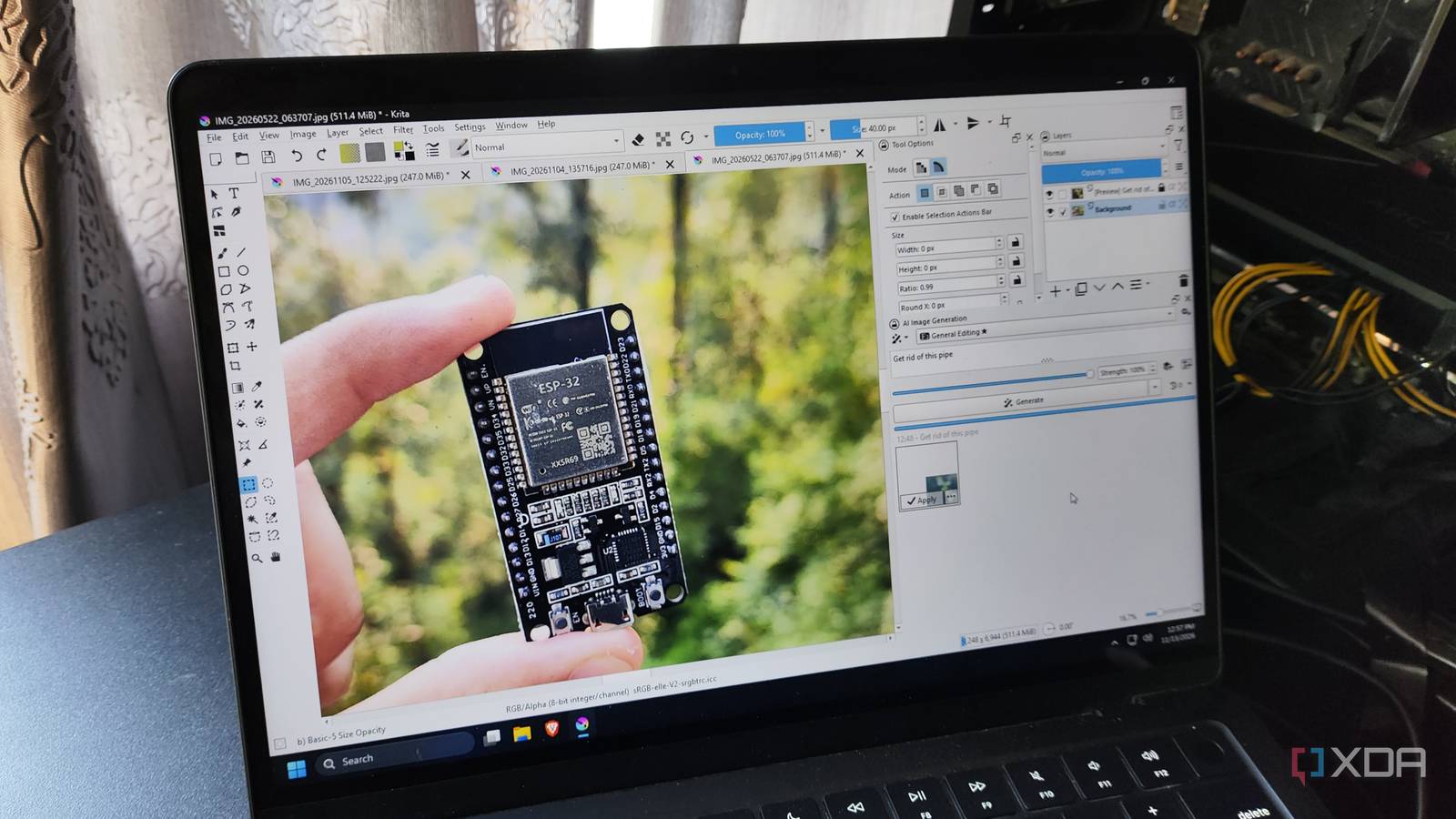
Published Nov 15, 2026, 6:00 AM EST Ayush Pande is a PC hardware and gaming writer. When he's not working on a new article, you can find him with his head stuck inside a PC or tinkering with a server operating system. Besides computing, his interests include spending hours in long RPGs, yelling at his friends in co-op games, and practicing guitar. I’ve spent the last couple of months looking into all sorts of FOSS productivity apps to reduce my dependence on subscription-based, cloud-heavy platforms. But despite my efforts, I’ve encountered a few apps that almost seemed impossible to replace. Take Adobe’s Photoshop, for example. Although there are a bunch of free raster-based image editors out there, few can match the sheer number of features on Photoshop, especially when it comes to polished AI-powered utilities. So, I decided to look into community-created add-ons for FOSS tools as well, and after sifting through GitHub repos like a madman, I finally encountered the Krita Diffusion plugin. And this game-changing Krita tool made me finally ditch Photoshop’s AI features. Pricing isn’t the only reason I don’t want to rely on Photoshop’s cloud-driven AI features Especially when I can just run Krita and AI models locally There’s no doubt that Adobe subscriptions are expensive, and even with the somewhat cost-effective Photography plan, I’d still have to spend $19.99 every month to utilize its superior image-editing tools. If I need to use the premium generative features for a project, I’d have to contend with limited monthly credits. Once I run out of these credits, I’d either have to switch to the base generative features or shell out extra bucks to buy add-on credit packs. But my real problem with Photoshop lies in the fact that most of its AI-powered features phone the cloud, and considering Adobe’s anti-consumer stances over the years, it’s a huge privacy issue for my projects. If I have to work on confidential projects that remain under embargo, I’d rather use a FOSS tool and hook it up to AI models than worry about the privacy implications of potentially exposing time-sensitive press releases to Adobe’s cloud. The Krita AI Diffusion plugin handles my inpainting and outpainting needs well It also handles upscaling tasks fairly well Although I’ve tested different AI plugins on FOSS tools, the Krita AI Diffusion package by genius developer Acly delivered the best results. The Z-Image-Turbo backend holds up pretty well when it comes to adding new elements to my images, and it even manages to tweak the shadows, lighting, and textures on freshly-generated objects to maintain consistency with the rest of the image. Of course, asking it to insert specific tools (like a Raspberry Pi) into an existing image often results in weird setups. But when it comes to common items such as adding accessories to a portrait, placing properly-oriented graffiti on walls, or even enhancing the details for landscape shots, I don’t have any complaints with the Krita AI Diffusion plugin. The same holds true when it comes to removing objects from an image. I’ve got a couple of landscape shots marred by cables in the background, and the plugin had no issues getting rid of them, provided I switched the AI profile to General Editing. Logo removals work just as well, and it can even crop out entire gardens and houses from panoramic shots without adding the typical uncanny valley effect (pun intended) that free AI tools are infamous for. I’ve also tested the image upscaling functionality by tossing 480p and 720p photos into the AI model, and the results were pretty impressive. I noticed slight artifacts when attempting to upscale 480p past 8K+ resolutions, but the plugin had no issues pushing old photos to 4K. It also includes a live-painting feature that, despite not being very useful for editing my images, remains handy for folks looking to create quick illustrations from doodles. The best part? Setting it up is a cakewalk Even on my old GPU, the plugin’s performance isn’t too shabby, either Considering all the hoops I’ve had to jump through when combining self-hosted AI models with typical FOSS tools, I was expecting the plugin to take ages to configure. But as it turns out, installing the AI diffusion plugin can install the entire local image-editing model pipeline on its own. That way, I don’t need to manually set up long ComfyUI workflows. Plus, it includes a bunch of model combos, and my particular setup works well with both Z-Image Turbo and Flux 2. Speaking of hardware, I’ve got the AI server hosted on my Windows 11 daily driver, which has an RTX 3080 Ti (12GB) and 32GB of memory. It’s technically a bit old for image-heavy AI inference tasks, but the Z-Image Turbo edits usually take anywhere between 1–3 minutes. But my selection area is particularly huge and I’ve got a long prompt, the inpainting tasks typically get wrapped up in under 5 minutes. Krita and its AI plugin are a godsend for my image-editing tasks Since my Krita-powered AI editing pipeline works offline, I don’t have to worry about some random company servers gaining access to my private photos. While complex edits can take a few minutes, simple object removal tasks are wrapped up fairly quickly. Combine all this with the simple setup process for the plugin and its AI models, and you can see why I hold it in such high regard. Krita
I replaced Photoshop's generative fill for a local model inside Krita, and it runs entirely on my own GPU
Full Article
Original Source
Read the full article at Xda-developers →KhanList aggregates and links to publicly available news content. We do not host full articles from third-party sources. Always verify important information with original sources.