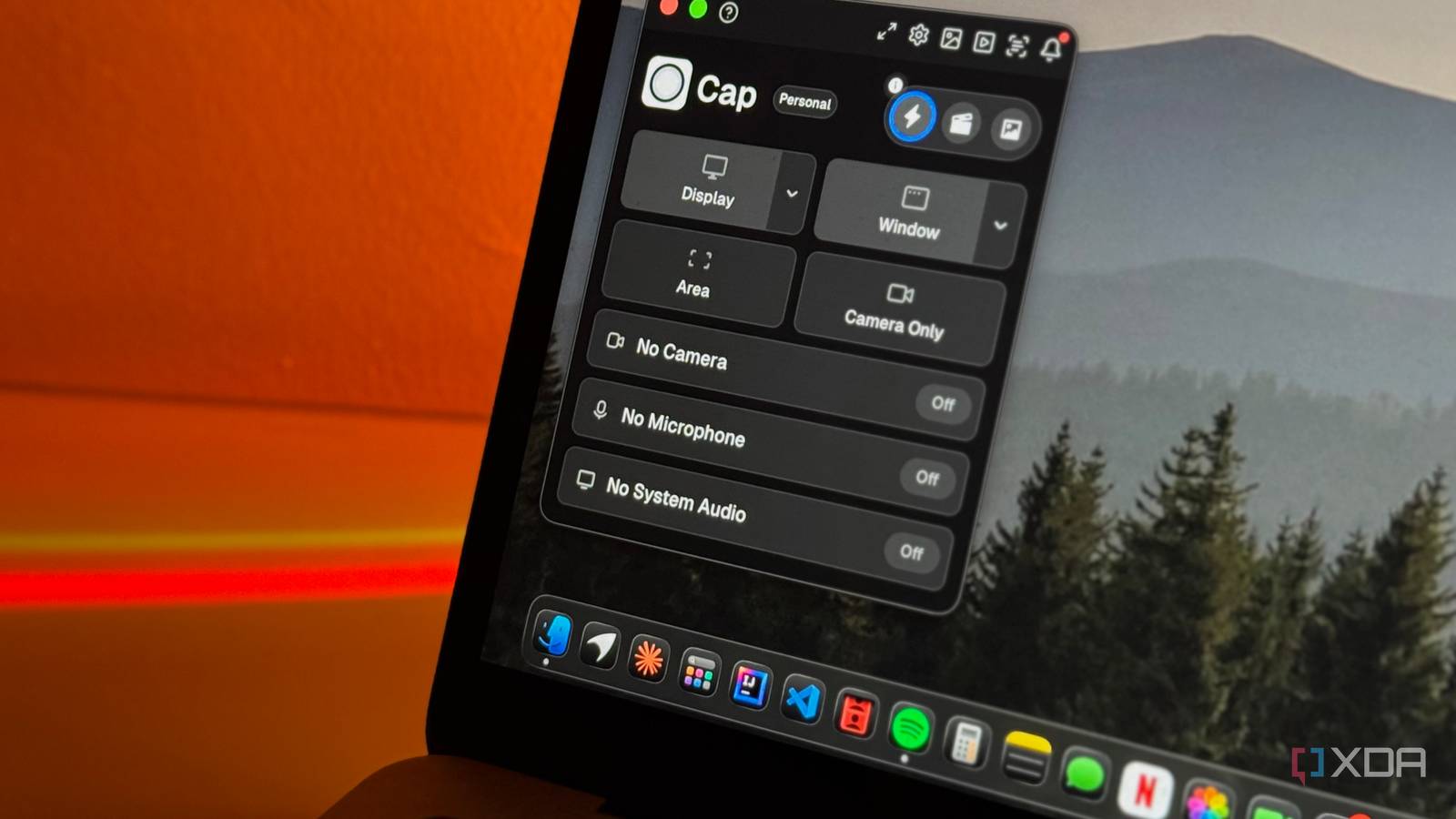
Published Aug 16, 2026, 12:30 PM EDT Mahnoor Faisal is a tech journalist covering AI and productivity tools with bylines at XDA, SlashGear, MakeUseOf, Laptop Mag, and Android Police. She's been writing professionally since she was sixteen, and has since penned hundreds of articles. This includes in-depth coverage of AI tools like NotebookLM to breaking news across the AI space. Her passion for technology started when she received her first iPod Touch (4th generation) on her 8th birthday, and she's been deep in the tech world ever since. Currently pursuing a degree in computer science, Mahnoor brings both a journalist's eye and a technical foundation to her coverage of how AI is reshaping the way we work and learn. For the longest time, I thought the screen recorder built into my computer was all I really needed. Whenever I had to record a quick video of something on my screen, I’d fire it up, capture what I needed, and move on. It was nothing special, but it did the job. Eventually, I came across OBS Studio and started using that instead since it gave me far more control over what I was recording. I never particularly enjoyed using it though, and over time, I realized I wanted something that felt a little less clunky for the quick recordings I was actually making. That’s what eventually led me to Loom. It stripped away most of that friction, and was an overall solid option. Still, I’m always curious to see whether an open-source alternative can offer the same convenience without giving up much in the process, which is how I ended up trying Cap. Safe to say, I'm never going back to Loom or even OBS. Cap is an open-source, self-hostable Loom alternative Loom, but with the keys handed back to you There are a lot of ways you can record your computer's screen. The classic Snipping Tool on Windows, QuickTime Player on macOS, and third-party apps like OBS are all perfectly capable of getting the job done. Loom has carved out a much more recognizable spot in the market, though, largely by turning screen recording into something built around quick sharing rather than simply producing a video file. Cap is essentially an open-source take on that same idea. The project is available on GitHub, has desktop apps for Windows and macOS, and gives you significantly more control over where your recordings actually live. Most of Cap is licensed under AGPLv3, while some of its camera and screen-capture components use the more permissive MIT license. Given Cap is completely open-source, it can be self-hosted as well. Ultimately, instead of relying on Cap's own servers for the web app, database, media processing, and storage, you can run those parts yourself on your own hardware or server. The project includes a Docker Compose setup that can spin up the full stack with a few commands, and there are also deployment options for services like Railway and Coolify. You don't have to go that far, of course. Cap can still be used like a regular hosted app (which is what I do), and it also lets you keep recordings local or connect your own S3-compatible storage. Cap Cap is an open-source screen recording app that also has a built-in editor to make your screen recordings look better. Instant Mode is where Cap feels most like Loom Record, stop, send As soon as you install Cap, you'll notice how minimal the interface is and how easy it is to navigate. You'll also notice that it's built around much the same idea that made Loom useful, which is to make recording something quick and sharing it just as effortless. Its Instant Mode leans hardest into that philosophy. Just as the name suggests, this mode is meant for recordings you want to capture and share with as little friction as possible. Cap uploads the video in the background while you're recording, so once you stop, you get a shareable link almost immediately instead of having to wait for a separate upload. The recording can then be watched in a browser, where viewers can leave comments tied to specific moments in the video and even reply with their own screen recording, camera clip, or voice note. The viewer also has playback controls and different playback-speed options. Cap also automatically generates a transcript and AI summary, which makes sharing a video file with anyone a lot more useful. That said, do keep in mind that these aren't necessarily available the second you stop recording, since Cap needs to finalize the upload and process the video first! While a lot of open-source tools don't ask you to create an account at all, Instant Mode is one of the exceptions here. You'll need to sign in before using it, which makes sense considering your recording is being uploaded in the background and turned into a shareable Cap as you go. Instant uploads can use Cap-managed storage, Google Drive, or your own S3-compatible storage. Cap’s Studio Mode is what actually won me over The automatic zooms got me A few months ago, I had to submit a 10-minute presentation virtually for one of my course's final projects. The presentation needed to include both my screen and camera while I talked through the project, so I recorded the whole thing in OBS Studio. I then needed to make the final video look remotely polished, so I hopped onto a video editor and spent hours adjusting everything afterward. I had to clean up awkward pauses, make sure my camera and screen were positioned properly, adjust the layout, add some transitions, and add effects like zooming into certain parts of the screen when I wanted to draw attention to something. I ended up spending more time editing the video than I did recording the presentation in the first place! That's the experience I immediately thought about when I tried Cap's Studio Mode. Unlike Instant Mode, Studio Mode records everything locally and drops you straight into Cap's built-in timeline editor once you're finished, so nothing is uploaded unless you later choose to generate a shareable link. This isn't just an editor that lets you trim the beginning and end of a recording, either. You can split and rearrange clips, change their playback speed, add a background to the screen recording, add transitions, import additional recordings or MP4s into the same project, and so much more. More importantly, for the kind of presentation I was making, Cap treats your screen and camera almost like separate pieces of the composition. You can switch between layouts where your camera takes over, disappears entirely, sits beside your screen, or floats over the background at different points in the video. Given the nature of my work, I also record a lot of step-by-step demonstration videos. This is where one of my favorite Studio Mode features come in: Automatic Zoom. Cap records your cursor and click data alongside the video, which means its editor can automatically generate zooms around the places you clicked. The focal point follows the action, so instead of manually key framing a zoom every time you want to draw attention to a button or menu, Cap can do most of that work for you. You can also add zooms manually, choose exactly where they focus, and adjust the magnification anywhere from 1x to 4.5x. At the time of writing, Loom doesn't offer anything quite like this. Its own Auto-zoom feature is still listed as coming soon, which gives Cap a surprisingly meaningful advantage if you record a lot of demos or tutorials. Automatic zooms aren't the only thing that makes Studio Mode particularly good for demonstrations, either. Cap can smooth out your cursor movements, display keyboard inputs on-screen, add text callouts, generate captions, and even blur or pixelate sensitive areas you accidentally captured. They're all relatively small touches on their own, but together they eliminate a surprising amount of the work I'd normally leave for a separate video editor. The best part is that a lot of the edits you'd normally do manually are handled directly inside Cap's timeline without you needing to painstakingly key frame or recreate them yourself. This means most of your work ends at recording the video! Cap ruined every other screen recorder for me I didn't expect Cap to win me over within just minutes of using it, but that's exactly what happened. The app is incredibly easy to use, the interface never feels overwhelming, and Studio Mode in particular gives me almost everything I'd normally turn to a separate video editor for. I came into it looking for an open-source Loom alternative, but I ended up finding a screen recorder I genuinely prefer using.
I replaced Loom with an open-source screen recorder and it's better than Loom ever was
Full Article
Original Source
Read the full article at Xda-developers →KhanList aggregates and links to publicly available news content. We do not host full articles from third-party sources. Always verify important information with original sources.