
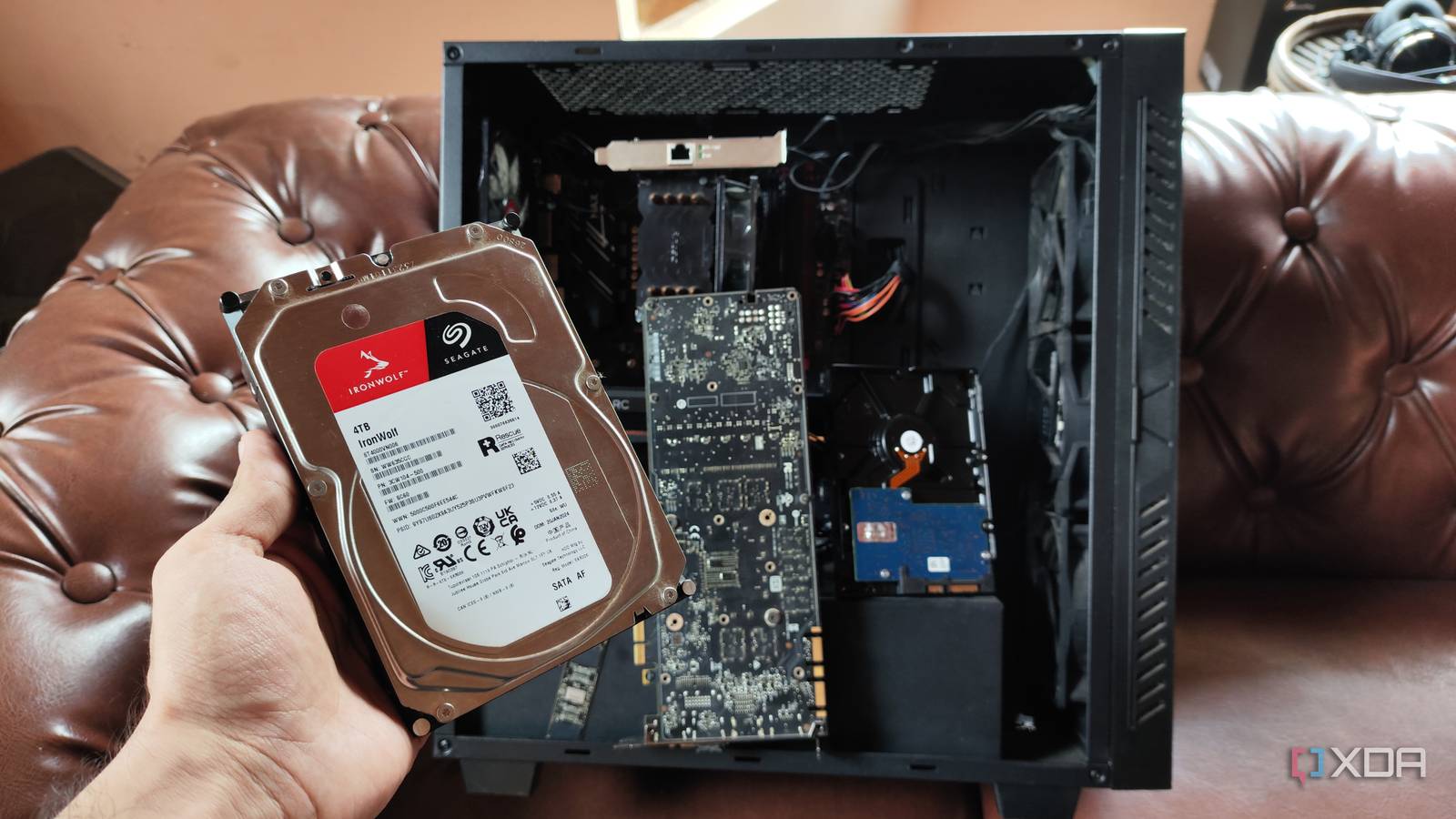
Published Aug 20, 2026, 8:00 AM EDT Korbin is a Linux system administrator who spends most of his time in a terminal figuring out how things actually work. Over the last decade he's written hundreds of articles about Linux configuration, troubleshooting weird problems, and using open-source tools in the real world. He also works a lot with Windows systems and networking, especially in mixed environments where things don't always behave the way the documentation says they should. Writing things down is how he makes sense of it all and hopefully saves someone else a few hours. When I first built my home server, I kept it running 24/7. It feels like there's an unspoken expectation that it should just be running all the time. Maybe it's because that's what comes to mind when hearing the word "server." I didn't question that notion for a few years, so my TrueNAS box was always sitting there with six spinning hard drives, even at four in the morning when it had no reason to at all. Once I did a little math on the power my NAS was drawing, I knew something about my setup needed to change. Self-hosting doesn't always save money, but it felt like I was doing it wrong if it cost more to run the hardware than what I was paying for cloud alternatives. A traditional HDD can draw between 3–6 watts when idle, depending on capacity, so my six-drive RAIDZ2 pool pulled around 25W even when there was no one to serve. The real activity on my NAS happens for 4–8 hours per day, which is when my family and I are using Plex in the evening, or the nightly backup job kicks off. For the other 16–20 hours, there's no point keeping those drives spinning and consuming power. Changing one setting fixed my setup TrueNAS has an option for configuring HDD standby All systems can be configured to turn off a hard drive after a period of idleness. In TrueNAS, that option is available in a dropdown on the disk settings page. To access it, head to Storage, then Disks, then expand the row of whichever disk you want to modify, and click the Edit button. In the menu that appears, you'll see a dropdown for HDD Standby. By default, the disks are set to stay on all the time. I picked one hour for my setting. Be sure to apply your changes to every other disk in the pool, too. Right below that setting is another one called Advanced Power Management. Leaving it off means the operating system handles drive standby completely. I wouldn't recommend changing that setting unless you want the hard drive's firmware to manage the disk's power state. Enabling it alongside TrueNAS's HDD standby can cause conflicts, so it's best to choose one or the other. The only trade-off is a small spin-up delay the first time you access a file on a drive and wake it up. I've found this to be almost unnoticeable when browsing the share with SMB, and completely invisible during a Plex session. Depending on what you're doing with the NAS, your mileage may vary. One caveat to this setup: Your boot pool should ideally be an SSD. Even during idle times, the OS is almost always doing something that'll constantly nudge the boot drive awake. It's already highly recommended that TrueNAS (or any OS, really) run on an SSD anyway, but if not, I wouldn't waste time trying to get that drive to ever spin down. Making sure that nothing else wakes the pool This part took a little longer to configure My first attempt at setting this up didn't go so well because various services kept waking my drives up. I had snapshot tasks, pool scrubs, an rsync job, and a Plex library scan scattered throughout the day. Between all those background tasks, the disks were spinning up and down more than I would've liked. The ideal setup is to have them spin up and back down only once or twice a day. That's not always cleanly achievable, but I got pretty close once I clustered the background tasks together and moved some jobs away from the storage pool. One of the biggest ways to minimize reads and writes (the kind that unnecessarily wake up an idle pool) is to make sure that all OS files and applications are on the main SSD. That includes things like log files, app configuration files, and, in my case, Plex metadata. I had some of this stuff sitting on my storage pool, so the drives never got a chance to rest for long. Once I started treating my storage pool strictly as a way to retain data that only I (not the OS or apps) need to access, the standby timer began working the way I expected. Putting too much wear and tear on the disks Only a real concern if this is implemented wrongly It's true that spinning drives up and down technically wears them out faster than leaving them running. Start-stop cycles and head load/unload events are mechanical operations after all, and there's a finite number of times a drive can endure them before giving out. Enterprise environments are known for keeping hard drives running non-stop, and that same advice often trickles down to home lab forums, but it's not as black and white as some guides make it seem. Western Digital rates their Red Plus drives for 600,000 load/unload cycles. Realistically, home labbers don't need to worry about hitting such a limit, unless the system is horribly misconfigured to bring the drives in and out of an idle state many times per day. As long as the standby timer is reasonably configured, and no system files require frequent read and write operations that wake the drive, there's no need to panic about the negligible wear and tear added to the disks. Let your drives take a nap My NAS is still running around the clock, but the storage pool has been given some time off. Nothing about my day-to-day use of the NAS has changed, aside from that brief pause I notice when I access a file for the first time every day. It's a small trade-off for power savings, especially when the setup only took a few minutes to get right.
I reduced my NAS power bill by letting drives sleep, and the setup took one dropdown menu
Full Article
Original Source
Read the full article at Xda-developers →KhanList aggregates and links to publicly available news content. We do not host full articles from third-party sources. Always verify important information with original sources.