
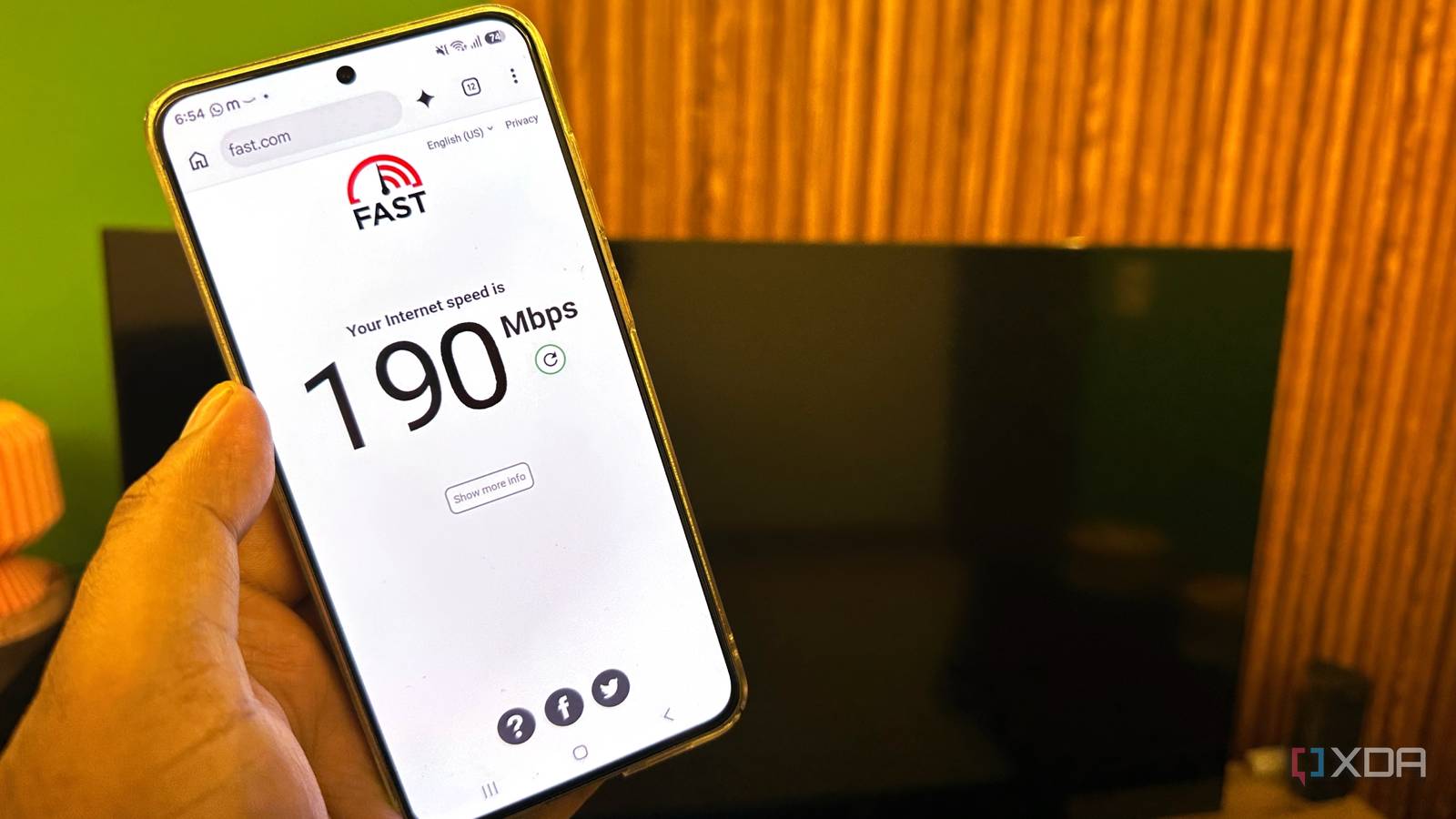
Published Nov 9, 2026, 1:01 PM EST Gaming has been Samarveer’s greatest passion, and the Literature graduate in him takes immense joy in dissecting games for their themes, messages, and impact. Samarveer holds a deep appreciation of gaming, and considers the platform to be the most immersive and impactful across all media. He can be found engaging with gaming communities online, always ready to debate the finer points of ray tracing or itching to write an 8-page collegiate thesis on any game that impacts him emotionally. I have spent years treating Wi-Fi as the obvious answer for anything that doesn't move around my house. Anything that doesn't have to be physically connected, like phones, laptops, consoles, TVs, and even streaming boxes, I generally leave alone. My Wi-Fi 6 router has been good enough that I've barely ever had a reason to question this decision. However, that changed when I started asking my living room TV to engage in heavier tasks like running my 4K Jellyfin library, helping me use Moonlight, and working in tandem with my PS5 Pro. Admittedly, that's a lot to ask of one wireless connection. Strangely, when I found the best way to make those devices faster, the greatest beneficiaries were all the other devices in my home. My big fixed devices were asking Wi-Fi to do way too much A good router can still have too much work to do My Wi-Fi 6 router was never particularly bad. In fact, the PS5 Pro generally had a perfectly respectable connection, and my phones and laptops had little reason to complain. The living room TV, though, was a bit of a problem, because it had the unenviable task of pulling content from Jellyfin and streaming my PC games at 4K 120FPS, all while sitting three rooms away from my PC. Moonlight was where things became particularly obvious. Streaming a game at 4K is a very different workload from watching Netflix, because the network has to continuously move a large amount of data while keeping latency and packet loss under control. My PC was already connected to the router over Ethernet, but the final leg to the TV was still entirely wireless. The PS5 Pro was also competing for the same wireless airtime, as was another smart TV in the guest room. Their reliance on Wi-Fi, however, was becoming increasingly difficult to justify, since none of these devices were moving anywhere. So, I decided to do something that, in hindsight, should've been remarkably obvious — I ran Ethernet to them. Before touching anything, though, I recorded the wireless speeds on the TV, PS5 Pro, and my other devices. That gave me a baseline for finding out whether moving the heavy hitters off Wi-Fi would actually make a difference. Moving my TVs and PS5 Pro to Ethernet made Wi-Fi faster I wasn't expecting the wireless network to benefit The cost to move four major devices to Ethernet was rather easy on the wallet. All I needed were five Cat6 LAN cables. Two of those were $10 cables since they needed to be the longest ones in the setup and carry Ethernet to different rooms across the house. Thankfully, I didn't need to do any drilling at all, and just ran it along the walls to the panels behind my TV. From there, a $10 2-port Gigabit Ethernet network switch split the connection to the smart TV and the PS5 Pro. Another cable ran straight into the secondary TV, and all that took was a simple hole drilled through a single doorframe. Since one of my laptops remains almost fixed to my workstation desk, which I occasionally use through my desktop's monitor, another $10 network switch split the Ethernet cable between my desktop and a mostly-stationary laptop. All in all, all it took was about $40 to clear up my Wi-Fi congestion. Once the TV, PS5 Pro, and second smart TV were off Wi-Fi, I reran the same tests on my phone and laptop from the same locations. Et voilà, the devices that had been competing for wireless airtime with several always-connected screens were now dealing with a much quieter Wi-Fi network, and their download speeds climbed noticeably. Device Wi-Fi Ethernet TCL Mini-LED 4K 120Hz TV 70 Mbps 213 Mbps Samsung HD TV 60 Mbps 100 Mbps PS5 Pro 45 Mbps 199 Mbps Mi Note 15 Laptop 35 Mbps 185 Mbps Without changing my router or internet plan, strengthening my Wi-Fi signal, or even changing the router's placement, my wireless devices became faster, and that was simply because I changed how much traffic the wireless network had to handle. The TVs and console were moving their data over a dedicated wired connection instead of competing with my genuinely mobile devices. Wi-Fi is a shared medium, so every device using it has to take turns communicating over the available airtime. I'm not saying that a TV streaming a high-bitrate Jellyfin movie or a console playing online games will necessarily saturate the internet connection. However, it can very well contribute to wireless congestion regardless. Moving those sustained workloads to Ethernet leaves more airtime available for phones, laptops, and everything else. Device Configuration Before After Improvement iPhone 14 Pro Max Wi-Fi 72 Mbps 130 Mbps +80.6% Samsung Galaxy S25 Fe Wi-Fi 86 Mbps 190 Mbps +120.9% Asus Vivobook Go 15 Laptop Wi-Fi 110 Mbps 160 Mbps +45.5% That ended up being the biggest lesson from this experiment. I didn't need a router upgrade to Wi-Fi 7 to improve my Wi-Fi, since I just improved it by having fewer things use it. My TVs and PS5 Pro aren't going anywhere anytime soon, so Ethernet should have been the obvious place for them from the beginning. Once they stopped demanding wireless airtime, the devices that actually needed Wi-Fi had considerably more room to breathe. Ethernet wasn't automatically faster on my TV But it did help out my Wi-Fi devices Running Ethernet to the TV immediately made the connection more consistent, but there was one problem — despite having a 300 Mbps internet connection, every speed test on my TV topped out at roughly 100 Mbps. That was a pretty disappointing discovery after going through the trouble of running a cable across the house into the TV. It was my TV's own Ethernet port that was the culprit. Despite having a 4K 120Hz mini-LED panel, its wired connection was limited to just 100 Mbps. The LAN cable itself could happily carry more data, and my router would have obliged, too, but the TV just couldn't accept it. That's how I learned a rather easy networking lesson, which is that Ethernet doesn't automatically mean gigabit Ethernet. Your maximum speed is ultimately dictated by the slowest link in the chain. In my case, that was a tiny Ethernet port hidden behind an otherwise very capable TV. Fortunately, the TV also had USB 3.0. I picked up a USB 3.0-to-Ethernet adapter, plugged it into the television, connected my Ethernet cable to the adapter, and ran the same test again. It wasn't quite the full 300 Mbps my internet plan promised, but the difference was substantial. This time, the TV comfortably crossed 200 Mbps. Using less of the Wi-Fi can often end up "upgrading" it I used to think of Ethernet as something reserved for my gaming PC, especially since everything else in the house was convenient enough on Wi-Fi. But convenience has a funny way of becoming the default even when a better option is sitting right there behind the device. A television that never moves has very little reason to fight for wireless airtime in the first place. It's also been incredibly satisfying to see a networking problem be solved without replacing any hardware or splurging for a mesh system. Turns out, the simple act of plugging in a cable ended up being a rather boring, reliable, and cheap network upgrade. YuanLey 6 Port 2.5G Network Switch
I ran Ethernet to every TV and console in my house, and Wi-Fi got faster for everyone else
Full Article
Original Source
Read the full article at Xda-developers →KhanList aggregates and links to publicly available news content. We do not host full articles from third-party sources. Always verify important information with original sources.