
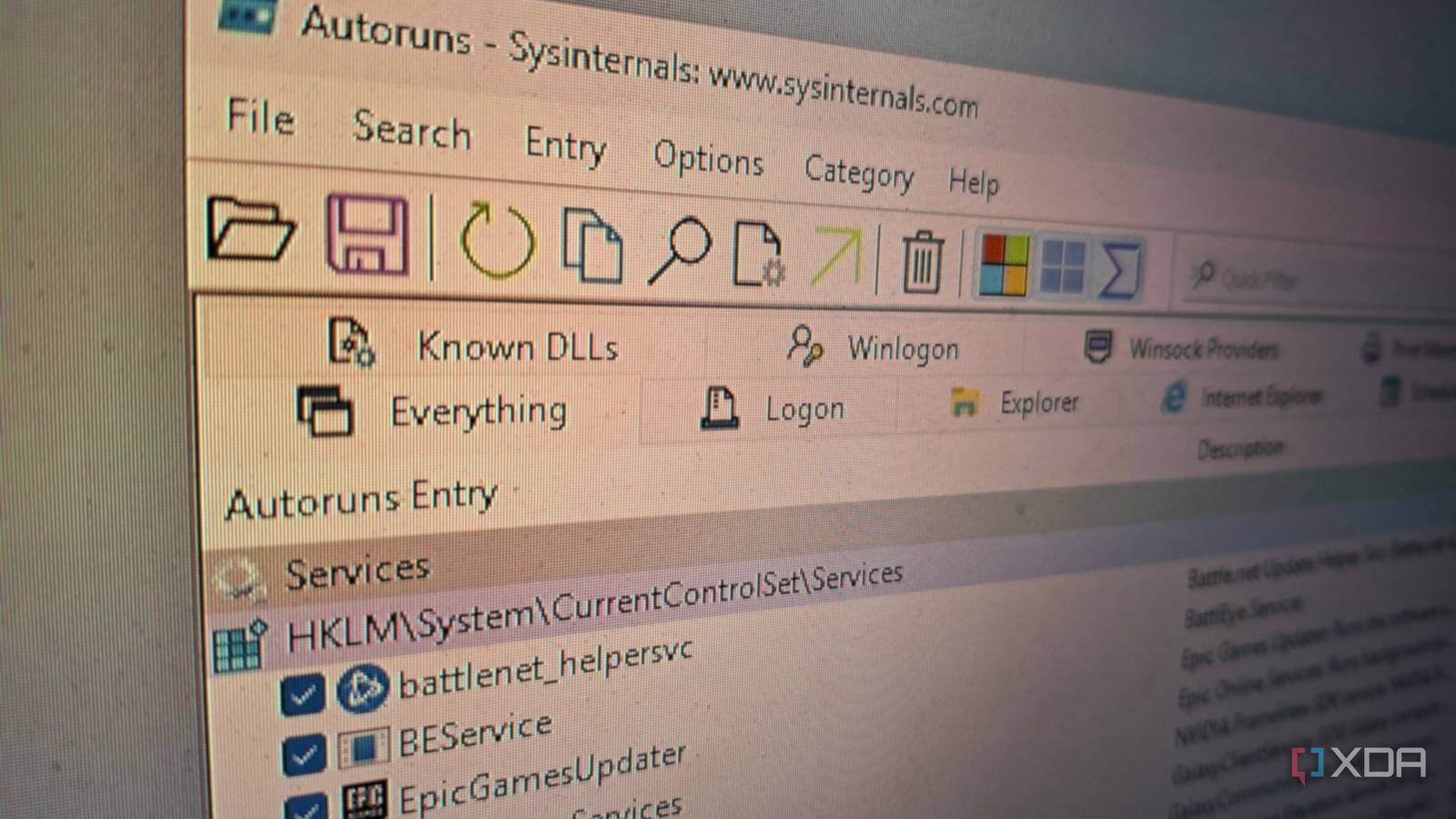
Published Sep 21, 2026, 9:01 AM EDT Simon is a Computer Science BSc graduate who has been writing about technology since 2014, and using Windows machines since 3.1. After working for an indie game studio and acting as the family's go-to technician for all computer issues, he found his passion for writing and decided to use his skill set to write about all things tech. Since beginning his writing career, he has written for many different publications such as WorldStart, Listverse, and MakeTechEasier. However, after finding his home at MakeUseOf in February 2019, he would eventually move on to its sister site, XDA, to bring the latest and greatest in Windows, Linux, and DIY electronics. If you want to check everything that runs on startup when you're on a Windows PC, which tool do you reach for first? There's a good chance you open up Task Manager and check the Startup tab, which, while useful, doesn't give you the whole picture. As such, if you want to do a deep dive on what your PC is doing, you're going to want to use Autoruns. Autoruns is a deep dive into your Windows 11 PC It finds things that your default apps won't find Autoruns is a free app you can grab off the Microsoft Ignite Sysinternals website. If you want, you can run it off Sysinternals Live, but if you want something you can throw on a USB stick and use on all of your computers, you can download the executables, too. For the sake of this article, I downloaded the executables. Here's how the developer describes Autorun: Simply run Autoruns and it shows you the currently configured auto-start applications as well as the full list of Registry and file system locations available for auto-start configuration. Autostart locations displayed by Autoruns include logon entries, Explorer add-ons, Internet Explorer add-ons including Browser Helper Objects (BHOs), Appinit DLLs, image hijacks, boot execute images, Winlogon notification DLLs, Windows Services and Winsock Layered Service Providers, media codecs, and more. Sounds great on paper, but how does it perform in reality? Fortunately, it does everything you want, and more. In fact, it completely blows Task Manager out of the water, which I'll cover later in the article. Getting Autoruns to sniff out your processes is really simple You just need to get it set up properly For this article, I've sicced Autoruns on my Windows 11 Shadow PC. I use this cloud PC exclusively for gaming, so it may not have as much detritus on it as a daily driver; however, it has been marinading for about two or three years, so it has had plenty of time to accumulate digital gunk in its folders. To get Autoruns working, I grabbed the executables from the download page, right-clicked the Autoruns64 executable, and selected Run as Administrator. It's important to give it elevated access; it may not have the permissions to get deep into your system files otherwise. Once you have it running, accept the disclaimer. Now, you need to ask yourself: how much do you trust yourself not to accidentally shut off an important Windows service? Regardless of your answer, click on Options at the top. You'll see four entries: Hide Empty Locations Hide Microsoft Entries Hide Windows Entries Hide VirusTotal Clean Entries If you're like me and you're worried that you'll hit a load-bearing service that will send your PC crashing down, ensure that both Microsoft and Windows entries are hidden. That way, it won't show you anything vital to your system. Likewise, if you're feeling brave, ask it to show everything and see what your system is doing. Now that you're up and running, take a look at the list. Anything highlighted in yellow is missing its core files, and anything in pink means it doesn't have a verified digital signature. That doesn't mean everything in pink is definitely malware, but it's still worth giving them a second look just in case. My results were pretty good, but I did find a service I don't remember ever installing, and two video game anti-cheat systems that had lingered even long after I had uninstalled them! If you want to stop a service from running, but you're concerned about deleting it outright, you can disable it instead. To do that, uncheck the box to the left of the service name. That'll free up your resources, and if anything goes horrifically wrong, you can just check it again. Autoruns does a far better job than Task Manager It's not even close So, why don't people just use the Task Manager to find startup processes? Well, you can see my results in the screenshot above. Exact same PC, exact same time as when I ran Autoruns, but far fewer services listed. This is because Task Manager doesn't look everywhere that Autoruns does, plus it gives you far more permissions that Microsoft hides from users to prevent them from damaging their system. As such, Autoruns is a lot riskier, and if you're not sure what you're doing, you can do far worse damage to your system stability than Task Manager. However, if you move carefully, research each process, and disable services instead of nuking them outright, you should be fine. Autoruns does what Windows doesn't If you truly want to dig into your system and see what's still ticking over, Autoruns does the job. With great power comes great responsibility, but as long as you're careful (and you disable system-important services from your view), you should be fine.
I ran Autoruns on my Windows PC and discovered startup services I'd completely forgotten about
Full Article
Original Source
Read the full article at Xda-developers →KhanList aggregates and links to publicly available news content. We do not host full articles from third-party sources. Always verify important information with original sources.