
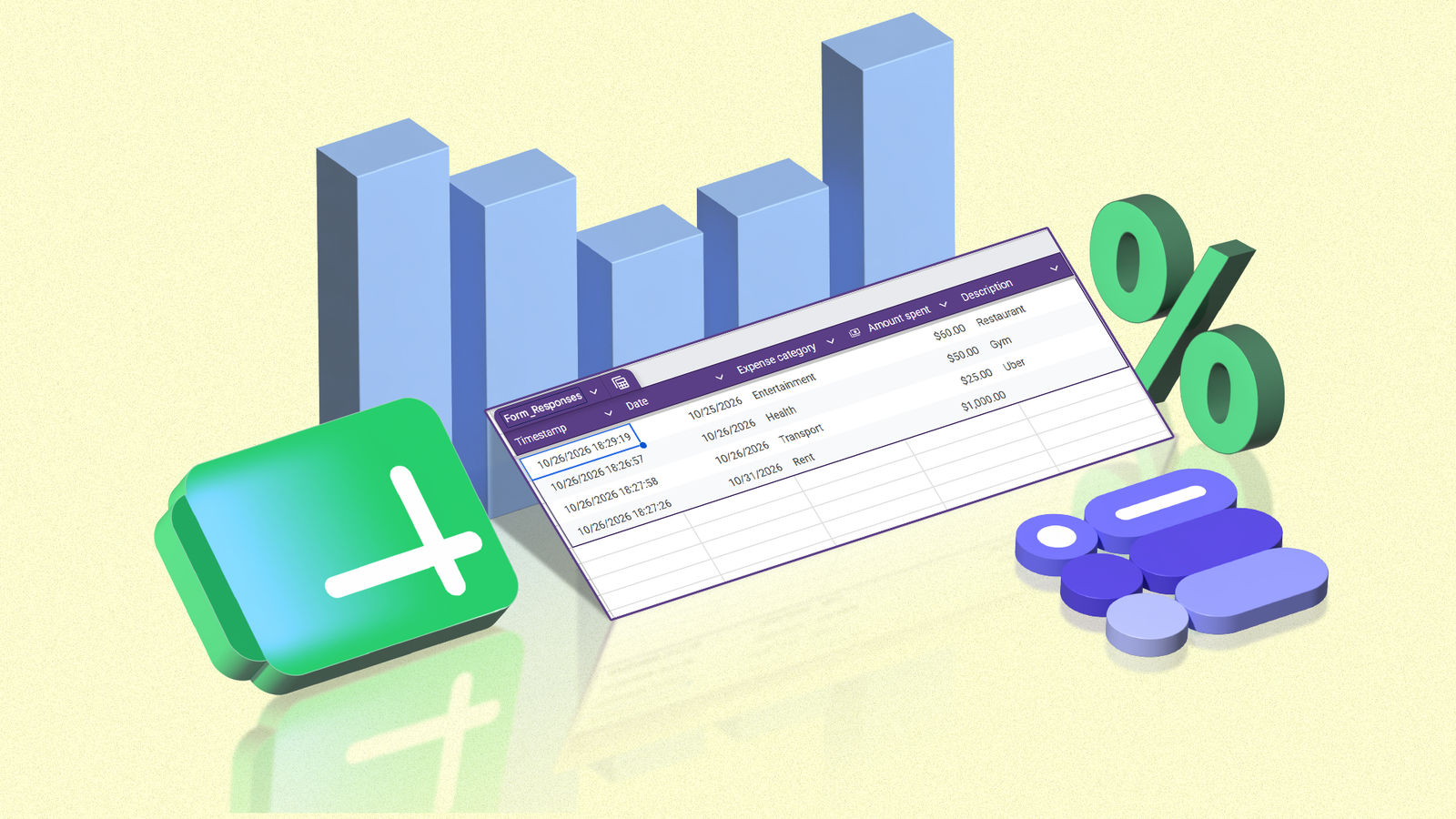
Published Oct 27, 2026, 5:00 PM EDT I cover Android with a focus on productivity, automation, and Google’s ecosystem, including Gemini and everyday apps. With a background in engineering and software development, I tend to go beyond surface-level tips. Before joining AP, I wrote for tech publications such as Gizbot in 2023 and iJunkie (formerly known as iPhoneHacks) from 2021 to 2022. I've often found that the hardest part of tracking finances or habits isn't collecting the information; it's making the process easy enough to stick with it. A spreadsheet can keep everything organized, but manually entering every detail gets tedious fast. Google Forms offers a surprisingly simple workaround. Instead of opening a spreadsheet and filling in rows, I can create a form, enter information through a few taps, and let Google Sheets handle the record-keeping. The best part is how adaptable this setup is. I can use it to track expenses, log household maintenance, or organize almost any information I want to collect regularly. Here's how I put the two Google apps together to create a lightweight tracking system that takes very little effort to maintain. Building my tracker with Google Forms This form records the information I want to track Rather than building a complicated spreadsheet with dozens of columns, I wanted a simple way to log information without opening Google Sheets every time. Google Forms was a natural fit, and its Gemini integration made it even easier to get started. Instead of adding every question manually, I describe the form I want and let Gemini do the initial setup. Forms generates a draft from a prompt, including relevant questions and answer options. I can edit the questions, change the available answers, remove unnecessary fields, and add anything Gemini misses. If the first draft isn't quite right, I can refine my prompt and generate another version before creating the form. For an expense tracker, that means recording the purchase, amount, date, and category, with a dropdown for choosing between groceries, transport, bills, and entertainment. After I was happy with my form, I clicked Publish and copied the responder URL so I could access it on my phone. Since Google Forms doesn't have a dedicated mobile app for filling out my tracker, I opened the link in Chrome on my phone and created a shortcut. Now, when I want to record an expense, I tap the shortcut on my phone, fill out the form, and submit it. I don't have to search for the link or open Google Sheets to enter a new transaction. Connecting Forms to Google Sheets Sheets collects my entries automatically With my form ready, the next step was connecting it to Google Sheets, so I wouldn't have to transfer each entry manually. I open the Responses tab in Forms, click Link to Sheets, and select Create a new spreadsheet. You can also link an existing spreadsheet to add responses to a file you were already using. When both are connected, the spreadsheet records every new submission, adding each response as a new row and using the form questions as column headings. For my budget tracker, that means every time I submit a transaction, the date, amount, category, and description are collected in one place without any extra data entry. Turning raw responses into a useful tracker Making it my personal dashboard With my budget entries flowing into Google Sheets, I had a record of my transactions, but I wanted to make the information easier to work with. First, I used filters to view transactions or sort entries by date or amount. This made it easier to review my spending, find specific purchases, or see where my money was going. I also used conditional formatting to highlight transactions that cross a certain amount, making larger purchases easier to spot. Using Gemini in Google Sheets makes things even easier. For example, I can ask Gemini to calculate my total monthly income and expenses, categorize my spending, highlight unusually large purchases, or create a chart showing where my money goes. I can reuse the same idea for almost anything Adapting the tracker to different jobs Credit: Lucas Gouveia / Android Police The best part about this setup is that I can reuse the same approach for almost anything that involves collecting information regularly. For example, I could create a household maintenance tracker to log repairs and servicing, a reading log to keep track of books I've finished, or a habit tracker to record daily activities. All I'd need to do is create a new Google Form with the relevant questions and connect it to Google Sheets. It's a flexible way to build personalized tracking tools without downloading another app. The same system can support shared projects, too. I can create a form for friends to submit travel preferences or availability, then use the linked spreadsheet to compare their responses. Whether I'm tracking expenses, logging household tasks, or recording habits, I can adapt the same basic setup to suit the job. It takes very little effort to get started, and I can add more features when I need them. This app pairing is well worth trying for anyone who wants a personalized tracker without installing another app or building a complicated system.
I paired Google Sheets with Forms to create a versatile tracker in minutes
Full Article
Original Source
Read the full article at Androidpolice →KhanList aggregates and links to publicly available news content. We do not host full articles from third-party sources. Always verify important information with original sources.