
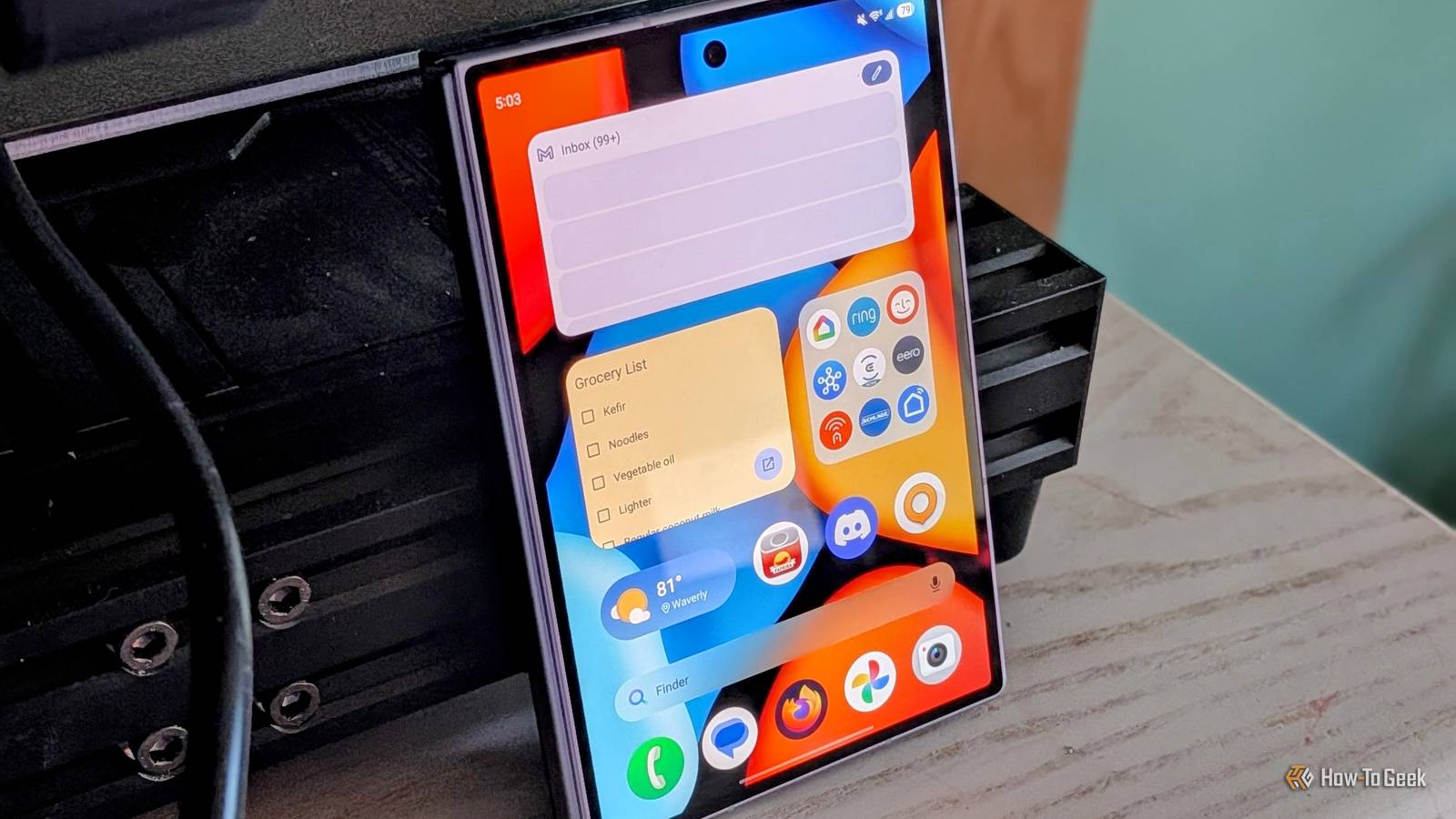
Published Sep 8, 2026, 9:00 AM EDT Joe Fedewa has been writing about technology for over a decade. Android and the rest of the Google ecosystem have been a focus for years, as well as reviewing devices, hosting podcasts, filming videos, and writing tutorials. Joe loves all things technology and is also an avid DIYer and food blogger. He has written thousands of articles, hundreds of tutorials, and dozens of reviews. Before joining How-To Geek, Joe worked at XDA-Developers as Managing Editor and covered news from the Google ecosystem. He got his start in the industry covering Windows Phone on a small blog, and later moved to Phandroid where he covered Android news, reviewed devices, wrote tutorials, created YouTube videos, and hosted a podcast. From smartphones to Bluetooth earbuds to Z-Wave switches, Joe is interested in all kinds of technology. After several years of jailbreaking and heavily modifying an iPod Touch, he moved on to his first smartphone, the HTC DROID Eris. He's been hooked ever since. I am not the biggest fan of Samsung’s software, but the one app I’ve always liked is Good Lock. Recently, I switched to a Galaxy phone again, and I used the excellent customization suite in a place that I’ve never tried before: the home screen. For those who may be unfamiliar, Good Lock is an official Samsung app that enables deep customization that you simply can’t do with third-party apps. It consists of plug-ins for different areas of the UI, such as the lock screen, Quick Settings, multitasking, and more. It truly is a must-have tool for Galaxy owners. One UI Home: Actually good? I don’t usually stick with stock launchers Credit: Joe Fedewa / How-To Geek I’ve used Good Lock extensively in the past — it’s one of the things that makes Samsung’s software bearable for me. Certain things in One UI don’t look or function how I’d like, and Good Lock allows me to fix some of those quirks. However, the “Home Up” plug-in is one I’ve never dabbled with. It’s dedicated to customizing One UI Home — Samsung’s home screen launcher — and, historically, I could never replace the stock launcher fast enough. That changed recently as I’ve been using the new Galaxy Z Fold 8 and Fold 8 Ultra. Foldable phones simply work better with the stock launcher, and I wanted to give it a fair chance for my review. This somewhat forced extended time with One UI Home has made me realize it’s really not that bad. In fact, I might go so far as to say it’s pretty good. My first clue was the widget “stack” feature that allows you to put multiple widgets in the same spot. Not many third-party launchers have this feature, and the ones that do often put it behind a subscription. One UI home is surprisingly good, but it’s still not quite on the same level as a third-party launcher on its own. That’s where Good Lock’s Home Up plug-in makes a big difference. Home Up is a game-changer Third-party features in a stock launcher By default, One UI Home has a pretty meager list of settings and options. You can adjust the size of icons, disable icon labels, toggle the app drawer, choose the folder grid size, and a handful of other basics. It’s more than you’ll find on many stock launchers, but nowhere near the flexibility of a third-party launcher. The Home Up plug-in is organized into seven categories. For the purposes of this article, I’ll be focusing on the “Home Screen” section, but know that it can also customize the Recents screen, taskbar, Edge Panel, share sheet, and gestures. First of all, Home Up allows you to customize the size of the home screen and app drawer grid. The rows and columns each have a range of 4-7. I found this particularly useful on my Z Fold 8, which has an unusually wide display. It’s a common feature you just expect to have in a home screen launcher. From there, things get more interesting. You can completely turn off the favorites dock if you’d like. Alternatively, you can make it stand out with a custom background. And that’s only the tip of the customization iceberg. “DIY” mode allows you to resize, rotate, and move widgets and icons without constraints. You can even add text and stickers to the home screen. One of my personal favorite parts of Home Up is the folder customization. For starters, you can decide the size of the grid on the folder icon and inside the folder. But I love the “Large Folder” options — this is another great One UI Home feature. Rather than being stuck with folders that you have to open to access, “Large Folders” let you save space but still be able to launch apps without opening a folder first. Home Up adds the ability to customize the size of these Large Folders, adjust the icon size, and enable the ability to scroll through apps in the folder without opening it. I was using a nice app called “Folder Widget” to do this stuff, but now it’s baked right into the stock launcher. Home Up has options for standard folders, too. I can’t believe I’m using Samsung’s launcher I never imagined I’d be using a Samsung phone with the stock home screen launcher. It used to be one of the very first things I replaced. Many third-party launchers still offer more features, but Home Up gets One UI Home to a very respectable place. It’s a solid launcher, especially if you’re using a Z Fold. Keeps up the good work, Sammy.
I never thought I’d use Samsung’s stock home screen, but this plug-in made me stick with it
Full Article
Original Source
Read the full article at Howtogeek →KhanList aggregates and links to publicly available news content. We do not host full articles from third-party sources. Always verify important information with original sources.