
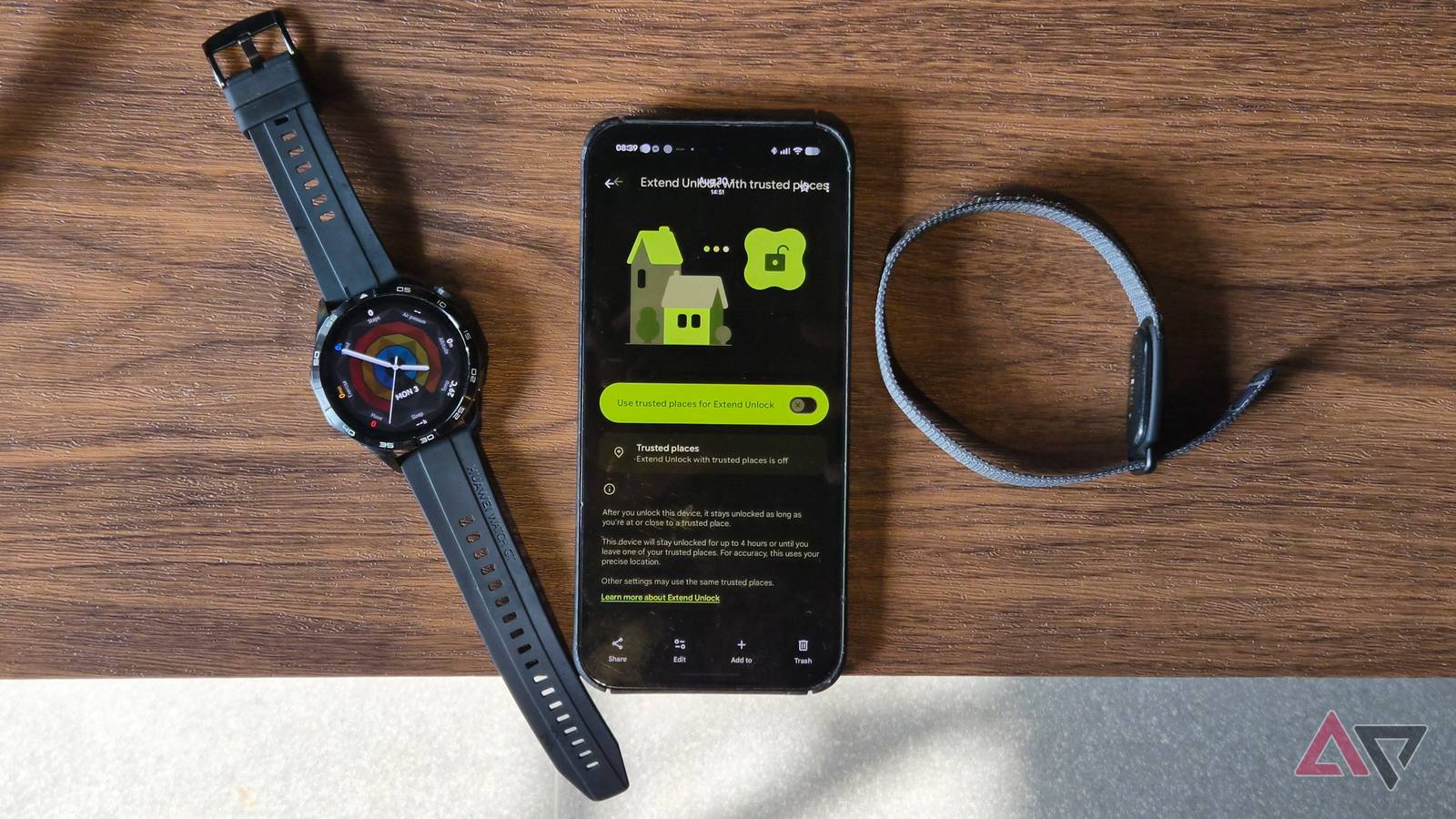
Published Sep 2, 2026, 8:00 AM EDT Jade Bryan is a Feature Author at Android Police with over a decade of tech reviews and news reporting experience, stretching back to the Symbian era and the early days of Android. He covers the breadth of the mobile industry, specializing in operating system deep-dives, app testing, and hardware analysis. In his spare time, you can find him tinkering with his Android devices and wearables, seeking ways tech can improve daily life. He also enjoys playing MMORPGs, traveling, or feeding stray cats and dogs. The fingerprint scanner on my Google Pixel 9 Pro XL is snappy and wonderful to use. It's miles ahead of my newer Samsung Galaxy Z Flip 7. If my thumb is sweaty, the security falls back to face unlock, which is also a reliable authentication method. Although I grew accustomed to it for over a year, I realized that having to unlock it every time I expand notifications isn't the most efficient, especially when I'm mostly at home or driving. That's a lot of time wasted considering I access my phone a handful of times every hour or so. Fortunately, I remembered one Android feature buried in the settings that perfectly suits my needs: Extend Unlock. Since putting it under my belt, I've found it an invaluable tool for improving my usage while keeping my phone secure. What is Extend Unlock? I wish I had used it sooner Basically, it's a classic Android security tool that has received a few major upgrades over time. It was revamped in 2023, dropping the Smart Lock name and adopting the new Extend Unlock moniker. More than a name change, Google improved it with wider compatibility across more phones and Bluetooth devices. Plus, it added smart unlock support for select Wear OS watches. The main point of it is keeping my Android phone unlocked for up to four hours when triggered by a state such as connecting to a Bluetooth device or being in a specific authorized location. It's useful for bypassing lengthy passwords or PINs, or scanning your finger or face, when you're at home, driving, or in familiar places. I have used it on my older Samsung Galaxy devices, though I forgot about it when I switched to the Google Pixel last year. It was likely because the biometrics on my Pixel work so well that it rarely misses. But with the growing app notifications and messages I manage every day, it becomes a point of friction to lift my phone upward to scan my face or run my thumb over it. It's not ideal if I have to access my device several times in an hour. This is also dangerous when I'm driving a vehicle with no Android Auto, even to check messages (which you shouldn't). So, most of the time, I leave these calls and messages dismissed because I need to reach and unlock my phone first. How to enable Extend Unlock Finding the setting across different Android skins The feature is available on most Android devices running Android 10 and newer. On older devices, it might be called Smart Lock, and some controls may differ. However, the core function is no different. Extend Unlock is turned off by default on Android devices, so I needed to enable and set it up first before using it. On my Galaxy Z Flip, it is accessible from Settings > Lockscreen and AOD > Extend Unlock. While on Pixel and stock Android, it is tucked deeper in Settings > Security and privacy > More security and privacy > Extend Unlock. Setting it up is almost identical regardless of the Android version or device model. Which mode to use with Extend Unlock Bluetooth devices are convenient, but there's a disadvantage Inside the feature's settings, you can pick between On-body detection, Trusted places, and Trusted devices. The first is suggested if you're doing an activity where your hands are occupied, such as walking a dog or working in a garage. I use the other two because they fit my daily routine without sacrificing much of my phone's security. It works with several of my Bluetooth accessories, including my Google Fitbit Air and my Huawei GT smartwatch. Although I rarely wear the latter at home, the feature works as long as it is connected to my phone. I also added my Edifier wireless speaker, which I use when streaming Spotify from my devices. I haven't tested how many devices you can add, but it will work with a handful, since not all connect to my phone at the same time. The feature works flawlessly, and I haven't had to log in using my device's password. However, there's a major trade-off. My phone stays unlocked when my trusted devices are with me or nearby, like my smartwatch or car stereo component. This means that even for a brief time, someone who has access to my phone can get into it and access apps and other sensitive data. I wish Google would add granular controls in the future, such as letting me set a shorter unlocked time frame. That would shorten the unlocked duration, but I'd prefer that over having my phone fully exposed. I used trusted places as a more foolproof method Geofencing addresses my concern with Bluetooth gear As a workaround, I keep other security features enabled, like Theft Detection and Offline Device Lock. Google also recommends enabling Lockdown mode when necessary. These add peace of mind if I leave my phone behind or someone steals it, though it's still not the absolute best solution. Instead, I tested using only trusted places and devices set up at home, such as a speaker, gaming controller, or a robot vacuum. Since I work at home, it's a more practical method than relying solely on trusted Bluetooth hardware. Still, false triggers can happen, but they're less likely than with a connected device all the time. I stopped wasting time unlocking my Android phone Depending on your daily routine, Extend Unlock is an invaluable Android feature if set up properly. It saved me countless hours of constantly staring into the front camera and wiping smudges off my fingers to check a notification. While the trade-offs demand a bit of caution, pairing Extend Unlock with Android's built-in theft protection and other security safeguards makes up for these constraints.
I never have to type my phone PIN ever again after discovering this Android feature
Full Article
Original Source
Read the full article at Androidpolice →KhanList aggregates and links to publicly available news content. We do not host full articles from third-party sources. Always verify important information with original sources.