
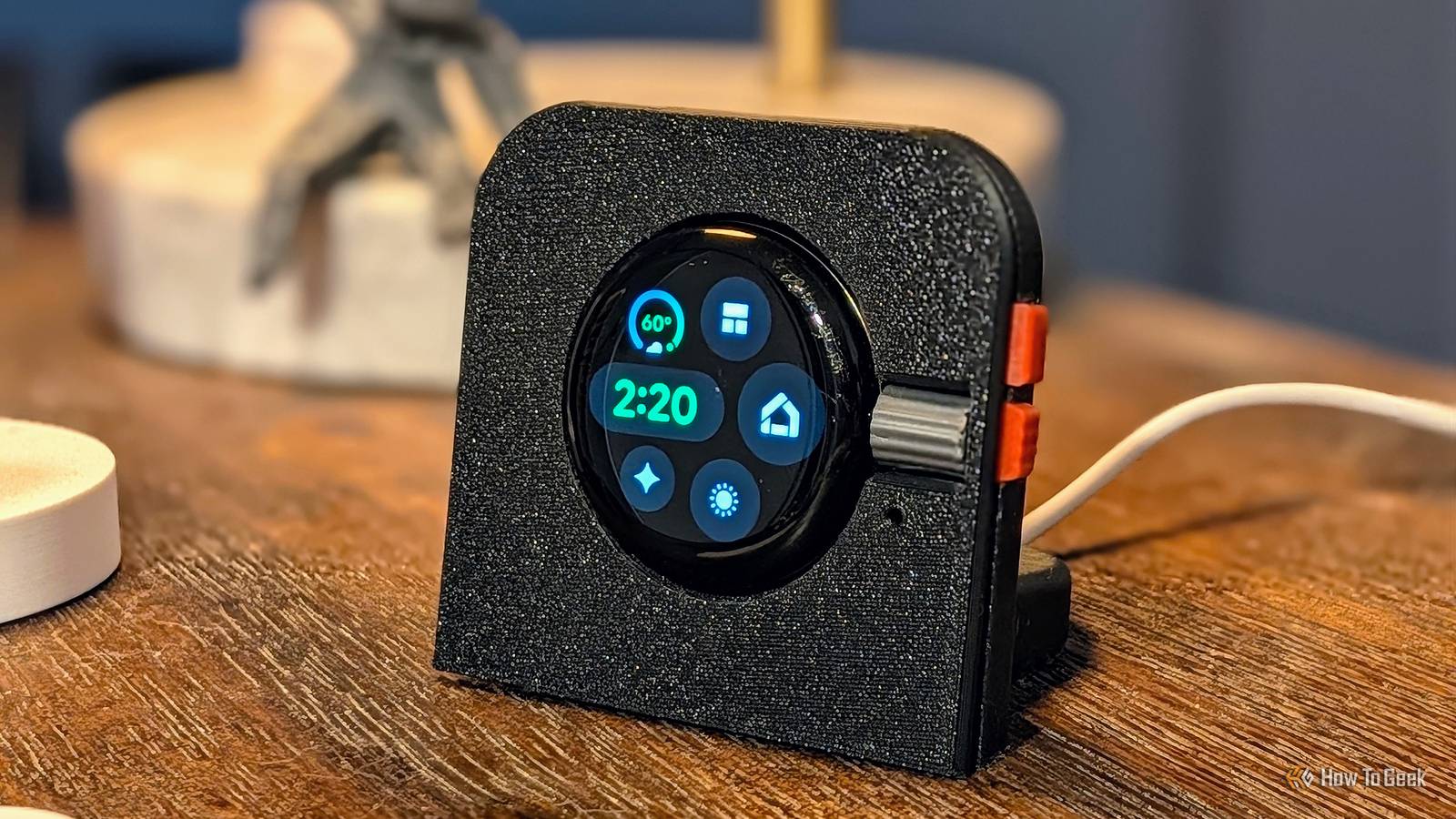
Published Nov 2, 2026, 4:30 PM EST Joe Fedewa has been writing about technology for over a decade. Android and the rest of the Google ecosystem have been a focus for years, as well as reviewing devices, hosting podcasts, filming videos, and writing tutorials. Joe loves all things technology and is also an avid DIYer and food blogger. He has written thousands of articles, hundreds of tutorials, and dozens of reviews. Before joining How-To Geek, Joe worked at XDA-Developers as Managing Editor and covered news from the Google ecosystem. He got his start in the industry covering Windows Phone on a small blog, and later moved to Phandroid where he covered Android news, reviewed devices, wrote tutorials, created YouTube videos, and hosted a podcast. From smartphones to Bluetooth earbuds to Z-Wave switches, Joe is interested in all kinds of technology. After several years of jailbreaking and heavily modifying an iPod Touch, he moved on to his first smartphone, the HTC DROID Eris. He's been hooked ever since. Everybody loves a good smart home dashboard. There are a million different ways to make one, but they typically involve large, rectangular displays. I decided to go in an opposite direction and use an old Pixel Watch. Now, it goes without saying that there are different use cases for a standard 7 or 10-inch tablet dashboard and a sub-2-inch display. That's perfect, though, because you probably don't control your smart home from only one spot. A small, secondary dashboard can be useful. Wear OS apps are already dashboards The beauty of a small screen When it comes to smart home dashboards on tablets and other large-screen devices, there are tons of different ways to make them. You can go the completely custom route with Home Assistant or something like SharpTools, or use a pre-made app. The cool thing about apps for smartwatches, especially Wear OS, is that they're already essentially designed as mini dashboards. The UI for a small screen needs to be stripped of non-essentials and have easy touch inputs. That's perfect for a dashboard. Whether your smart home is managed through Google Home, SmartThings, Home Assistant, or a few other platforms, you can control quite a bit from a Pixel Watch. My smart home is set up through SmartThings, but I have a few devices scattered around that aren't included. So, I primarily manage it all with the Google Home app as a centralized hub. The trick to using a Pixel Watch or any other smartwatch as a mini smart home controller is to treat the watch face more like a "home screen." I used the "Active" watch face with the "Minimal" layout. Then I selected the Google Home app, SmartThings devices, SmartThings scenes, weather, and Gemini as the complications. Setting it up in your home There are various ways to do it With the software side out of the way — which is incredibly easy — the only thing left to do is figure out how to use it in your home. This is where having access to a 3D printer really helps. My first thought was to use the Pixel Watch as a mini dashboard next to my bed. It's nice to be able to control the smart lights and scenes in the room without speaking out loud to the smart speaker or getting distracted by my phone. So, I repurposed the model for my Pixel Watch Dumb Phone and converted it into a stand. I was also thinking it would be pretty cool to just use the original dumb phone model, but create a "dock" with the charger that goes with it. That way, you could pick it up and use it more like a remote, then set it back down on the charger when you're done. Thankfully, it's a lot easier to work around the charger for older Pixel Watches than the new side-mounted version. As I said, a Pixel Watch probably isn't going to replace a big dashboard or your phone, but it's a nifty little controller that you can place somewhere in your home. The important part is to get creative and repurpose an old device. It's always better than letting it sit in a drawer and collect dust.
I made a tiny smart home dashboard out of an old Pixel Watch
Full Article
Original Source
Read the full article at Howtogeek →KhanList aggregates and links to publicly available news content. We do not host full articles from third-party sources. Always verify important information with original sources.