
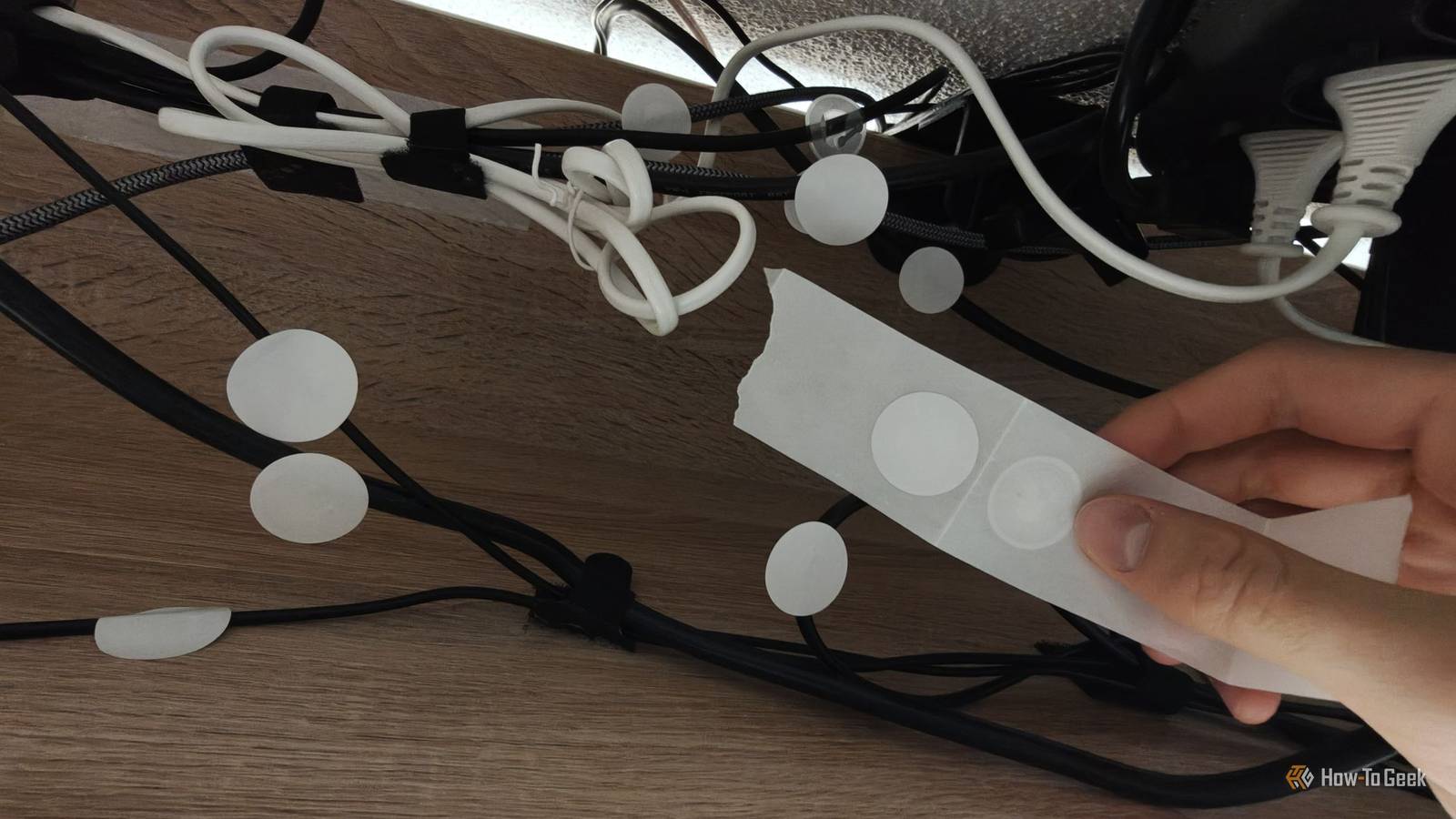
Published Sep 16, 2026, 3:00 PM EDT Ismar is a Senior Author at How-To Geek. He previously worked as a writer, editor, and general manager at a content agency before joining the team in 2023. He began his writing career in 2021 after completing a BA in English Language and Literature. Beyond How-To Geek, Ismar has contributed to Red Stag Fulfillment and Authority Hacker. He has also worked on various SEO projects to help clients improve their search visibility. Ismar has been around Windows PCs since the age of three, so friends and family naturally chose him as the resident tech support. His projects often involve tinkering, such as disassembling mechanical keyboards and gaming mice to mod his beloved gear. He also enjoys pushing hardware to the max through overclocking while staying on a reasonable budget. An avid gamer, Ismar has logged thousands of hours across various genres, including first-person shooters, RPGs, racing games, and roguelites. When he is not at his desk, he is probably exploring other people’s phones to discover their quirks and features or experimenting with the latest AI tools. In his free time, Ismar enjoys spending time with his wife, working out at the gym, playing guitar and bass, cooking gourmet meals, and traveling. Above all else, he’s a proud cat owner. Anyone who's ever owned a desktop computer knows how hard it is to keep the mess of cables under the desk in check. For us tech geeks, it's even worse, since our setups tend to involve a ridiculous number of cables, and for some reason, we just can't stop messing around with them. After running my hands along the rat's nest of cables one too many times just to figure out which was which, I'd had enough. I needed a way to label them so I could tell which cable was which without having to trace them every time I wanted to unplug something. My desk has turned into a cable-tracing nightmare The mess underneath my desk is ridiculous Credit: Ismar Hrnjicevic / How-To Geek I'm not proud to admit it, but I have an unmanageable pile of cable spaghetti under my desk. Part of the problem is just how many peripherals I've got on my desk. I've got two computer mice, speakers, two pairs of headphones, a microphone, two monitors, a TV, and two lamps all plugged in somewhere. To top it all off, I recently added a mini PC to my setup that's also permanently plugged in and hooked up to both monitors, and sometimes I even plug my laptop into the TV. Each time I want to unplug a monitor or move the mini PC somewhere, I have a hard time fishing out the cable. Even if I unplug it from the back of my PC, I can't tell which cable to pull on to get it out because they all look the same. I've made attempts to organize it with adhesive hook-and-loop tape, but the weak adhesive just couldn't handle the bulk and weight of the cables. Clamp-on trays aren't a viable solution for me, either, as the clamps would take up valuable desk space, look ugly, and make it harder to get to my cables each time I have to unplug something. These tiny NFC stickers are perfect for cramped cables Tiny footprint, massive amounts of information Traditional blank labels are typically the first thing I turn to when I need to label something. However, those wouldn't actually work very well in this scenario because I'd have to write a bunch of text, which would be absolutely too tiny to read when scrambling for a cable underneath the desk. I can't just write "HDMI" on a cable and be done with it because it doesn't tell me the output and input devices. It could be the TV or one of my two monitors on one end, and my mini PC or desktop on the other. That's when I realized that I could just use NFC sticker tags instead. They're small, programmable NFC tags that you can scan with your phone to see what's written on them. NTAG215 tags have enough storage for a fairly detailed text label, while even the smaller-capacity NTAG213 is more than enough for this purpose. So, I took a bunch of NFC tags I had lying around from a previous project and began creating the labels (more on that shortly). Each label started with the type of cable, followed by where each end was plugged in. For example, the DisplayPort cable that connects my primary monitor to my desktop says "DP 1.4 - RX 9070 XT - LG Monitor." I specified the graphics card just in case I ever end up using the integrated GPU as well. With this awesome setup, I can just scan each tag with my phone until I find the correct cable instead of struggling to follow where it goes with my hand or read a tiny label in the dark. The only thing that's missing now is a few more NFC stickers to tell me which cable is which behind my PC. Unfortunately, I ran out of stickers, but I'll order more to finish this fun little labeling project. Making the labels was easier than I expected Every cable gets its own little ID Credit: Ismar Hrnjicevic / How-To Geek If you've never messed around with NFC tags, I wouldn't blame you for assuming you need some special tool to program them. Luckily, all you actually need is your phone and an app that can write NFC tags. I used NFC Tools on Android, but pretty much any app should work. After installing the app, simply take one NFC sticker and stick it to the cable you wish to label. The sticker has to be relatively flat to be scannable, so don't bother trying to wrap it around the cable, as it won't work. If possible, attach the center of the tag to the cable and secure the edges so it stays relatively flat. NFC Tags Sticker with NTAG215 Blank Chips These affordable NFC tags use the NTAG215 chip that can hold up to 504 bytes of memory. They're easy to stick onto any surface, providing you with a convenient way to trigger automations in your smart home. As a side note, programmable NFC cable tags and ties do exist if you want a super clean setup, but they cost a bit more than stickers. After attaching the tag, open the NFC Tools app and go to the Write section. Tap Add a record > Text, type in your label, then tap OK. Now that the text appears in the Write section, tap Write and tap your phone against the NFC tag, and you're done. The text stays saved in the app, so you can use it to quickly program multiple stickers with the same or similar information. When you're done, simply tap on the text and delete it, then start the process over for each new cable. If you ever wish to reuse the stickers for a new label or something else entirely, the app has the option to erase the tag under Other. NFC stickers deserve more attention than they get Cheap NFC stickers are one of the most fun pieces of tech I've discovered recently, and I've quickly become addicted to using them all over my house. I use them in combination with Home Assistant to control all the lights in my house, and after adding them to the mess of cables underneath my desk, I'm tempted to replace all the labels around the house with these cute little tags. When it comes to storing a lot of information while keeping a tiny footprint, or having your phone perform an action when you scan them, there's no beating NFC tags.
I labeled every cable at my desk with NFC stickers, now I never need to guess which is which
Full Article
Original Source
Read the full article at Howtogeek →KhanList aggregates and links to publicly available news content. We do not host full articles from third-party sources. Always verify important information with original sources.