
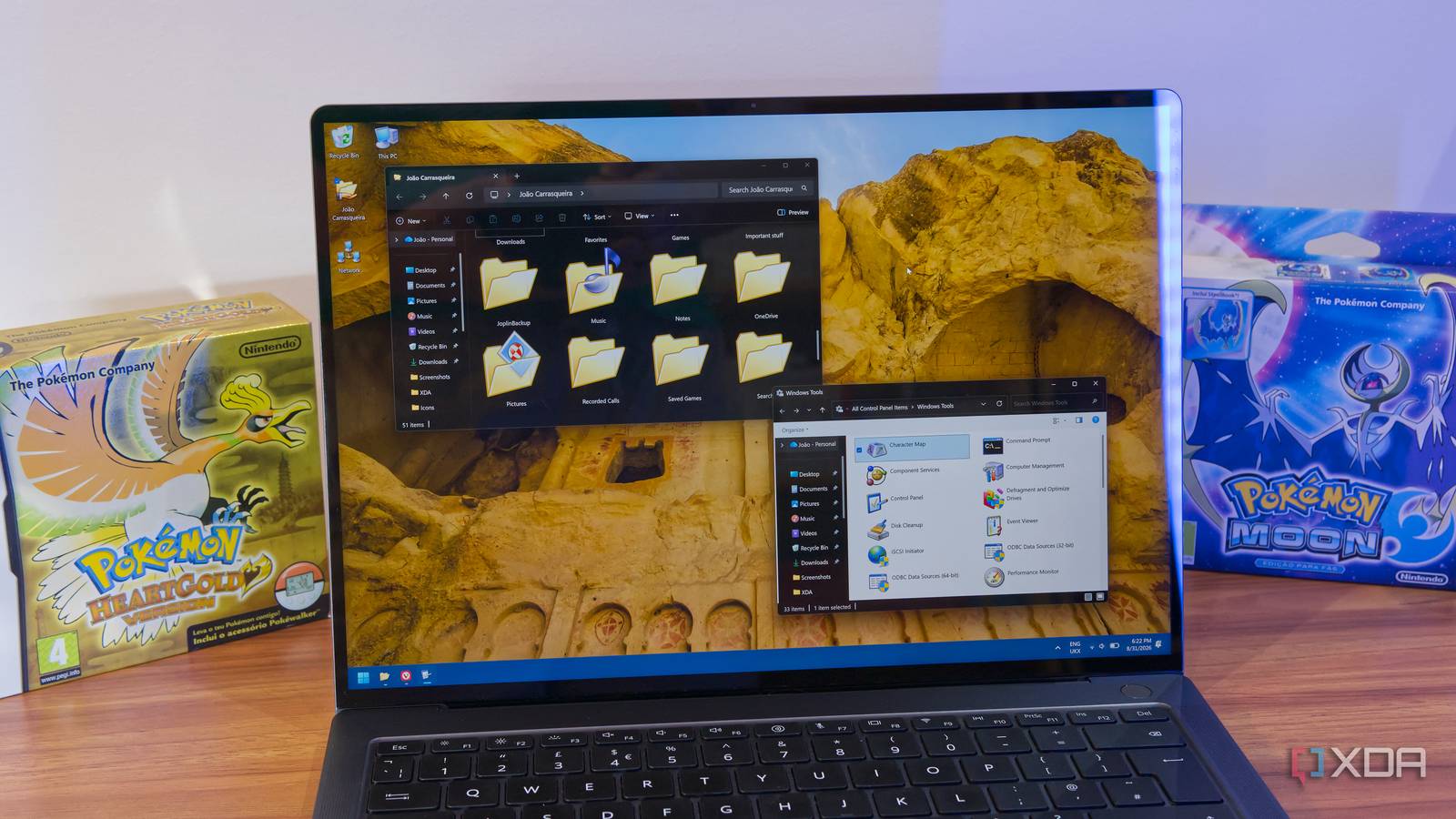
Published Sep 5, 2026, 8:00 PM EDT João has been covering the tech world for over 7 years, with a heavy focus on laptops and the Windows ecosystem. I also love all things tech and videogames, especially Nintendo, which he's always happy to talk about. Prior to joining XDA in 2021, he worked at Neowin: https://www.neowin.net/news/poster/jo%C3%A3o-carrasqueira/ With every iteration of Windows comes a new set of icons that changes the overall look and feel of the OS. It can seem small, but these icons can be something you remember fondly, so if you grow up with a particular era of Windows, you may miss seeing those old icons on your desktop. The good news is you can bring them back, and I've done exactly that on my Windows 11 PC. There are a couple of ways you can go about it, though there are also some limitations. Here's how it works. Changing icons in Windows 11 There's a lot to it Right off the bat, there are a few different steps you need to take to change icons on your PC depending on what icons they are. For folders and shortcuts, all it takes is right-clicking the item in question and choosing Properties. Shortcuts show the Change icon button right on the main properties page, and for folders, you need to go over to the Customize tab first. If you want to edit items pinned to the taskbar, those are also shortcuts. Press Shift while right-clicking a taskbar item (the app needs to be closed) to see the Properties option, and change it from there. Many Start menu items are also shortcuts, so you can edit them in much the same way by right-clicking them and choosing Open file location to find where the shortcut is stored. A select few items are considered "desktop icons", including This PC, your user folder, the Network page, and the Recycle Bin. To change the icons for these items, you'll need to go to the Settings app. Go to Personalization > Themes > Desktop icon settings, and you can change those icons from there. Finally, there are the two most complex ones: icons for file types and icons for your drives. For your disk drives, you can modify the Windows registry to create new keys that define the icon for each individual drive: Open Registry Editor (you can simply search for it in the Start menu) Navigate to this path: HKEY_LOCAL_MACHINE\SOFTWARE\Microsoft\Windows\CurrentVersion\Explorer\DriveIcons Right-click the DriveIcon folder on the left side and choose New > Key, then name the new key after the drive letter you want to modify. Right-click the key you just created and choose New > Key again, this time calling it DefaultIcon. Select the newly-created folder, then on the main pane, double-click the (Default) entry to modify it. In File Explorer, find the icon you want to use (in .ico format), then right-click it and choose Copy as path. Paste the path onto the Value data field in Registry Editor, then click OK. This should change the icon immediately, though as you can probably tell, the icon is applied based on the assigned drive letter, so if you're trying to modify drives you unplug often, it may not always look right. I just used generic icons for the built-in drives and a couple of letters after that so that external storage still had the old-school look. If you want to change icons for specific file types, you can use a third-party program called FileTypesMan. These icons are usually determined by the app that you set to open a given file type, so I didn't bother with this part too much, but you can play around with it if you want. Some icons are still in Windows 11 You can still find the old ones Once I knew how to change the icons, it was a matter of finding the ones I wanted to use, and thankfully, Windows includes a few options already. Despite Microsoft consistently introducing new icons, many old ones still live on inside the OS, so you can find them right there. Windows icons are usually stored inside DLL files, which contain multiple icons. When you first click Change icon, you'll see a few options that come from the same icon set. You can find some old-school icons in specific icon sets, which include these files: C:\Windows\System32\moricons.dll (mostly for Windows 3.x-era icons) C:\Windows\System32\pifmgr.dll (includes some icons from Windows 95 and 8) C:\Windows\System32\netshell.dll (useful for networking icons) There are quite a few more files like this, but the usefulness of these icons is more questionable. Plus, as you start having to browse all these DLL files without much guidance, it becomes a bit time-consuming. That's why there's another solution that's potentially better. The Windows Icon Archive project contains a repository of icons form all versions of Windows from Windows 95 to Windows 11, and you can search and browse them at will. You can download them as either .ico or .png files, but to actually use them, they need to be in the .ico format. If you're looking for a specific icon and it's only available as a .png, you'll need a tool to convert it. This does make it easier because the icons are more easily searchable and nearly every icon is available, you just have the extra work of downloading, converting, and storing the icon files in a location where you won't move or delete them. It may not be the fastest method each time, but it's the best way to get a consistent look, especially if you want all the icons from a specific era of Windows. I tried to make my icons look like Windows XP, and you can see some results here: Not every modern feature has an XP equivalent, so some parts are a little more creative, but the general vibe is still there. It won't be perfect Some limitations can't be overcome You have quite a few options to customize icons on Windows 11 with the guidance above, but I've found that some limitations are hard to overcome. For one thing, while you can change the icons for individual folders, these settings don't affect new folders as they're created, so if you want a completely consistent look, it's going to take some continuous work. I've also noticed that for some of the special folders that have dedicated icons, like Downloads or Pictures, while you can change the icon inside your user folder, that new icon won't be reflected in the Quick Access area of File Explorer, where you likely see it most often. You also can't change icons for apps themselves, and of course, some parts of the UI just have icons you can't modify. Some programs like OpenShell let you modify the taskbar and Start menu icon, which may be able to help you complete the old-school look, but it will never be a perfect recreation. It can still be fun Even if it's not perfect, it's certainly a cool idea to be able to change so many of these icons to bring back memories of how things used to look when I was younger. As someone who grew up with XP, that was my first port of call, but you can go further back if you want to.
I gave Windows 11 an old-school makeover by restoring its classic icons
Full Article
Original Source
Read the full article at Xda-developers →KhanList aggregates and links to publicly available news content. We do not host full articles from third-party sources. Always verify important information with original sources.