
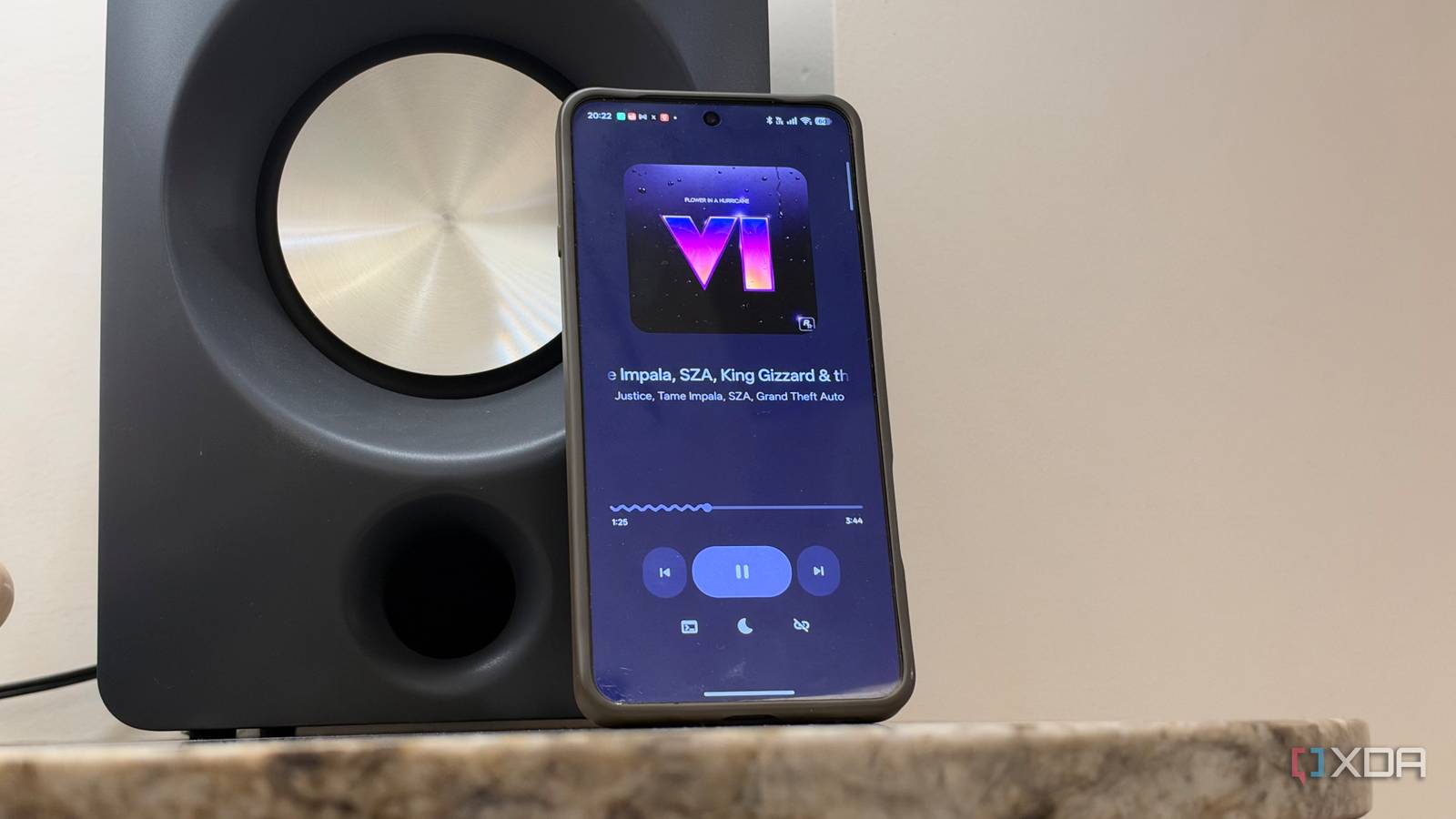
Published Nov 20, 2026, 6:01 PM EST Dhruv Bhutani has been writing about consumer technology since 2008, offering deep insights into the personal technology landscape through features and opinion pieces. He writes for XDA-Developers, where he focuses on topics like productivity, networking, self-hosting, and more. Over the years, his work has also appeared in leading publications such as Android Police, Android Authority, CNET, PCMag, and more. Outside of his professional work, Dhruv is an avid fan of horror media spanning films and literature, enjoys fitness activities, collects vinyl records, and plays the guitar. I listen to a lot of music in the kitchen while cooking or wrapping up chores. However, getting music into the space isn't easy. My old Google Nest Mini is a bit too small for the kind of music fidelity I want, while devices like the Echo Show are too unwieldy for simple stereo playback. Plus, there's the cost. I don't want to spend hundreds of dollars on a kitchen setup when I have a perfectly serviceable pair of bookshelf speakers lying around. So, I put on my DIY hat and decided to dig around for ways to turn one of my spare phones and bookshelf speakers into a Spotify Connect experience. That's where LibreThing comes in. This open-source Android project turns any old Android phone into a dedicated Spotify Connect receiver. Instead of relying on Bluetooth pairing or keeping Spotify open on a phone, it creates a standalone music endpoint that appears within the Spotify Connect device picker. It lets me start playback from any device and keep the music playing completely hands-free. Why LibreThing is better than leaving Spotify running on an old phone Build a dedicated Spotify Connect receiver for free My first instinct when building this project was to keep the Spotify app open and pinned with local discovery switched on. That's a reasonable approach. But that's not how the Spotify app is meant to be used, and it can be a bit unreliable when trying to connect to it. The interesting thing about LibreThing is that it implements the Spotify Connect protocol directly on the Android device so that it can act like any other streamer or connected speaker with Spotify Connect built in. The project builds on top of go-librespot, which is a popular open-source implementation of Spotify Connect. LibreThing takes the engine and packages it into a native Android application with its own interface, settings, and background service, so you get a single APK to install instead of building the implementation through Termux. You don't need a particularly powerful phone either. In fact, anything running Android 7 and above should work just fine, which means even a five-year-old phone sitting in your junk drawer should suffice. All you'll need is a network connection and a way to connect the device to your speakers. If your old phone supports a headphone jack, you're good to go. If not, a USB adapter dongle is your best friend. LibreThing gives you a lot of options to configure your streaming experience Set up Spotify Connect in minutes Getting started is easier than you'd imagine. Just install the app using the APK provided on GitHub, and you're good to go. The app offers plenty of settings, but if your goal is just to get music going, hit install, tap the start button, and it'll immediately show up as a Spotify Connect device on your phone or laptop. On the same Wi-Fi network, select the device as your Spotify Connect endpoint, and you'll see the album cover, track info, and a progress bar pop up on your phone. No sign-in needed. Since this runs on Spotify Connect, you can hand the music off from the kitchen speaker to any other speaker at home, and it'll continue playing from there. Music is great, but if you use Spotify for podcasts or audiobooks while working, you'll find this incredibly useful. And yes, since LibreThing is trying to recreate the experience of Spotify's short-lived Car Thing, you can even control playback from your smartphone's display. As I mentioned, the app has plenty of built-in controls to customize your experience. For example, you'll find an option to activate a fake sleep feature. It turns the display completely black without stopping playback, which is pretty useful if you want to leave the phone playing for long periods. Often, I'll have a long playlist running while I'm getting things done. Having a sleep screen helps protect the old OLED screen. In fact, there are additional OLED protections built in, like the ability to periodically shift interface elements, as well as a scheduled grayscale or red-light-only mode. I don't really need these for a kitchen speaker, but you might find them handy in the bedroom. Among all the other settings available, there's one that particularly caught my eye. It's the ability to set a fixed playback quality level. I'm not particularly bandwidth-constrained, and I've got a decent set of bookshelf speakers installed in the kitchen, so I wanted the best possible audio quality. While you can't set it to lossless in LibreThing, 320 kbps is more than good enough for the purpose, and that's what I've set it to. Give your old Android phone a second life While my initial plan to use the Spotify app with some speakers plugged in would've worked well enough in short bursts, LibreThing has let me build a more bespoke setup without buying another piece of hardware. I already have a set of speakers and more old Android phones than I know what to do with. Installing a single open-source app lets me build my own Spotify streaming setup that works just as well as a commercial streamer with little to no configuration. This one's an easy weekend project if you've been looking to add music around your home. Related My old phone makes a better Android Auto screen than the head unit I almost paid for Why spend the extra money?
I gave an old Android phone a second life as a Spotify Connect stereo, and it cost nothing
Full Article
Original Source
Read the full article at Xda-developers →KhanList aggregates and links to publicly available news content. We do not host full articles from third-party sources. Always verify important information with original sources.