
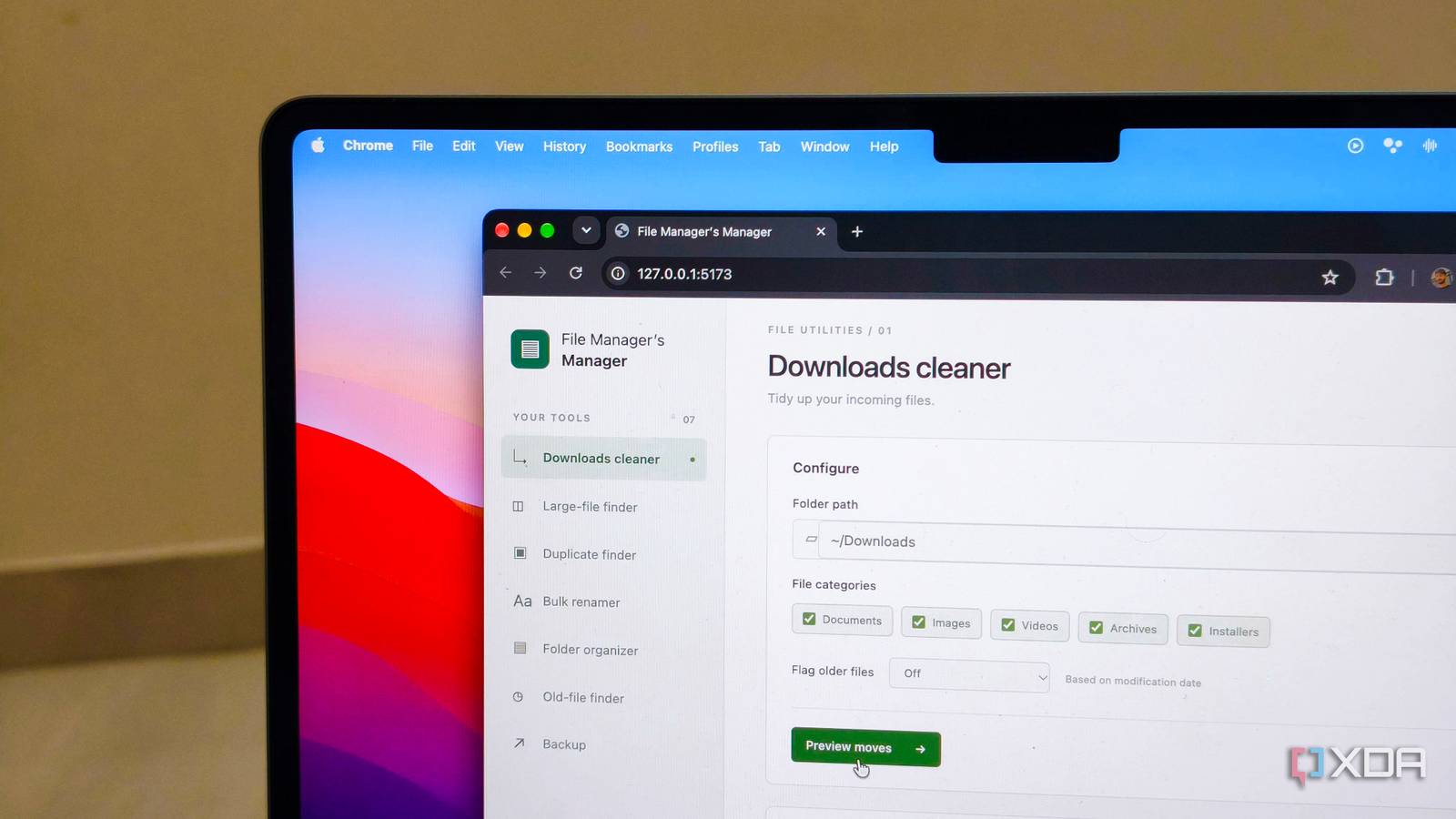
Published Oct 8, 2026, 4:00 PM EDT Anurag is an experienced journalist and author who’s been covering tech for the past 5 years, with a focus on Windows, Android, and Apple. He’s written for sites like Android Police, Neowin, Dexerto, and MakeTechEasier. Anurag’s always pumped about tech and loves getting his hands on the latest gadgets. When he's not procrastinating, you’ll probably find him catching the newest movies in theaters or scrolling through Twitter from his bed. I have a bunch of Bash scripts that help me keep my files organized. They’re useful enough that I keep using them, although running everything through the terminal gets cumbersome. I have to keep track of which script does what, remember the commands, and pass the right folder paths and options. I’d much rather open a page, select what I want to do, and click a button. So I gave Claude Code my existing scripts and asked it to build a basic interface around them. I call it File Manager’s Manager. It’s a simple web page that runs locally on my Mac, giving me one place to run these scripts, choose folders, and see the results. Putting my scripts to good use Old scripts make interesting tools The scripts I gave Claude do a bunch of jobs that are generally tedious for me to do through the file manager. My favorite is a download-cleaner script that sorts files into folders for documents, images, videos, archives, and installers. On top of that, I have a broader folder organizer that does something similar for any folder I point it at, including camera dumps and external drives. All of this is only useful if I know what to expect from the file itself, and the bulk renamer script handles that by replacing filenames like IMG_4928.jpg with a date, prefix, or numbered sequence. Then there are the scripts I use to find things. The large-file finder lists the biggest files first, and the old-file finder flags files I haven’t modified in a long time. My duplicate finder compares file hashes to identify identical copies, even when their names differ. These give me results to review before I delete anything. Finally, the backup script copies important folders to another location and transfers only new or changed files. I keep these scripts in a folder and try to remember what each one does, but Claude Code helped me turn them into a single tool. It doesn’t have to be just these scripts; you can do the same with scripts you use to resize images, compress videos, or convert documents. For example, I use OpenAI’s Whisper to transcribe meetings through the terminal, with separate scripts for languages such as English, Hindi, and Arabic. I’m planning to use Claude Code to build a small interface with a recording selector, a language menu, and other relevant options to make this setup much easier to use. Claude Code built me File Manager’s Manager And it makes managing files so much easier I asked Claude Code to put all seven scripts on a single page, with a button for each one. The page runs locally on my Mac and opens in the browser, so I no longer have to remember script names or type commands every time I want to use one. Claude also built the controls around what each script needs. The large-file finder lets me choose a folder and set a minimum file size. The bulk renamer gives me options for prefixes and numbering, and the backup tool just needs a source and destination. When I run something, the page passes those options to the relevant Bash script and shows me the result. I also asked Claude to add previews anywhere a script could make a mess. If I am renaming hundreds of files, I want to see the old and new names before anything changes. The same goes for the folder organizer, which shows where files are going before moving them. Errors also stay inside the interface. If a backup drive is disconnected or a folder cannot be accessed, I see that on the page instead of having to dig through Terminal output. You don't need to be a developer I used Claude Code with Opus 5.5 to build the interface, and it barely took ten minutes. Having the scripts already available gave it something concrete to work with. I could explain how I wanted to use them and let Claude handle the code needed for the page. Claude Code can read files in your project, make changes across multiple files, and run commands to check its work. For a project like this, it can inspect the scripts to understand which arguments they accept and what they return, then build the controls around those details. You don’t have to manually paste every script into a chat and copy the generated code back into separate files. You can also keep changing the project through the same conversation. If the rename preview needs another column, or you want a different folder-organization option, you can ask Claude to edit the implementation. When something fails, you can give it the error and ask it to investigate the relevant files. Make the most out of Claude Code This is the kind of project I want to use Claude Code for more often. I already have scripts that do useful work, and building an interface around them is something I’d otherwise have to learn and put together myself. You can get more from Claude Code by making a few changes here and there. I’ve seen better output by setting a clear goal for Claude and being precise with my prompt from the start. There are also several settings you can change to make Claude work more efficiently.
I gave a coding agent my old Bash scripts, and it turned them into one tool I actually use
Full Article
Original Source
Read the full article at Xda-developers →KhanList aggregates and links to publicly available news content. We do not host full articles from third-party sources. Always verify important information with original sources.