
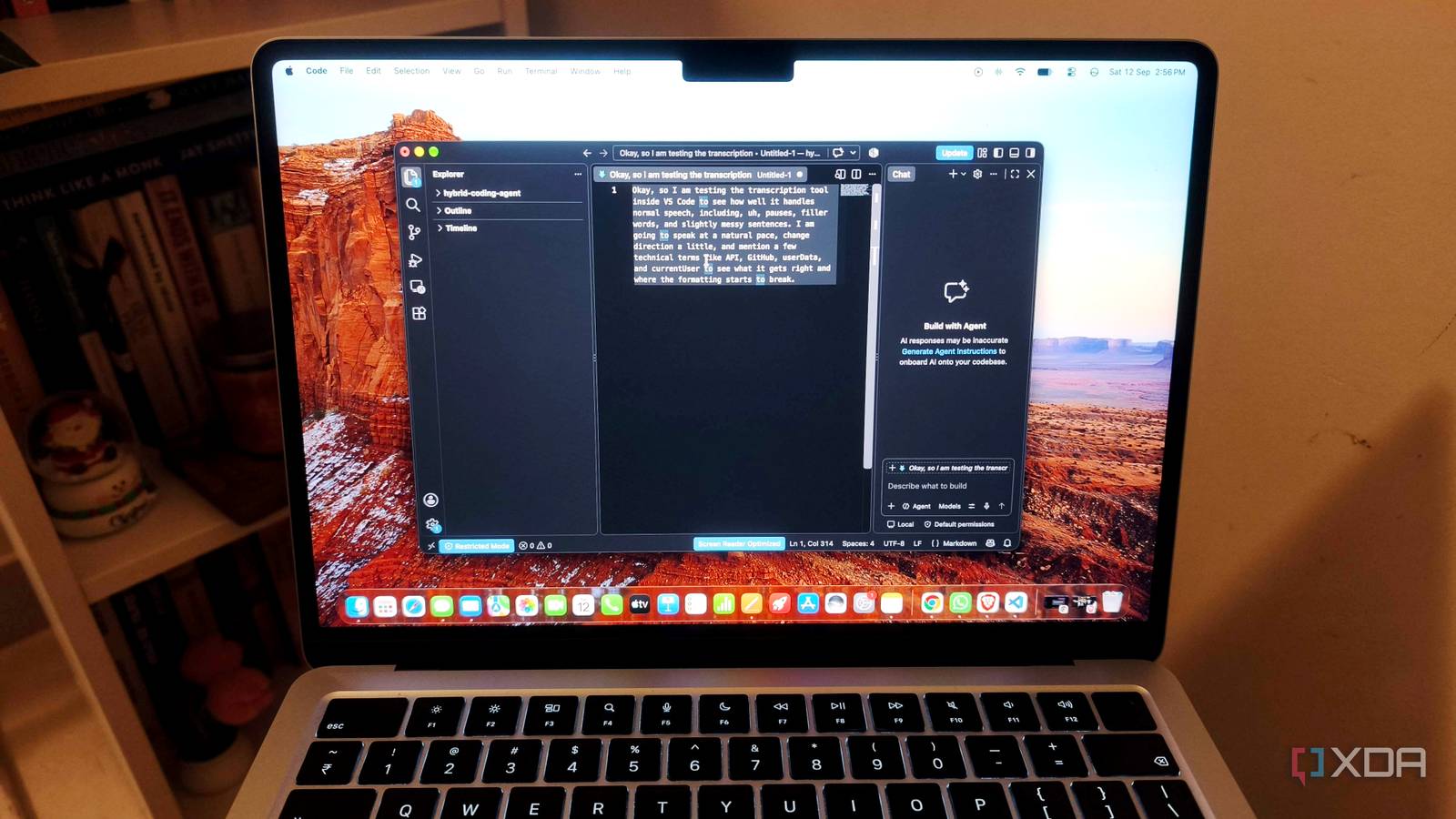
Published Sep 13, 2026, 5:30 PM EDT Anurag is an experienced journalist and author who’s been covering tech for the past 5 years, with a focus on Windows, Android, and Apple. He’s written for sites like Android Police, Neowin, Dexerto, and MakeTechEasier. Anurag’s always pumped about tech and loves getting his hands on the latest gadgets. When he's not procrastinating, you’ll probably find him catching the newest movies in theaters or scrolling through Twitter from his bed. VS Code surprises me with a handy feature every few months. Last month, it was Remote SSH, and more recently, I discovered a speech recognition model hiding inside VS Code. I had been using speech recognition tools, Wispr Flow in particular, for almost a year, but I ditched it recently because the transcription quality had gone to the dogs. There’s also always a privacy angle with these tools because you’re trusting them with literally everything you say. They can also take a look at your screen because they have accessibility permissions. It was really hard for me to trust a private, cloud-based tool with that kind of information. I eventually shifted to FreeFlow, which is an open-source tool that I can connect to my local LLM. Now, seeing that VS Code also has its own built-in local model for speech recognition is a breath of fresh air. Plus, the model is not bad at transcribing what you’re saying, especially if it’s English. VS Code uses Nvidia's Nemotron model Nemotron 3.5 ASR Streaming 0.6B, to be specific Historically, using voice features in VS Code required downloading the VS Code Speech extension. Now, though, VS Code has native, built-in dictation that runs entirely locally and offline. The first time you activate dictation, VS Code quietly downloads a lightweight, on-device AI model called Nemotron 3.5 ASR Streaming 0.6B, which runs through Microsoft Foundry Local. Since the model lives on your machine, your voice data is processed locally instead of being sent to an external cloud service. As for the model itself, Nemotron 3.5 ASR Streaming 0.6B is an open, 600-million-parameter speech recognition model built for real-time, low-latency multilingual transcription. It supports more than 40 language locales using language-ID prompt conditioning, with optional automatic language detection from a single model checkpoint. It can deliver sub-100ms end-of-utterance transcription, with configurable chunk sizes starting at 80ms. Under the hood, Nemotron 3.5 uses a FastConformer-RNNT architecture that processes new chunks of audio while reusing cached context, which helps avoid redundant computation. It also handles punctuation and capitalization natively, so there’s no need for an extra post-processing step. And because it’s relatively small, the model can run efficiently on local hardware, including laptops and CPUs. Using VS Code’s built-in speech recognition There's no setup needed The built-in speech-to-text model works across multiple parts of VS Code, making it much more useful than a basic dictation tool. You can use it in the Chat Panel and Inline Chat to dictate prompts to GitHub Copilot or your local AI agents. It also works inside the text editor, so you can write code or documentation using your voice. The same feature extends to terminals and commit boxes, where you can dictate terminal commands or Git commit messages. If the feature does not show up automatically, you can enable it from VS Code Settings. Open Settings using Ctrl+, on Windows or Linux, or Cmd+, on macOS, then search for dictation. enabled and make sure it is turned on. Once enabled, you can start dictating in the editor by pressing Alt + Command + V on macOS or Ctrl + Alt + V on Windows and Linux. You can also click the microphone icon that appears in input boxes such as Copilot Chat. The transcription is not bad for a 0.6b model It does a pretty good job The transcription quality is actually quite good for something running entirely on-device, especially if you are using VS Code as a note-taking tool, writing Markdown files, or just dictating regular text. But the more useful case is prompting AI models and agents inside VS Code. Whether you are using Claude or another model through an agent workflow, you can speak your prompt instead of typing it out, and the transcription is usually good enough that the model on the other end understands exactly what you mean. I ran a simple test to see how it handled a fairly typical coding prompt. This is what I dictated: Okay, so, uh, refactor this function so that if the API request fails, it just returns an empty array. And, um, add a comment explaining why we are caching the response for five minutes. Also rename userData to currentUser. Actually, yeah, do that everywhere this function is used. Then, uh, write a short commit message that summarizes the changes. And this is the actual transcription I got: Okay, so refactor this function so that if the API request fails, it just returns an empty array and add a comment explaining why we are caching the response for five minutes, also rename user data to current user. Actually, do that everywhere this function is used. Then write a short commit message that summarizes the changes. The only real issue here is that userData and currentUser became “user data” and “current user.” The words themselves were transcribed correctly, but the code-specific formatting was lost. I would count that more as a formatting error than a transcription error. And if you are dictating a prompt to an AI agent, it barely matters anyway. The model understands that “user data” and “current user” refer to the identifiers you are talking about, so there is usually no reason to go back and manually fix them before submitting the prompt. For a 600-million-parameter speech recognition model running locally on your machine, that is a pretty strong result. It gets the part that matters most right — understanding what you said well enough to turn it into a usable prompt.
I found a speech recognition model hiding inside VS Code, and it never sends a word to the cloud
Full Article
Original Source
Read the full article at Xda-developers →KhanList aggregates and links to publicly available news content. We do not host full articles from third-party sources. Always verify important information with original sources.