
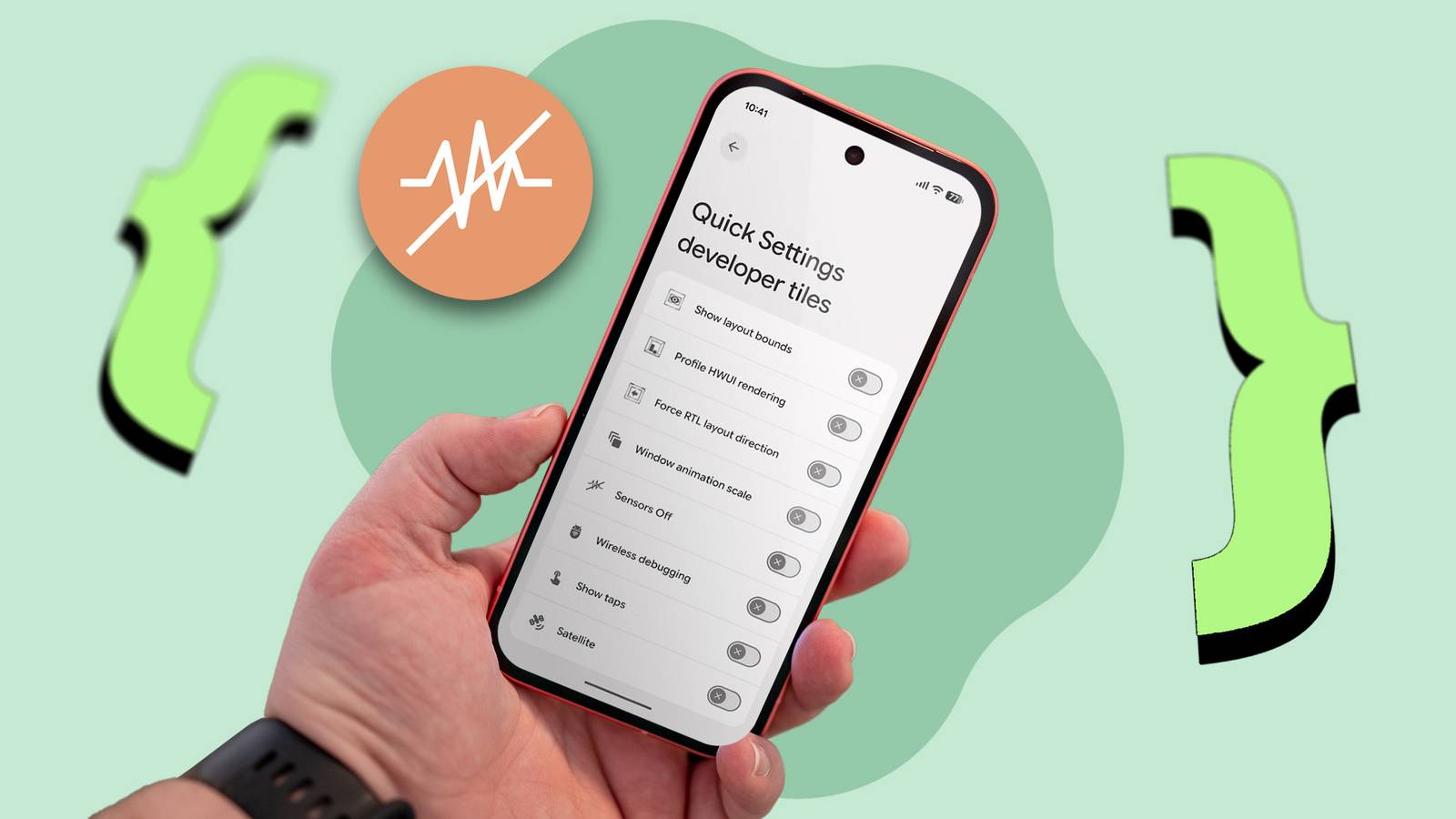
Published Aug 29, 2026, 6:00 AM EDT Jon Gilbert is a Features Writer for Android Police. I've covered Android since 2021, focusing on writing features and guides about Android apps and features that directly affect users. I've attended CES to uncover powerful hardware that isn't dominated by Google like the Mudita Kompakt. I trawl through Android news daily, hunting for stories that have real-world consequences. I hold a BA in History & Classics. Our digital privacy is a big deal. Wherever we look on our computers or phones, reminders, suggestions, and features help us share only what we want. Perhaps the most common privacy feature we encounter on Android is how apps must ask permission to access sensitive data and hardware features such as our phone's camera and microphone. But I find it easy to lose track of what has access and what doesn't. While the Privacy dashboard is useful, I like to be certain about what I'm sharing. Fortunately, there's a handy trick I use to disable all my phone's sensors with a single tap. Developer options hold the trick to blocking your phone's sensors A simple toggle fixed my privacy concerns Buried within Android's developer settings is a hidden Quick Settings tile that disables all hardware sensors, including the following: Camera Microphone Accelerometer: Used for features like step tracking and direction facing. Light sensors: Stops Android from automatically adjusting brightness. Gyroscope Proximity sensors Wi-Fi, mobile data, and GPS tracking will still function. The location tracking toggle is a separate Quick Setting tile that is enabled by default. To enable the Sensors Off Quick Setting tile, first enable Developer options: Open the Settings app. Scroll down and tap About Phone. Scroll down and tap Build number seven times until you see the pop-up message. Developer options are now enabled. You can now enable the Sensors Off Quick Settings tile. Open the Settings app. Scroll down and tap System. Tap Developer options. Scroll down and tap Quick Settings developer tiles. You can also search for this setting instead of scrolling. Toggle the Sensors Off switch on. Android will automatically place the Sensors Off tile on the first page of your Quick Settings menu. When enabled, an icon will appear in the upper-right corner of your phone screen. Overriding all sensor access gives me peace of mind I can clearly see that my phone isn't recording anything The Sensors Off option overrides all permissions given to apps. While apps can still technically access these sensors, Android will stop these sensors from reporting data without interrupting the app. The obvious use case is to limit the data apps can collect. For example, I've taken photos by accident, or started recording without realizing it by tapping a button. When I enter a sensitive area, I can tap the Sensors Off tile and not worry about accidental taps. So, from a privacy point of view, the benefits are huge. However, I use Sensors Off for other fun tricksthat have nothing to do with privacy. Sensors Off doesn't stop most apps from working Apps just can't record data A fun trick I use Sensors Off for is when I'm recording audio. My recorder app doesn't know that I've turned the sensors off; it just doesn't receive data, so it records silence. My recording app also has a pause option, but sometimes I want to keep the timestamps accurate. So if I'm recording a conversation, but I'm about to talk about something I don't want to record, I can tap Sensors Off, continue recording, then re-enable it later. I also use it to accurately track steps. I recently moved apartments, and I wanted to find out exactly how many steps there were between two locations. Google Fit tries to record steps for each activity, but it's not accurate enough. So I disable sensors until I leave, enable them, then disable them again when I reach my destination. This way, my phone only tracks the steps I took while sensors are enabled, giving me the most accurate measurement. Some camera apps will also continue trying to record while the sensors are off, but not the default Pixel Camera app. Other apps may stop functioning when they stop receiving any data. Sensor toggles are easy to access Next to the Sensors Off tile are the Location, Camera access, and Mic access tiles. I can disable only the camera and microphone for greater control over what my phone records, and Location covers what Sensors Off misses. I keep these tiles close at hand so I can control exactly what my phone records at all times. When set up, it takes a second to toggle a tile on and off. I regularly check my phone's privacy dashboard Tools like Sensors Off are great, but they can't replace good privacy practices. I regularly head to my phone's Privacy dashboard in the Settings app, which tells me which apps have accessed which data and sensors in the past 24 hours. By checking this dashboard regularly, I can quickly disable or uninstall problematic apps. This, combined with Sensors off, gives me all the control I need for privacy.
I found a one-tap privacy fix in Android's developer settings that changes everything
Full Article
Original Source
Read the full article at Androidpolice →KhanList aggregates and links to publicly available news content. We do not host full articles from third-party sources. Always verify important information with original sources.