
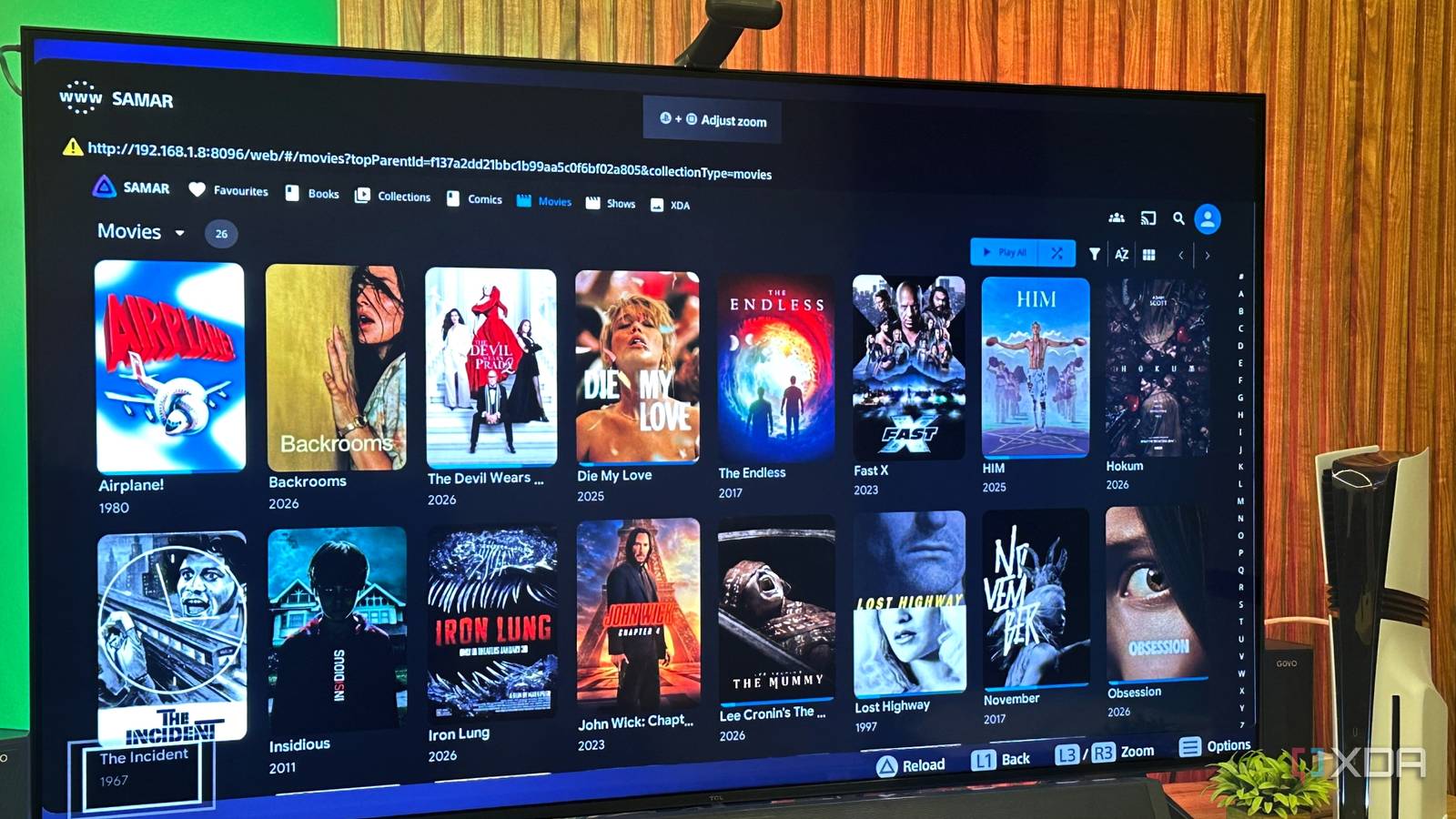
Published Sep 4, 2026, 6:00 PM EDT Gaming has been Samarveer’s greatest passion, and the Literature graduate in him takes immense joy in dissecting games for their themes, messages, and impact. Samarveer holds a deep appreciation of gaming, and considers the platform to be the most immersive and impactful across all media. He can be found engaging with gaming communities online, always ready to debate the finer points of ray tracing or itching to write an 8-page collegiate thesis on any game that impacts him emotionally. Ever since the PlayStation 5 came out, it has never had two things — a web browser and a Jellyfin client on the PlayStation Store. For as long as I've owned mine, I've settled with having to switch over to my TV's browser to access my Jellyfin library. After completely shifting over from Plex and moving my entire media server to Jellyfin, I was in no mood to redo everything, and even though I have a perfectly good Jellyfin client in Wholphin, I decided that Sony would no longer get to dictate what I could use on my own PlayStation. Filled with determination to stick it to the man, I decided I would find a way to access my Jellyfin library on my PS5 Pro, and a day later, I finally did. It's not the best way out there, and it definitely demanded its fair share of elbow grease, but boy was it thrilling to finally see my Jellyfin library on my PS5. Jellyfin will never come to the PlayStation Store The traditional methods don't work There's never been an official Jellyfin app on the PlayStation Store. This is because Jellyfin has always been free and open-source software (FOSS). Sony, on the other hand, requires publishers looking to launch an app on the PS Store to sign NDAs and use closed-source SDKs, which runs counter to Jellyfin's open-source principles. There's always Plex on the PS5 app store, but I wasn't interested in rebuilding my entire Plex library from scratch or paying for Plex Pass. On any other device, it would have been easy to open the web browser and type in my localhost URL to access my Jellyfin movies and shows, but the PlayStation makes something as simple as this excruciatingly frustrating. That's because the PS5 never shipped with a web browser, even though the PS4 did. The web browser was how many users jailbroke their PlayStation 4 consoles, so Sony decided to make things tougher for PS5 users by removing the web browser app altogether. And yet, for four years, users simply opened a chat with their PS5 friends, typed in a link, and clicked on it to force-open the built-in browser. Sadly, Sony cracked down on that method in late 2024, sending TOS (terms of service) violation notifications to anyone who tried it. Clearly, Sony wasn't going to make it easy for me to access my Jellyfin library on my PlayStation 5, and the challenge involved genuinely had me excited to try. There's still a way to use Jellyfin on the PlayStation 5 It isn't tough, but it sure takes time Since there's no way to click on a Web Browser app in your PlayStation 5's library, the only way to access the internet is to head into Settings > Users and Accounts > Linked Services. Here, just ensure that you have not linked either Spotify or YouTube. Click the one you haven't linked yet, then click the Use Browser button at the bottom right, which lets you log in manually to link the service. This will open the web browser on the PlayStation 5. However, the address bar is completely locked, and you'll be stuck on the Google log-in page. This is where you locate the tiny Terms button at the bottom and click on it to go to Google's Terms of Service page. The reason behind doing this is to finally gain access to the Google Apps menu at the top. Click on it to see that you can use all of Google's services inside the PS5's web browser, including Drive, Meet, News, Maps, Chat, Calendar, Keep, and Translate, among others. You can also choose to open Google Keep and login to open a pinned note with a link to your Jellyfin server. I clicked on Gmail and logged into my Google Account — don't say I didn't warn you that the process would take a few minutes. Once in Gmail, I headed to my Sent folder, where I'd already emailed myself a link to my Jellyfin server, complete with the local port number. That was when I finally saw the Jellyfin interface on my PlayStation 5, and from there, it was a simple matter of using Jellyfin's Quick Connect feature to access my movies and shows from the PlayStation 5's web browser. The problem with this method, however, is that the PS5's web browser never occupies the whole screen, which is where the console's accessibility settings come into play. Head to Settings > Accessibility > Display and Sound, and enable Zoom. This ensures that when you access your Jellyfin media server in the PS5's browser, pressing the PS Button + Square will switch to full screen with minimal quality loss. It's far from the best way, but I'm just glad I made it work This was always more about proving a point This definitely doesn't mean it is the definitive way I'm going to use Jellyfin on my PS5. The browser's UI elements remain plastered on the screen even when zoomed in, and I can only play 1080p content this way because 4K movies refuse to play. However, what remained equally plastered was the grin on my face when I realized I was effectively using Jellyfin on the PlayStation 5. I'll still be using my TV's Wholphin app for the perfect experience, but for the longest time, I'd assumed that getting Jellyfin running on my PS5 was simply impossible. Now, I can actually pull up my library on the console, and that alone makes this little experiment completely worth it. I have no clue when Sony might patch this method, but for now, it's the best way I've found to get a browser — and effectively the entire internet — onto my PS5. It also made me think about just how anti-consumer the PlayStation experience has become lately. Sony has a minority stake in Discord, yet my friends with Xbox Series X consoles can stream their games and watch my PC streams through Discord, while PS5 users don't even have a proper standalone Discord app on the console. We get an integration, but I can't stream my games to my friends or watch theirs. For something that started as a silly challenge to watch my own Jellyfin library, I came away wondering why I had to jump through quite so many hoops in the first place. The fact that I eventually won, though, doesn't make the hoops any less ridiculous. Sometimes, I just want to use the hardware I bought It's been incredibly satisfying to find a way around a limitation which really didn't need to exist in the first place. I understand why Sony wants to keep its platform locked down, and I understand why it doesn't want to make life easier for people looking to jailbreak their consoles. However, those restrictions also get in the way of something as mundane as accessing my own media library, which is what makes it difficult not to question who these decisions are actually serving. Running Jellyfin on my PlayStation 5 was more about refusing to accept that something couldn't be done simply because Sony decided so. Being able to run it has been reason enough to spend an afternoon finding a way around that wall.
I finally ran my Jellyfin library on my PlayStation 5, no matter how much Sony tried to stop me
Full Article
Original Source
Read the full article at Xda-developers →KhanList aggregates and links to publicly available news content. We do not host full articles from third-party sources. Always verify important information with original sources.