
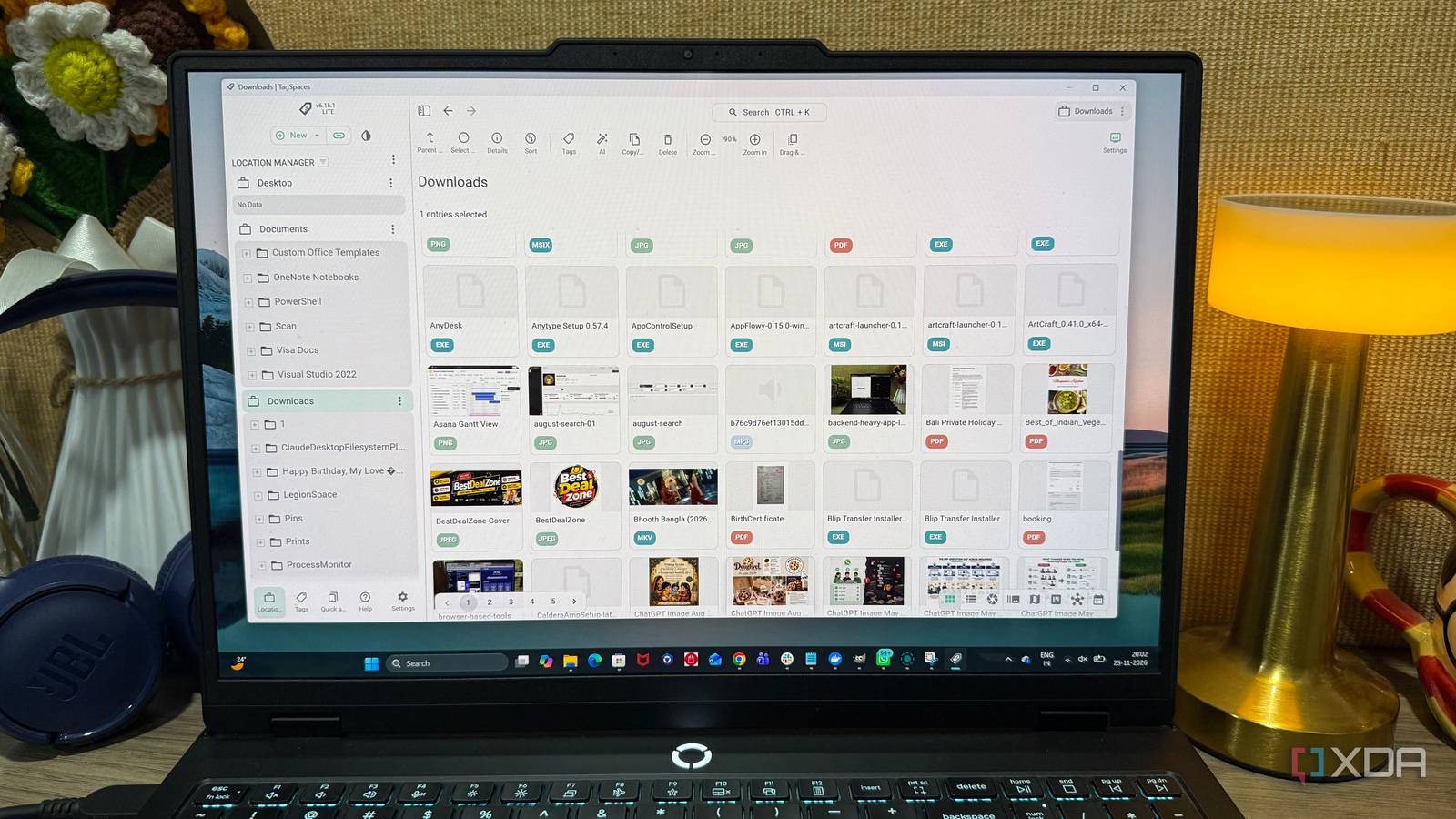
Published Nov 28, 2026, 7:30 AM EST Beginning his professional journey in the tech industry in 2018, Yash spent over three years as a Software Engineer. After that, he shifted his focus to empowering readers through informative and engaging content on his tech blog – DiGiTAL BiRYANi. He has also published tech articles for MakeTechEasier. He loves to explore new tech gadgets and platforms. When he is not writing, you’ll find him exploring food. He is known as Digital Chef Yash among his readers because of his love for Technology and Food. Managing files on Windows shouldn't mean opening endless folders or remembering where everything is saved. I've tried different ways to keep my documents, downloads, and project resources organized, but finding a system that works across different file types isn't always easy. That's what made me take a closer look at TagSpaces. After spending some time with it, I realized that keeping my documents and project resources in order didn't have to involve so much manual sorting. A local-first file manager with more ways to organize information TagSpaces is an open-source, cross-platform file manager for Windows, macOS, and Linux. It combines file browsing, tagging, search, and built-in file previews in one application. It also includes basic editors for creating and editing Markdown, HTML, and plain-text files. The tool works with files on your local storage without requiring an account or a central database. After installing TagSpaces, I found its interface fairly easy to navigate. It supports local folders as well as S3-compatible storage, so I can access files in different locations without changing my existing setup. Rather than introducing another complicated system, TagSpaces adds an organizational layer to the files already on my computer. I stopped relying on folders alone to organize my files TagSpaces makes file organization feel different Traditional file organization depends heavily on folder names and subfolders. TagSpaces lets me categorize files by attaching multiple color-coded tags to the same item. For example, a project document can carry labels such as work, research, and 2026 without creating separate copies in different directories. That means I can find the same document through multiple categories without duplicating it. Creating tags is straightforward. TagSpaces lets me define custom labels and group them by projects, file types, or other categories. I can also apply tags to multiple selected files, which saves time when organizing a larger collection. I can also choose how TagSpaces stores this information. Depending on the selected tagging method, it can add tags directly to filenames or save them in separate JSON sidecar files inside hidden .ts folders. The latter is useful when I want to preserve original filenames. Finding and browsing files is much easier now Search beyond filenames and get a better view of your files Searching through a large collection of files is usually where things get frustrating. TagSpaces gives me more ways to narrow down results than simply remembering a filename. Its search considers filenames, descriptions, folder paths, and assigned tags. It can also search inside supported file contents when full-text indexing is enabled. Plain-text formats such as TXT, Markdown, HTML, and source code files are supported in the free Lite edition, while searching inside supported PDF and Office documents requires Pro. Search filters provide another level of control. I can narrow results by file type, size, creation date, or last-modified date. Its tag search supports AND, OR, and NOT logic. I can require files to have all selected tags, find files with at least one of several tags, or exclude specific tags from the results. This comes in handy when I'm searching for documents associated with specific projects. For browsing, TagSpaces offers grid and list perspectives, while additional options such as Gallery are available in Pro. The grid layout is useful for scanning mixed collections, whereas a gallery-style view works particularly well for visual content. It also generates thumbnails for supported file formats and includes built-in viewers for images, PDFs, videos, ebooks, and other file types. These previews make it easier to identify files without opening them individually. Not competing with advanced file managers A useful companion, not a complete replacement TagSpaces isn't designed to replace every file manager on Windows, and that's its biggest strength. Tools such as Directory Opus and FreeCommander are better suited to users who need advanced file operations, dual-pane navigation, batch processing, and extensive customization. TagSpaces takes a more organizational approach. During my testing, I found it particularly useful for tracking research documents, reference material, and resources spread across multiple projects. It doesn't offer the same level of control over file operations as dedicated power-user tools, and setting up tags takes some initial effort, especially when dealing with a large collection. File Explorer is still perfectly capable of handling routine tasks, while advanced alternatives offer more control over complex file operations. I see TagSpaces fitting alongside these tools, particularly when I need to manage files based on their content and context rather than just their location. Sometimes, a fresh perspective is all you need I didn't expect to spend this much time exploring a file manager, but TagSpaces turned out to be a pleasant surprise. It doesn't try to imitate the tools Windows users already have, and that's what makes it stand out. I wouldn't recommend replacing your regular file manager with it, but I'd suggest giving it a try if you're curious about a more flexible way to handle files. It's one of those applications I'm happy to keep installed even after finishing this review. TagSpaces TagSpace is a powerful, file-based workspace that requires no cloud access for use. Productivity users can take advantage of it to manage files, tags, notes, maps, tasks, and kanban boards in one place.
I finally found a better way to search, organize, and manage files on Windows
Full Article
Original Source
Read the full article at Xda-developers →KhanList aggregates and links to publicly available news content. We do not host full articles from third-party sources. Always verify important information with original sources.